30 September 2026 · 21 min read
10 Video Editing Tools Online for Faster Content
Compare 10 video editing tools online for captions, automation, free tiers, aspect ratios, collaboration, and practical browser-based workflows.
The best browser editor isn't the one with the longest feature list. It's the one that fits the production job you need to complete. A podcaster repurposing a four-hour interview needs different automation from a social team adapting approved brand assets, while a webinar producer may care more about recording and timeline control than AI generation.
That distinction matters as browser-based editing becomes a serious production category. One market estimate valued browser-based video editing at $1.8 billion in 2025 and projects it to reach $4.2 billion by 2034, with a 12.4% CAGR. Software represented 68.5% of that 2025 value, which suggests that the editing layer itself, not just storage or publishing, is driving the category's expansion (MarketIntelo's browser-based video editing analysis).
This comparison evaluates video editing tools online by workflow fit, not by feature count. The key questions are practical: Is the free tier useful? Does automation create a credible first draft or only save a few clicks? How accurate are captions? Can one source become 9:16, 1:1, and 16:9 outputs? How do collaboration, rendering, credits, minute limits, and watermarks affect production? Above all, how much manual review remains before you can publish?
Table of Contents
- 1. Keptbits
- 2. Kapwing
- 3. VEED
- 4. Microsoft Clipchamp
- 5. Canva Video Editor
- 6. Adobe Express
- 7. InVideo
- 8. Flixier
- 9. WeVideo
- 10. FlexClip
- Top 10 Online Video Editors: Feature Comparison
- Match the Editor to the Output You Need
1. Keptbits
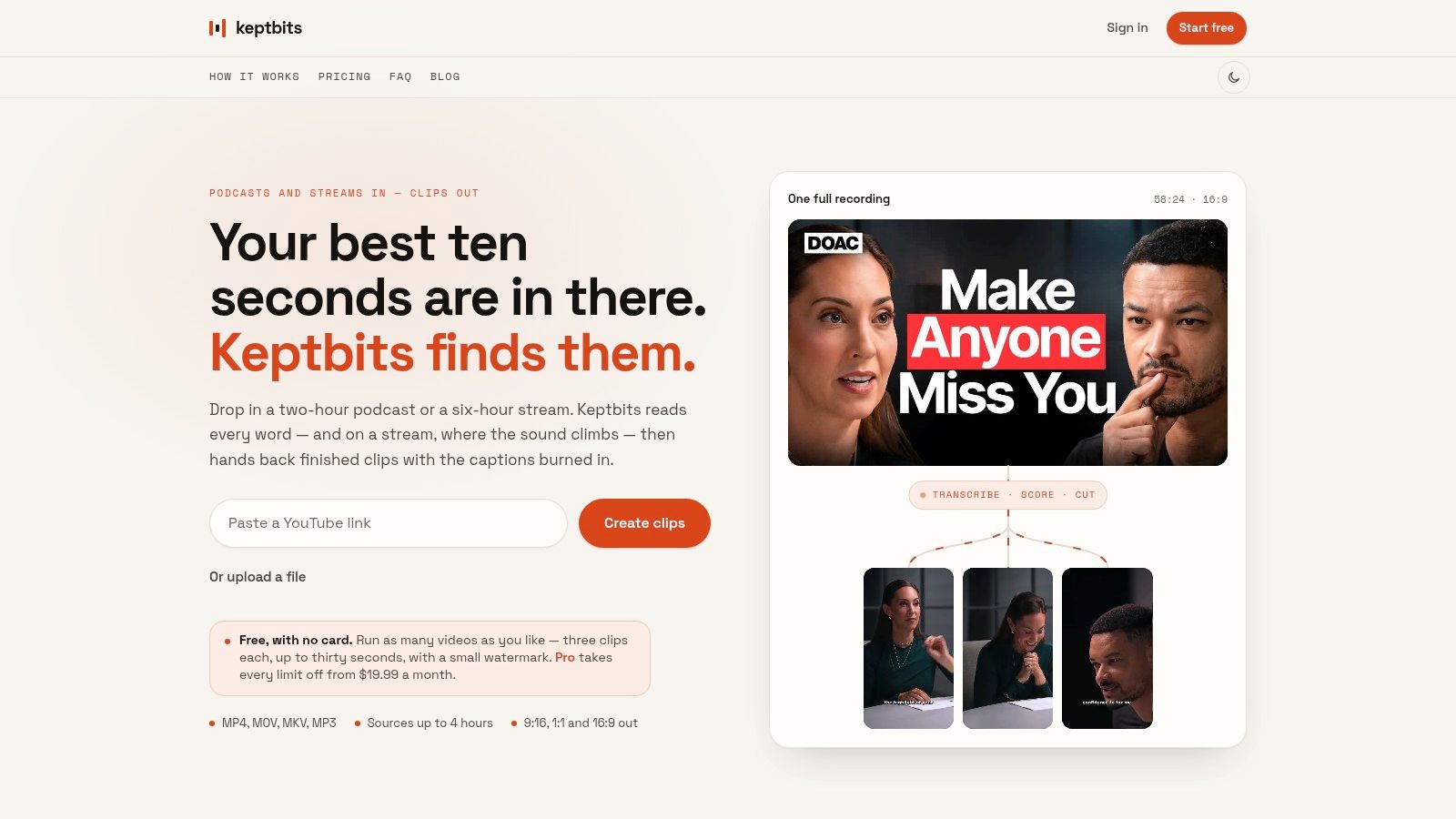
Keptbits is built for the job that most online editors still handle indirectly: turning a long recording into coherent short clips. Upload a podcast, interview, stream, webinar, or product demo, choose whether the source is a talking video or a stream, and the tool analyzes the recording for moments that work as standalone segments.
The distinction is important. Many automated clipping workflows identify exciting words, high-energy passages, or isolated statements. Keptbits instead scores candidate moments for whether they open and resolve within themselves. That makes it better suited to interviews and podcasts where a compelling sentence may still be useless if the viewer needs the previous minute of context.
The workflow combines word-level transcription, speaker separation, sentence-aware selection, and automatic reframing. Cuts snap to actual word boundaries, while the crop follows the active speaker instead of drifting across a vertical frame. Stream mode also uses sound peaks to identify reactions, shouts, and gameplay moments that may not contain much speech.
Where Keptbits reduces manual work
Keptbits can process up to four hours of MP4, MOV, MKV, or MP3 in a browser-based workflow. The upload streams directly from the browser rather than being staged on an intermediate server during transfer. That matters for creators working with large recordings, although the maximum source length still means exceptionally long archives need to be handled separately.
The free plan is unusually practical for evaluation. It provides unlimited runs, with up to three 30-second captioned clips per run, a small watermark, and the Bold Pop caption style. Pro costs $19.99 per month or $5.99 per week, includes a free first week, and removes the watermark. It also raises clip length to three minutes, adds access to 20 caption styles, and includes silence removal, transitions, color grading, and a built-in editor.
Practical rule: Judge an automatic clipper on whether the exported segment makes sense without the original recording, not on whether its opening sentence sounds interesting.
Keptbits exports 9:16, 1:1, and 16:9 versions from the same source. Captions are burned in, framing is speaker-aware, and Pro users can make final adjustments in the integrated editor. The system won't understand every editorial nuance, so review remains necessary, especially when a speaker relies on visual references, earlier context, or a complicated argument.
For podcasters, interview producers, streamers, agencies, and marketers repurposing webinars, Keptbits offers the strongest end-to-end automation in this list. Its main limitation is equally clear: creators who want to design every cut manually will find it less flexible than a conventional timeline editor.
2. Kapwing
Kapwing fits teams that need to turn existing footage into social content while keeping people involved in the editing process. It combines a conventional browser timeline with AI-assisted repurposing, auto-subtitling, translation, resizing, stock assets, and shared workspaces.
That combination makes it more useful for collaborative social production than for fully automatic long-form clipping. An editor can create a first version quickly, then adjust the timing, layout, captions, and visual treatment in the timeline. A marketing manager can review the work in a shared workspace rather than passing downloaded files between departments.
Best fit for caption-heavy social teams
Kapwing's strongest differentiator is the balance between captioning and manual control. Auto-subtitling and translation support localization, while resizing helps teams adapt one edit to multiple social layouts. Paid plans add capabilities such as 4K export, brand kits, shared workspaces, and version history.
The free plan is useful for testing the interface, but export restrictions include limits on length and watermarking. AI and advanced tools use monthly credits, so high-volume teams need to monitor consumption rather than assuming every feature is included without constraint.
For teams publishing frequent clips, that credit model creates a trade-off. Kapwing can be efficient when an editor knows exactly which AI functions to use. It becomes less predictable when a project requires repeated transcription, translation, regeneration, or several versions for approval.
The tool is also a sensible option for content imported from external platforms, since it supports links from services such as YouTube, TikTok, and Twitter. Still, it doesn't replace editorial judgment about whether a clip has enough context to stand alone. For a closer look at subtitle workflows, see this guide to an AI subtitle maker.
Choose Kapwing when your bottleneck is team editing, caption production, localization, and resizing. Choose Keptbits when the bottleneck is finding self-contained moments inside a long recording without manually scrubbing the source first.
3. VEED
VEED is designed for social and video marketing teams that want a large menu of AI-assisted production tools in one browser workspace. It covers captioning, translation, dubbing, background removal, eye-contact correction, templates, stock media, teleprompting, and collaboration.
That breadth is useful for creators who produce several kinds of content. A talking-head video can receive captions and cleanup, a localized version can use translation or dubbing, and a short social edit can be assembled with templates and stock assets. The interface is approachable enough for non-editors, but the number of options also means that the workflow can feel less focused than a specialist clipping tool.
Automation with a credit ceiling
VEED's automation is broad rather than narrowly editorial. It can speed up captioning, localization, and presentation polish, but users should still review the result for transcript errors, awkward line breaks, incorrect translations, and changes in meaning. AI tools help prepare content for publication, but they don't guarantee that every cut or caption reflects the speaker's intent.
Paid tiers support higher-end outputs such as 4K export, alongside brand and collaboration features. The free plan is better treated as an evaluation route because exports and advanced features are restricted. Pricing and usage limits can depend on AI credits, which makes the cost of iterative workflows harder to estimate.
The more VEED features a project uses, the more important it becomes to check the current quota before committing a team workflow.
VEED is a strong choice for caption-heavy social production, especially when translation, dubbing, and talking-head enhancement matter as much as cutting. It's less compelling for a producer whose main requirement is automatically selecting complete narrative moments from a long interview. Before comparing its subtitle workflow with alternatives, review what an auto caption generator needs to get right.
4. Microsoft Clipchamp
Microsoft Clipchamp is a practical choice for beginners, Microsoft 365 users, and teams that need to record and edit straightforward content in the browser. Its simple timeline supports social edits, while the screen and camera recorder suits tutorials, demos, internal walkthroughs, and webinar material.
The free plan stands out because it supports no-watermark exports, with output up to 1080p. Premium access and some Microsoft 365 subscriptions provide 4K export, but availability depends on the specific subscription or license. That makes Clipchamp attractive for an organization already invested in Microsoft's ecosystem, but less straightforward for teams comparing plans without that context.
Recording is the main advantage
Clipchamp's value comes from combining capture and editing. A user can record a screen or camera presentation, bring in stock media, remove silences, add subtitles or voiceovers, and assemble a simple finished video without learning a professional non-linear editor.
That workflow is different from Keptbits or Kapwing. Clipchamp doesn't primarily solve the discovery problem inside a long interview. It gives the user a friendly environment for making deliberate edits after recording or importing footage.
The trade-off is depth. Basic AI tools can remove repetitive gaps or support captions, but complex multi-track work, detailed narrative selection, and advanced social repurposing still require more hands-on editing. Copilot and business functionality also depend on licensing, so organizations need to confirm what their Microsoft 365 SKU includes.
Clipchamp is best for recording-led workflows, internal communications, tutorials, and simple social videos. It's particularly sensible when the organization wants one accessible tool rather than a specialist system for automatic clip discovery.
5. Canva Video Editor
Canva Video Editor treats video as part of a wider brand production system. Its timeline, templates, animation presets, stock library, captions, Brand Kits, team comments, approval workflows, and direct social publishing make it a natural fit for social managers who need consistency more than frame-by-frame control.
The strongest use case is a repeatable branded format. A team can create a reel, square post, or short promotional video using approved colors, fonts, layouts, and assets, then adapt that design across multiple outputs. Non-editors can work inside a familiar drag-and-drop environment rather than learning a traditional editing application.
Templates beat timelines for recurring social work
Canva's limitation is the same feature that makes it approachable. Templates accelerate production, but they can encourage uniform edits and offer less precision than a professional timeline. Editors working with exact dialogue timing, nuanced pacing, or complex multi-track sequences may spend more time adapting the template than they would in a deeper editor.
Captions and aspect-ratio variants support social publishing, while direct publishing reduces handoffs for routine posts. Plan pricing can vary by account and region, so teams should verify the current terms before budgeting for a group workflow.
Canva is also not the first choice for automatically finding self-contained moments in a long recording. It works better after the editorial decision has been made, when someone knows which footage should become a branded asset.
For teams building a repeatable vertical content system, a specialist vertical video editor can handle clip selection and speaker framing before Canva applies the final brand treatment. Canva itself is strongest for templates, approvals, brand governance, and accessible social production.
6. Adobe Express
Adobe Express serves teams that want an efficient browser workflow connected to Adobe's broader ecosystem. It combines templates, quick video edits, stock integration, brand kits, and Firefly-powered generative features without asking every marketer to work inside Premiere.
That positioning makes it valuable for branded content systems. An Adobe-oriented team can keep assets and governance closer to its existing tools while producing social videos, promotional variations, and lightweight campaign content through a simpler interface.
Fast output, limited finishing depth
Adobe Express is designed for speed and accessibility, not deep timeline finishing. It can help a team create a polished short asset quickly, but editors who need complex sequencing, detailed audio work, or exact control over every frame will eventually need a fuller non-linear editor.
Firefly features add creative flexibility, but generative tools use a credit model. Teams should confirm the current monthly allowance before making generative video a central part of their production process. Repeated experimentation can consume credits faster than a simple template edit.
The platform also works best when the creative direction is already clear. It can accelerate asset assembly and variation, but it doesn't specialize in identifying complete narrative moments from long interviews or webinars. Manual review remains essential for brand accuracy, factual wording, and visual consistency.
Adobe Express is the better fit for Adobe-connected marketing teams, rapid social assets, and controlled brand production. It's less suitable for editors looking for the deepest timeline control or a dedicated long-form-to-short automation layer.
7. InVideo
InVideo is aimed at the first-draft problem. Give it a script or prompt, and it can assemble a narrated explainer, promotional video, or faceless social concept using stock media, voiceover, captions, and templates. That makes it different from tools that begin with existing footage.
For marketing teams, the advantage is speed during exploration. A creator can test several concepts, hooks, visual directions, or ad variants without sourcing every piece of b-roll before deciding whether the idea deserves a polished production.
The first draft is not the final edit
InVideo's AI generation is useful for assembling a rough structure, but the output often needs manual refinement. Editors may need to replace stock clips, correct the relationship between narration and visuals, adjust captions, fix pacing, and make the result sound less generic.
The platform uses a credit or AI-minute system for generations. That model can make iteration expensive or unpredictable when a team regenerates scenes repeatedly, especially while exploring multiple versions. A conventional template edit may consume fewer resources than a prompt-led workflow with several failed attempts.
InVideo works well for explainers, narrated promos, social ad variations, and content without original footage. It's not the strongest option for turning a long interview into coherent clips because its core strength is generating an assembled draft rather than analyzing an existing conversation for complete moments.
Use it when the question is, “Can we create a plausible version of this concept quickly?” Use a timeline editor afterward when the question becomes, “Does every shot, caption, and transition support the intended message?”
8. Flixier
Flixier is built around cloud performance. Its true cloud rendering, fast playback, collaboration, versioning, stock libraries, brand kits, and 4K export make it attractive to distributed teams that don't want every editor to depend on a high-spec laptop.
That distinction matters in browser editing. A lightweight interface is helpful, but slow previews and exports can still interrupt production. Flixier's cloud-rendered approach is designed to keep the heavy processing away from the local machine, which makes it a strong candidate for teams editing across varied hardware.
Performance and quotas shape the workflow
Flixier offers a more capable editing environment than ultra-simple template tools, so new users may face a denser interface. That added control benefits teams that need timeline editing, version management, and recurring social production, but it also means the learning curve is not as minimal as Canva or Clipchamp.
Auto-subtitles are available, with larger monthly minute allowances on higher tiers. Some AI features are also gated by plan, so teams should map expected caption volume and AI usage before selecting a subscription. The documentation and quota structure are comparatively useful, but a clear plan still matters.
Flixier is a good fit for distributed teams, regular social production, and editors constrained by local hardware. It doesn't primarily automate the editorial task of finding self-contained clips in a long recording. Instead, it gives teams a responsive cloud workspace in which they can make and review those decisions.
9. WeVideo
WeVideo is a mature cloud editor for schools, small businesses, and teams that want a familiar timeline workflow across devices. It supports browser editing alongside iOS and Android apps for capture and lighter edits, making it useful when footage begins on a phone but needs to reach a shared project.
The platform supports vertical, square, and widescreen presets, as well as stock media, motion titles, voiceover, green screen, captions, and direct sharing to YouTube and social networks. Those capabilities cover the basic requirements of tutorial, talking-head, classroom, and straightforward promotional content.
Reliable editing over aggressive automation
WeVideo's advantage is predictability. Users who understand a traditional timeline can assemble a project without depending heavily on AI selection. That makes it a reasonable choice for educators, small teams, and creators who want to decide exactly which sections remain in a recording.
The trade-off is that the interface feels more traditional than newer AI-first tools. Its automation is less extensive than VEED's, and it doesn't offer the same specialist approach to long-form clip discovery as Keptbits. A producer still needs to watch, trim, caption, reframe, and review the source manually.
The cross-device workflow can outweigh that limitation. A teacher can capture on mobile, a team member can edit in the browser, and the final video can use a widescreen or social preset without moving the project into desktop software.
Choose WeVideo for accessible timeline editing, recording, education, and simple tutorials. It's a better fit for deliberate editing than for high-volume automated repurposing.
10. FlexClip
FlexClip focuses on low-friction production. Its templates cover promos, intros, explainers, trailers, and social videos, while AI text-to-speech, auto-subtitles, screen recording, stock media, and ready-made scenes help small teams produce a finished asset quickly.
The workflow suits a marketing task with a defined shape. A user can choose a scene structure, add copy and footage, record a screen, generate narration, and export a social variation without building every visual element from an empty timeline.
A quick route to lightweight content
FlexClip's low learning curve is its main strength. It's practical for one-off social posts, short promos, simple explainers, and basic screen-recorded content where production speed matters more than complex sequencing.
Auto-captioning supports multiple languages, but captions still need review for names, technical terms, punctuation, and timing. The same principle applies to text-to-speech. Generated narration can establish a draft quickly, yet a human should check pronunciation, emphasis, and whether the voice fits the brand.
FlexClip is less suitable for complex multi-track projects or detailed long-form editing. Pricing and plan limits can also be difficult to compare, particularly around stock usage, branding, and video length. Confirm those caps before moving recurring production into the platform.
It's the right choice for template-led marketing work and lightweight social edits. If the source is a long interview and the objective is to find complete, publishable moments automatically, a specialist clipper will reduce more manual work.
Top 10 Online Video Editors: Feature Comparison
| Product | Core features & unique strengths | UX / Quality | Value & Pricing | Target audience |
|---|---|---|---|---|
| Keptbits 🏆 | ✨ Word-level transcription & speaker separation; moment scoring for self-contained clips; speaker-locked reframing; boundary-snapped cuts; multi-aspect exports (9:16/1:1/16:9); browser-stream upload | ★★★★★ Word-accurate cuts, stable crops | 💰 Free (unlimited runs, 3×30s clips/run, watermark); Pro $19.99/mo or $5.99/wk, no watermark; flat pricing | 👥 Podcasters, interview producers, streamers, social managers |
| Kapwing | ✨ Timeline + AI assists, auto-subtitles & translation, resizing, brand kits, collaboration | ★★★★☆ Modern, easy UI; collaborative | 💰 Free limited exports/watermark; paid tiers with minute/credit allowances | 👥 Teams, creators, agencies |
| VEED | ✨ Wide AI toolset: subtitles, dubbing, eye-contact fix, background removal, templates | ★★★★☆ Fast for non-editors; many AI helpers | 💰 Free tier with limits; AI credits on paid plans | 👥 Social/video marketing teams, short-form creators |
| Microsoft Clipchamp | ✨ Simple timeline, screen/camera recorder, stock library, no-watermark export options | ★★★★☆ Beginner-friendly; integrated with M365 | 💰 Free basic; premium/4K via Microsoft 365, varies by SKU | 👥 M365 users, educators, webinar/tutorial creators |
| Canva Video Editor | ✨ Drag‑drop timeline, extensive templates, Brand Kits, one-click social exports | ★★★★☆ Extremely approachable; template-driven | 💰 Free tier; paid team tiers for brand controls and assets | 👥 Social managers, non-editors, small teams |
| Adobe Express (Web) | ✨ Firefly-powered generative features, templates, brand kits, Adobe integrations | ★★★★☆ Rapid social workflows; Adobe ecosystem fit | 💰 Free tier; premium features and generative credits on paid plans | 👥 Marketing teams, enterprise users with Adobe stacks |
| InVideo | ✨ Script-to-video generation, stock assembly, voiceovers, templates | ★★★☆☆ Fast first-draft generation; needs polish | 💰 Free/basic; credit model for AI generations may add cost | 👥 Marketers, ad creators, quick explainer producers |
| Flixier | ✨ True cloud rendering, fast exports, collaboration, large auto-subtitle allowances | ★★★★☆ Snappy performance on low-spec hardware | 💰 Clear tiering; higher tiers unlock more AI/subtitle minutes | 👥 Distributed teams, frequent social publishers |
| WeVideo | ✨ Browser + mobile apps, vertical/square presets, green screen, direct social sharing | ★★★☆☆ Mature, stable; education-friendly | 💰 Free with limits; paid plans for higher resolution/features | 👥 Educators, SMBs, simple tutorial creators |
| FlexClip | ✨ Template-driven scenes, AI TTS, auto-subtitles, screen recording | ★★★☆☆ Very low learning curve; fast one-offs | 💰 Free/basic; tier caps on stock/length/branding | 👥 Small marketers, solopreneurs, quick promo creators |
Match the Editor to the Output You Need
The right choice depends on where the work begins and where the bottleneck appears. If you start with a long podcast, interview, stream, webinar, or product demo and need standalone short clips, Keptbits is the most specialized option. Its workflow handles transcription, moment scoring, word-boundary cutting, speaker-aware reframing, caption burning, and multi-aspect output in one pass. The free plan makes evaluation accessible, while Pro adds longer clips and finishing controls. You'll still need to review the results, particularly when a segment depends on subtle context, but the system is designed to reduce manual scrubbing before editing begins.
For caption-heavy social workflows, Kapwing and VEED are stronger general-purpose choices. Kapwing suits teams that want a shared workspace, timeline control, translation, brand kits, and version history. VEED is a good fit when captioning, localization, dubbing, eye-contact correction, and other AI-assisted enhancements are all part of the production process. Both require careful attention to plan limits, especially when AI features use monthly credits or minute allowances.
Choose Clipchamp or WeVideo when recording and accessible timeline editing matter more than automatic clip discovery. Clipchamp is especially logical for Microsoft 365 users, screen recordings, tutorials, demos, and simple social edits. WeVideo offers a more established cross-device workflow for education, small businesses, and teams that prefer deliberate editing across browser and mobile.
For branded content systems, Canva and Adobe Express are the practical options. Canva is easier for template-led social production, comments, approvals, and Brand Kits. Adobe Express is the better fit for teams already operating in the Adobe ecosystem and needing brand governance with a simpler browser experience than Premiere. Neither is designed to replace deep timeline software or automatically extract narrative moments from long conversations.
InVideo is the specialist for rapid AI-assisted first drafts. It can turn a prompt or script into a narrated explainer, promo, or stock-based concept quickly. Treat the result as a starting point, because visual relevance, pacing, captions, and brand tone often need manual work. Its credit model also means that repeated generations should be part of the budget calculation.
Choose Flixier when cloud performance, collaboration, and consistent browser editing matter. It's particularly useful for distributed teams and editors working on modest hardware. FlexClip is better for quick template-led productions, short promos, screen recordings, and one-off marketing assets where the team values simplicity over complex track editing.
Before committing to any platform, run the same representative source through the shortlist. Use a real interview, webinar, tutorial, or promo rather than a clean sample file. Check whether the free version adds a watermark, restricts length, limits resolution, or caps stock and AI access. Test caption accuracy on names and specialist language, then inspect each required output in 9:16, 1:1, and 16:9 if your team publishes across formats.
Also estimate how your workflow consumes credits, minutes, exports, and review time. A tool that looks inexpensive can become less predictable when every regeneration, translation, or caption pass draws from a quota. Finally, watch every automated result before publishing. Automation can locate, assemble, caption, and reframe footage, but a human still owns the final decision about context, accuracy, pacing, and brand quality.
Keptbits turns long recordings into short, self-contained clips with automated moment scoring, word-accurate cuts, speaker-aware framing, burned-in captions, and outputs for vertical, square, and horizontal feeds. If your main challenge is repurposing interviews, podcasts, streams, webinars, or demos without manually scrubbing the entire source, visit Keptbits and test the workflow on a real recording.
Keptbits cuts on sentence boundaries.
Paste a link or upload an episode, say how many clips you want, and get them back captioned and vertical. The free plan needs no card.
Start freeRead next
That's a Good Deal: How to Evaluate True Value
Wondering if that's a good deal? Learn how to evaluate true value, decode pricing models, and spot the difference between a bargain and a trap.
10 Vertical Video Editor Tools Compared
Compare 10 vertical video editor tools for reframing, burned-in captions, and Shorts, Reels, and TikTok export workflows.
4 5 Size in Pixels and Posts: A Practical Guide
Learn what 4 5 size means for photos and videos, the best pixel dimensions for social feeds, and simple cropping tips to make every post look polished.