24 September 2026 · 18 min read
10 Auto Caption Generator Tools Compared
Compare 10 auto caption generator tools for accuracy, languages, speaker separation, burn-in captions, sidecar files, and practical workflows.
The popular advice says every auto caption generator is basically the same. It isn't. Some tools exist to burn stylized captions into finished social clips, while others are better at producing clean sidecar files like SRT or VTT for editors, broadcasters, and post teams. The right choice comes down to transcript accuracy, language handling, speaker separation, correction workflow, export control, and how much editing depth you need.
Test real audio before you buy. Use clips with accents, overlap, proper names, background noise, and multiple speakers, because that's where captioning workflows usually break. If you're turning long recordings into short, publishable vertical clips, Keptbits is built around that workflow, from transcription and speaker-aware reframing to burned-in captions, while the rest of this list is organized around the output decision that affects delivery.
Table of Contents
- 1. Keptbits
- 2. Kapwing
- 3. VEED
- 4. Descript
- 5. Adobe Premiere Pro Speech to Text
- 6. CapCut
- 7. Microsoft Clipchamp
- 8. Happy Scribe
- 9. Rev
- 10. Submagic
- Top 10 Auto-Caption Generators Comparison
- Choose by Workflow, Then Validate Accuracy
1. Keptbits
Keptbits is the strongest fit when the job is not just captioning, but turning long recordings into self-contained clips that are ready to post. It takes podcasts, interviews, streams, and other long-form sources, then handles transcription, clip selection, reframing, and captioning in one flow. The result is designed for vertical and square feeds, with burned-in captions and exports in 9:16, 1:1, and 16:9.
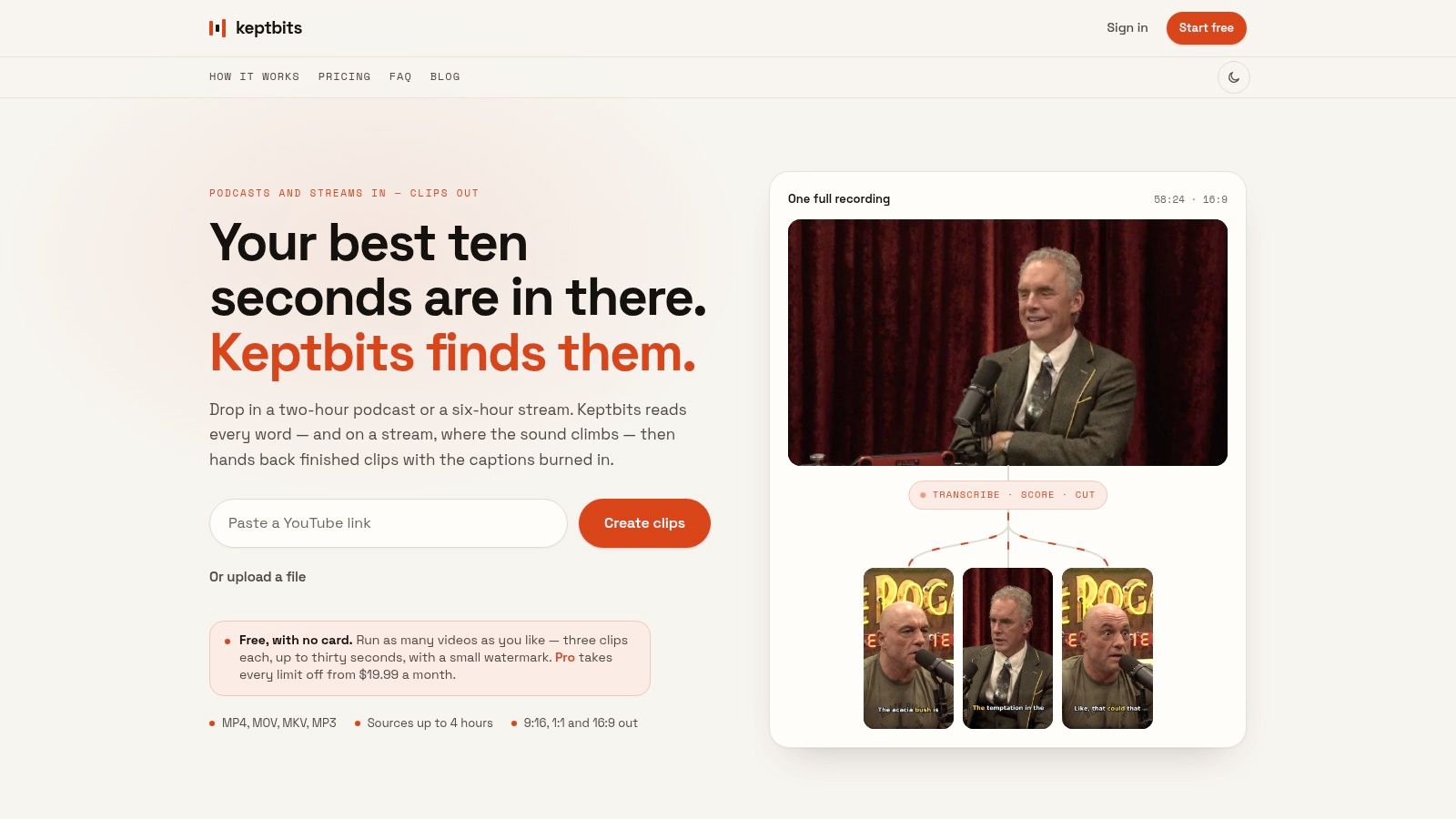
Keptbits stands out because it doesn't treat captioning as a separate cleanup step. It reads the whole file, separates speakers, scores candidate moments that open and resolve on their own, and snaps cuts to real word boundaries. That matters for delivery, because a clip that ends cleanly usually needs less human rescue than one chosen only for a keyword hit or a vague engagement signal.
Practical rule: If your team spends too much time trimming mid-thought clips and re-centering the subject in vertical formats, the caption tool is only half the problem. The clip-selection and reframing logic matter just as much.
The editing style is also unusually workflow-oriented. Pro adds silence removal, transitions, color grading, and a built-in clip editor, while the free tier lets you run unlimited jobs with small-output limits so you can evaluate fit without committing to a metered plan. The main limitation is scope, not intent. It's not trying to be a full broadcast suite, and if you need enterprise integrations, SLAs, or recordings longer than four hours, you should confirm those details directly with Keptbits support.
Best for: podcasters, interview channels, streamers, social teams, and agencies that want ready-to-publish clips from long recordings.
Limitations: not a full substitute for nuanced human editing, source files top out at four hours, and the free plan is intentionally constrained.
Website: Keptbits
2. Kapwing
Kapwing is a better fit when the question is less about raw transcription and more about editing captions inside a browser-based production workflow. It gives teams editable, word-level subtitles, export options like SRT and VTT, and enough creative control to keep branded social content moving without handing the file off to another editor. For teams that already live in the browser, that's a practical advantage.
The workflow strength here is collaboration. Kapwing's cloud setup, brand kit, custom fonts, and translation and dubbing tools make it feel more like a lightweight content studio than a caption-only utility. That makes it useful for social editors who need captions, localization, and quick visual polish in the same place. The trade-off is that heavy usage can become credit-sensitive, so teams should check whether their caption volume fits the plan before they standardize on it.
A useful way to think about Kapwing is that it solves the “make this publishable in a browser” problem better than the “make this video structurally complete” problem. If your process already has a strong editor and you mainly need flexible subtitles with team handoff, that's a good match. If you want the tool to decide which moment to clip from a longer recording, a workflow-first tool like Keptbits is closer to the target.
For readers comparing browser tools, the distinction between styling and structure matters more than feature count. A subtitle app can be excellent at font control and still be the wrong tool if the team is spending half its time rescuing cut points. For a direct comparison with another subtitle-focused browser option, see this AI subtitle maker guide.
Best for: marketing teams, social editors, and collaborative browser-based editing.
Limitations: credit-based usage can become expensive at scale, and the free tier is limited.
Website: Kapwing
3. VEED
VEED makes sense for teams that want fast burned-in captions with styling control and don't want to leave the browser. It offers one-click auto-subtitles, subtitle translation, and a large set of preset styles, which is exactly the sort of setup social teams use when they need clips to look finished without building every caption card from scratch.
What makes VEED different from a pure subtitle utility is the broader editing layer around it. Noise removal, TTS, resizing, and API support mean it can sit inside a larger social-video workflow rather than acting like a one-off caption export tool. That's useful for teams that want a single platform for captioned clips and automated output.
The limitation is that VEED's strengths are tied to presentation and speed, not deep editorial control. If you need precise transcript-to-timeline work, dense export control, or a caption workflow that has to survive broadcast-style review, you may still want a more specialized platform. For brand-driven social posts, though, the preset styling helps the final video feel deliberate instead of purely machine-generated.
A caption tool should match the delivery path. If the final output is a fast social post, animated styling and resizing are often more valuable than a perfect sidecar file. If the output is an edit session or a compliance review, the priorities shift. VEED sits firmly on the social side of that divide.
Best for: social teams, marketers, and creators who want branded captions quickly.
Limitations: pricing and AI limits can vary, so plan checks matter before scaling.
Website: VEED
4. Descript
Descript is strongest when the caption workflow starts with the transcript itself. It transcribes on import, lets you edit against the text, and keeps the timeline tightly linked to the transcript, which is why it works so well for podcasts and interview-heavy productions. If your team already thinks in words before pictures, Descript feels natural.
The practical advantage is correction speed. Captions, edits, and social cutdowns all live in the same environment, so fixing a transcript error is usually less disruptive than in a more traditional editor. It also exports SRT and VTT, and the caption controls let you manage line length and characters per card, which helps when the output needs to be readable rather than just technically synchronized.
The best caption workflow is often the one that makes correction feel cheap.
That sentence describes Descript well. It's not just generating text, it's making text edits useful for the rest of the edit. For podcasters, that's a real advantage, because the same transcript can drive both the captions and the cutdown process. The limitation is that this convenience sits behind a desktop-style workflow and plan-based media allowances, so lightweight social creators may find it heavier than they need.
Descript is a strong middle ground between a caption generator and a full editing environment. It does a lot well, but it's best when your output depends on transcript precision, not just visually styled subtitles.
Best for: podcast editors, interview producers, and transcript-led content teams.
Limitations: paid allowances matter, and it's more editor-like than quick social tools.
Website: Descript
5. Adobe Premiere Pro Speech to Text
Premiere Pro is the right answer when captions need to live inside a professional NLE workflow rather than a browser tool. Its built-in Speech to Text creates transcripts and timeline-synced captions, and the caption formatting controls make it suitable for editors who already work in sequence-based postproduction.
The biggest practical advantage is native integration. You don't have to move assets into a separate subtitle app, and you don't pay a separate caption fee on top of the subscription. For longform edits, broadcast work, and projects that already depend on Premiere, that keeps the captioning step inside the same timeline where the rest of the decision-making happens.
The trade-off is complexity. Premiere gives you more control than lightweight tools, but it also assumes the user is comfortable in a professional editing environment. That makes it less appealing for social-first creators who only need quick burned-in subtitles. It's also better for editors than for teams looking for a dedicated caption service with human review.
For a workflow where the edit itself matters as much as the captions, Premiere is hard to beat. The tool doesn't try to be minimal. It tries to be native to the post stack, and that matters if your team expects captions to survive more than one revision cycle.
Best for: editors, postproduction teams, and broadcast-oriented workflows.
Limitations: steeper learning curve than web tools, and overkill for simple social posts.
Website: Adobe Premiere Pro
6. CapCut
CapCut is built for speed, reach, and short-form output. Its Auto Captions feature works across web, desktop, and mobile, which makes it one of the most convenient choices for creators who publish to Shorts, Reels, and TikTok. If the priority is getting a talking-head clip captioned and posted quickly, it's a sensible default.
The main draw is ease. CapCut lets you edit individual caption blocks on the timeline, and the workflow is simple enough that a solo creator can move from raw footage to a social-ready post without a steep learning curve. It also supports multilingual subtitle generation in some flows, which is helpful when creators are publishing for more than one audience.
Accuracy is the trade-off that matters here. CapCut is fast, but noisy recordings and stronger accents can still require manual cleanup. That's not unusual for consumer-friendly auto caption generators, but it does mean teams should verify the output before shipping. The tool is excellent at reducing time-to-post. It's less reliable if your production depends on every word being right the first time.
For creators who care more about momentum than precision, CapCut is attractive. For teams that need a tighter correction loop or more polished clip selection, it's often the first step rather than the final answer.
Best for: Shorts, Reels, TikTok clips, and solo creators.
Limitations: manual correction is common, especially on noisy or accented audio.
Website: CapCut
7. Microsoft Clipchamp
Clipchamp fits teams that already work inside Microsoft 365 and Windows. It offers autocaptions, transcript editing, SRT export, styling controls, and a browser workflow that feels familiar to users who want a lightweight editor without leaving the Microsoft ecosystem. That makes it especially practical for internal comms, training content, and everyday corporate publishing.
The appeal is simple. Autocaptions are available to free users, and the tool plugs into Windows and OneDrive habits that many business teams already have. You also get extras like silence removal, voiceover tools, and YouTube integration, which covers enough of the day-to-day editing stack for a lot of small teams.
The drawback is depth. Clipchamp is useful, but it's not the deepest caption environment on this list. Some premium assets and brand features sit behind Microsoft 365, and advanced workflows will eventually hit the ceiling of a lightweight editor. If your team needs heavy styling, complex localization, or a caption-first production system, Clipchamp is probably not enough on its own.
Still, for internal teams that just need captions without changing their tool stack, Clipchamp is an easy recommendation. It's less about niche power and more about low-friction adoption.
Best for: Microsoft-centered teams, training content, and simple business publishing.
Limitations: advanced features are gated, and it won't replace a full post workflow.
Website: Microsoft Clipchamp
8. Happy Scribe
Happy Scribe is the right choice when the requirement is handoff quality. It supports AI subtitles in many languages, automatic speaker detection, a wide range of export formats, and optional human proofreading. That makes it especially useful when the caption file has to move cleanly between editors, localization teams, and delivery workflows.
The format support is the story here. SRT, VTT, STL, XML, FCPXML, and EDL make it easier to hand files off to different post environments without rebuilding the transcript in each one. The optional human service is also a big differentiator for teams that want a higher-confidence deliverable than raw AI output can provide.
The limitation is that the interface feels more service-oriented than social-template-oriented. If your main goal is stylish vertical captions for fast publishing, Happy Scribe may feel less visual than tools built specifically for short-form content. But if your output needs to survive review, localization, or a formal editorial process, that service mindset is a feature, not a flaw.
This is the kind of tool teams use when the question is not, “Can it caption?” but, “Can it deliver something an editor can trust?” That's a different standard, and Happy Scribe is clearly designed for it.
Best for: editors, localization workflows, and teams that need file handoff plus optional human review.
Limitations: service add-ons increase cost, and it's less social-style than short-form tools.
Website: Happy Scribe
9. Rev
Rev is built for teams that care about caption quality, delivery standards, and the option to move from AI to human review. It offers AI captions, human captions, SRT and VTT outputs, and style-guide compliant deliverables, which keeps it squarely in the professional captioning lane rather than the flashy social editor lane.
That separation matters. Rev is not a full video editor, and it doesn't pretend to be one. Its strength is caption production and quality control, which is exactly why it's common in broadcast and corporate environments where the deliverable has to look and read right the first time. The choice between AI and human captions is also straightforward, which helps teams decide whether speed or accuracy matters more for a given project.
The drawback is obvious. If you want trimming, reframing, effects, or social-style styling, Rev is not the answer. It's a caption service, not a clip factory. For teams that already have editing covered, that's fine. For teams looking for an all-in-one creator tool, it's too narrow.
Rev is valuable because it makes the production decision explicit. Do you want cheaper AI captions, or do you want human-reviewed delivery? That clarity is often more useful than a long list of editing features.
Best for: corporate publishing, broadcast-adjacent workflows, and teams prioritizing caption quality.
Limitations: not a video editor, and human captions cost more than AI.
Website: Rev
10. Submagic
Submagic is built for creators who want high-energy, stylized short-form captions as fast as possible. It generates animated word-by-word captions, adds B-roll, zooms, transitions, and basic audio cleanup, and it is clearly aimed at TikTok, Reels, and Shorts rather than formal delivery specs.
The workflow is aggressive in the best sense. If you start with talking-head footage, Submagic can move you quickly toward a visually busy, social-native clip that feels ready for short-form feeds. The API option also makes it useful for teams that want to batch captioning or repurpose content programmatically.
That same style focus is also the limitation. Submagic is not trying to behave like a broadcast caption platform, and it's not the best fit for strict SRT workflows or delivery standards that care more about readability and compliance than motion graphics. If you need polished social output, it's strong. If you need restrained, editable subtitle files, it's the wrong category.
The value is speed to style. Submagic doesn't just add captions, it packages the clip for a specific distribution format. That's useful when the platform is the audience.
Best for: short-form social creators and teams that want stylized, automated repurposing.
Limitations: not suited to broadcast-style caption requirements or strict sidecar workflows.
Website: Submagic
Top 10 Auto-Caption Generators Comparison
| Product | Core features (✨) | Quality & precision (★) | Price / Value (💰) | Target audience (👥) |
|---|---|---|---|---|
| Keptbits 🏆 | ✨ Word-level transcription & speaker sep; narrative-aware clip scoring; boundary-snapping cuts; speaker-locked reframes; multi-aspect MP4s with burned-in captions | ★★★★★ Word-accurate cuts; polished, self-contained clips | 💰 Free (unlimited runs; 3×30s clips/run, watermark); Pro $19.99/mo or $5.99/wk (1st week free), no watermark | 👥 Podcasters, interview shows, creators, social managers, agencies |
| Kapwing | ✨ Auto-subtitles (word-level); translation & dubbing; cloud workspaces & brand kit; up to 4K export | ★★★★☆ Easy UI; solid multilingual support | 💰 Freemium (credits); watermark on free; paid tiers scale for teams | 👥 Social creators, teams, localization workflows |
| VEED | ✨ One-click auto-subtitles; 20+ caption styles; subtitle API; noise removal & TTS | ★★★★ Fast presets; good for social clips | 💰 Freemium; tiered AI limits and gated pricing by region | 👥 Creators, teams, devs needing caption automation |
| Descript | ✨ Transcript-first editor; SRT/VTT export; word-accurate timeline edits; caption styling | ★★★★☆ Tight transcript↔timeline sync; great for podcasts/interviews | 💰 Free tier; paid plans with increased minutes/AI credits | 👥 Podcasters, editors, producers needing transcript-driven edits |
| Adobe Premiere Pro (Speech to Text) | ✨ NLE-grade Speech-to-Text; timeline-synced captions; Essential Graphics styling; multi-language | ★★★★☆ Broadcast-ready controls; robust longform workflow | 💰 Creative Cloud subscription, Speech-to-Text included (no per-minute fee) | 👥 Professional editors, broadcast and longform teams |
| CapCut | ✨ One-click Auto Captions (web/desktop/mobile); multilingual; quick caption edits | ★★★★ Fast mobile-first workflow; accuracy varies with audio | 💰 Free core app; some feature/export differences across platforms | 👥 Short-form creators, mobile-first users (TikTok/Reels/Shorts) |
| Microsoft Clipchamp | ✨ AI autocaptions with transcript editing & SRT; profanity filter; 1080p free exports | ★★★★ Integrates with Windows/OneDrive; simple UI | 💰 Free; premium assets/features via Microsoft 365 | 👥 Windows users, casual creators, Microsoft 365 customers |
| Happy Scribe | ✨ AI subtitles in 150+ languages; speaker detection; many NLE export formats; human proofreading option | ★★★★ Good for handoff to editors; format-rich outputs | 💰 Pay-as-you-go AI; optional human services at higher per-minute cost | 👥 Post-production teams, editors, localization projects |
| Rev | ✨ AI + human captioning; SRT/VTT; style-guide compliance; enterprise tooling | ★★★★ Trusted accuracy (human option) for broadcast/corp | 💰 Per-minute pricing (clear AI vs human tiers) | 👥 Broadcast, corporate publishers, high-accuracy needs |
| Submagic | ✨ Animated word-by-word captions; auto B-roll, zooms, transitions; API for batch | ★★★★ Fast, highly stylized short-form outputs | 💰 Freemium; paid plans / API for scale | 👥 Short-form creators, agencies wanting stylized Reels/Shorts |
Choose by Workflow, Then Validate Accuracy
The cleanest way to choose an auto caption generator is to start with the output path, not the feature list. If you need self-contained, speaker-aware, captioned clips from long recordings, Keptbits is the strongest fit because it combines transcription, clipping, reframing, and burned-in captions in one workflow. If your team lives in the browser and needs branded editing plus localization, Kapwing and VEED are the better fit. If the transcript itself drives the edit, Descript is the most natural choice.
For professional postproduction, Adobe Premiere Pro makes the most sense when captions must stay inside a real NLE. If the goal is fast, stylized social output, CapCut and Submagic are the quickest paths to a publishable clip. If your workplace is already built around Microsoft, Clipchamp reduces friction. If file handoff, format coverage, or human review matter more than visual flair, Happy Scribe and Rev are the more disciplined options.
The decision should not stop at feature matching. Test difficult audio with overlapping voices, accents, names, and background noise. Check whether the tool separates speakers well enough for your content, because that often changes how much human correction you'll need later. Verify whether you want burned-in captions for a finished social post or SRT/VTT for flexible editing and downstream delivery. Inspect safe-zone placement on vertical video, especially if captions sit near faces or UI overlays.
Plan limits matter too. Some tools are built for generous evaluation, while others gate heavier use behind credits, tiers, or service add-ons. If your workflow includes long recordings, multi-speaker interviews, or frequent repurposing, choose the tool that reduces correction time, not just the one with the longest feature list. That's where delivery quality usually gets won or lost.
If you repurpose long recordings into short, finished clips, Keptbits gives you the most direct path from source video to captioned output. It combines transcript-aware clipping, speaker-driven reframing, and burned-in captions so your team can publish faster with less manual cleanup. Visit Keptbits to see how that workflow fits your next podcast, interview, or social clip batch.
Keptbits cuts on sentence boundaries.
Paste a link or upload an episode, say how many clips you want, and get them back captioned and vertical. The free plan needs no card.
Start freeRead next
How to Send Video by Email Without Bouncing or Clipping
Learn how to send video by email without bounces or spam filters. Compare attachments, compression and cloud links with size limits and best practices.
10 AI Subtitle Maker Tools Compared for Video
Compare 10 ai subtitle maker tools for accuracy, formatting, burned-in captions, file exports, speaker separation, and practical workflows.
Why your clips start halfway through a sentence
Almost every automatic clipper cuts on a timer, which is why so many clips open on a fragment. Here is what is actually going wrong, and how to fix it whatever tool you use.