21 October 2026 · 15 min read
7 Online Video Editor Free Picks That Deliver in 2026
Compare 7 online video editor free options for 2026, including watermark limits, export quality, key features, and the best use for each tool.
You've finished the edit, the captions look right, the music lands where it should, and then you hit export. That's when the free plan shows its hand, a watermark across the frame, a 720p cap, a monthly allowance you've already burned, or a premium asset you didn't know you'd added. It happens to solo creators and small teams constantly, because most roundups rank tools by feature count instead of what leaves the editor.
The better test is simpler. Does this online video editor free tier fit the job in front of you, remove real steps, and deliver a file you can publish without a surprise? Demand is not the problem, since Wyzowl's 2025 survey results put business video use at 89%, up from 61% in 2016, with 93% of marketers reporting positive ROI. The seven picks below cover different jobs on purpose, from general timeline editing and designed social templates to transcript cleanup and pulling publishable clips out of long recordings automatically.
Table of Contents
- 1. Keptbits
- 2. Microsoft Clipchamp
- 3. Canva Video Editor
- 4. Adobe Express
- 5. CapCut Online Video Editor
- 6. VEED
- 7. Descript
- Top 7 Free Online Video Editors: Feature Comparison
- Choose Before You Click Export
1. Keptbits
The other six editors on this list assume you already know which moments matter. Keptbits starts one step earlier. You upload a podcast, interview, lecture, or stream, or provide a link, pick Talking or Stream mode, and it transcribes and scores the recording to find segments that stand on their own. Scrubbing a 90-minute interview for three publishable answers can take an hour of manual review; Keptbits returns scored candidates in a single pass.
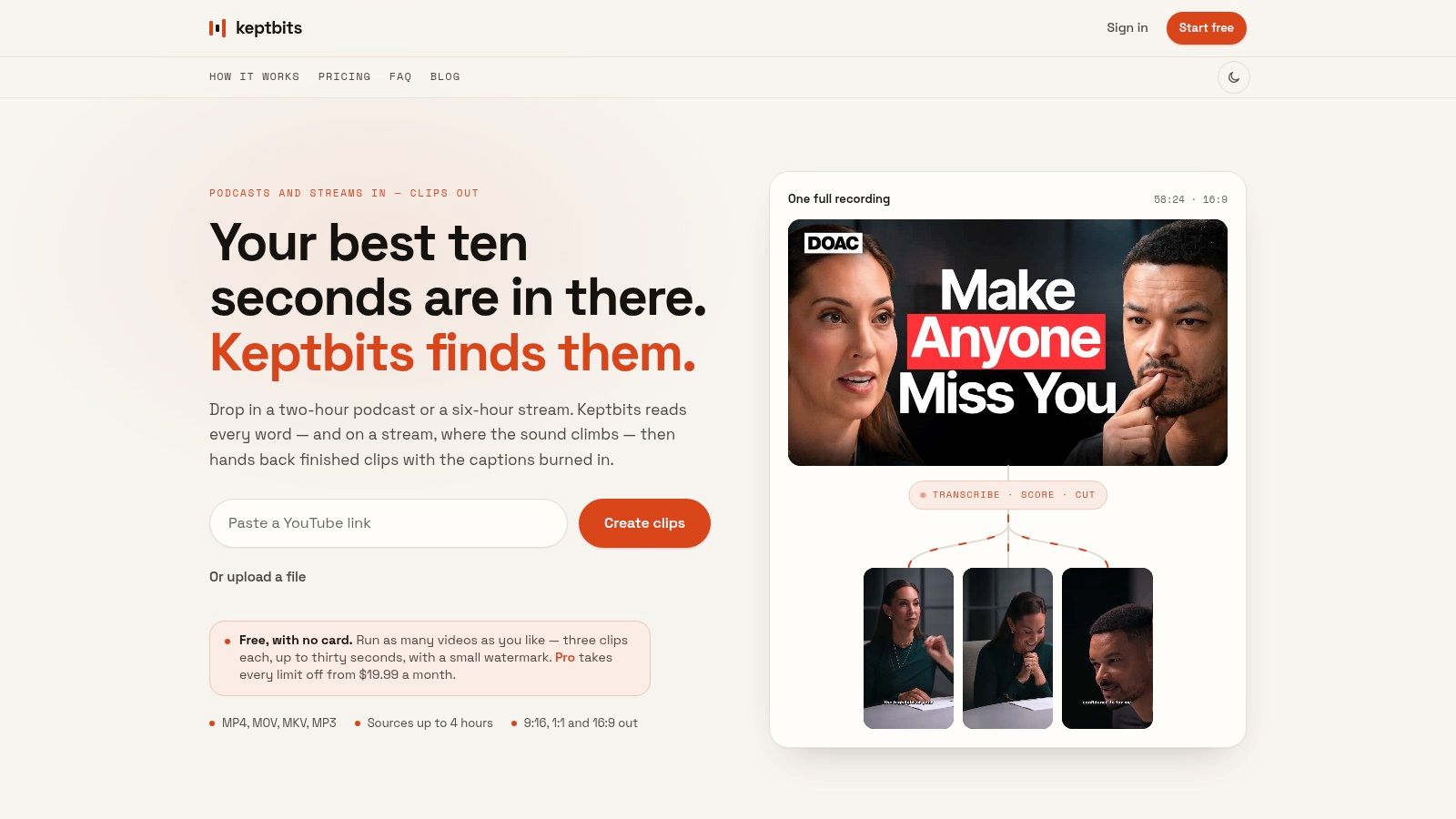
How the Clipping Works
In Talking mode, clips are selected for narrative completeness, a self-contained story or answer rather than a keyword hit that needs outside context. Stream mode works differently, flagging sound peaks like a cheer, laugh, or reaction even when nobody's speaking. Cuts use word-level timing and snap to sentence boundaries, so clips don't start mid-thought, and speaker-aware reframing keeps the active speaker in frame instead of drifting across a two-shot.
You get captioned exports in 9:16, 1:1, and 16:9 from one pass, which removes the duplicate-edit problem for Shorts, Reels, and standard feeds. Comparing this workflow against a conventional timeline? The breakdown of video editing tools online shows where automated clipping replaces manual review and where it doesn't.
Free Limits and Pricing
The free plan on Keptbits allows unlimited runs with up to three clips per run, each up to 30 seconds, with Bold Pop captions and a small watermark. Per the Keptbits pricing page, Pro runs $19.99 per month or $5.99 per week with a free first week, and adds clips up to three minutes, 20 caption styles, a clip editor, watermark-free exports, silence removal, transitions, and color grading. Pricing is flat rather than metered by minutes, which keeps costs predictable for long sources.
That flat model fits where the market's heading, since the online video editor market estimate puts individuals and creators at 38.2% of 2025 share, the largest segment. The trade-offs are honest ones. Free output is short and watermarked, and automatically selected moments still deserve a quick review before you publish, because your editorial judgment about a guest's best line won't always match a scoring model.
Practical rule: Judge a clipping tool on your worst recording, not your cleanest one. Messy audio and rambling answers reveal whether the cuts and captions hold up.
2. Microsoft Clipchamp
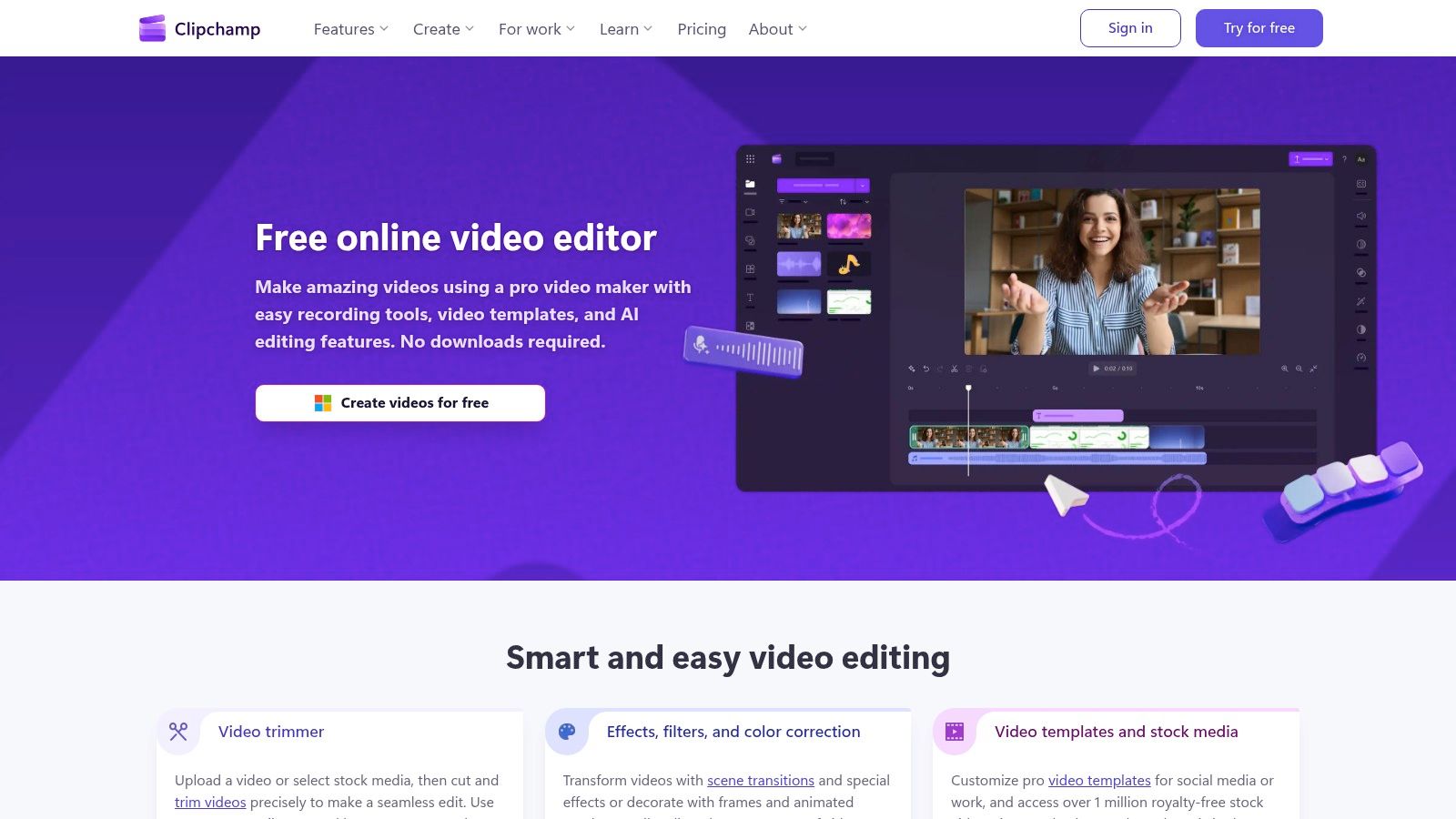
If your job is assembling footage you already have, Clipchamp is the most straightforward general-purpose option here. It handles trimming, cropping, resizing, and rotating, plus animated text, titles, effects, filters, and color adjustments in a conventional timeline. Recording tools, free stock media, and AI extras like subtitles and silence removal round it out without forcing you into a template.
The headline detail is the export policy. On the free tier of Microsoft Clipchamp, you get unlimited exports up to 1080p with no watermark, provided your project uses only free assets and features. That combination is rare, and it's why Clipchamp works well for everyday edits, explainers, and basic social content where 1080p is plenty.
The catch sits inside that proviso. Drop in a premium stock clip or feature, and export can stall until you replace it or upgrade, and 4K export, premium stock, and brand-kit tools require an eligible Microsoft 365 plan. It's a fair trade, but you need to watch what you drag onto the timeline. For broader context on how browser tools stack up against installed software, see this comparison of the best video editing software options.
Clipchamp also reflects a market still in transition, since cloud-based editing growth forecasts put cloud tools growing at 8.23% CAGR through 2031 while on-premise software still held 51.30% of the market in 2025. Translation, browser editing wins on speed and access, and Clipchamp is built exactly for that lane.
3. Canva Video Editor
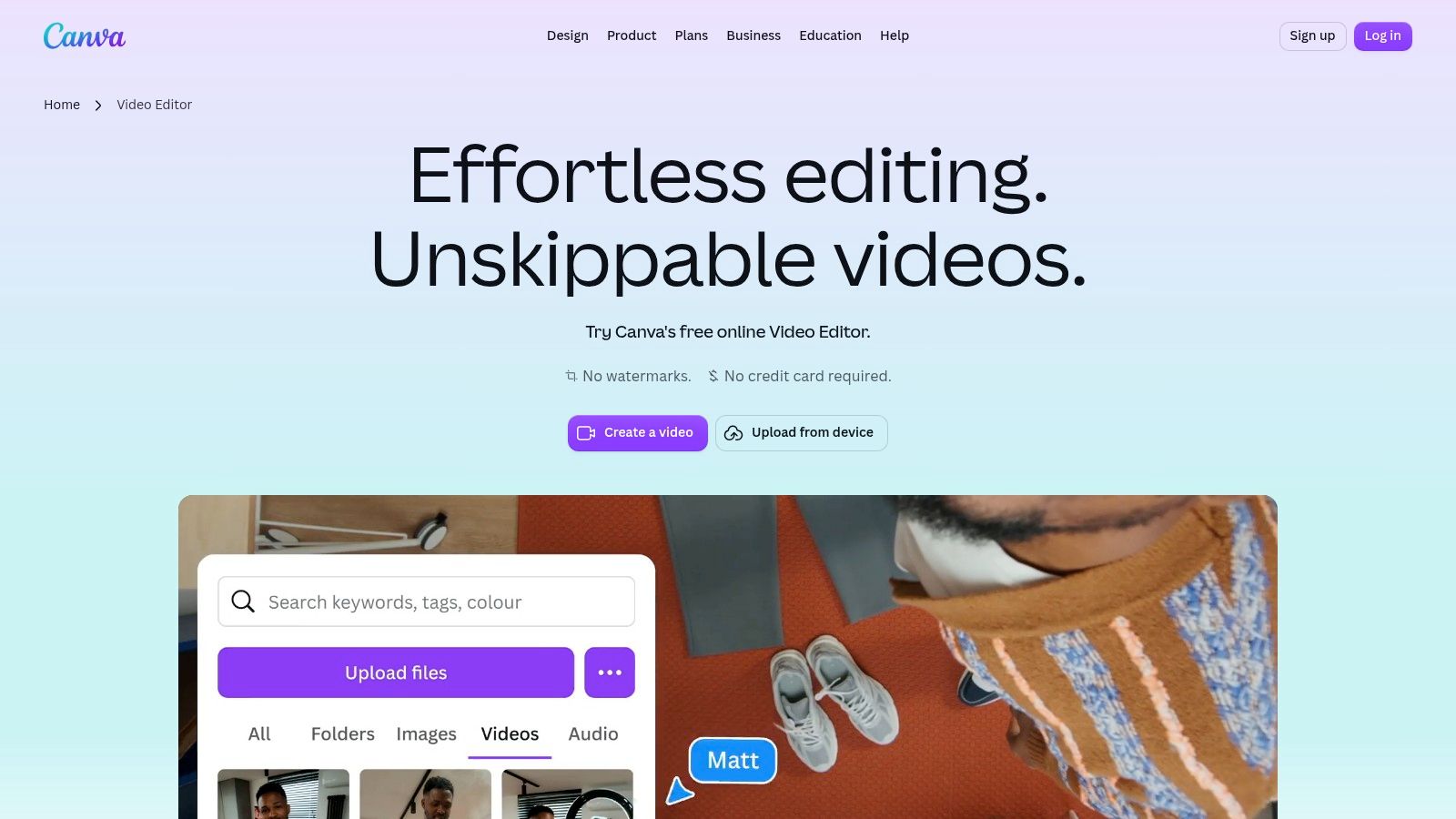
Canva treats video as one more designed asset, and for a lot of social content that's the right instinct. You're working inside the same environment as your graphics and text tools, with a multi-layer timeline, templates, and pre-sized formats for common platforms. If your video needs a branded title card, consistent type, and graphics that match the rest of your feed, Canva removes the handoff between designer and editor.
Free exports from the Canva Video Editor can be watermark-free when you stick to free elements, and you can edit in a browser, on desktop, or on mobile. Caption generation and AI features including Highlights help when you need a quick cutdown rather than a full edit. The workflow favors starting from a template and swapping in your footage, which gets a polished-looking post out the door fast.
Where it strains is precision. Detailed, frame-level editing isn't the design-first model's strength, and some content and features are Pro-only. Paid elements on a free account can trigger export restrictions or watermarking, so check your elements panel before you're deep into a project, not after.
The demand behind tools like this is structural. Cisco's forecast for IP video traffic projected IP video reaching 82% of global IP traffic in 2022, up from 75% in 2017, counting streaming, file sharing, gaming, and conferencing. When video is the default format, a design tool that also edits video stops being a novelty and becomes a sensible default for marketing teams.
4. Adobe Express
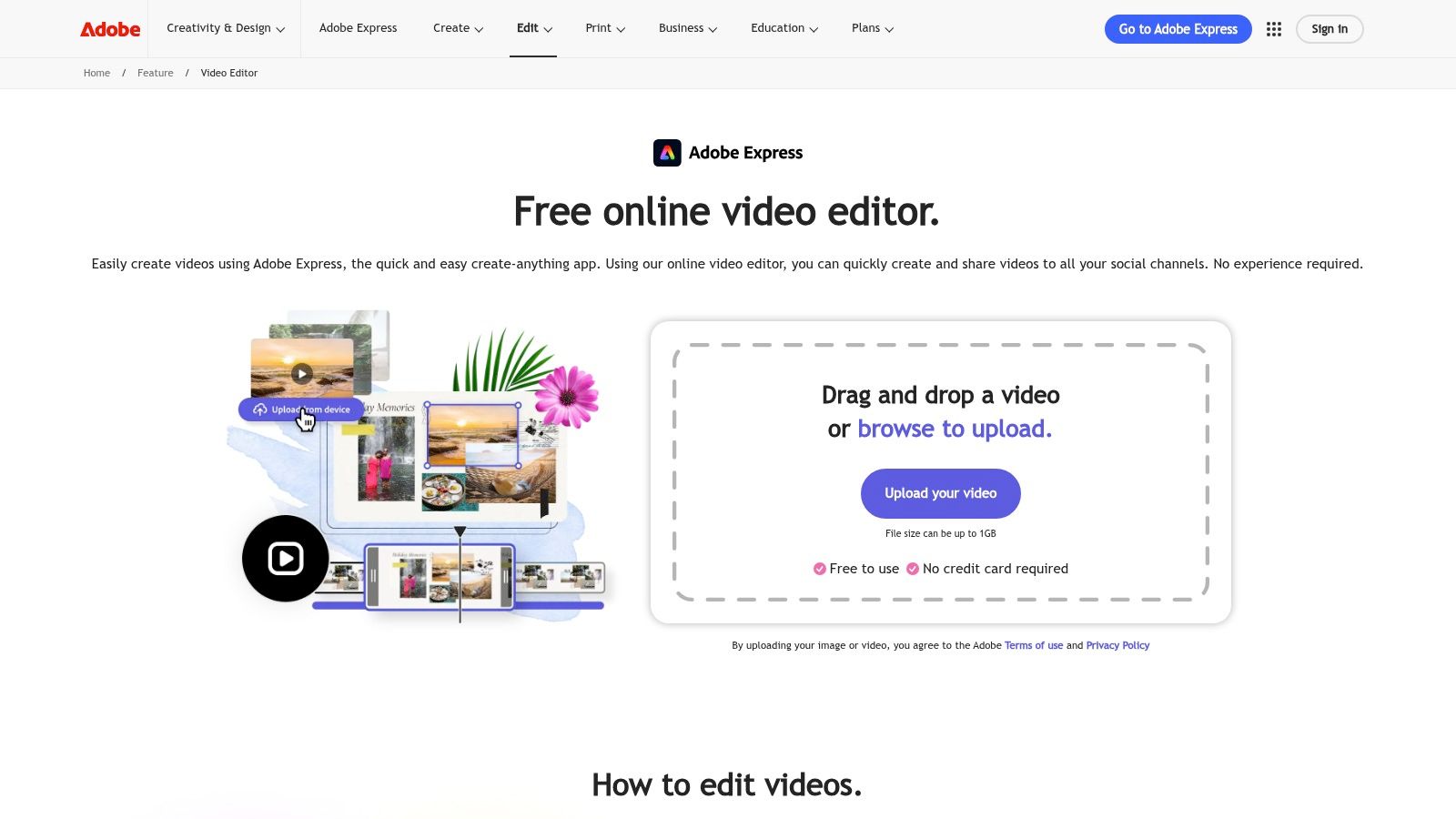
Adobe Express is the template-first route to a finished video, built for people who'd rather customize than construct. You work with drag-and-drop templates, then crop, trim, and split clips, add text, icons, images, and animation, and layer in available Adobe Stock music or your own audio. If you already make social graphics in Express, your videos inherit the same look without extra effort.
Getting started costs nothing and needs no card on Adobe Express, which makes it easy to test on a real project. The free plan does cap video length at 30 minutes, and some advanced tools and content depend on your plan. For promos, announcements, and short social pieces, that ceiling rarely matters. For a long webinar recap, it will.
Here's how I'd position it against the neighbors on this list:
- Choose Express over Canva when you're already in Adobe's ecosystem and want templates plus Stock music in one place.
- Choose Clipchamp over Express when the edit itself matters more than the design wrapper and you want unrestricted 1080p exports.
- Choose Express for speed on template-based posts where a consistent, designed look beats timeline control.
The honest limitation is depth. Express is a content creation tool that includes video, not a dedicated editor, so complex sequences, precise audio work, and long-form projects will push you toward other options. For quick, good-looking output on a deadline, it earns its place.
5. CapCut Online Video Editor
CapCut's browser editor is built around how short-form video gets made, fast cuts, burned captions, effects, and formats sized for TikTok, YouTube, and Instagram. The timeline supports trimming, splitting, cropping, and resizing, and the free plan includes basic editing tools and free templates. Auto-subtitles and text-to-speech cover the two tasks social creators repeat most.
On CapCut Online Video Editor, you can upload from a device or supported cloud sources, then work with effects, filters, music, and sound effects in one session. The styling toolkit is the draw. If your content lives or dies on caption treatment and effects that read as native to short-form feeds, CapCut needs less coaxing than a general-purpose editor.
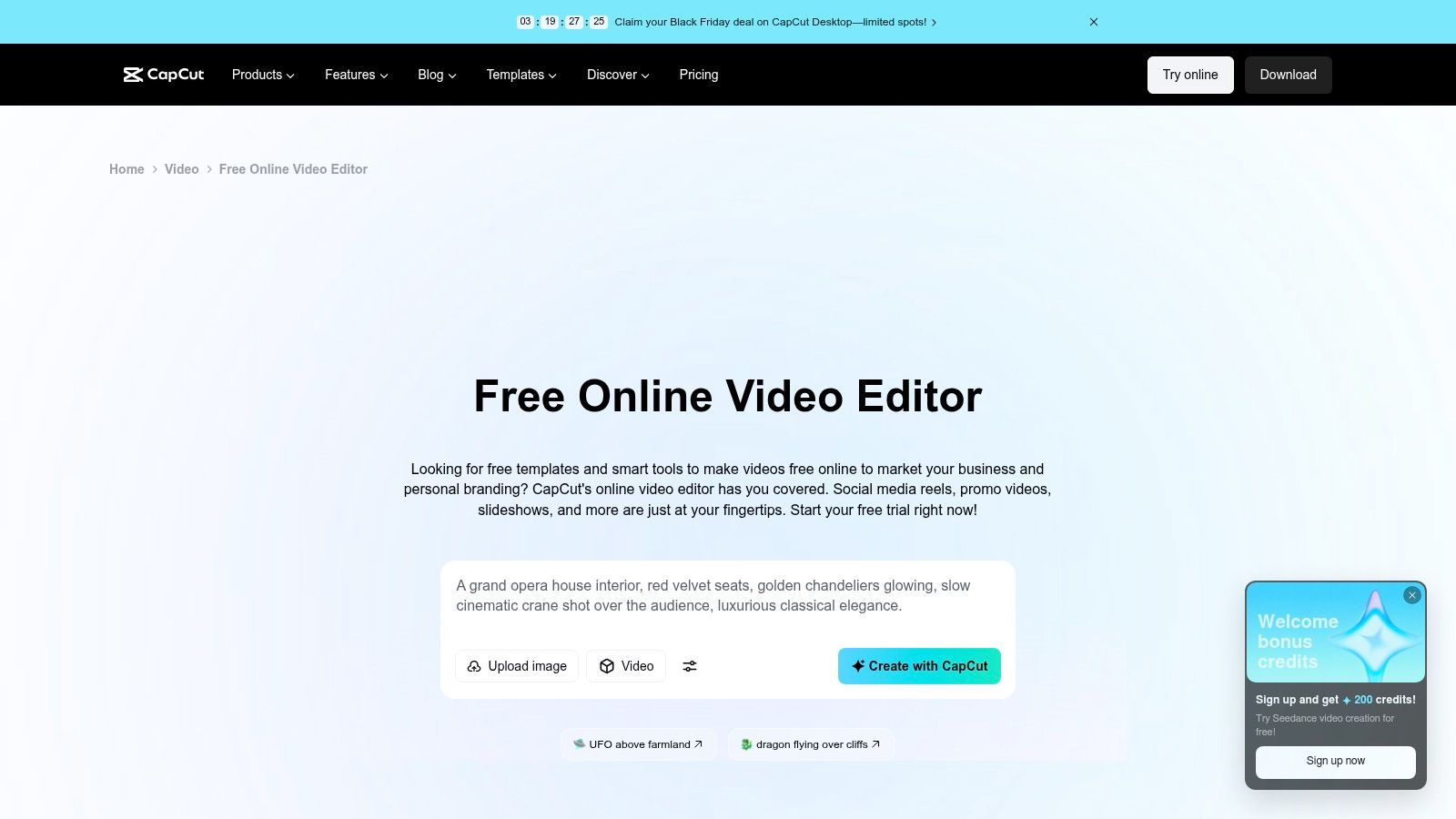
The friction is in the boundaries between free and paid. Some AI tools, templates, and features require paid plans or carry usage limits, and the web version doesn't always match the app, so a workflow you built on mobile may not transfer cleanly. Check export options against your specific project before you commit an afternoon to it.
If a feature matters to your format, test it on a throwaway export first. Finding a paywall at minute one beats finding it at the deadline.
For creators planning a steadier publishing rhythm, the guide to video editing for social media covers how format and caption choices change by platform. CapCut handles the styling side of that well, as long as you confirm the features you need aren't the metered ones.
6. VEED
VEED combines a basic timeline with transcript-based editing, and that second part is why it's here. Delete a sentence from the transcript and the corresponding video section goes with it. For dialogue-heavy footage, interviews, talking-head explainers, internal updates, that approach beats scrubbing a timeline hunting for the start of a sentence.
The editor on VEED covers trimming, cropping, resizing, and adding text or music, with AI tools for subtitles, cleanup, and B-roll, though some are limited to free trials. Everything runs in the browser, so there's nothing to install before a quick test. Free access is useful for evaluating whether transcript editing suits how you think.
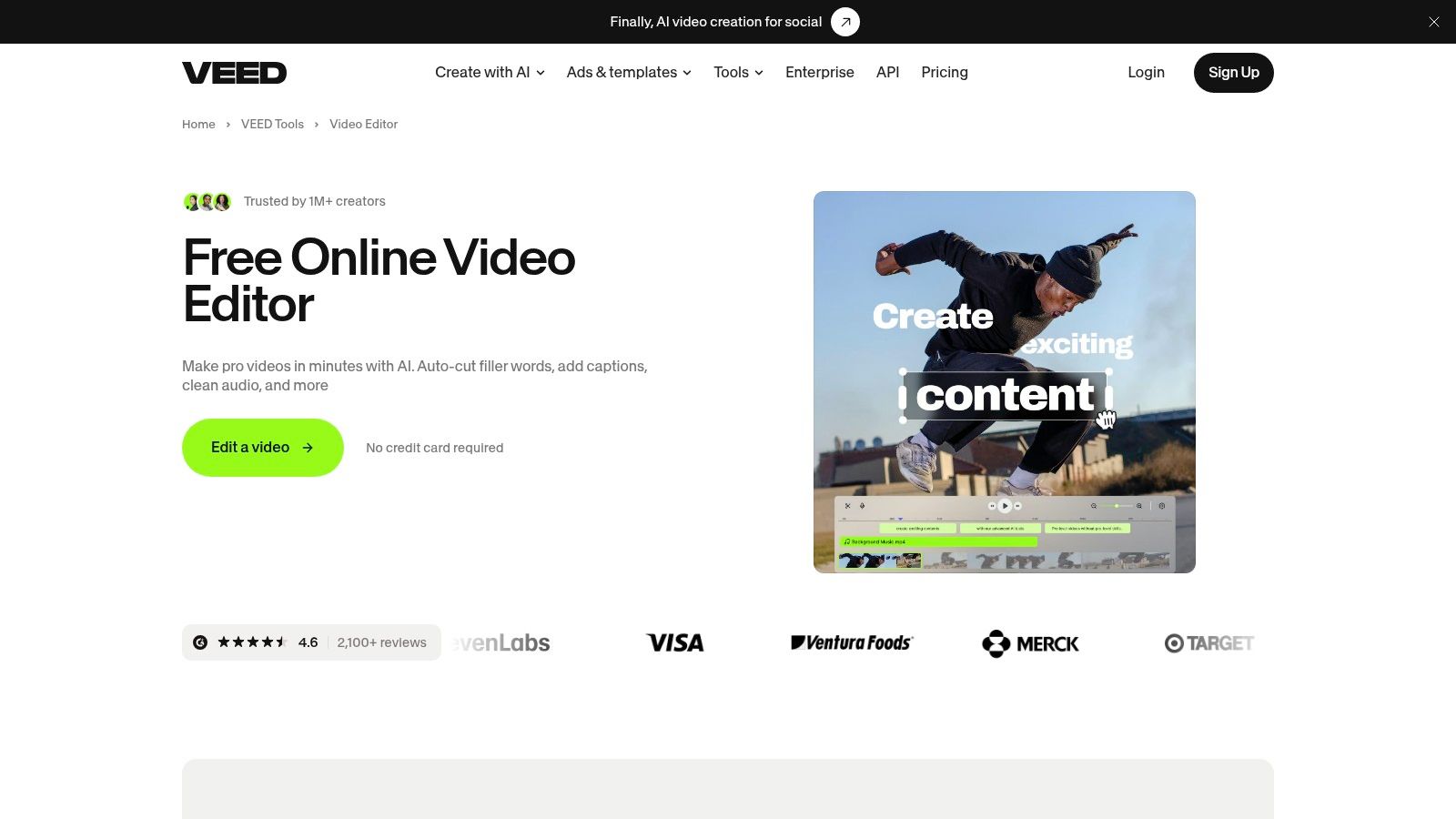
The export terms are the constraint. Free exports carry a VEED watermark and top out at 720p, and watermark-free, higher-resolution output requires a paid plan. That makes the free tier a workflow test, not a publishing pipeline, unless watermarked drafts are acceptable for internal review.
Captions are where VEED's focus aligns with real demand. Wistia's 2025 State of Video findings show over 60% of AI-using respondents had used or planned to use AI captions, with caption adoption up 572% since 2021. The question worth asking any editor isn't whether captions exist, it's whether they're timed to the word, easy to correct, and readable without sound.
7. Descript
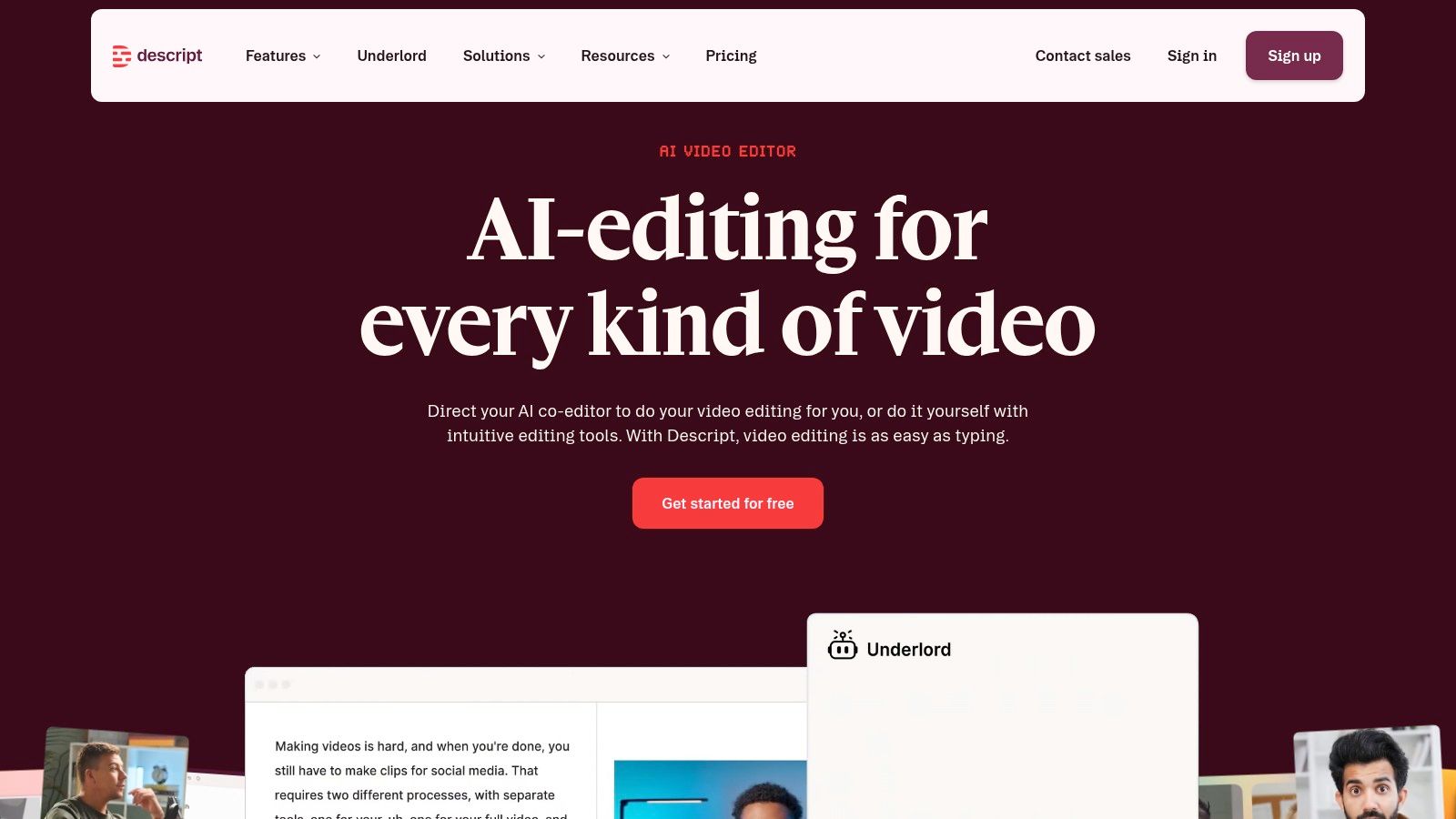
Descript takes the transcript idea furthest. Upload or record a video, and you edit the generated text while the media follows, with transcription, speaker detection, templates, and dynamic captions built in. For interviews, podcasts, and webinars, finding and removing a section by reading beats finding it by listening at double speed.
The free plan on Descript includes one media hour per month and 100 AI credits, exports at 720p, and doesn't include watermark-free export. No credit card is required, so testing is cheap. But be clear about what that allowance means in practice, one substantive recording a month, which suits evaluation and light editing rather than a publishing schedule.
Fit matters more than power here:
- Strong fit for spoken-word projects where the words carry the edit and you think in paragraphs, not frames.
- Weak fit for projects needing detailed visual timeline control, layered effects, or precise motion work.
- Budget carefully if you like the workflow, because regular production will outgrow one media hour quickly.
Descript and VEED overlap, but they optimize differently. VEED keeps one foot in a conventional browser timeline with transcript tools attached, while Descript builds the whole experience around the document. If you record long conversations and dread the cleanup pass, Descript's model is the more committed answer, just expect to pay once it's part of your routine.
Top 7 Free Online Video Editors: Feature Comparison
| Tool | 🔄 Implementation Complexity | ⚡ Resource Requirements | 📊 Expected Outcomes | ⭐ Ideal Use Cases | 💡 Key Advantages |
|---|---|---|---|---|---|
| Keptbits | Low; upload or link, select a mode, then review clips | Browser-based; free plan offers unlimited runs with up to 3 clips per run, each up to 30 seconds | Auto-selected, captioned clips in 9:16, 1:1, or 16:9; Pro supports clips up to 3 minutes | Repurposing podcasts, interviews, lectures, and streams | Narrative-aware or audio-peak clip selection, word-level cuts, speaker-aware reframing |
| Microsoft Clipchamp | Low to moderate; general-purpose timeline editing | Browser or Windows app; free exports up to 1080p without watermark when using free assets | Assembled, edited videos with text, effects, subtitles, or silence removal | Everyday edits and basic social content | Unlimited free exports up to 1080p; broad editing and recording tools |
| Canva Video Editor | Low; template- and design-led workflow | Browser, desktop, or mobile; free exports available with free elements | Designed videos combining clips, graphics, text, and templates | Social posts, promotions, and visually branded content | Integrated design tools, templates, and pre-sized social formats |
| Adobe Express | Low; drag-and-drop and template-based | Browser-based; free plan supports basic edits, with some plan-dependent features | Quick videos with trims, text, graphics, animation, and music | Simple social videos and template-based content | Easy to use and integrated with tools for other social content |
| CapCut Online Video Editor | Low to moderate; timeline editing with optional AI tools | Browser-based; free basics and templates, while some tools have limits or require a paid plan | Social-ready videos with captions, effects, audio, and resizing | Short-form content for TikTok, YouTube, and Instagram | Broad social-focused toolkit, including auto-subtitles and text-to-speech |
| VEED | Low to moderate; timeline and transcript-based editing | Browser-based; free exports are watermarked and limited to 720p | Edited videos with transcript-based cuts and AI-assisted additions | Dialogue-heavy videos and browser-based editing | Transcript editing can speed up trimming speech; AI tools are available to try |
| Descript | Moderate; edit generated transcript to change media | Free plan includes 1 media hour per month and 100 AI credits; exports limited to 720p and include a watermark | Transcript-edited video with speaker detection and dynamic captions | Podcasts, interviews, webinars, and other speech-heavy recordings | Text-based editing helps find and remove sections without relying only on timeline scrubbing |
Choose Before You Click Export
Start with the job, not the logo. Pick Clipchamp when you need unrestricted 1080p exports from a straightforward timeline, Canva or Adobe Express when the video needs designed titles and a consistent visual system, and CapCut when effects and short-form styling decide whether the post performs. Choose VEED or Descript when speech drives the edit and you'd rather cut words than scrub footage, and choose Keptbits when the underlying problem is earlier in the chain, turning a long recording into several clips that are already captioned, reframed, and sized for each feed.
Before you start any project that matters, verify six things in writing, the watermark policy, maximum resolution, export cap, premium-asset restrictions, monthly processing limit, and the aspect ratios you need. A watermark-free badge alone doesn't make a file deliverable, since free tier limits across online editors commonly combine 480p to 1080p caps with duration, storage, and usage restrictions that change often. Total usable output per run tells you more than whether a logo disappears.
Then run one honest test. Take a representative project, ideally your longest, messiest source, and push it through the full workflow, import, edit, caption, export in 9:16 and 1:1, and inspect the file you'd hand to a client or post under your name. Note how long caption corrections take and whether cuts land on clean sentence boundaries, because that's the hidden labor most feature lists ignore.
Keep the free plan only if it survives that test without compromises you'd be embarrassed to publish. If it removes the manual work and the export is clean, you've found your tool. If it saves editing time but taxes you at export, do the math on the paid tier with real numbers from your own test, not from a pricing page. The cheapest editor is the one whose output you don't have to redo.
If your bottleneck is turning long podcasts, interviews, or streams into captioned clips that are framed and timed to the speaker, try the free plan with unlimited runs and see what it pulls from your own recording. Visit Keptbits to run your first video without a card and judge the clips, not the promises.
Keptbits cuts on sentence boundaries.
Paste a link or upload an episode, say how many clips you want, and get them back captioned and vertical. The free plan needs no card.
Start freeRead next
How to Make Viral Video on YouTube in 2026
Learn how to make viral video on YouTube with proven hooks, thumbnail tests, retention fixes, and Shorts workflows that actually convert viewers into
How to Make YouTube Channel Setup That Actually Grows
Learn how to make YouTube channel setup that grows: account, branding, first videos, optimization, and monetization milestones explained step by step.
How to Create a Highlight Video That Actually Works
Learn how to create a highlight video with a step-by-step workflow covering scripting, clipping, pacing, captions, and export settings that perform.