28 September 2026 · 18 min read
10 Vertical Video Editor Tools Compared
Compare 10 vertical video editor tools for reframing, burned-in captions, and Shorts, Reels, and TikTok export workflows.
Most advice about a vertical video editor starts and ends with aspect ratio. That's too shallow. A useful editor has to decide who stays centered, where captions land, which moments survive on their own, and how much manual review still sits between a long recording and a post that's ready for TikTok, Reels, Shorts, or LinkedIn.
That's why the tools below aren't grouped by generic feature lists. They're compared by the production decisions that affect output quality, speaker-aware or manual reframing, burned-in caption control, platform-ready exports, long-to-short automation, editing precision, and the amount of cleanup each workflow still demands. Some tools are built for automated repurposing, some for browser editing, and some for full timeline control. The right choice depends on which part of the process you trust software to handle and which part you still want to inspect yourself.
Table of Contents
- 1. Keptbits
- 2. CapCut
- 3. Descript
- 4. Adobe Premiere Pro
- 5. VEED
- 6. Kapwing
- 7. Opus Clip
- 8. Dumme
- 9. Munch
- 10. Quso
- Top 10 Vertical Video Editors, Feature Comparison
- Choose the Editor That Matches Your Review Process
1. Keptbits
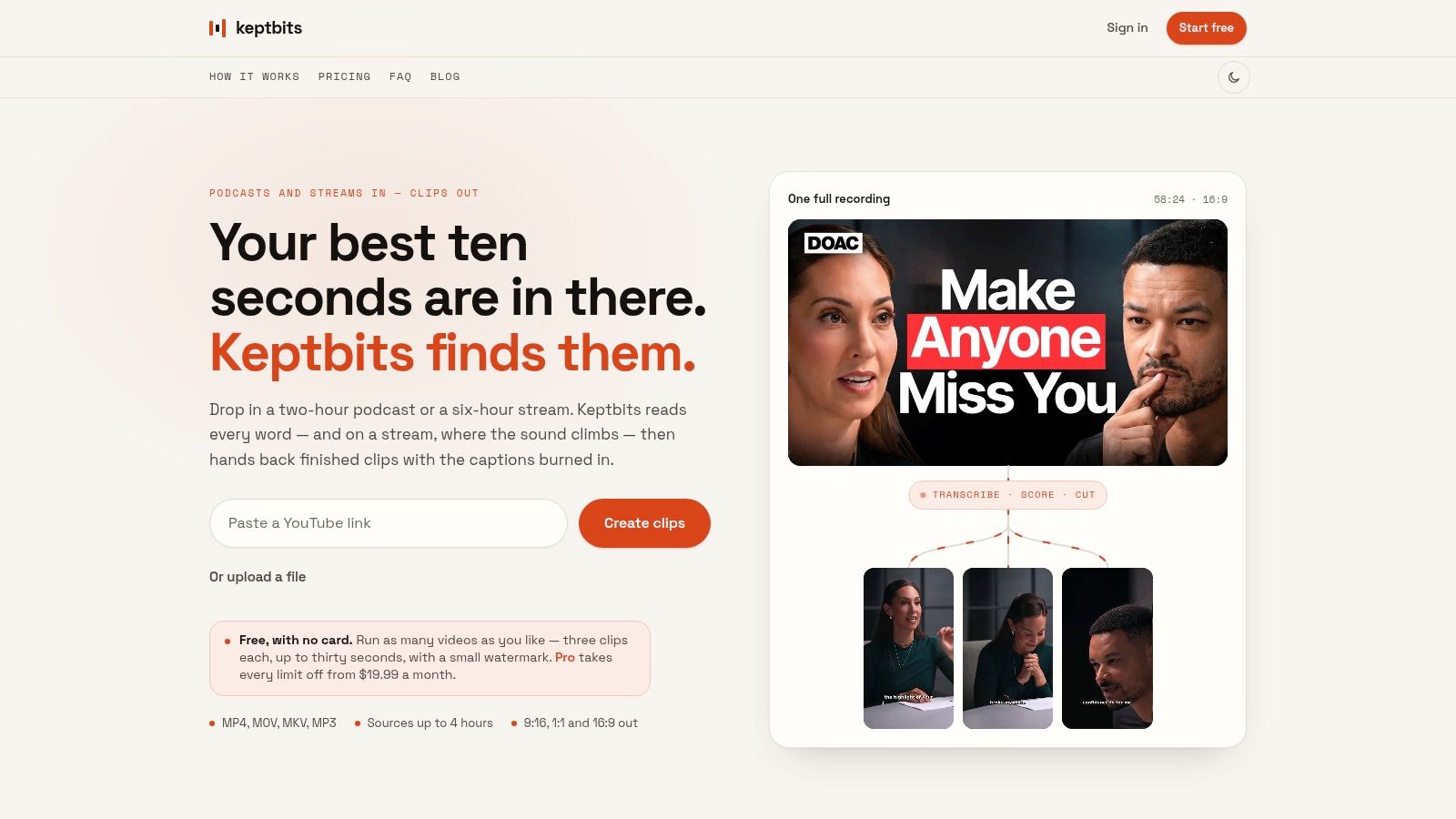
Keptbits is the most opinionated option in this list, and that's a strength if your main problem is turning long recordings into short clips that still make sense on their own. It scans a source in the browser, reads the transcript at word level, separates speakers, and prioritizes moments that open and resolve cleanly instead of just chasing loud audio or keyword hits. That matters because vertical clips fail when they depend on surrounding context.
Why it fits vertical repurposing
Keptbits snaps cuts to real word boundaries and prefers sentence starts, which reduces the awkward mid-thought feel that many auto-clippers leave behind. It also auto-reframes around the active speaker, so the crop stays stable in 9:16 instead of drifting between faces and hands. Outputs can be generated simultaneously in 9:16, 1:1, and 16:9, which makes it easier to publish one source across short-form feeds and standard channels.
Two modes help separate use cases. Talking prioritizes complete answers and stories, while Stream looks for reactions and peaks, including moments with no speech. That distinction is useful for podcasts, interviews, live streams, and gaming clips because each format needs a different definition of “good.”
Practical rule: if you publish speech-heavy clips, judge the tool by whether the segment still works when you remove the surrounding episode. Keptbits is built around that question.
Pro adds silence removal, transitions, color grading, and a built-in clip editor for manual fine-tuning. The free plan doesn't require a card, allows unlimited runs, and returns up to three clips per run with a small watermark, which makes it easy to test against episodes you know well. Keptbits is also useful for teams that want predictable pricing rather than minute-based billing, especially when they're repurposing regularly.
Best for: podcasters, interview shows, streamers, social media managers, and creators who want speaker-aware, cross-aspect repurposing without a lot of timeline work.
Limitations: the free plan caps clip length and adds a watermark, and even strong automation can still need manual judgment for nuanced storytelling.
Website: Keptbits
2. CapCut
CapCut sits in a different lane. It's less about narrative selection and more about fast social production across mobile, desktop, and web. That makes it a strong fit for creators who already know what they want to post and need to format, caption, and decorate it quickly.

Template speed over editorial judgment
Its Auto Reframe helps convert horizontal footage to vertical while keeping the subject in frame, and its auto captions and animated caption styles support the pacing that short-form platforms reward. The template and effects ecosystem is the draw. If you're making frequent social cutdowns, CapCut gets you to a polished result faster than a traditional timeline-first editor.
That speed comes with a tradeoff. CapCut is best when the content is already tight, because the tool does not solve the harder editorial question of whether a clip is self-contained enough to survive as a standalone post. It's a production accelerator, not a narrative filter.
The cross-device workflow is also part of the appeal. Creators can start on a phone, refine on desktop, and keep assets synced in the same ecosystem. For teams that prize familiarity and quick iteration, that lowers friction.
Best for: creators and social teams that want fast vertical edits with templates, captions, and effects across devices.
Limitations: pricing can vary by region and platform, and some export quality or effects options may be gated in newer plans.
Website: CapCut
3. Descript
Descript is strongest when your vertical clips come from dialogue, not action. The transcript is the timeline, so if you're trimming a podcast answer, a webinar segment, or an interview quote, the workflow feels direct and readable.
Transcript-led editing for speech-first clips
Word-level transcript editing changes the editorial process. You're not hunting through a waveform for a good sentence, you're cutting the sentence itself. That's a major advantage for repurposing because it makes it easier to preserve meaning while removing filler, pauses, and redundant setup.
Descript also brings filler-word and silence removal, plus audio cleanup that helps talking-head content feel more finished before it becomes a short clip. For teams that care about a clean voice track more than motion graphics, that's a meaningful difference. It's especially helpful when the underlying footage is strong but the delivery needs polishing.
For users who want a social output from a long recording, Create Clips helps surface shorter segments from the transcript. That makes Descript a practical bridge between long-form production and vertical publishing, especially for people who already think in scripts and spoken structure.
If you're trying to compare caption behavior, it helps to remember that subtitle readability starts before the export step. A useful companion reference is Keptbits' guide on its own subtitle workflow, AI Subtitle Maker, because it shows how transcript-level decisions affect the finished clip.
Best for: podcast teams, webinar editors, interview producers, and solo creators who want transcript-first control with strong audio cleanup.
Limitations: it can feel heavier than a simple social editor, and the credit or minute model may require top-ups for heavy use.
Website: Descript
4. Adobe Premiere Pro
Premiere Pro is the most capable option here for editors who need the vertical version to look like it came from a fully finished production pipeline. It's not the fastest route to a clipped social post, but it gives you the most control over framing, timing, graphics, and finish.
When vertical needs broadcast-level control
Auto Reframe is the main reason Premiere appears in a vertical workflow comparison. It automates aspect-ratio conversion while tracking action, which is useful when you need a 16:9 source turned into a 9:16 version without rebuilding the entire sequence by hand. That matters less for casual creators and more for agencies or teams that need consistent output across deliverables.
Premiere's newer AI-powered Object Mask and faster shape-mask tracking, described in Adobe's January 2026 update, show where the product is headed, toward more precise subject isolation and faster tracking inside the timeline. The release also highlights integrated Frame.io collaboration and direct asset movement between Adobe tools, which helps teams keep review and finishing inside one ecosystem. Adobe's Premiere and After Effects update makes that workflow direction clear.
If you already have motion graphics, color work, or multi-camera edits to preserve, Premiere is the safest choice. It's also the least forgiving if your priority is speed over precision.
If you need to protect shot-by-shot intent, a full NLE is often the right place to make the vertical cut.
Best for: agencies, in-house teams, and editors who need precise vertical versions with professional finishing control.
Limitations: it's overkill for quick repurposing, and the learning curve is steeper than browser-based tools.
Website: Adobe Premiere Pro
5. VEED
VEED works well for teams that want browser-based editing with strong caption and transcript workflows. It's the kind of vertical video editor you open when speed matters, but you still want enough control to make the result look intentional.
Fast web editing with caption-heavy workflows
AI Clips and Edit by Script are the features that make VEED interesting for vertical repurposing. They let you work from a transcript, extract short moments, and push those moments toward a social format without installing desktop software. For creators who spend most of their time captioning, translating, or resizing clips, that's a practical fit.
Dynamic subtitles are a major part of VEED's value. Vertical clips live or die by readability, and VEED leans into that with subtitle styling and translation or dubbing options that help a short clip travel further without rebuilding the edit from scratch. The browser workflow also makes collaboration easier for distributed teams.
VEED is less attractive if you want a highly manual edit or a highly predictable billing model. Its pricing and credit structure can feel opaque, so heavy users should verify the current plan behavior before standardizing on it. Still, for fast caption-first output, it's a serious contender.
Best for: creators and teams that want browser-based clipping, subtitles, and translation in one place.
Limitations: advanced AI usage can consume credits quickly, and the pricing structure can be harder to parse than a fixed subscription.
Website: VEED
6. Kapwing
Kapwing sits close to VEED in the market, but it feels especially practical for teams that want quick resizing, captions, and brand consistency without moving into a full NLE. It's built for collaborative social production rather than deep timeline work.
A balanced browser option for platform-ready exports
Smart Cut and Find Scenes help remove dead air and locate cleaner clip boundaries, while the AI assistant can resize a source into vertical and generate platform-specific versions. That makes Kapwing useful when you've already chosen the clip and now need to adapt it for different feeds without rebuilding the project each time.
It also handles the boring work that teams often underestimate, brand kits, shared workspaces, and subtitle styling. Those features matter more than they sound like, because a vertical workflow breaks down quickly when every editor exports slightly different versions of the same clip.
Kapwing is especially good for small teams that want predictable collaboration and transparent plan structure. It isn't trying to replace Premiere, and it isn't as aggressive about auto-discovery as a repurposing-first product. Its strength is reliable packaging.
For teams thinking about subtitle behavior as part of export quality, Kapwing's caption workflow is a useful point of comparison with Keptbits' Auto Caption Generator, especially if you want to compare script-based styling with repurposing-driven caption burn-in.
Best for: small teams, brand marketers, and creators who need clean browser-based vertical exports with shared assets.
Limitations: large timelines can slow browser performance, and AI features may consume credits quickly.
Website: Kapwing
7. Opus Clip
Opus Clip is built for speed and volume. If the goal is to turn one long video into a batch of short vertical clips as fast as possible, it's one of the more direct tools in the category.
High-volume clipping with heuristic scoring
The main appeal is its auto-clipping approach, which surfaces moments it thinks will perform well and packages them with animated captions and reframing. That's attractive for creators who publish often and don't want to manually comb through long recordings every time they need a few shorts.
The downside is visible in the product logic itself. A virality score is a useful heuristic, but it still needs human review, especially if your content depends on narrative completeness rather than punchy lines. For interviews, educational content, and nuanced discussions, the strongest clip is often the one that makes sense without the score.
Opus Clip also includes scheduling and multi-aspect output, which helps teams move from discovery to distribution without bouncing between tools. The fit is best when the publishing cadence is high and the review process is fairly lightweight.
For a repurposing-first workflow, it can be useful to compare Opus Clip against Keptbits' AI tools for YouTubers, because both are trying to reduce manual clip hunting, but they prioritize different editorial judgments.
Best for: creators and small teams that want rapid batch generation of vertical shorts from long videos.
Limitations: heuristic scoring still needs editorial review, and free-tier exports are restricted.
Website: Opus Clip
8. Dumme
Dumme takes a context-preserving approach to automated repurposing. Instead of treating the clip as a random highlight, it tries to keep the short coherent, which is exactly the right instinct for speech-heavy vertical content.
Coherence matters more than volume
That emphasis on preserved narrative context makes Dumme a strong match for podcasts, interviews, and webinar segments that need to survive outside the original timeline. It also generates captions, titles, and descriptions, which helps you move from a raw moment to a post that's ready to publish.
The tradeoff is manual control. Dumme is built to reduce scrubbing, not to replace a full editing suite. If you want frame-by-frame timing changes, layered graphics, or detailed scene work, you'll feel the limits quickly. If you want more finished short-form outputs from long conversations, the tool is more aligned with the actual bottleneck.
Multi-language support and direct platform uploads make it feel more operational than experimental. That's useful for teams publishing in more than one market or trying to standardize a repeatable pipeline for speaker-led content.
Best for: podcast, interview, and webinar teams that want cohesive shorts with minimal manual hunting.
Limitations: pricing isn't published on the homepage, and the timeline-level toolbox is lighter than a full editor.
Website: Dumme
9. Munch
Munch is built for teams that want more than vertical clips. It's a repurposing suite that turns one source video into multiple content assets, which makes it useful for multi-channel campaigns.
Vertical clips plus written assets
The obvious value is its AI video editing with auto-captioning and relevance scoring, but the broader workflow is what stands out. Munch also produces written formats such as posts, carousels, and descriptions, so one long recording can feed several distribution lanes.
That makes Munch attractive for marketing teams that don't just want a short clip, they want a campaign package. If your team needs video, copy, and platform adaptation from the same source, this reduces the number of tools you need to coordinate.
The limitation is control. Munch isn't a traditional NLE, so if you care about fine timing, layered edits, or custom motion choices, you may still need another editor downstream. It's better as a repurposing engine than as the final finishing room.
Best for: multi-channel teams that want vertical clips and written assets from one source video.
Limitations: fine-grain editing is lighter than in full editors, and the pricing model can feel less intuitive than time-based billing.
Website: Munch
10. Quso
Quso, formerly vidyo.ai, is aimed squarely at automated long-to-short workflows. It focuses on clipping, subtitles, reframing, scheduling, and branded templates, which makes it a practical option for repeatable vertical output.
Straightforward automation for branded shorts
Its highlight-detection flow and auto-reframing support the core work of turning a long recording into 9:16, 1:1, or 16:9 versions without a lot of manual setup. CutMagic scene detection and filler-word removal help clean up the result, while animated caption styles and brand kits keep the output consistent.
This is a sensible choice if your team values repeatability more than deep control. The workflow gets a lot done, but it still relies on you to judge whether the selected moments stand alone. Like other automated repurposers, it can help you move faster, but it can't fully replace editorial review.
The credit-based model is the main caution. If you process a lot of content, that matters more than the feature list. Annual plans may provide more credits, but heavy users should compare the economics against simpler subscription tools before standardizing on it.
For teams focused on a broader automation pipeline, it helps to compare Quso against Keptbits' Keptbits homepage approach, because both are trying to automate repurposing, but they emphasize different parts of the clip selection and export process.
Best for: teams that want a branded, automated pipeline for vertical shorts and scheduled publishing.
Limitations: the credit model can get expensive for heavy use, and some advanced features sit behind higher tiers.
Website: Quso
Top 10 Vertical Video Editors, Feature Comparison
| Product | Core features | UX / Quality | Price / Value | Target audience | Unique strength |
|---|---|---|---|---|---|
| 🏆 Keptbits | Browser ingest up to 4h, word‑level transcript, speaker separation, auto‑cut + reframing, multi‑aspect exports | ★★★★★ | 💰 Free (unlimited runs; 3×30s/run, watermark) · Pro $19.99/mo or $5.99/wk | 👥 Podcasters, streamers, social managers | ✨ Transcript‑accurate cuts, narrative‑complete scoring, speaker‑aware reframes |
| CapCut | Auto‑reframe, animated captions, templates, cross‑platform editors | ★★★★☆ | 💰 Free + in‑app purchases / paywalled features | 👥 Mobile creators, quick social editors | ✨ Huge template/effects library with cloud sync |
| Descript | Edit by transcript, filler/silence removal, Create Clips, audio cleanup | ★★★★☆ | 💰 Free & paid plans; credit/minute top‑ups for heavy use | 👥 Podcasters, editors needing audio polish | ✨ Text‑first editing with strong audio tools |
| Adobe Premiere Pro | Full NLE, Auto Reframe, native captioning, Adobe ecosystem | ★★★★★ | 💰 Higher‑cost subscription (pro/agency budgets) | 👥 Agencies, professional editors | ✨ Broadcast‑level control + deep integrations |
| VEED | AI Clips, auto‑subtitles & translation, edit‑by‑script, web collaboration | ★★★★ | 💰 Free + tiered credits/subscriptions | 👥 Web‑first creators, teams wanting quick captions | ✨ Fast web captioning, translation and API options |
| Kapwing | Smart Cut, AI Clip Maker, auto‑subtitles, brand kits, team workspaces | ★★★★ | 💰 Free + credits; clear paid tiers | 👥 Small teams, social marketers | ✨ Predictable pricing + easy collaboration |
| Opus Clip | Auto clipping, virality scoring, animated captions, scheduler | ★★★★ | 💰 Free w/ watermark; Pro with credits/rollover | 👥 High‑volume social publishers | ✨ Rapid batch generation focused on "viral" moments |
| Dumme | Auto‑curation of context‑preserving clips, captions, multi‑language, uploads | ★★★★ | 💰 Pricing not public (signup required) | 👥 Creators who value narrative integrity | ✨ Emphasis on self‑contained, context‑preserving shorts |
| Munch | AI editing + scoring, multi‑asset outputs (posts, carousels), bulk processing | ★★★★ | 💰 Tiered by "Munches" (scales with usage) | 👥 Teams running multi‑channel campaigns | ✨ Generates written + visual assets from one source |
| Quso (vidyo.ai) | Auto‑clipping, CutMagic scene detect, animated captions, brand exports | ★★★ | 💰 Credit‑metered (minutes→credits); annual boosts | 👥 Creators needing branded short pipelines | ✨ Straightforward long→vertical pipeline with branded templates |
Choose the Editor That Matches Your Review Process
The best vertical video editor depends on where your workflow bottleneck really is. If the hard part is finding clips that still make sense after the cut, Keptbits is the strongest fit because it prioritizes self-contained moments, speaker-aware framing, and cross-aspect export from the same source. If you already know the clip and just need fast social packaging, CapCut is a practical choice across devices, especially for template-led work.
If your source is speech-heavy and you want transcript control, Descript makes the most sense. If the vertical cut has to hold up under professional finishing standards, Premiere Pro gives you the most control over timing, masks, and overall polish. For browser-based captioning and resizing, VEED and Kapwing are the easiest places to work without installs.
For automated repurposing, the question becomes how much judgment you still want the software to make. Opus Clip is built for batch generation and heuristic scoring, Dumme focuses on preserving context, Munch adds multi-channel asset generation, and Quso packages automation with branded outputs and scheduling. Those tools can save a lot of time, but they don't remove the need to inspect whether the clip really stands on its own.
A good test is simple. Run the same long source through two or three shortlisted tools, check whether the crop stays stable on the speaker, verify caption timing, confirm the required 9:16 export, and review every automated cut before you publish. That test will tell you more than any feature grid ever will.
If you're repurposing long recordings into vertical and square clips, Keptbits is built for the part that usually takes the most time, deciding which moments are complete enough to publish. It combines speaker-aware framing, burned-in captions, and multi-aspect exports so you can move from source footage to ready-to-post clips faster. Explore it at Keptbits and see how it fits your vertical workflow.
Keptbits cuts on sentence boundaries.
Paste a link or upload an episode, say how many clips you want, and get them back captioned and vertical. The free plan needs no card.
Start freeRead next
10 Video Editing Tools Online for Faster Content
Compare 10 video editing tools online for captions, automation, free tiers, aspect ratios, collaboration, and practical browser-based workflows.
That's a Good Deal: How to Evaluate True Value
Wondering if that's a good deal? Learn how to evaluate true value, decode pricing models, and spot the difference between a bargain and a trap.
4 5 Size in Pixels and Posts: A Practical Guide
Learn what 4 5 size means for photos and videos, the best pixel dimensions for social feeds, and simple cropping tips to make every post look polished.