22 September 2026 · 16 min read
10 AI Subtitle Maker Tools Compared for Video
Compare 10 ai subtitle maker tools for accuracy, formatting, burned-in captions, file exports, speaker separation, and practical workflows.
Fastest isn't the same as best. An ai subtitle maker can turn audio into text in seconds, but the question is whether the result fits the job, because a social clip with burned-in captions has different requirements from an SRT file you'll reuse in an edit, a webinar archive, or a localized release. The four decisions that matter most are simple, whether viewers need burned-in captions or downloadable subtitle files, how much formatting control you need, whether speaker separation matters, and how much cleanup your team can tolerate after generation.
That's why the best tool depends on the production path, not the marketing. Some tools are built for social-first publishing, some for transcript-centered editing, some for full NLE timelines, and some for dedicated subtitle workflows where export formats and review controls matter more than speed. The list below compares them by the things that change the final result, transcription accuracy, speaker handling, caption styling, file exports, and the amount of manual correction left for your team.
Table of Contents
- 1. Keptbits
- 2. VEED.io
- 3. Kapwing
- 4. Descript
- 5. Adobe Premiere Pro Speech to Text
- 6. DaVinci Resolve Studio
- 7. Zubtitle
- 8. Riverside
- 9. Flixier
- 10. Happy Scribe
- Top 10 AI Subtitle Makers: Feature Comparison
- Choose by Workflow, Then Run a Caption Quality Check
1. Keptbits
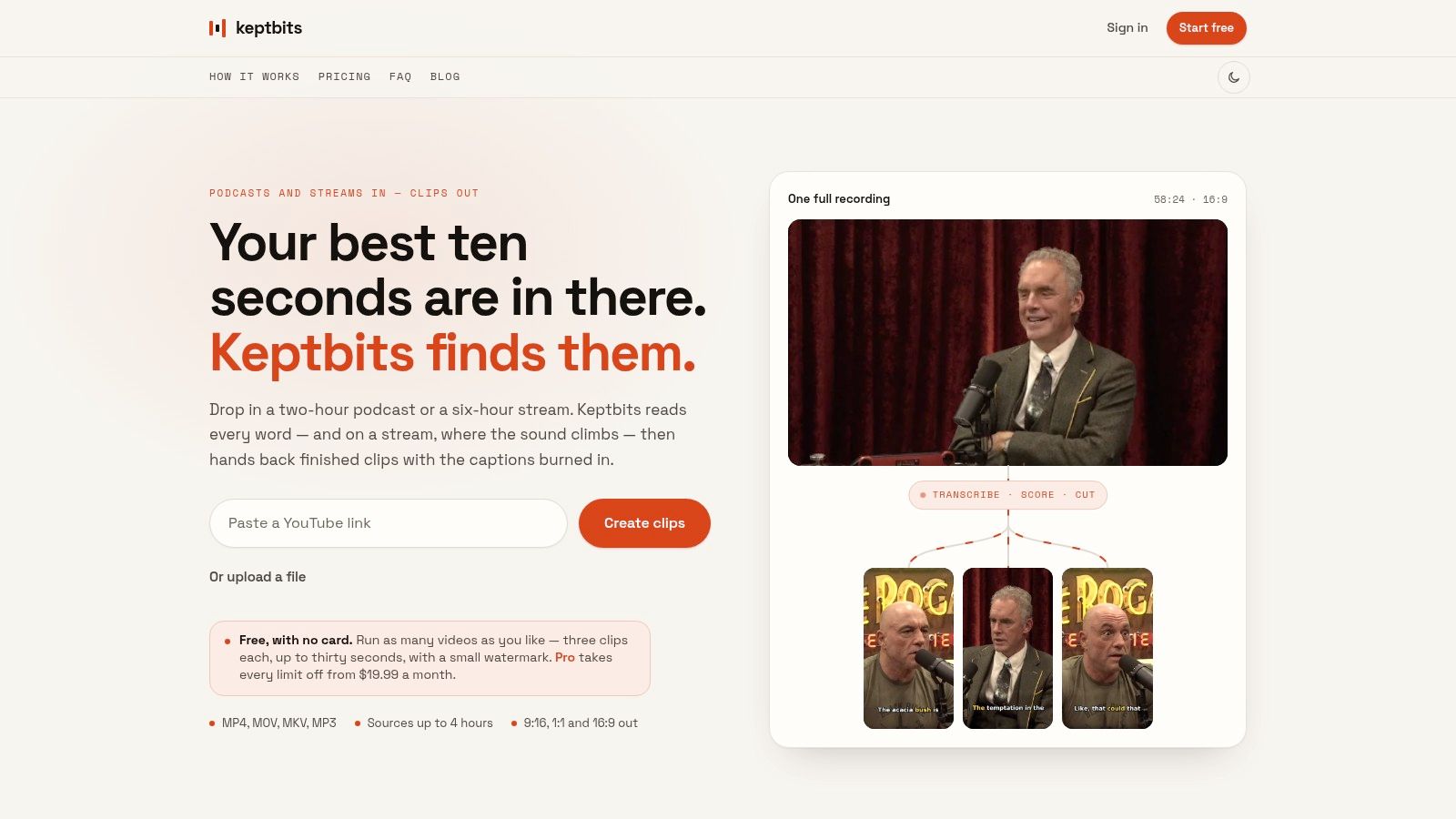
Keptbits fits cases where the output has to be a publishable clip, not just captions on a timeline. It analyzes long source files in the browser, scores candidate moments for narrative completeness, separates speakers at the transcript level, and snaps cuts to real word and sentence timing so the result feels intentional rather than clipped together. For creators publishing podcasts, interviews, streams, or webinars as short-form video, that solves a different problem than a basic subtitle generator.
Why it stands out for caption production
Keptbits is built around clip production rather than generic caption editing. It turns long recordings into short clips with word-level transcription, speaker-separated timing, and speaker-aware auto-reframing, so vertical outputs stay centered on the active speaker instead of drifting across the frame. It also exports 9:16, 1:1, and 16:9 from the same pass, which matters when one source has to serve Reels, Shorts, and standard feeds.
The practical gain is less cleanup. If the tool already chooses moments that open and resolve on their own, snaps boundaries to sentence edges, and burns in captions before export, there is less repair work before publication. That makes it useful for teams that care more about narrative completeness than transcript output alone.
Practical rule: use a tool like this when the clip itself is the deliverable, not just the transcript.
A few workflow details make the trade-off clearer. Keptbits accepts long sources, including files up to four hours, and its free plan allows unlimited runs with short clips, while Pro adds longer outputs, a built-in editor, silence removal, transitions, and color grading. Pricing is flat rather than minute-metered, which helps teams planning recurring repurposing work.
- Best fit: long interviews, podcasts, streams, and marketing webinars turned into ready-to-post clips.
- Main trade-off: the selection logic is editorial, so the algorithm can miss moments you'd pick by hand.
- Output strength: burned-in captions plus framing that tracks the speaker, which matters more than a transcript dump when the goal is social publishing.
Website: keptbits.com
2. VEED.io
VEED.io is a better fit for teams that want a quick browser workflow and polished burned-in captions without moving into a full editorial environment. Its main strength is speed, not depth. You upload, auto-transcribe, style the captions, and export in the browser, which keeps the process simple for creators and social teams that want fast turnaround.
The product also fits automation-minded workflows because it offers a Subtitles API that can return finished MP4s with styled captions. That makes VEED useful for small teams and platform-led publishing pipelines where the output has to look branded before anyone touches a desktop editor.
You should treat VEED as a social captioning tool first. It's strong when the caption is part of the visual design, and less compelling when the need is a subtitle file for future reuse or a heavily edited transcript pipeline.
For teams repurposing content at speed, the value is in getting styled output quickly, not in building a complex subtitle review system.
A useful comparison point is that readers looking for caption strategy guidance can pair VEED-style social publishing with the broader framing in Keptbits' article on captions with the sound off, especially if the goal is silent autoplay on social feeds.
Website: VEED.io
3. Kapwing
Kapwing sits in the middle of the market. It's a browser editor with auto-subtitles, URL import, styling, translation, and SRT export, which makes it more flexible than a pure social caption generator but still much lighter than a pro timeline tool. That makes it appealing to teams that want captions, restyling, and quick collaboration without adding desktop software to the stack.
The main production question with Kapwing is whether your audio is clean enough for light cleanup, because that's where browser editors usually show their limits. For straightforward talking-head content, the workflow is quick. For overlapping dialogue, accents, or jargon-heavy material, you should expect more manual correction before export.
Where Kapwing wins and where it doesn't
Kapwing is attractive because it reduces friction for non-editors. Upload the asset, generate the subtitles, style them, and export the result. The downside is that minute-based allowances can shape how comfortable it feels for high-volume teams, so it works best when your publishing volume is moderate or your plan already accommodates larger usage.
Its real advantage is flexibility. The same project can support social-style burned-in captions or exported subtitle files, so a team can start with a fast social version and still keep a file-based workflow for reuse later.
Website: Kapwing
4. Descript
Descript is the obvious pick when the transcript is the editing surface. Instead of treating captions as a finishing step, it turns transcription into the core of the workflow, which is why podcasters, interview editors, and spoken-word teams tend to like it. Edit the text, and you're effectively editing the media.
That model gives Descript a different kind of value than a traditional subtitle maker. If you need to remove filler words, tighten a conversation, or cut a clip by editing the transcript directly, the tool does more than generate captions. It becomes the place where the content gets shaped before captions are exported in SRT/VTT or burned into the render.
The workflow is strongest when the source is dialogue-heavy and the final deliverable is still transcript-centered. It's less ideal if you want a purely web-based, one-pass caption tool with minimal software overhead.
Transcript-first editing is efficient only when the transcript is already close to publishable. If the transcript needs heavy repair, the time savings shrink fast.
For creators who care about timing precision, Keptbits' word-level timestamp workflow is a useful contrast point, because both approaches depend on clean timing, but they solve different production problems.
Website: Descript
5. Adobe Premiere Pro Speech to Text
Premiere Pro's Speech to Text belongs in a different category. It isn't a standalone subtitle service, it's a captioning feature inside a professional editing timeline, which makes it the right choice when the subtitle has to stay inside the broader edit. That matters for teams already cutting in Premiere, because there's no round-trip to another app just to create or style captions.
The big advantage is continuity. You can transcribe, edit the captions, style them, and translate them inside the same project. That's useful when captions are part of a polished deliverable rather than a quick social post.
Best use case and best trade-off
This is the right tool when the editing environment already exists and the subtitle work has to obey the edit. It's not the fastest route for a creator who only wants a captioned clip, and it's not the cheapest route either. But for post-production teams, keeping subtitle work in the timeline often matters more than raw simplicity.
Accuracy still depends on audio quality, so it doesn't remove the need for review. It just keeps the review process in the same place as the rest of the finishing work.
Website: Adobe Premiere Pro
6. DaVinci Resolve Studio
DaVinci Resolve Studio is the pro NLE answer for teams that want subtitles inside a larger finishing stack. Its Neural Engine supports auto captioning, and its transcription window turns caption creation into part of the editing workflow rather than a separate task. For editors who already live in Resolve, that integration is the point.
The practical difference from a lightweight web tool is control. You're not just generating text, you're placing captions inside a system that already handles editing, color, audio, and VFX. That makes Resolve especially useful for projects where subtitle timing has to match a broader finishing pass.
The trade-off is complexity. Resolve asks for more learning than browser tools, and the auto-caption feature sits in the Studio version, so the free edition doesn't give you the same path. If your work is mainly social clips or quick exports, that can be too much machine for the job.
Use Resolve when captions are one part of a professional finishing chain, not when captioning itself is the product.
Website: DaVinci Resolve Studio
7. Zubtitle
Zubtitle is built for one thing, quick social video with on-brand captions. The workflow is simple, upload the file, auto-transcribe it, fine-tune the timing and text, add a headline, and export in vertical, square, or widescreen formats. If your captioning needs are mostly for talking-head clips, short promos, or social posts, the tool is easy to understand fast.
It also covers the basic decision split between burned-in captions and SRT export, which makes it more useful than a one-format social app. That said, it's clearly optimized for shorter content and more controlled uploads, so it's less appealing for long-form files or complex localization projects.
A useful way to think about Zubtitle is that it helps you finish something that's already close to ready. It's less about solving hard transcription problems and more about turning simple spoken clips into branded social assets.
Best fit: creators who want fast, attractive, social-ready output without opening a desktop editor.
For readers deciding between burned-in text and editable subtitle files, Keptbits' comparison of burned-in captions versus subtitles is the right companion read.
Website: Zubtitle
8. Riverside
Riverside combines recording and subtitling, which matters if you want fewer tools in the path from interview to post. It's designed for remote recording, then lets you add styled captions, animated caption options, and clip-oriented AI tools inside the web editor. That makes it attractive for podcasters and interview shows that want to record, trim, caption, and publish without moving between platforms.
The strength here is convenience. If the content is already captured in Riverside, the path to a captioned clip is short. The limitation is that captioning feels geared toward podcast and social outputs rather than advanced subtitle specifications or file-centric workflows.
That distinction matters. Teams that need nuanced subtitle file handling, deep formatting control, or rigorous QC may outgrow Riverside quickly. Teams that need to move from recording to publishable clip with minimal friction will probably like it.
Website: Riverside
9. Flixier
Flixier is a cloud editor for teams that want speed, collaboration, and straightforward subtitle generation in the browser. It auto-detects language, generates subtitles, supports restyling and translation, and exports with either burned-in captions or subtitle files. That gives it a decent balance between social delivery and file-based workflows.
The practical appeal is cloud rendering. If your team collaborates remotely or wants to avoid long local exports, Flixier's setup is convenient. The caution is that included subtitle minutes vary by plan, so you need to check allowances before scaling a high-volume workflow.
When Flixier makes sense
Flixier works best when you want enough captioning flexibility to cover common production jobs, but not the overhead of a full post-production suite. It gives teams a lighter path to exportable captions and reusable files, while keeping the learning curve manageable.
It's not the strongest option for advanced QC, detailed speaker separation, or heavy subtitle correction. It's the better option when speed and collaboration matter more than precision tooling.
Website: Flixier
10. Happy Scribe
Happy Scribe is the cleanest choice when you care about subtitle files, format flexibility, and review depth. It supports AI-generated subtitles, an in-browser subtitle editor, exports across multiple formats such as SRT and VTT, and the option to move to human-reviewed subtitling when accuracy matters more than speed. That makes it especially relevant for localization teams and publishers with quality gates.
This is the kind of platform you choose when the final file matters as much as the text itself. The browser editor is practical, but the more important feature is the ability to scale from automatic generation to human review without changing tools.
The main limitation is commercial rather than technical. Pricing can vary by region or account, so teams should confirm current rates before building a volume process around it. Even so, the workflow is strong for projects where subtitle files are the deliverable, not just a byproduct.
If you publish in multiple languages, the ability to move from AI output to human review in one platform is often worth more than a fancier caption style library.
Website: Happy Scribe
Top 10 AI Subtitle Makers: Feature Comparison
| Product | Core features ✨ | Quality & UX ★ | Price & Value 💰 | Target audience 👥 | Unique selling points |
|---|---|---|---|---|---|
| 🏆 Keptbits | Browser ingest ≤4h; word‑level transcripts; speaker split; moment scoring; auto‑reframe; 9:16/1:1/16:9 exports | ★★★★★, boundary‑snap cuts, accurate burned‑in captions | 💰 Free (unlimited runs, 3×30s clips/run, watermark); Pro $19.99/mo or $5.99/wk (no watermark) | 👥 Social creators, podcasters, editors needing fast clip discovery | ✨ Narrative‑complete scoring; sentence‑accurate snaps; speaker‑aware reframing; flat pricing |
| VEED.io | Fast auto‑transcription, translation, 20+ caption styles, API | ★★★★, fast, simple browser workflow | 💰 Freemium; paid tiers for scale & API access | 👥 Solo creators, social teams, API users | ✨ API that returns styled burned‑in MP4s; quick web edits |
| Kapwing | Auto‑subtitles, URL import, SRT export, styling | ★★★★, easy & quick for social outputs | 💰 Freemium; minute/credit limits on paid plans | 👥 Non‑editors, social teams, educators | ✨ URL imports + strong documentation; frequent updates |
| Descript | Text‑based editing (edit by transcript), filler removal, captions | ★★★★★, transcript‑first workflow for spoken‑word | 💰 Subscription (free tier with limits); desktop + cloud | 👥 Podcasters, interview editors, narrative creators | ✨ Edit‑by‑text + filler removal; team collaboration tools |
| Adobe Premiere Pro (Speech to Text) | In‑timeline transcription & caption styling; AI translation | ★★★★, pro NLE integration, timeline control | 💰 Creative Cloud subscription (higher cost) | 👥 Professional editors, agencies, enterprise | ✨ Captions kept inside NLE; enterprise support & broad languages |
| DaVinci Resolve Studio | Neural Engine auto captions (Studio); transcription window; speaker detection | ★★★★, pro toolchain with high‑quality finishing | 💰 One‑time Studio license (paid); free edition limited | 👥 Colorists/editors needing pro NLE + subtitles | ✨ One‑time purchase; full edit/color/audio/VFX suite |
| Zubtitle | Auto‑transcribe, timing/text editor, social aspect presets, headlines | ★★★, very quick for short social pieces | 💰 Paid plans; geared to short‑video limits | 👥 Marketers, small teams producing branded social clips | ✨ Headline + brand styling presets for fast output |
| Riverside | Remote studio recording + web editor, one‑click captions, Magic tools | ★★★★, seamless record→caption→clip flow | 💰 Subscription/credit tiers; limits on advanced AI | 👥 Podcasters, interview shows, remote creators | ✨ Studio‑quality capture + integrated clip creation tools |
| Flixier | Cloud editor, language auto‑detect, subtitle translation, cloud rendering | ★★★★, fast cloud rendering & collaboration | 💰 Usage‑based allowances; top‑up minutes available | 👥 Teams needing fast cloud renders & collaboration | ✨ Fast cloud renders + flexible minute top‑ups |
| Happy Scribe | AI transcription, in‑browser subtitle editor, multi‑format exports, human option | ★★★, strong export/format support | 💰 Per‑minute pricing; add human‑review for accuracy | 👥 Localization teams & caption/file producers | ✨ Human‑review option; extensive subtitle format support |
Choose by Workflow, Then Run a Caption Quality Check
There isn't one universal winner, because the right ai subtitle maker depends on what you're shipping. Keptbits is the strongest fit for long recordings that need automatically selected, self-contained clips with speaker-aware framing and burned-in captions. Social-first editors like VEED.io, Kapwing, Zubtitle, Riverside, and Flixier make more sense when speed and styling matter more than deep editorial control. Transcript-centered editors like Descript work best when the transcript itself is the editing surface. Professional NLEs like Adobe Premiere Pro and DaVinci Resolve Studio belong in timeline-driven post-production. Happy Scribe stands out when subtitle files, format flexibility, or human review matter most.
The right selection still needs a quality pass. Verify speaker names and speaker changes, because subtitle systems often struggle where voices overlap or shift quickly. Correct transcription errors before publication, then check line breaks and reading pace so captions don't become harder to scan than the video itself. Compare the burned-in version against the SRT or VTT timing if both exist, because text that looks fine in one format can drift in the other.
Audio quality changes everything. Clean prerecorded audio is the easiest case, while noisy recordings, technical jargon, accents, and overlapping dialogue raise the cleanup cost fast, which is why the best tool for one source can be the wrong tool for another. If accessibility or brand safety matters, pay attention to how the captions treat the active speaker, because caption mistakes can distort how viewers judge the people on screen. Confirm the final aspect ratio and plan allowance before you publish, because the wrong export format or usage cap can derail an otherwise finished job.
If your workflow centers on long recordings that need to become short, complete clips, try Keptbits and see how its speaker-aware framing, word-level timing, and burned-in captions fit your publishing process. It's built for teams that care about the clip, the caption, and the cut working together, not just the transcript.
Produced via Outrank
Keptbits cuts on sentence boundaries.
Paste a link or upload an episode, say how many clips you want, and get them back captioned and vertical. The free plan needs no card.
Start freeRead next
7 Online Video Editor Free Picks That Deliver in 2026
Compare 7 online video editor free options for 2026, including watermark limits, export quality, key features, and the best use for each tool.
How to Make Viral Video on YouTube in 2026
Learn how to make viral video on YouTube with proven hooks, thumbnail tests, retention fixes, and Shorts workflows that actually convert viewers into
How to Make YouTube Channel Setup That Actually Grows
Learn how to make YouTube channel setup that grows: account, branding, first videos, optimization, and monetization milestones explained step by step.