1 October 2026 · 16 min read
Video Editing for Social Media: Best Practices for 2026
Master video editing for social media in 2026. Create scroll-stopping content with platform-optimized tips that boost engagement and views.
43% of social media content consumed is short-form, and 66% of viewers finish videos under one minute. The editing advantage isn't making clips faster, it's making every clip self-contained enough to open, develop, and resolve before the viewer scrolls.
That distinction changes the entire production process. A polished crop with drifting speaker tracking still feels amateurish. A clip with beautiful captions can still lose attention if it starts halfway through an argument. The strongest social edits aren't just shorter versions of long recordings. They're complete moments extracted from them, with their own premise, useful middle, and satisfying endpoint.
Table of Contents
- Why Short-Form Video Editing Rules Now
- Choosing the Right Aspect Ratio for Each Platform
- Caption Strategy That Protects Retention
- Pacing Rules That Match Platform Attention Windows
- Export Settings and Multi-Aspect Workflows
- Real Repurposing Scenarios From Long Recordings to Platform Clips
- Building a Repeatable Video Editing Workflow
Why Short-Form Video Editing Rules Now
Short-form video now defines the environment where social edits compete. One 2026 roundup of short-form video statistics reports that short-form accounts for about 43% of all social media content consumed, alongside roughly 200 billion daily Reels plays across Instagram and Facebook combined and more than 200 billion daily YouTube Shorts views. The same source reports year-over-year consumption growth ranging from 36% to more than 75%, depending on the measurement.
Those figures don't mean every recording should be chopped into frantic fragments. They mean the first editorial question has changed. Instead of asking, “Which part sounds interesting?” ask, “Which part makes sense to someone who never heard the original conversation?”
Viewer behavior supports that approach. Multiple 2026 reports state that around 60% of short-form videos are watched for 41% to 80% of their total duration, while videos under 90 seconds retain about 50% of viewers and 66% of viewers finish videos under one minute, according to short-form viewing behavior data. The same research cites 95% of consumers watching short-form video regularly and 71% watching daily.
The clip must carry its own context
A self-contained clip usually has four parts:
- Orientation: The viewer understands who is speaking and what problem is being discussed.
- Tension: A question, disagreement, mistake, or practical obstacle gives the moment direction.
- Payoff: The speaker delivers a useful answer, insight, demonstration, or emotional turn.
- Resolution: The clip ends after the point lands, not while the speaker is still building toward it.
This structure matters more than adding animated stickers or accelerating every pause. A fast clip that begins with “and that's why” asks the viewer to reconstruct the missing setup. A slower clip that states the problem clearly can hold attention because comprehension arrives immediately.
Practical rule: Don't select the sentence with the strongest quote. Select the smallest section that preserves the question, answer, and consequence.
Automation helps locate candidate moments, remove obvious dead air, and create initial versions. It doesn't reliably understand whether a sentence depends on what came before it, whether a punchline has been cut away, or whether the ending gives the viewer a reason to feel finished. Human review still belongs at the narrative level.
Choosing the Right Aspect Ratio for Each Platform
Aspect ratio is a production constraint, not a finishing preference. 9:16 is the dominant vertical format because it fills the phone screen, and Adobe's vertical-video guidance recommends it for Instagram Stories, IGTV, and TikTok. The same guidance advises using borders when footage can't be cropped cleanly, rather than stretching the image and damaging its proportions.
Start with the destination, then inspect the source. If the recording is a tightly framed wide-angle interview, a vertical crop may cut off a shoulder, microphone, product, or second speaker. If the source has lateral space and the subject stays reasonably central, speaker-aware reframing can create a convincing vertical version without a new shoot.

Use a decision tree instead of one universal crop
Choose 9:16 when the clip is intended for TikTok, Instagram Reels, Stories, or YouTube Shorts. Prioritize a centered subject, extra headroom, and enough side space for the crop to follow natural movement.
Choose 1:1 when the same idea needs to live comfortably in a square feed or when the source framing loses too much information in a vertical crop. Square framing can preserve more of a two-person exchange, a demonstration table, or a product layout.
Keep 16:9 when the original composition carries important visual information, such as a webinar slide, software demonstration, panel discussion, or wide environmental shot. A widescreen version can also serve conventional video placements without forcing every idea into a phone-shaped frame.
| Aspect Ratio | Best Platform | Source Requirement | When to Avoid |
|---|---|---|---|
| 9:16 | TikTok, Instagram Reels, Stories, YouTube Shorts | Central subject, headroom, lateral edge safety | Wide groups, edge-positioned speakers, detailed slides |
| 1:1 | Instagram feed and square social placements | Balanced composition with moderate crop flexibility | Tall compositions or clips built around full-screen vertical action |
| 16:9 | YouTube and traditional video feeds | Landscape source with readable visual detail | Mobile-first clips that need maximum screen coverage |
For vertical exports, 1080p is a practical baseline, as the Adobe guidance notes, because lower-resolution footage leaves less room for reframing and caption overlays before compression becomes obvious. Capture with extra space whenever possible. It costs nothing in post-production and gives the editor options that aggressive scaling can't create.
For a workflow that derives vertical, square, and widescreen clips from one recording, see this guide to a vertical video editor.
Caption Strategy That Protects Retention
Captions are part of the edit's information architecture. They support viewers watching without audio, reinforce words that might be missed during a fast scroll, and make the clip understandable when the spoken delivery isn't immediately clear. Colorado State University's vertical-video guidance also connects closed captions with silent viewing and discoverability.
Place captions where they remain readable after platform controls appear. The extreme bottom edge is risky because descriptions, buttons, progress indicators, and other interface elements can cover it. Centered text is safer than bottom-anchored text, but “centered” shouldn't mean covering the speaker's face or the product being demonstrated.

Design for the compressed version
A caption style that looks refined on a large editing monitor can become muddy on a phone. Use a high-contrast font, a strong separation from the background, and short lines that can be read without tracking across the whole screen. Avoid thin weights, low-opacity fills, and decorative outlines that disappear after compression.
A good caption system should answer three questions:
- Can the viewer read it against a changing background?
- Does it avoid faces, products, and platform controls?
- Does it appear at the same moment as the spoken idea?
Word-level timing makes the third answer possible. Aligning captions with transcript boundaries lets cuts land at sentence starts and stops instead of slicing through a phrase. This is especially valuable in interviews and podcasts, where an abrupt cut can make a speaker sound uncertain or make the viewer suspect missing context.
Use emphasis sparingly. Highlighting every word creates visual noise and makes no word important. Emphasize the term, claim, or contrast that carries the idea, then let the rest of the sentence remain stable.
For teams working from transcripts, an AI subtitle maker can accelerate the first pass, but the final review should check names, technical terms, punctuation, and timing.
After the captions have been styled, inspect the clip on a phone rather than trusting the desktop preview. The phone view exposes cramped line breaks, weak contrast, and captions that collide with interface areas.
Pacing Rules That Match Platform Attention Windows
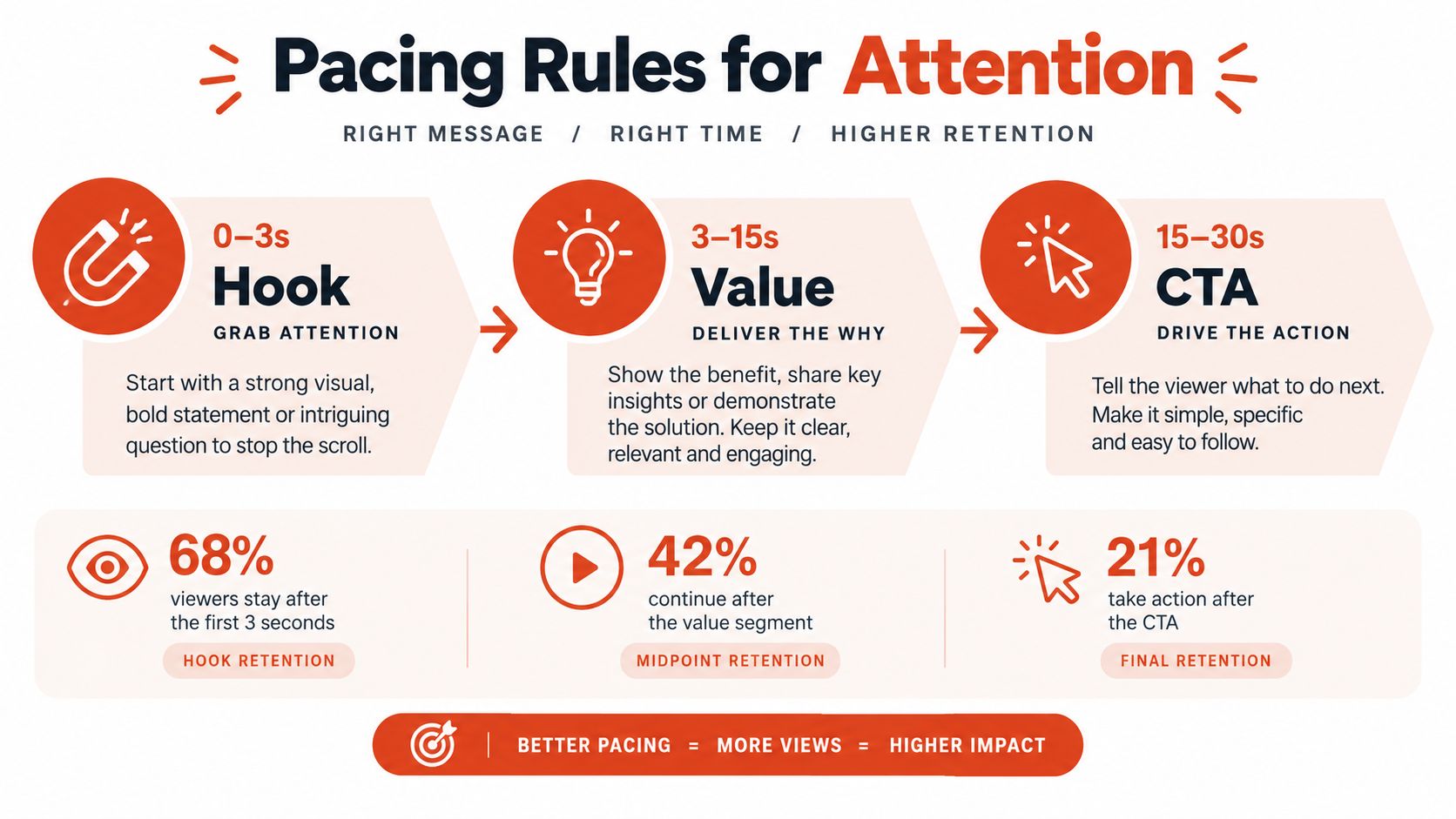
Pacing isn't the same as speed. It is the arrangement of information so the viewer always knows what the moment is about and why the next sentence matters. A clip can contain natural pauses and still feel quick if every pause separates meaningful beats.
Open with the premise, not the warm-up. If the source speaker says, “I think one of the biggest mistakes people make is…”, keep the statement only if the mistake is named immediately. Otherwise, restructure with an earlier sentence, a clean on-screen question, or a visual that establishes the subject before the explanation begins.
Build a complete arc
A reliable short-form arc looks like this:
- Hook: State the problem, surprising observation, or outcome at the start.
- Development: Give the explanation, demonstration, or contrast that earns attention.
- Payoff: Deliver the answer or reveal the practical consequence.
- Exit: End after the idea lands, before the speaker wanders into a new topic.
This doesn't require artificial drama. A webinar clip can open with the operational problem, show the relevant screen or example, then resolve with the precise action the audience should take. An interview clip can begin with the answer, preserve the reasoning behind it, and finish with the limitation or implication.
Cut at language boundaries
Sentence-boundary cutting usually feels more intentional than removing arbitrary fractions of a second from a recording. Cutting mid-syllable can create a visible jump and a vocal artifact. Cutting mid-thought can remove the qualification that makes the claim credible.
A practical editing pass should mark:
- Sentence starts: Useful entry points when the preceding question isn't needed.
- Sentence endings: Natural exit points that preserve grammatical closure.
- Breath and pause points: Places where a cut can remove dead air without damaging emphasis.
- Topic changes: Signals that the clip has reached its resolution and shouldn't continue.
Under 90 seconds, reports cited earlier indicate retention of about 50%, while videos under one minute are completed by 66% of viewers. Those figures support disciplined editing, but they don't justify compressing every idea into the shortest possible version. Preserve context when removing it makes the conclusion ambiguous. Shorten repetition, throat-clearing, and detours first.
Export Settings and Multi-Aspect Workflows
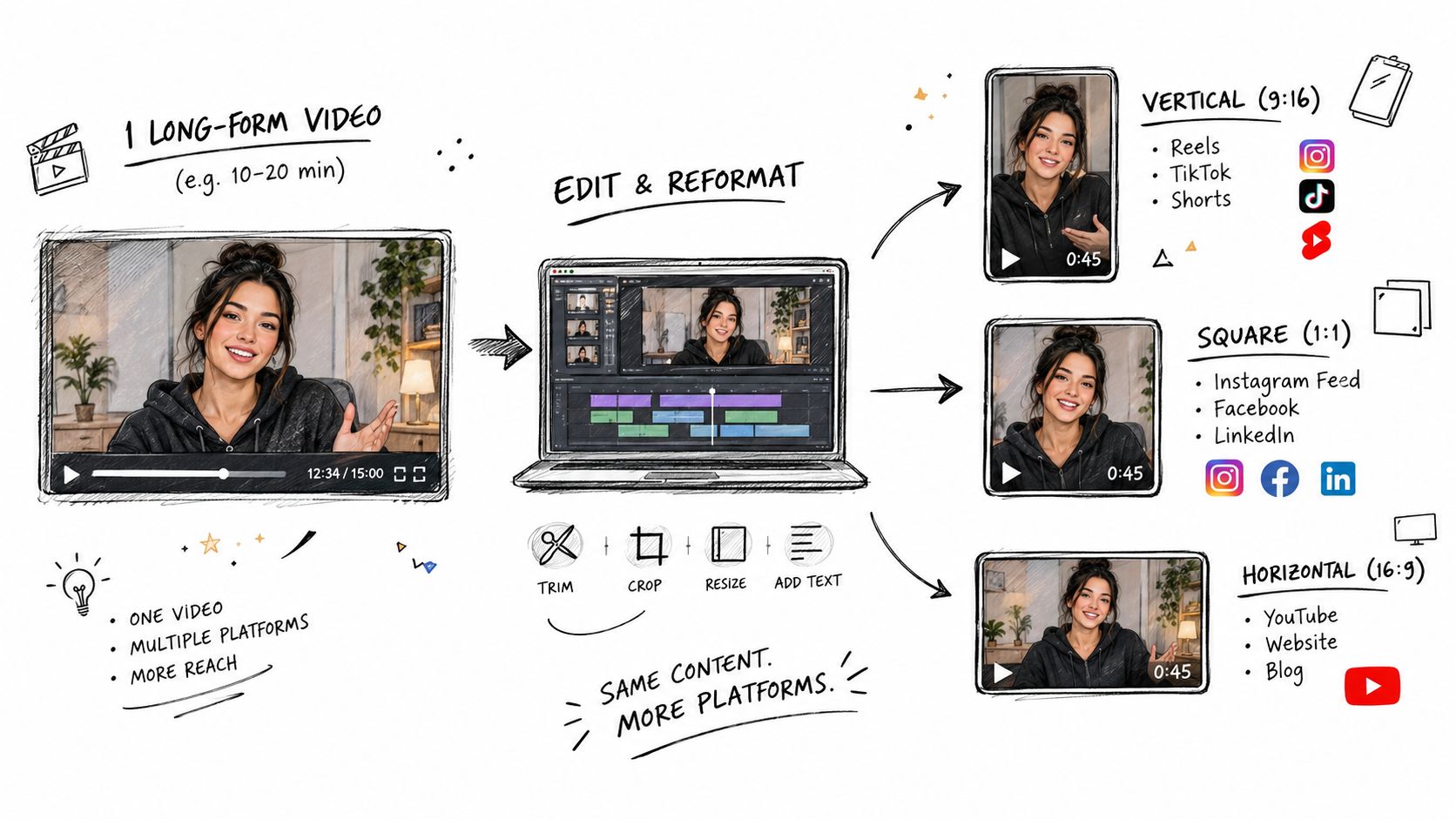
A multi-aspect workflow should have one editorial source of truth and several presentation variants. Cut the narrative once, then adapt framing, caption placement, and visual scale for each destination. Rebuilding the story separately for vertical, square, and widescreen creates unnecessary inconsistencies and makes it harder to identify which version contains the approved wording.
Platform length is no longer a simple “make everything shorter” problem. The current editing guidance from Opus notes that YouTube Shorts supports up to three minutes, Instagram Reels up to 20 minutes, and TikTok up to 10 minutes. Treat those as available ceilings, not targets. A complete answer may deserve more breathing room than a quick reaction, while a single visual joke may lose its force if stretched.
Compare automation with manual control
| Task | Automation is usually suitable when | Manual review is necessary when |
|---|---|---|
| Speaker-aware reframing | One active speaker stays visible and movement is moderate | Speakers cross, share the frame, or move near the crop edge |
| Sentence-boundary cutting | Transcript timing matches clean speech and the idea has a clear start and end | The speaker interrupts, stumbles, overlaps, or relies on visual context |
| Caption generation | Audio is clean and vocabulary is familiar | Names, jargon, accents, music, or overlapping speech create uncertainty |
| Caption styling | The template has safe margins and strong contrast | Text covers faces, products, slides, or platform controls |
| Silence removal | Pauses are clearly empty and don't carry emphasis | Silence communicates hesitation, suspense, or an emotional beat |
| Color and transitions | The source has consistent lighting and the effect is restrained | Mixed cameras, branded requirements, or visual continuity matter |
For output, keep the vertical master at a practical 1080p baseline and check the crop before rendering every variant. Use borders rather than stretching when the original footage can't fill the new frame cleanly. Exporting a technically correct file won't fix a composition that cuts off the speaker's hand or removes the slide title that makes the explanation understandable.
A useful project structure separates the transcript-based cut from the aspect-ratio layouts. The narrative timeline contains the approved words and audio. The vertical layout controls the speaker crop and caption safe zone. The square layout protects wider visual context. The widescreen layout preserves the original composition. Changes to the story should flow from the master rather than being improvised inside each export.
Real Repurposing Scenarios From Long Recordings to Platform Clips
A long recording rarely produces one universally correct clip. It produces several editorial opportunities, each with a different framing and context requirement.
An interview with a complete answer
Suppose an interview includes a guest explaining why a launch failed. The strongest source moment isn't necessarily the most dramatic sentence. It may be the passage that states the original assumption, identifies the mistake, and explains what the team changed afterward.
For a vertical version, use speaker-aware reframing that holds the guest's face stable rather than allowing the crop to drift between words. Burn captions into a clear central safe zone, then end after the corrective action is stated. Don't include the host's setup if the guest's first sentence can establish the problem. Don't end on “but we learned a lot” if the specific lesson follows.
The square version can preserve more shoulder and background context. That helps when the interview's visual identity matters or when a second person briefly enters the exchange. The widescreen version can retain both participants and make the conversational relationship part of the story.
A webinar with a visual dependency
Webinars create a different challenge. A speaker may say, “This line is where the problem starts,” while pointing to a chart that occupies half the frame. A vertical crop focused only on the speaker makes the sentence incomplete.
In that case, begin with the chart or use a layout that keeps the relevant slide visible beside the speaker. Caption the explanation, not just the spoken words. If the visual cannot survive the crop, keep the clip widescreen or redesign the section with a deliberate picture-in-picture treatment.
A stream highlight with emotional payoff
Streams often contain long stretches of setup followed by a quick reaction. Don't cut only the reaction. Include enough of the event that caused it, then remove repetition after the response. A vertical crop should track the active speaker or the key gameplay area, depending on what carries the meaning.
Silence removal can help when a stream includes genuine dead air, but removing every pause can flatten anticipation. Transition effects should support a change in scene or topic, not disguise a missing narrative link. Across all three scenarios, the final check is identical: a viewer who sees only this clip should know what happened and why the ending matters.
Building a Repeatable Video Editing Workflow
A repeatable workflow begins before the timeline. Capture long-form recordings with vertical conversion in mind, including headroom, lateral space, clean audio, and a subject position that gives reframing room. That acquisition choice determines how many usable formats the source can support.
Once the recording is ingested, use the transcript to locate complete ideas rather than relying on keywords alone. Score each candidate against four questions:
- Does it open cleanly? The viewer understands the subject without the preceding conversation.
- Does it develop? The speaker provides reasoning, evidence, steps, or a meaningful reaction.
- Does it resolve? The clip reaches an answer, consequence, or emotional endpoint.
- Does it survive silence? Captions and visual framing preserve comprehension without depending on audio.
Cut candidates on word and sentence boundaries. Then review the beginning and ending without looking at the transcript. If the clip feels like it starts halfway through a thought, move the edit earlier or reject it. If it ends just before the answer, extend it. This filter is more valuable than adding another transition preset.
A practical production sequence
- Ingest the full recording and identify the usable range.
- Transcribe with speaker separation so the active voice and word timings are known.
- Select complete moments that contain a premise, development, and payoff.
- Create the clean master cut before adding styling.
- Apply speaker-aware reframing only after confirming who carries each beat.
- Place captions inside safe zones and check them on a phone.
- Review automation manually for crop drift, incorrect names, bad line breaks, and mid-thought edits.
- Generate 9:16, 1:1, and 16:9 variants from the approved narrative.
- Watch each export from the first frame and confirm that the ending feels intentional.
A browser-based video editing tools online workflow can suit distributed teams and creators who need access without a heavy desktop setup. The specific application matters less than whether it supports transcript-level precision, stable reframing, safe caption placement, and a review step before publishing.
Skip automation when the source framing is too tight, when speakers overlap, when the transcript is unreliable, or when the strongest moment depends on a slide or prop outside the crop. Manual keyframing is slower, but it protects credibility when a drifting face or incorrect caption changes what the speaker appears to mean.
The central skill in video editing for social media isn't generating more versions. It's rejecting attractive fragments that lack context and choosing moments that stand alone. Once that judgment is consistent, automation can accelerate the mechanical work without deciding the story for you.
Keptbits turns long recordings into short, self-contained clips with transcript-aligned cuts, burned-in captions, speaker-aware reframing, and exports for vertical, square, and widescreen feeds. Visit Keptbits to test a workflow that prioritizes complete narrative moments before styling and distribution.
Keptbits cuts on sentence boundaries.
Paste a link or upload an episode, say how many clips you want, and get them back captioned and vertical. The free plan needs no card.
Start freeRead next
7 Online Video Editor Free Picks That Deliver in 2026
Compare 7 online video editor free options for 2026, including watermark limits, export quality, key features, and the best use for each tool.
How to Make Viral Video on YouTube in 2026
Learn how to make viral video on YouTube with proven hooks, thumbnail tests, retention fixes, and Shorts workflows that actually convert viewers into
How to Make YouTube Channel Setup That Actually Grows
Learn how to make YouTube channel setup that grows: account, branding, first videos, optimization, and monetization milestones explained step by step.