9 October 2026 · 14 min read
Video Editing Automation: A Practical Guide for Creators
Learn what video editing automation really does, how it works behind the scenes, and when to trust it versus doing the cut yourself in 2026.
You've got the raw interview file open, the deadline is tomorrow, and the timeline is already full of dead air, side tangents, and one usable clip buried somewhere in the middle. That's the job video editing automation is trying to change. It doesn't erase judgment, it turns hours of scrubbing into a shorter review pass where you decide what's worth publishing and what needs a human touch.

Table of Contents
- The Long Recording Problem Every Creator Recognizes
- What Video Editing Automation Actually Means
- The Core Jobs an Automated Pipeline Performs
- When Automation Beats Manual Editing and When It Does Not
- A Real Workflow From Long Recording to Publishable Clip
- Why Speed Is Not the Same as Publish-Ready Quality
- Privacy, Ownership, and Cost Predictability as Workflow Concerns
- Evaluating Tools and a Checklist for Your First Automated Cut
The Long Recording Problem Every Creator Recognizes
A podcaster finishes a two-hour interview, a YouTuber has a stream recording sitting in Drive, and a marketing manager has a webinar they promised to turn into social clips before lunch. The file is done, but the work isn't. Someone still has to find the moments that stand alone, cut them cleanly, add captions, and make sure the clip doesn't collapse without the surrounding context.
That's where video editing automation earns its place. It lets software do the repetitive watching, tagging, trimming, reframing, and caption prep so a person only spends time on the moments that matter. The best workflows don't pretend the machine is the editor, they treat it as a very fast assistant that can narrow a long recording down to a review queue.
The audience here is broad, but the pain is the same. Podcasters need short promos. Streamers need highlight clips. Social managers need consistent vertical output. Marketers need reusable snippets from webinars and demos. All of them run into the same wall, too much source material and too little human time.
Practical rule: if the recording is long, repetitive, or meant to be reused in multiple formats, automation should reduce the search space before a human starts making editorial calls.
What Video Editing Automation Actually Means
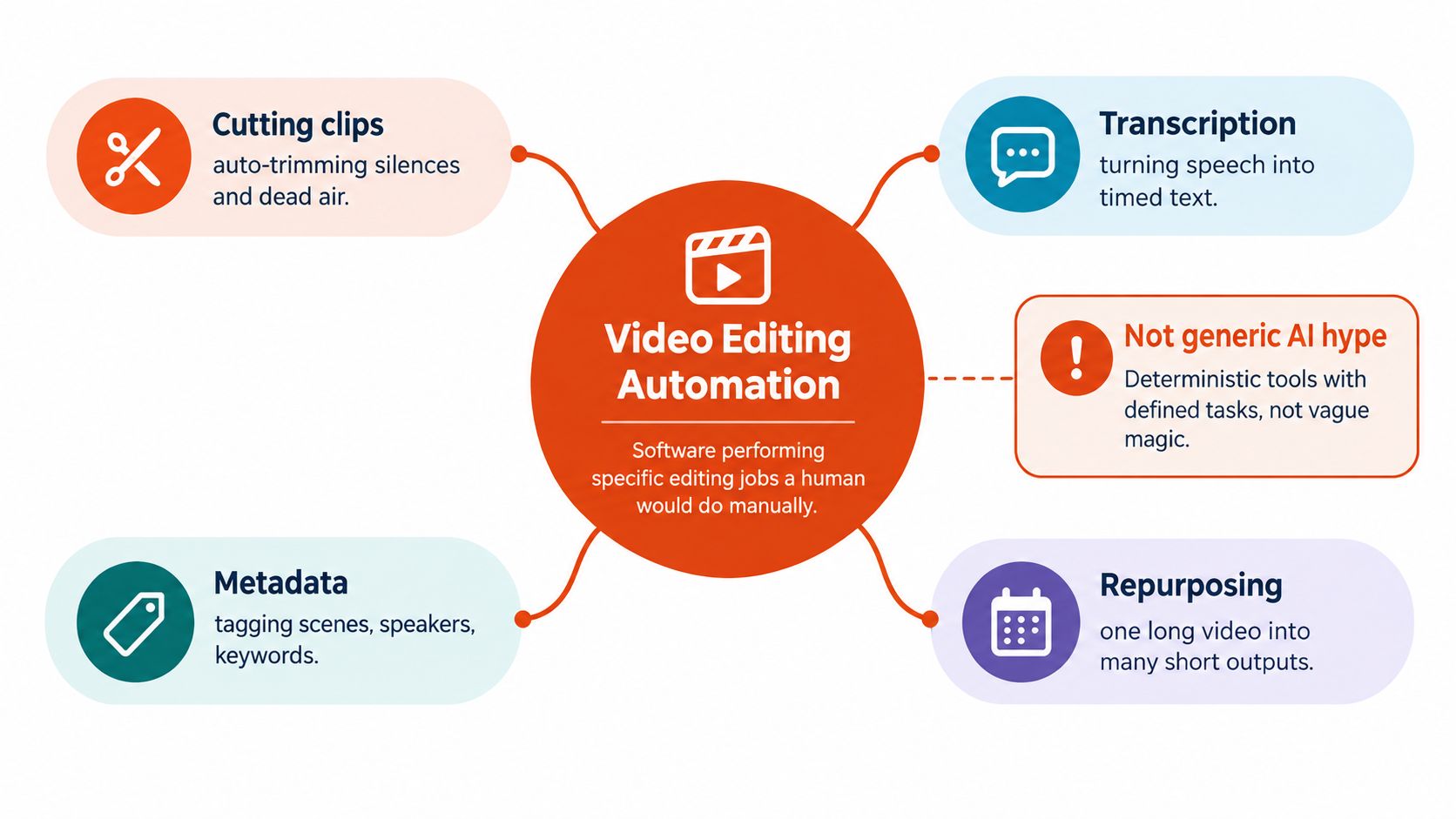
The easiest way to understand the term is to split it from generic AI hype. Video editing automation is software taking over specific editing jobs, transcription, clip selection, cut placement, reframing, captioning, and export prep, while a human still makes the final editorial call. It grew out of the shift from linear tape workflows to nonlinear editing, where editors could move around the project without following chronological order, and the modern foundation was built by systems like the CMX 600, Avid Media Composer, Adobe Premiere, and Final Cut Pro Britannica.
The kitchen version
Think of automation as the prep cook. It chops vegetables, measures ingredients, and sets the station. The chef still tastes the dish, adjusts the seasoning, and decides what gets served. In editing terms, the software can transcribe, score moments, snap cuts, reframe for vertical video, and burn in captions, but it doesn't get to decide whether a quote is safe, whether a joke lands, or whether a sponsor segment should be trimmed.
That's why the distinction between assisted editing and automated editing matters. In assisted editing, the editor drives and the tool helps. In automated editing, the tool proposes and the editor reviews. That difference affects trust, cost, and how much supervision the workflow needs.
There's also a practical vocabulary advantage here. Once you know the separate jobs, you can read tool claims more critically. A platform may be great at captions and terrible at candidate-moment selection. Another may reframe well but struggle with cut boundaries. Those are different systems, not one all-purpose magic trick.
Why the underlying format mattered
The move to file-based nonlinear editing made all of this possible. Earlier tape-based workflows tied editing to linear playback. NLE systems made footage searchable, movable, and rearrangeable. Later milestones, like Final Cut Pro's 1999 launch, lowered the technical barrier further by making digital editing more accessible on computers rather than dedicated broadcast installations Britannica.
That's the foundational layer behind the modern automation stack. Software can only automate what it can reliably inspect, tag, and reconstruct. Once footage became digital and searchable, automation could extend from rearrangement into interpretation.
Video:
The Core Jobs an Automated Pipeline Performs
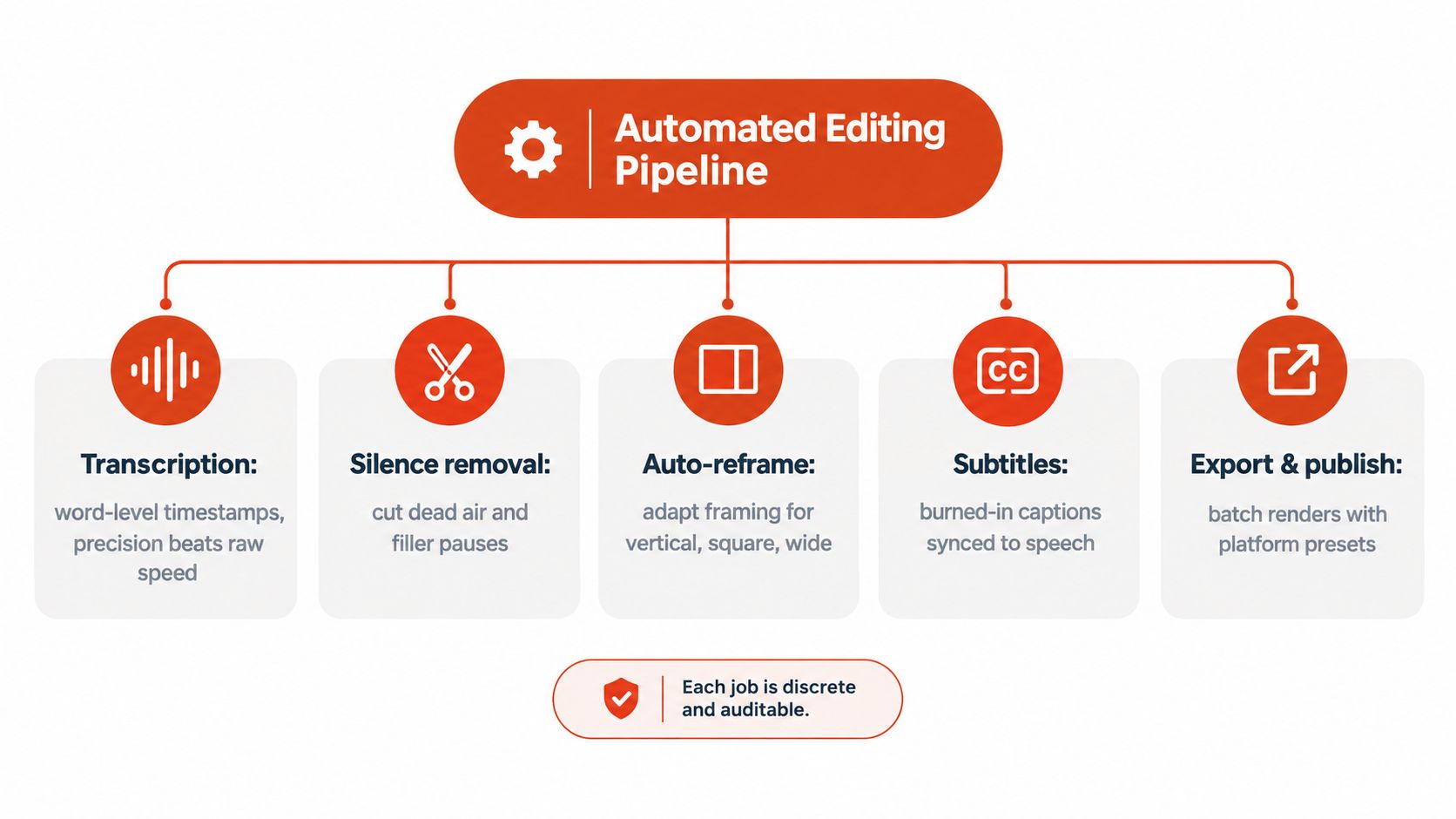
A long recording only becomes useful when the pipeline can split it into reliable jobs. Transcription is the first pass, but word timing decides whether the rest of the workflow holds together. A cut that lands 150 ms late will visibly lag captions on platforms with strict sync tolerances, clip a syllable, or leave a speaker sounding like they were interrupted. In one evaluation across podcast, webinar, news, and telephone audio, Whisper Large-v3 word timestamps fell within 100 ms of reference timing 67.2% of the time, while a newer evaluated system reached 84.3%, a relative improvement of 25.5% AssemblyAI.
Each job has its own quality test
That timing gap is why transcription and clipping should be judged separately. A transcript can read cleanly and still produce a weak edit if the boundaries drift. Good systems should favor sentence starts, high-confidence word boundaries, and cuts that preserve meaning instead of blindly following model segments.
Speaker-aware reframing is a different job again. It should work like an audio-visual tracking task, not a generic face crop. The AVA-ActiveSpeaker benchmark includes 262 film clips, about 3.65 million human-labeled video frames, and 38.5 hours of face tracks labeled by whether a face is speaking and audible AVA-ActiveSpeaker. A center crop can miss the person talking, and a silent face can take over the frame if the system does not know who is speaking.
The crop should follow the speaker, not the loudest visual object in the scene.
Captioning and export sit on top of that timing and framing work. Captions need to stay synced, styled clearly, and readable in the feed the clip is headed to. Multi-aspect export then turns one source into several deliverables, often for vertical, square, and wide formats. For a breakdown of current options, see our guide to video editing tools online. That is useful because the edit is no longer locked inside one timeline, it becomes a set of reusable output modes.
The practical lesson is simple. Review transcription, moment scoring, boundary snapping, reframing, and captioning as separate jobs, and rank each one by confidence before anyone approves the cut. A good pipeline is closer to a queue with clear checks than a one-click replacement.
When Automation Beats Manual Editing and When It Does Not
Automation wins when the job is repetitive, reversible, and volume-heavy. Turning one four-hour interview into a dozen short clips is a classic case. So is regenerating captions after a script edit, producing vertical versions of every episode, or making a square cut for a feed you would otherwise ignore. If the cost of a wrong cut is low, automation usually deserves first pass.
Manual editing still wins when the stakes rise. Sensitive material, sponsored segments with strict claims, multilingual dialogue, overlapping speakers, and messy audio all need more scrutiny. If a single quote taken out of context could damage a relationship or misrepresent the guest, a person should own the edit.
A quick decision lens
- Use automation for volume: repeated intros, clipped interviews, and routine platform versions.
- Use manual review for meaning: jokes, claims, story arcs, and anything where context changes the message.
- Let reversibility decide: if you can fix it quickly, automate first. If the mistake is expensive, supervise from the start.
That's also why tools shouldn't be judged by export speed alone. A clip that reaches the timeline in minutes is only useful if the right person can approve it quickly. The market is still measuring adoption and workflow impact together, not just whether the feature exists Congruence Market Insights. For creators, that means the central question is whether the software shortens the path to a publishable cut, not whether it produces one instantly.
A Real Workflow From Long Recording to Publishable Clip
A workable process starts before anyone opens the timeline. A podcast or webinar is uploaded, speaker separation runs, and the system scores candidate moments for whether they can open and close on their own. That shortlist saves the creator from guessing which excerpts can stand alone and which depend on too much surrounding context.
The human role starts as reviewer, not scavenger. The best tools make each suggestion show why it was selected, where the clip begins and ends, and whether the transcript contains anything uncertain. The creator checks the strongest candidates first, trims one or two, replaces a weaker moment, and only then chooses caption style and export format.
For a hands-on walkthrough of end-to-end repurposing, see this AI reel maker guide. Keptbits, for example, analyzes a full video, scores candidate moments, cuts at word or sentence boundaries, reframes around the active speaker, burns in captions, and exports in 9:16, 1:1, and 16:9 from one source. It also uses browser-based ingestion and predictable flat pricing, which matters if you repurpose the same kind of recording every week.
The human check points that matter
- Confirm the clip stands alone: the opening has to make sense without the rest of the episode.
- Check quote context: for a sponsor read like "This episode is brought to you by AuraHealth" verify the claim is quoted verbatim, especially for sponsor reads, claims, and emotionally loaded comments.
- Watch the crop during speaker changes: a guest looking off-frame can ruin an otherwise clean cut.
- Adjust caption styling for the audience: a sponsor segment may need a different visual treatment.
A weekly marketing workflow follows the same pattern. A webinar becomes a source file. The editor reviews a ranked shortlist instead of the full recording, then sends only the clips with the highest confidence to human approval. Machines do the sorting, people do the judgment. That is the useful split. The final result is not just one clip, but a set of assets the team can publish across channels without rebuilding each version from scratch.
Why Speed Is Not the Same as Publish-Ready Quality
The mistake many teams make is assuming automation output is finish-ready by default. It isn't. The better question is which decisions a creator can safely accept and which should go through human review. That's why I prefer a confidence-ranked review queue over a one-click promise.
A good queue shows what the system thinks, not just what it produced. It should surface why a clip was selected, flag unresolved context, mark low-confidence words, and make approval, editing, or rejection fast. That approach lines up with how creators already behave. Adobe's survey of more than 16,000 creators found that 57% still perform moderate or extensive editing before sharing AI-assisted output, and a separate early-2026 survey of 245 users reported that 74.3% saved up to three hours per week Perplexity AI Magazine.
Speed helps, but review design decides whether the output is actually useful.
Workflow mismatch is part of the adoption problem too. In the same 2026 survey, 15.8% of respondents cited workflow mismatch as a barrier Perplexity AI Magazine. That's the lesson for teams. If the tool makes you inspect every clip anyway, the interface should help you inspect quickly, not force you to start over.
Publish-ready output isn't one-click editing. It's selective supervision with clear signals.
Privacy, Ownership, and Cost Predictability as Workflow Concerns
Creators usually ask whether a tool can find the best clip. They should also ask what happens to the source file. Before uploading a client webinar or private interview, I'd want three answers, how the file is transferred, where it's stored, and who can access it. Then I'd ask how deletion works and how long retention lasts, because sensitive recordings often contain unpublished products, customer data, or sponsored material.
Pricing deserves the same scrutiny. Per-minute pricing can punish long source files and repeated repurposing. Flat subscription pricing makes repeated evaluation easier to forecast. That's especially important for agencies and marketing teams that turn the same kind of recording into clips every week.
What to check before you upload
- Transfer path: browser-based or staged somewhere else.
- Storage rules: where the file lives after upload.
- Access control: who on the team or vendor side can open it.
- Retention and deletion: how long the source stays available.
- Billing logic: whether the cost changes with source length or repeated use.
The economics matter because the workflow isn't always a one-off. A client might have a four-hour sales webinar, a founder interview, or a product demo that gets sliced for several channels. If every pass creates a fresh cost surprise, the tool becomes harder to adopt even when the edits are good.
Browser-side transfer and predictable billing are not side notes. They're part of whether a team can trust the workflow enough to use it regularly. That's as true for private internal recordings as it is for public content.
Evaluating Tools and a Checklist for Your First Automated Cut
Score any platform on four axes. First, timestamp quality, because cut precision shapes both the audio and the captions. Second, candidate-moment selection, because a shortlist is only useful if the moments stand alone. Third, reframing under multi-speaker conditions, because vertical clips fall apart fast when the crop doesn't follow the person speaking. Fourth, pricing alignment, because your publishing cadence should match the cost model.
The first automated cut should be treated like a pilot, not a verdict. Run it on one representative file, then inspect the output with a short checklist instead of a vague feeling.
First-cut checklist
- Verify speaker separation: make sure the transcript labels the speakers correctly.
- Listen to a few boundary cuts: check that sentence starts and endings feel natural.
- Watch vertical framing during speaker changes: look for drifting or overreaction.
- Scan captions for names and homophones: those are the usual low-friction mistakes.
- Decide what gets auto-approved: define which clip types need human review every time.
If you're comparing tools, the broader market now spans repurposing editors, caption-first browser tools, and generation-heavy suites, so the best match depends on the job, not the category name Keptbits guide to AI tools for YouTubers. That's why the safest next step is to test one workflow end to end, not shop features in isolation.
The direction of travel is clear, though. Active-speaker-aware framing is getting more useful, review queues are becoming more explicit, and language coverage will keep widening. The creators who benefit most won't be the ones chasing one-click editing. They'll be the ones building a review process that knows when to trust the machine and when to stop and look.
If you're turning long recordings into clips every week, Keptbits gives you a workflow for scoring moments, snapping cuts to speech, keeping the speaker centered, and exporting clean versions for different feeds. If that's the problem you're solving, visit Keptbits and see how it fits into your repurposing process.
Keptbits cuts on sentence boundaries.
Paste a link or upload an episode, say how many clips you want, and get them back captioned and vertical. The free plan needs no card.
Start freeRead next
7 Online Video Editor Free Picks That Deliver in 2026
Compare 7 online video editor free options for 2026, including watermark limits, export quality, key features, and the best use for each tool.
How to Make Viral Video on YouTube in 2026
Learn how to make viral video on YouTube with proven hooks, thumbnail tests, retention fixes, and Shorts workflows that actually convert viewers into
How to Make YouTube Channel Setup That Actually Grows
Learn how to make YouTube channel setup that grows: account, branding, first videos, optimization, and monetization milestones explained step by step.