25 September 2026 · 25 min read
10 AI Tools for YouTubers: A Practical 2026 Guide
Compare 10 AI tools for YouTubers for editing, clips, captions, scripts, thumbnails, and repurposing, with practical strengths and limitations.
You've finished recording a useful interview, podcast, livestream, or tutorial. The long-form video is sitting on your drive, but publishing it is only the beginning. You still need to find strong moments, cut them cleanly, reframe them for vertical viewing, add readable captions, create a title and thumbnail, and adapt the result for other platforms. Using one tool for every task usually creates more work, not less.
The strongest AI tools for YouTubers solve different bottlenecks. Some edit from a transcript, some identify Shorts inside long recordings, some improve captions and reframing, while others support ideas, titles, descriptions, or publishing strategy. The practical question isn't which tool has the longest feature list. It's which tool fits the stage where your workflow is slowing down.
The comparison below follows that production path, from editing and repurposing to packaging and channel growth. Each entry focuses on what the tool does well, where automation still needs review, and which type of creator is most likely to benefit.
Table of Contents
- 1. Keptbits
- 2. Descript
- 3. CapCut
- 4. Adobe Premiere Pro
- 5. OpusClip
- 6. vidyo.ai
- 7. Munch
- 8. Klap
- 9. Pictory
- 10. vidIQ
- Top 10 AI Tools for YouTubers, Comparison
- Choose the Smallest Stack That Removes Your Bottleneck
1. Keptbits
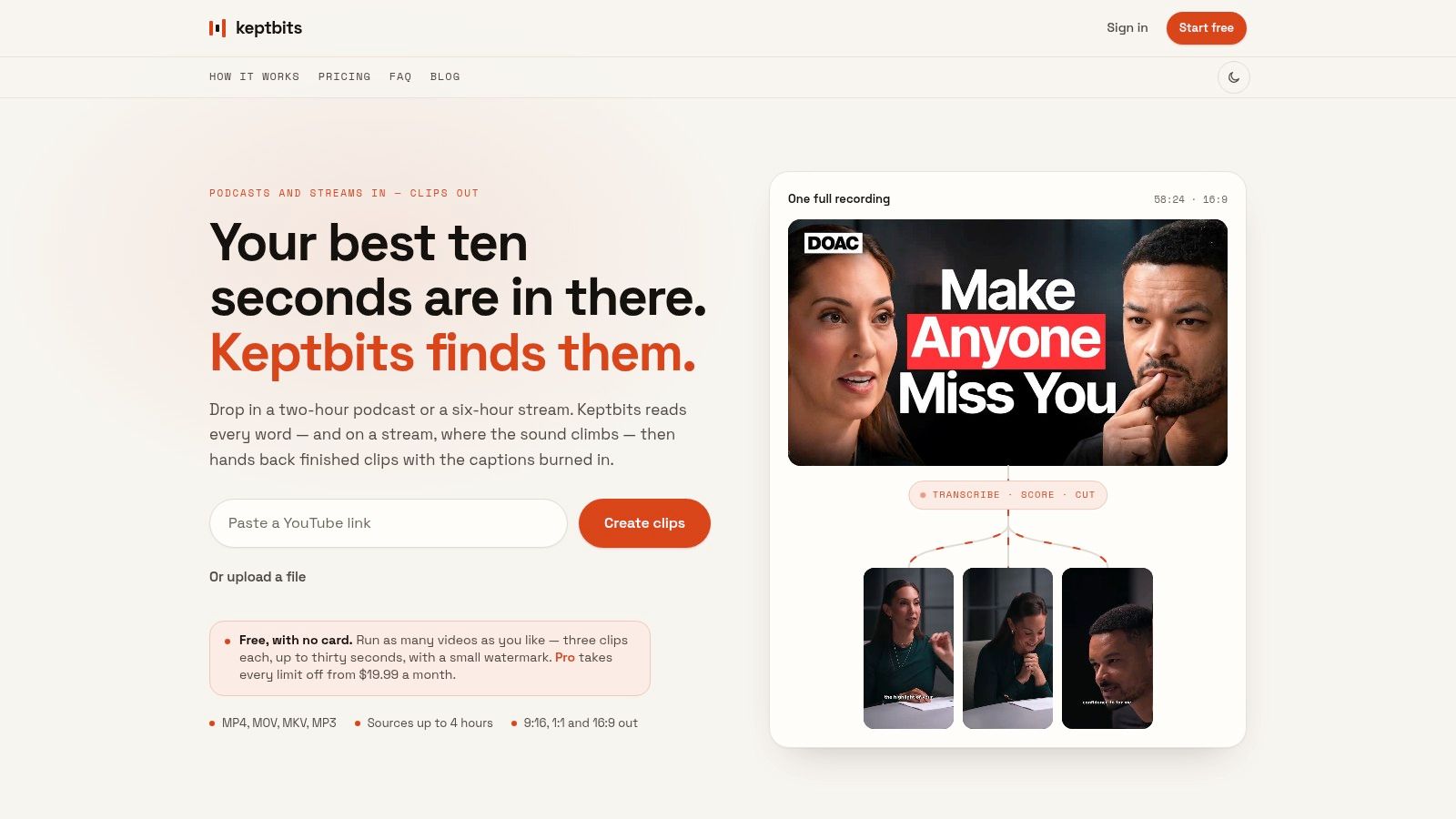
A four-hour interview can contain several useful Shorts, but finding them manually means scrubbing the recording, checking context, reframing speakers, and correcting captions before you can judge the ideas. Keptbits focuses on that first repurposing pass. Upload a podcast, interview, stream, webinar, or similar recording in a browser, and it transcribes the material at word level, separates speakers, scores potential moments, and produces clips in 9:16, 1:1, and 16:9 formats.
Its selection and cutting approach matter more than the format options. Keptbits looks for segments with their own opening and resolution, while stream recordings can also benefit from moments built around strong reactions. Cuts align with word and sentence timing, reducing mid-syllable edits. Speaker-aware reframing keeps the active person visible instead of allowing a vertical crop to drift away from the subject.
Where Keptbits fits
Keptbits suits creators whose source material is conversational rather than heavily choreographed. It accepts sources up to four hours and supports common formats such as MP4, MOV, MKV, and MP3. Exports include burned-in captions, with 20 caption styles on Pro and Bold Pop on the free plan.
The free plan lets you test the process with unlimited runs. Each run produces up to three clips of 30 seconds and includes a small watermark. Pro removes those limits, supports clips up to three minutes, adds the full editor and caption styles, and provides tools such as silence removal, transitions, and color grading. Pricing is $19.99 per month or $5.99 per week, with the first week free, according to the Keptbits website.
Practical rule: Use Keptbits to shortlist clips, then watch each one as a standalone piece. A segment that makes sense only after the full episode will struggle as a Short.
What works and what doesn't
The workflow saves time through narrative completeness, precise boundaries, and speaker-aware framing. Instead of reviewing every minute, manually keyframing a vertical crop, and fixing captions before assessing the idea, you can review a usable first pass. Browser uploads stream directly rather than being staged on an intermediate server during transfer, a relevant consideration for teams working with sensitive recordings.
Editorial judgment remains the constraint. Automated scoring can miss a subtle point that depends on earlier discussion, or choose a technically complete passage that does not fit the channel's voice. Check names, terminology, caption emphasis, opening context, and whether the first seconds give viewers a reason to continue.
Try the workflow at Keptbits if your channel has a backlog of interviews, podcasts, or streams waiting to be repurposed.
2. Descript
Descript treats a video project like a document. Once it transcribes the recording, you can remove words, pauses, filler, and retakes by editing the transcript instead of hunting through a traditional timeline. That makes it particularly effective for talking-head videos, interviews, tutorials, and podcasts where the spoken word carries the structure.
The first draft is where Descript earns its place. You can combine scripting, transcript edits, audio cleanup, captions, and export in one application. Studio Sound can improve recorded dialogue, while filler-word and pause removal help create a tighter rough cut. Caption presets and animations make the same transcript useful for both the main YouTube upload and social cutdowns.
Best use cases
Descript works well when you know what should be removed, but don't want to perform every cut manually. Editing by text also makes it easier to search for a phrase, locate a quote, or remove a repeated section from a long recording. Its direct export and publishing options can reduce handoffs when a creator wants to move quickly from approved project to upload.
It also includes AI voice and regeneration features. Those can help repair a short wording mistake without recording a complete paragraph, but voice tools need careful use. A generated replacement may sound clean while still feeling unlike the surrounding performance, particularly when emotion, pacing, or pronunciation matters.
For caption workflow guidance, this AI subtitle maker guide is a useful point of comparison when deciding whether transcript-based editing or a dedicated repurposing process better fits your production.
Trade-offs
Descript's main constraint is consumption. Media minutes and AI credits govern how much you can process, and frequent transcription, regeneration, or enhancement can use allowances faster than expected. Check the current plan terms against your recording schedule before treating it as the only editor in a high-volume workflow.
It also isn't a replacement for detailed timeline control. Editors working with complex sound design, layered footage, precise visual timing, or intricate multicamera sequences may prefer to create the rough cut in Descript and finish elsewhere. Review every automatic removal, because a pause can carry emphasis and a filler word can sometimes be part of a speaker's natural rhythm.
Use Descript when transcript editing will remove friction from your first draft, not just because it includes many AI features.
3. CapCut
CapCut is a practical choice for creators whose output is dominated by Shorts and mobile-first edits. It runs across web, desktop, and mobile, so you can move from a phone recording to a social-ready cut without committing to a traditional desktop editor.
Its AI features cover much of the short-form assembly process. Auto captions turn speech into editable text, background removal isolates a subject, and text-to-speech can support narration or quick variations. Script and asset generation can help build a simple short package, while templates, effects, and transitions make it easy to match current social formats.
Why creators choose it
The appeal isn't just automation. CapCut offers a broad starting point for creators who need to edit quickly and don't want a complex interface. A mobile creator can trim, caption, resize, and publish from the same general environment. Browser access also helps when the original footage isn't on the main editing computer.
Templates are useful when consistency matters more than originality. A recurring caption treatment or intro pattern can speed up production, but template-heavy output can also make a channel look interchangeable. Use templates as a structure, then adjust typography, pacing, framing, and sound so the finished clip still reflects your brand.
Where it falls short
CapCut's capabilities can differ between mobile, web, and desktop. A project that feels easy to assemble on one device may expose different controls or behave differently on another. Pro pricing also varies by region and device and may change, so confirm the current terms before building a budget around it.
Automatic captions still require a complete read-through. Names, specialist terms, accents, punctuation, and line breaks can all affect comprehension. Background removal needs the same scrutiny, especially around hair, hands, microphones, and fast movement.
Choose CapCut if you want an accessible short-form editor with a capable free starting point and the flexibility to work from a phone or browser. It works best as an active editing environment, not as a promise that every generated effect belongs in the video.
4. Adobe Premiere Pro
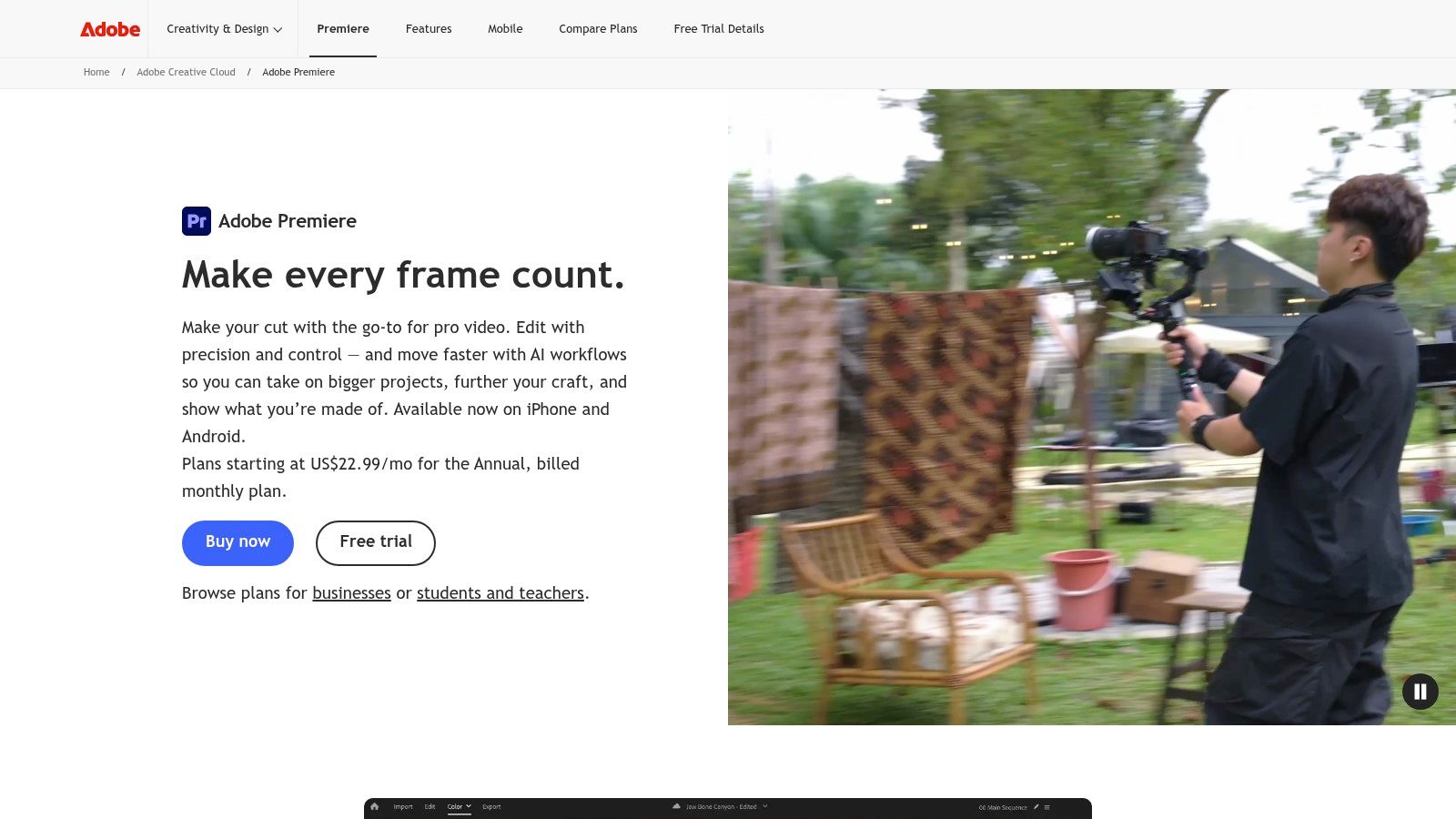
Premiere Pro remains the strongest option in this list for creators who need control over the finished edit. Its AI assistance handles repetitive preparation, but the editor still gives you the full non-linear timeline required for complex pacing, multicamera work, layered audio, graphics, and detailed finishing.
Enhance Speech can help clean dialogue, while speech-to-text supports captions and transcript-based workflows. Caption translation expands the usefulness of a finished video for audiences in other languages, although translated text still needs a human check for tone, names, technical vocabulary, and meaning. Auto Reframe can prepare vertical or square versions without forcing you to manually keyframe every shot.
The professional advantage
Premiere Pro makes sense when the original YouTube video is itself a significant production. You can start with AI-assisted transcription and audio cleanup, then refine every cut, insert, caption, and transition yourself. Integration with Creative Cloud, Rush, and Media Encoder also helps teams that already use Adobe for graphics, audio, motion, or delivery.
Auto Reframe is especially useful for creating a first vertical pass from a horizontal timeline. It won't understand every visual priority. A person may move unpredictably, a product demonstration may need a specific crop, or an important graphic may sit outside the automatic focus area. Treat the result as a starting point.
For a focused explanation of automated caption workflows, see this auto caption generator guide, then compare the amount of control you need with the convenience of a clip-first editor.
The cost of control
Premiere Pro has a steeper learning curve than tools designed around instant clips. Subscription access and cloud processing for some AI features also need to fit your production setup. A solo creator making simple talking-head Shorts may spend more time managing the project than improving the result.
The tool earns its complexity when quality depends on decisions automation can't make reliably. You can preserve a deliberate pause, match a cut to a visual action, repair a difficult audio transition, or maintain exact brand standards across a full episode. Pick Adobe Premiere Pro when the edit itself is part of your competitive advantage.
5. OpusClip
OpusClip starts with a practical production problem: which moments from a long recording deserve a second life as Shorts? It analyzes long-form video, suggests clips, converts them to vertical format, adds captions, and supports editing and scheduling in the same workflow.
That makes it useful after recording, especially for interview channels, educational creators, and podcast teams with a growing archive. Its Virality Score helps rank candidates, while generated titles, descriptions, and hashtags can move a selected clip toward a draft without switching between several tools.
A fast path to volume
OpusClip is built for batch repurposing rather than detailed episode editing. Mobile apps, scheduling options, and an API suit creators or teams that publish repeatedly and need a repeatable distribution process. A solo creator producing only one carefully edited Short may gain less from those features.
Treat the score as a sorting signal, not a prediction. A highly ranked clip may matter less to your audience than a quieter explanation that addresses a specific question. Review each candidate from its opening, confirm that the ending provides enough context, and compare the captions with the original audio before exporting.
Credits and editorial judgment
OpusClip uses credit-based plans. Estimate how many long recordings you will scan and how many alternate clips you normally create before choosing a plan. A trial workflow can consume credits faster once you process an archive or generate several versions of each moment.
For email delivery of finished clips, use this guide to sending video by email to avoid attachment limits.
The platform works best when the source contains clear spoken sections. It may need more editing when the meaning depends on a product demonstration, extended setup, an earlier joke, or a sudden topic change. Visual tutorials can also produce clips that sound coherent but omit the action viewers need to see.
Use OpusClip to discover and assemble candidates, then approve every clip before it enters the publishing queue. Human review still determines whether the moment fits the channel, preserves the intended context, and delivers a complete idea.
6. vidyo.ai
vidyo.ai focuses on the practical middle ground between automatic clipping and hands-on short-form editing. You can provide a YouTube URL, generate potential clips, apply animated caption styles, resize the output, and prepare posts for social distribution.
That link-based workflow is useful for creators who already publish long-form videos and want to reuse them quickly. You don't need to locate the original project file before testing a few short-form ideas. Auto chapters, branded caption presets, a B-roll library, and a scheduler extend the workflow beyond simple clipping.
What it saves
vidyo.ai reduces the number of small decisions involved in preparing a short. Instead of manually creating a vertical canvas, styling captions, and drafting every basic post element, you can start from a formatted version and focus on whether the selected moment deserves publication.
The export options also give you flexibility. You can create burned-in captions for viewers who watch without sound or export an SRT when you want more control in another editor. Animated captions can add energy to fast clips, but they should remain readable. Excessive movement, aggressive highlighting, or poorly timed line breaks can compete with the speaker.
The review requirement
Auto-picks vary by subject. A tool may identify a clear sentence in a technology tutorial but miss the visual payoff of a cooking, gaming, repair, or design video. It can also choose a moment that sounds compelling in isolation but leaves the viewer with an unanswered question.
Minute and file limits differ by plan, and feature availability changes between tiers. Check the current allowance before processing a large archive. vidyo.ai is a good fit for creators who want a simple YouTube-to-Shorts route with strong caption styling, but it shouldn't replace a human check for context, pacing, and brand consistency.
7. Munch
Munch is useful when a short clip is only one part of the distribution job. It combines clip selection with trend and SEO analysis, then generates promotional copy for multiple channels. A creator can move from a long video to a short, a YouTube description, a LinkedIn post, an X thread, a newsletter draft, or a blog outline without rebuilding the source message each time.
Its trend-aware selection and Munch score provide a way to prioritize candidates. The value isn't that the score knows what will happen. The value is that it gives a team a repeatable way to sort a large number of possible clips before editorial review.
A broader repurposing workflow
Munch works best for creators who publish beyond YouTube. A business educator, consultant, or interview host may need the same idea expressed differently for short video, professional social posts, email, and a written article. Platform-targeted outputs reduce the blank-page problem, while the original transcript gives the generated copy a source to draw from.
The tool can import web content, including public YouTube videos with captions. Clear speech and a well-structured source generally give the system more useful material to work with. If a recording contains overlapping speakers, vague references, or heavily visual explanations, the copy may need substantial rewriting.
Where to be careful
Product names, plan structures, and credit arrangements can differ across Munch offerings, so confirm the current package before committing. Generated cross-channel copy also needs adaptation. A LinkedIn post shouldn't be pasted into an X thread, and a YouTube description shouldn't read like a newsletter introduction.
Munch is a strong choice when your bottleneck is the handoff between video production and promotion. It is less compelling if you only need clean Shorts and already have a reliable writing or scheduling process.
8. Klap
Klap takes a performance-first approach to short-form repurposing. Its workflow emphasizes the hook, pacing, topic relevance, captions, and the opening moments that determine whether a viewer understands why the clip deserves attention.
That focus is valuable because an extracted clip can be technically correct and still fail as a Short. Klap's scoring around hooks and context helps surface weaknesses before publishing. You can use YouTube links for bulk creation, apply branded captions, and generate vertical outputs for multiple short-form destinations.
Best for hook-sensitive channels
Klap suits creators who already have long videos but need help making the short version self-contained quickly. A strong source sentence may need a sharper opening, a different crop, or a tighter pace to work in a feed. Klap's emphasis on those elements gives the creator a useful review framework even when the final decision remains manual.
Higher tiers can include features such as 4K exports, team options, analytics, and API access. The API matters to agencies or teams processing a larger archive because it can support a programmatic clipping workflow instead of a series of manual uploads.
Verify the current plan
Klap's plan details have changed over time, including upload lengths, dubbing, export capabilities, and billing presentation. Annual promotions can make the entry price look lower than month-to-month access, so verify the current terms before comparing it directly with a flat-priced tool.
Automated hook scoring also has a blind spot. A provocative opening may win attention but misrepresent the full video, damage trust, or attract viewers who aren't a fit for the channel. Review the relationship between the hook and the payoff, not just the score.
Choose Klap when your central problem is producing sharper vertical openings at scale. If your bigger issue is finding complete moments, prioritize a tool whose selection process is built around narrative resolution.
9. Pictory
Pictory is a practical option for teams that work from scripts, articles, webinars, and long recordings rather than only from camera footage. It can transform source material into videos, add captions, trim scenes, and export in multiple aspect ratios. Its stock media access is particularly useful when the final edit needs visual coverage beyond the original recording.
Where it fits
Pictory works well for educational channels, marketing teams, and publishers turning written material into video. A script or article can provide the narrative spine, while stock footage and scene-level editing fill visual gaps. It also supports long-video repurposing, so a webinar or existing YouTube upload can become a set of shorter assets.
This is a different workflow from a transcript editor. Instead of preserving the exact performance of a speaker, Pictory helps assemble a produced video from text, stock assets, captions, and selected footage. That makes it efficient for explainers and informational content, but less suitable when the personality and timing of the original performance are the main attraction.
Limits for detailed editing
Pictory doesn't offer the same granular control as a full non-linear editor. Complex sound design, precise multicamera timing, intricate visual effects, or highly specific motion graphics may require another application for finishing. Stock selection also needs review, because a visually related clip can still communicate the wrong nuance.
Feature names and plan inclusions evolve, so check the current pricing and help documentation before choosing a tier. Pictory is most useful when you need a repeatable script-to-video or stock-supported repurposing process, not when you want an AI system to make every creative decision for a cinematic channel.
10. vidIQ
vidIQ belongs at the front and back of the production workflow rather than inside the edit. It supports ideas, titles, descriptions, keywords, hashtags, thumbnail direction, and channel-level feedback through its AI Coach, Daily Ideas, browser extension, and related tools.
That makes it useful before you record. A creator can develop several angles, compare possible hooks, and turn a rough concept into a more specific video brief. After editing, vidIQ can help package the finished upload with title and description suggestions, while the browser extension places research and competitive signals close to the YouTube interface.
The packaging advantage
Packaging is where many otherwise strong videos lose clarity. A title can describe the subject without giving viewers a reason to choose it, or a thumbnail can contain too much information to read quickly. vidIQ helps generate alternatives and organize the decision, but it doesn't know your audience as well as your own analytics and experience do.
The AI Coach can also assist with scripts and channel feedback. Treat those outputs as prompts for refinement rather than a substitute for a distinct point of view. Generic titles and predictable hooks may be grammatically polished while making your channel sound like every other channel in the category.
Credits and plan boundaries
AI features are credit-metered, and frequent use can exhaust credits. Some functions also depend on the browser and plan tier, so confirm access before designing a process around a particular extension feature.
vidIQ is the best match here for creators whose bottleneck is what to publish and how to package it, not for someone searching for an automatic long-form editor. Use vidIQ alongside a video tool rather than expecting one optimization suite to discover, edit, caption, and repurpose every recording.
Top 10 AI Tools for YouTubers, Comparison
| Product | Core features | UX / Quality (★) | Value / Price (💰) | Target audience (👥) | Standout / USP (✨) |
|---|---|---|---|---|---|
| 🏆 Keptbits | Browser upload (≤4h), word‑level transcript, moment scoring, multi‑aspect exports, speaker‑aware reframing | ★★★★☆, precise cuts & burned captions | 💰 Free (unlimited runs, 3×30s clips/run, watermark); Pro $19.99/mo or $5.99/wk | 👥 Podcasters, interview shows, streamers, social managers | 🏆 ✨ Narrative‑complete scoring, word‑boundary snaps, speaker‑locked vertical crops, flat predictable pricing |
| Descript | Transcript-first edit, Studio Sound, overdub, caption presets, exports | ★★★★☆, fast draft workflows | 💰 Subscription + media minutes/AI credits (metered) | 👥 Creators needing script-edit workflows, podcasters | ✨ Text-based editing, integrated audio cleanup, rapid rough-to-first-draft |
| CapCut | Auto captions, background removal, TTS, templates, mobile/web editors | ★★★★, mobile-first, template-rich | 💰 Mostly free tier; region/device pricing varies for pro features | 👥 Social-first creators, mobile editors, trend-driven users | ✨ Large template/effects ecosystem, strong mobile/browser editing |
| Adobe Premiere Pro | Non‑linear editor, Enhance Speech, speech‑to‑text, Auto Reframe, CC integration | ★★★★★, broadcast-grade control | 💰 💰 Professional subscription (Creative Cloud) | 👥 Broadcast pros, agencies, advanced editors | ✨ Deep pro controls, industry-standard toolchain, tight CC apps |
| OpusClip | Auto-clip curation, virality score, titles/descriptions, scheduler, mobile apps | ★★★★, rapid short generation | 💰 Credit-based plans (some free/tiers) | 👥 Creators needing fast Shorts at scale, social teams | ✨ Virality Score, built-in scheduling & copy generation |
| vidyo.ai | Clipping + animated captions, virality cues, auto chapters, brand kit | ★★★★, simple link-to-clips flow | 💰 Tiered plans with minute/file limits | 👥 YouTubers converting links to Shorts, social teams | ✨ Paste‑link workflow, branded animated captions, auto chapters |
| Munch | Trend-aware clip selection, Munch score, multi-channel copy generation | ★★★★, bundled clip + copy UX | 💰 Subscription/credits; plan names vary | 👥 Creators who want video + promotional copy automation | ✨ Clip + metadata bundle, Claude-powered copy across formats |
| Klap | Hook scoring, caption keyword density, 4K exports (tiers), API & team plans | ★★★★, hook-focused short optimization | 💰 Usage/plan-based; annual promos common | 👥 Shorts-first creators, teams automating back catalogs | ✨ Emphasis on first‑3s hook scoring, API for automation |
| Pictory | Repurpose long videos/articles, stock media, auto captions, multi‑aspect export | ★★★, efficient script-to-video flows | 💰 Subscription tiers (stock access included) | 👥 Teams doing script/article-to-video, stock-heavy edits | ✨ Strong text-to-video + stock media integration |
| vidIQ | YouTube SEO tools, AI Coach, Daily Ideas, extension overlays | ★★★★, idea & packaging focused | 💰 Tiered plans + credit-metered AI features | 👥 YouTube creators optimizing growth & SEO | ✨ Channel growth tools, keyword ideas, extension analytics |
Choose the Smallest Stack That Removes Your Bottleneck
The best stack is rarely the one with the most subscriptions. It's the smallest combination that removes a specific production constraint without creating extra exports, duplicated captions, or another dashboard to maintain.
Start by identifying where the work stalls. If you spend most of your time removing verbal mistakes and shaping a talking-head episode, a transcript editor such as Descript can make the first draft faster. If you need professional control over audio, multicamera footage, graphics, and exact pacing, Premiere Pro is the safer foundation. Both tools keep the editor close to the full source project, which matters when context and creative timing are more important than instant output.
Short-form volume requires a different category. Keptbits, OpusClip, vidyo.ai, Munch, and Klap are designed to locate or assemble clips from longer recordings. Keptbits is especially focused on self-contained moments, speech-aligned cuts, speaker-aware framing, and multiple aspect ratios. OpusClip emphasizes candidate selection and prioritization, vidyo.ai emphasizes quick link-to-clip production and caption styling, Munch extends repurposing into promotional copy, and Klap puts more attention on hooks and vertical performance.
Choose based on the task, not on overlapping feature lists.
- For podcast and interview repurposing: Start with Keptbits when clean boundaries, complete moments, and speaker-aware vertical framing matter most.
- For rapid Shorts discovery: Consider OpusClip, vidyo.ai, or Klap, then compare how well each tool handles your actual subject matter.
- For video plus written distribution: Munch makes more sense when every clip needs supporting posts, descriptions, or newsletter material.
- For mobile-first trend editing: CapCut gives you a flexible environment for captions, effects, templates, and quick social edits.
- For script-to-video and stock-heavy production: Pictory can reduce the need to assemble those assets separately.
- For ideas and packaging: vidIQ belongs before recording and near publishing, not as a replacement for an editing system.
A focused test should run from source file to published draft. Upload one representative recording, inspect the selected moments, correct captions, test the reframing, export the formats you use, and calculate how much manual cleanup remains. Don't judge a tool only by how impressive its first preview looks. Judge whether it removes a real step from your weekly workflow.
Check plan limits before you commit. Credits, media minutes, upload lengths, export resolutions, caption options, watermarks, and scheduler access can all affect the true cost of a workflow. A free plan is useful for testing, but it may not represent the process you'll use once you need longer clips, batch processing, or branded delivery.
Human review remains essential at every stage. AI can cut across a sentence, misunderstand a name, select a joke without its setup, emphasize the wrong caption word, choose a distracting crop, or write packaging that overpromises the video. Review every selected clip for accuracy, context, opening clarity, ending completeness, captions, framing, audio, and audience fit.
The adoption signal is already strong. A 2026 creator survey from Descript found that nearly two-thirds of more than 1,000 podcasters, YouTubers, and short-form creators had used generative AI in production, while more than three-quarters said they were likely to use AI tools in the future. That suggests the advantage is no longer only having access to AI. The advantage comes from choosing a workflow that improves speed without flattening judgment.
Test one tool end to end before adding another. If Keptbits solves your long-form repurposing bottleneck, you may not need a second clip finder. If Premiere Pro already handles your captions and reframing well, adding another editor may only create duplicate work. Add a new tool when it removes a problem your current workflow still leaves unresolved, not because its feature page contains a longer list.
Keptbits turns long recordings into self-contained, captioned clips with word-level timing, speaker-aware reframing, and exports for vertical, square, and horizontal feeds. If repurposing interviews, podcasts, streams, or webinars is your main bottleneck, test the workflow free and visit Keptbits to start turning existing YouTube footage into ready-to-review short-form assets.
Keptbits cuts on sentence boundaries.
Paste a link or upload an episode, say how many clips you want, and get them back captioned and vertical. The free plan needs no card.
Start freeRead next
10 Video Editing Tools Online for Faster Content
Compare 10 video editing tools online for captions, automation, free tiers, aspect ratios, collaboration, and practical browser-based workflows.
That's a Good Deal: How to Evaluate True Value
Wondering if that's a good deal? Learn how to evaluate true value, decode pricing models, and spot the difference between a bargain and a trap.
10 Vertical Video Editor Tools Compared
Compare 10 vertical video editor tools for reframing, burned-in captions, and Shorts, Reels, and TikTok export workflows.