2 October 2026 · 23 min read
10 Vertical Video Converter Tools Compared
Compare 10 vertical video converter tools for resizing, reframing, captions, quality, and long-form repurposing across social platforms.
The popular advice is simple: take a wide video, choose 9:16, and export. That works only when the important subject stays in the middle and the edit doesn't depend on conversation, timing, or visual context. A vertical video converter can produce a technically correct file while still cutting off a second speaker, moving the crop distractingly, or placing captions beneath platform controls.
The useful differences are elsewhere: subject tracking, crop stability, speech-aware cutting, caption accuracy, rendering workflow, and human cleanup. Some tools resize one clip. Others search a four-hour recording for complete moments, generate multiple shorts, and adapt each output for different feeds. Professional editors give you more control, but they also expect you to do more of the editorial work.
This comparison judges each tool by the footage it handles best, the quality of its vertical framing, the integrity of its dialogue, its caption workflow, its suitability for long sources, and the amount of review it still needs. Vertical video became a mainstream viewing format during the mobile-first shift, with vertical viewing rising from 5% of video viewing in 2010 to 29% in 2015, as documented in the history of vertical video. The right choice isn't the tool with the most automation. It's the one that matches your source material and publishing rhythm.
Table of Contents
- 1. Keptbits
- 2. CapCut
- 3. Adobe Premiere Pro Auto Reframe
- 4. VEED
- 5. Kapwing
- 6. OpusClip
- 7. Munch
- 8. Vizard
- 9. Crossclip by Streamlabs
- 10. Descript
- Top 10 Vertical Video Converters: Feature Comparison
- Choose by Footage, Control, and Cleanup Time
1. Keptbits
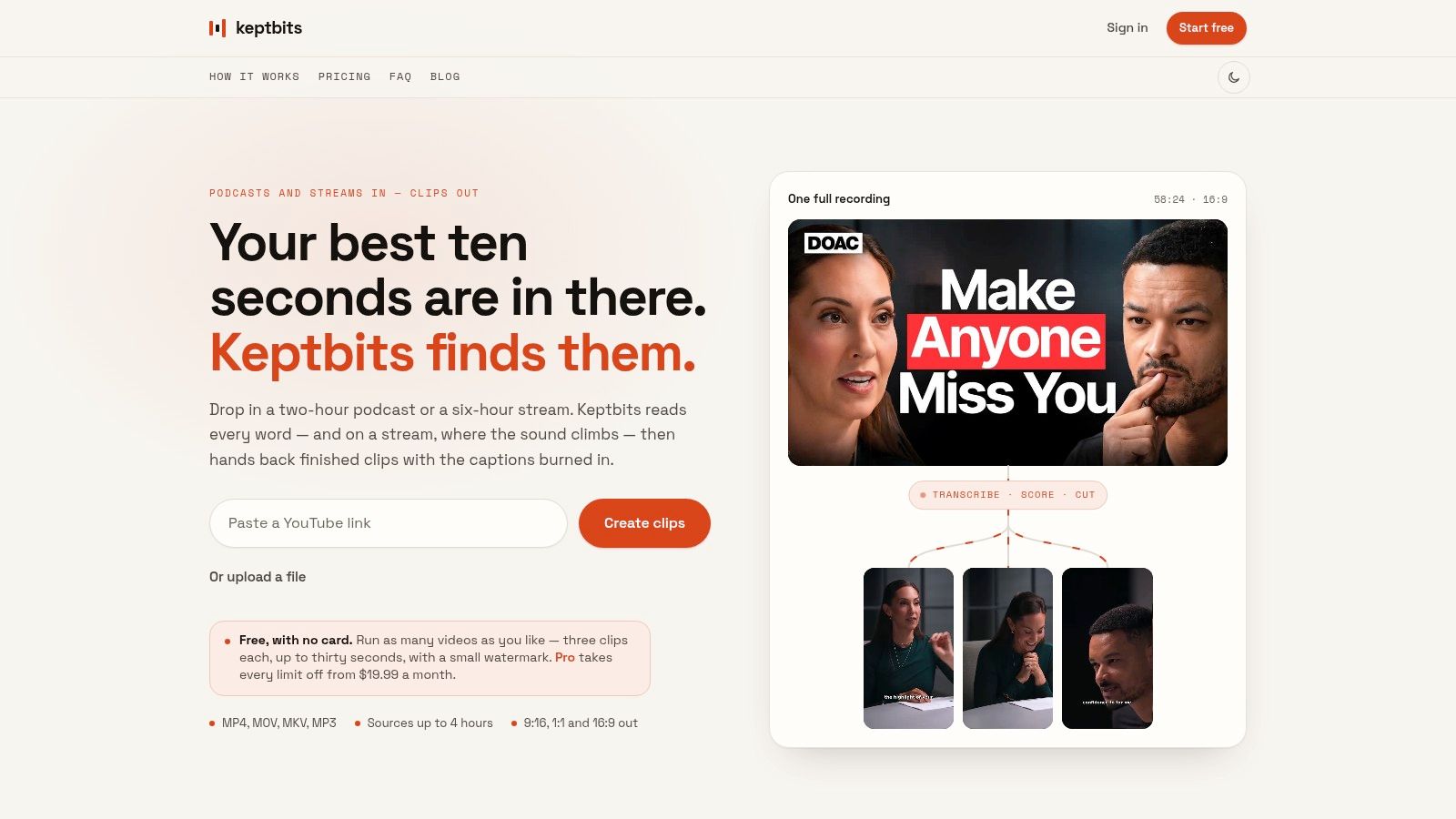
Keptbits targets teams whose task is not resizing one clip but extracting publishable segments from long recordings. It analyzes interviews, podcasts, streams, webinars, and similar sources, identifies moments that can stand alone, and prepares them for social feeds. That makes it a different category from a simple aspect-ratio converter, which changes the canvas but leaves selection and editing to the user.
Upload or link an MP4, MOV, MKV, or MP3 in the browser, then choose Talking for transcript-driven content or Stream for audio peak-driven content. The system creates word-level transcripts with speaker separation, finds candidate moments, places cuts at actual word boundaries, reframes around the active speaker, burns in captions, and exports 9:16, 1:1, and 16:9 versions from the same source.
Where Keptbits earns its place
The main differentiator is narrative scoring. Keptbits favors moments that open and resolve within themselves instead of selecting every passage containing a potentially useful keyword. For podcast and interview archives, that reduces the work of finding a clip with a beginning, a point, and a conclusion.
Its speaker-aware reframing also improves crop stability over basic converters that only resize or follow general motion. A motion-based crop can drift, react too strongly to gestures, or leave the speaker partly outside the frame. Following the active speaker usually produces a steadier portrait composition, although footage with two speakers, demonstrations, or important visual cues still requires manual review.
The workflow also protects dialogue integrity by aligning cuts to spoken words and generating captions from the transcript. That is useful for long sources, but it does not remove editorial judgment. A professional editor still offers finer control over pacing, visual context, and exact caption placement, while Keptbits reduces the scrubbing and repetitive setup required before that review.
The free plan allows unlimited runs, with up to three 30-second clips per run, a small watermark, and one caption style. Pro costs $19.99 per month or $5.99 per week, includes a free first week, and adds longer clips, all 20 caption styles, silence removal, transitions, color grading, and a built-in editor. Those details come from the supplied Keptbits product information.
Practical rule: Test a representative recording on the free plan before moving an entire archive into an automated clipping workflow.
Clips built around a long setup, a visual prop, or interaction between speakers may score less effectively than self-contained spoken points. The site also does not publish customer testimonials, awards, or third-party certifications, so a direct trial remains the sensible validation step.
2. CapCut
CapCut suits creators who want a familiar social editor rather than a long-form content analysis system. Its Auto Reframe feature can convert wide footage to vertical while tracking a subject, and the same app includes auto-captions, templates, effects, and platform-oriented presets.
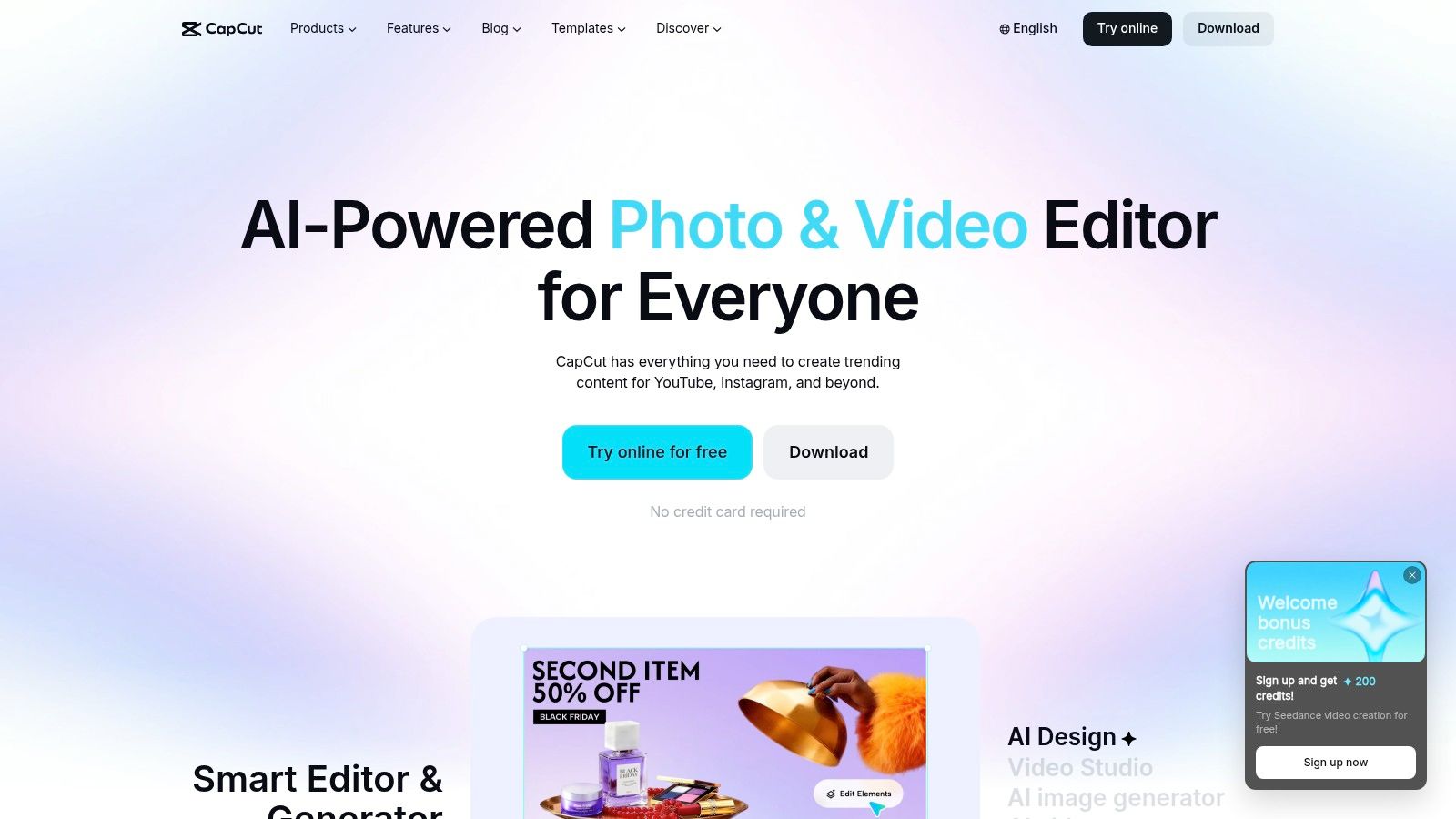
The advantage is speed after the source clip has already been chosen. A creator can import a finished YouTube segment, select a portrait canvas, apply a reframe, style the captions, and add social-native design elements without switching applications. Its web, desktop, iOS, and Android availability also makes it practical for teams that edit from different devices. Explore the current workflow on the CapCut editor website.
Best footage and likely cleanup
CapCut works well for single-speaker clips, product shots with a clear focal point, and short edits where the creator wants to supervise the result in the timeline. It isn't as strong a choice when the main task is discovering the best moments inside a long recording. You still need to identify the source segment and check whether Auto Reframe understands the scene.
Complex scenes can produce imperfect crops, especially when two people move independently or when the relevant object isn't the most obvious face. Captions are convenient, but speech names, specialist terms, punctuation, and line breaks should be checked before publishing. The Pro plan's availability and pricing can vary by region and platform, so confirm the offer inside the app.
Choose CapCut when you want hands-on social editing with automation around the edges. Choose a long-to-short platform when the bottleneck is finding clips, not decorating them.
3. Adobe Premiere Pro Auto Reframe
Premiere Pro is the better vertical video converter when the source already belongs inside a professional edit. Its Auto Reframe feature can adapt sequences to 9:16, 1:1, or other aspect ratios while preserving a non-linear editing workflow. Unlike a lightweight resize utility, it can apply reframing across an entire edited sequence, which matters when a project contains many cuts, graphics, and transitions.
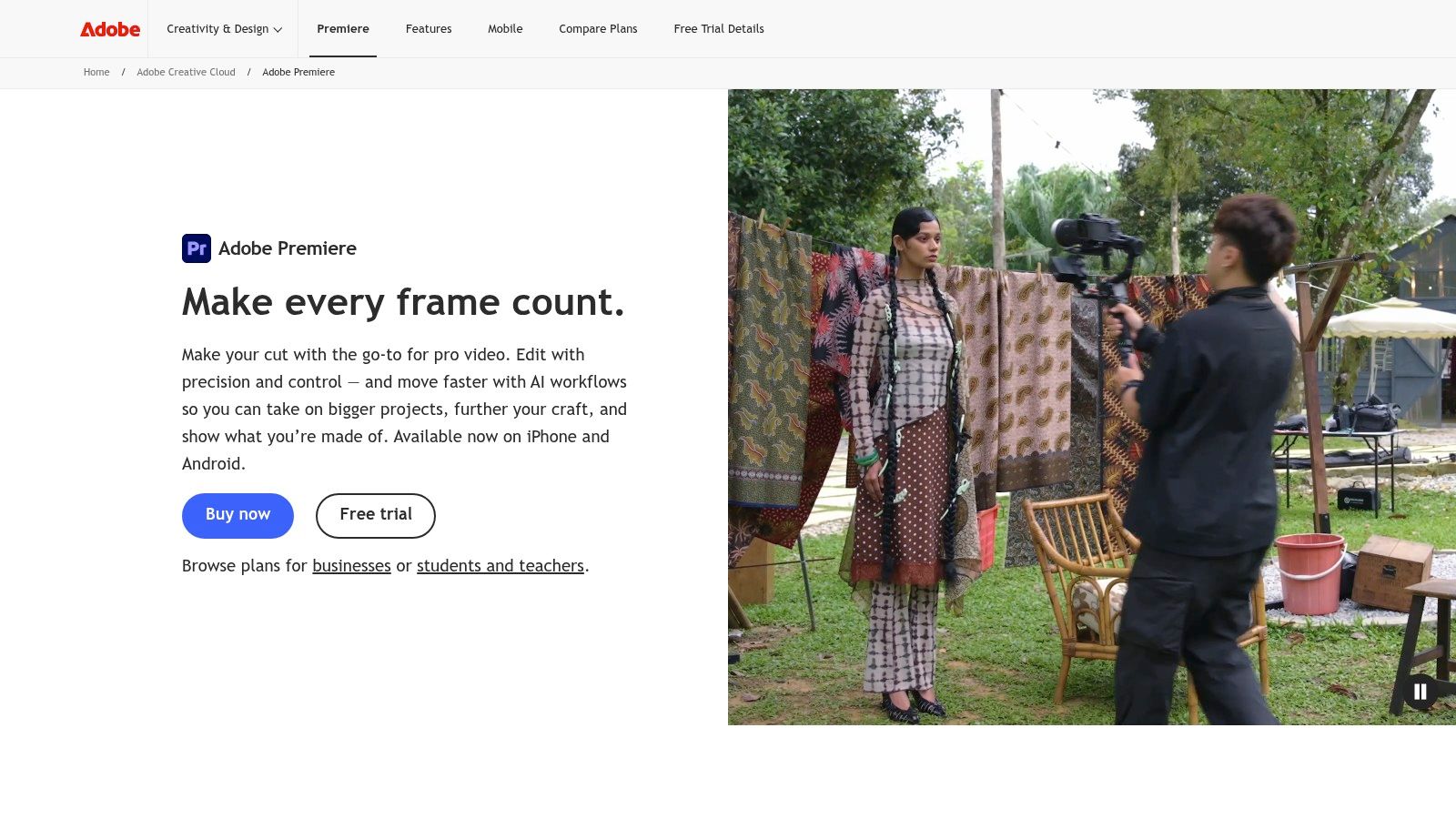
The main strength is control after automation. Editors can inspect keyframes, correct a crop that loses an important object, preserve brand graphics, refine captions, and render through the wider Adobe workflow. That makes Premiere Pro a safer choice for campaign assets, broadcast-derived footage, and branded content where an almost-right crop isn't good enough. Adobe documents the product through its Premiere Pro editing platform.
When the heavier workflow is justified
Premiere Pro isn't the efficient option for someone who has one phone video and wants a quick Reel. The learning curve is steeper than a browser editor, and Creative Cloud is a larger commitment than a simple conversion tool. It also doesn't remove the editorial task of selecting compelling moments from a long interview. Auto Reframe changes the composition, not the meaning of the edit.
Caption work is equally dependent on the project setup. A professional editor can achieve excellent dialogue integrity, but the operator must still review transcription, timing, safe zones, and styling. For teams already working in Premiere, that control is a benefit. For a solo creator handling frequent long recordings, the manual overhead can outweigh the precision.
For a detailed look at how a dedicated tool differs from an NLE, compare this workflow with Keptbits as a vertical video editor.
4. VEED
VEED is a browser-first option for quick conversion, basic editing, captions, and export without installing a desktop application. Its canvas presets cover 9:16, 1:1, and 16:9, while its AI Background Expand feature can fill the new composition when a direct crop would remove too much of the original image.
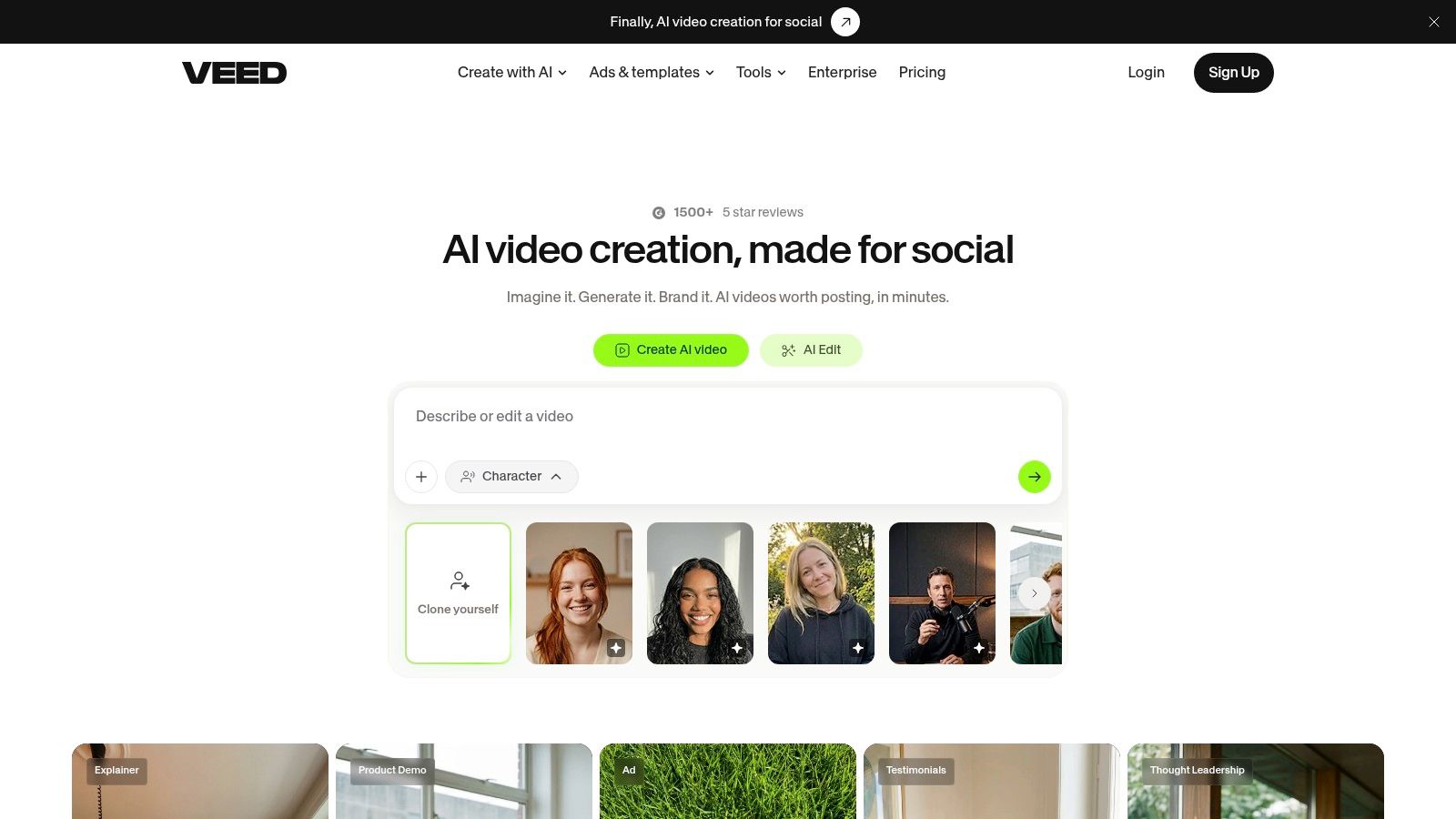
That background expansion is useful for footage with breathing room around the subject, slides, talking heads, and simple product demonstrations. It can avoid the visual compromise of black bars or an overly tight crop. It doesn't solve every framing problem, however. Generated background space can't restore a second speaker or an object that was already outside the original frame.
A good browser workflow
VEED's on-canvas controls make it easy to move the crop, check caption placement, and prepare a clip for a social destination in one session. It suits marketers, small teams, and non-editors who need an accessible workflow for occasional or moderate conversion work. The VEED online video editor provides the relevant import, resize, and editing tools.
The trade-off is performance and plan access. Browser rendering depends on the computer and connection being used, and more advanced AI features may sit behind higher paid tiers. VEED also doesn't replace a long-form clipping system. If you begin with a webinar or podcast, you'll still spend time finding the useful section before the resize step.
Use VEED when the source clip is already selected and the main question is how to fit it cleanly into portrait. Review the expanded background, faces at the edge of frame, subtitle safe zones, and any graphics that were designed for horizontal viewing.
5. Kapwing
Kapwing takes a straightforward browser-editor approach. Its Resize tool offers social canvas presets for 9:16, 16:9, and 1:1, alongside crop, captions, templates, and basic timeline editing. That combination makes it accessible to people who understand the publishing destination but don't want to learn a professional NLE.
The workflow is strongest when a social manager has a finished source and needs several formatted derivatives. Presets reduce setup friction, and the template library can help standardize title cards, captions, and visual treatments across a team. It handles conversion rather than pretending that every wide recording can become a compelling short automatically. Visit the Kapwing video resizing and editing platform.
What to inspect before delivery
Kapwing's free exports include a watermark and usage limits, while heavier projects can feel slower than a desktop editor. Exact allowances may change, so teams should verify the current plan before committing a large batch. The more layers, effects, and long source files you add, the less attractive a browser-only workflow becomes.
Captioning is useful for dialogue-led clips, but auto-generated text still needs a human pass. Check names, numbers, technical vocabulary, and whether line breaks obscure the speaker's face. Reframing also remains a visual task. A preset chooses the canvas, not the best composition.
Kapwing is a practical choice for fast, collaborative, low-complexity social formatting. It becomes less suitable when you need shot-by-shot crop control or want AI to identify complete moments from a long recording. For broader publishing workflows, this guide to video editing for social media offers useful context on why each destination may need its own finishing pass.
6. OpusClip
OpusClip is built around the long-to-short problem. Give it a podcast, stream, webinar, or other extended recording, and it can identify candidate clips, reframe them vertically, generate captions, suggest hooks, and recommend B-roll. It is designed to produce several social assets rather than only change the dimensions of one finished file.
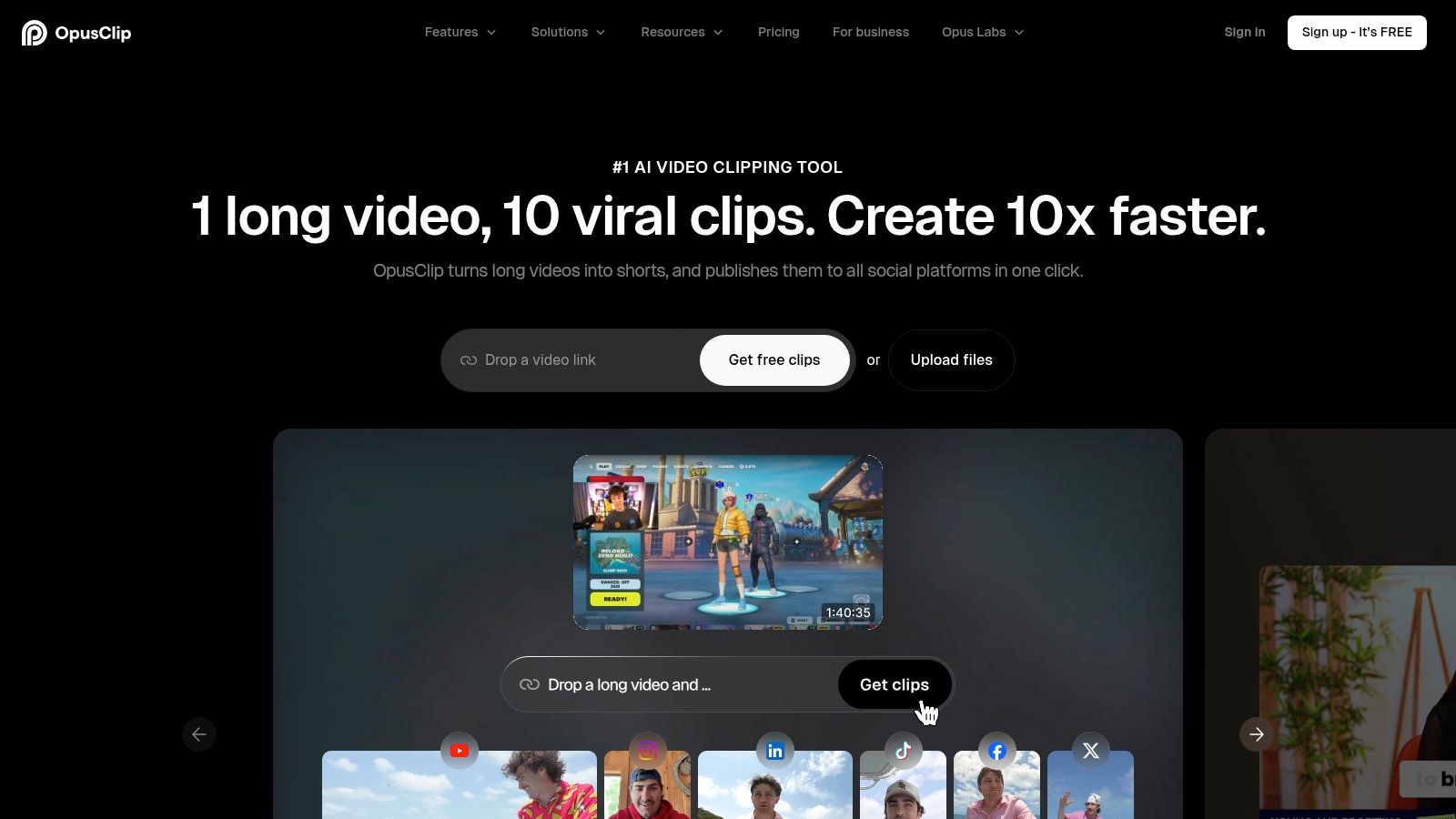
That makes it attractive for creators and marketing teams with a regular archive of long recordings. The value comes from reducing the first pass through the material. You can review suggested moments instead of manually scrubbing from the beginning, then refine the clips that deserve publication. The OpusClip long-to-short platform supports this creator-focused workflow.
Automation still needs an editor
OpusClip's output should be treated as a draft, not an unattended publishing queue. AI may select a passage that sounds strong but depends on a question immediately before it, or it may begin a clip after the visual setup has already happened. Reframing can also be correct for a single speaker while missing the interaction that gives the segment its meaning.
The same applies to captions. Generated captions make a clip usable faster, but a human should check timing, emphasis, names, and the position of text relative to faces and interface overlays. Watermark-free exports and advanced capabilities require a subscription, so the practical comparison is not only speed versus control. It's automated discovery plus review versus manual discovery inside a traditional editor.
OpusClip is a good fit when volume matters and the source is mostly spoken content. It is less convincing for action-heavy footage where the important event is visual and cannot be judged from dialogue alone.
7. Munch
Munch combines clip discovery, automatic reframing, and trend-oriented prioritization. That positioning makes it different from a basic vertical video converter. It tries to answer both questions that social teams ask: which parts of a long recording deserve attention, and how should those parts be formatted for short-form feeds?
The platform is a sensible candidate for agencies and brand teams managing multiple assets, especially when publishing decisions need to be organized rather than left as a pile of generated clips. Its automatic crops can cover vertical and square outputs, and higher tiers add brand voice presets and broader multi-asset repurposing. The Munch platform presents the workflow for teams that want selection and formatting together.
The limitation is editorial context
Trend scoring can help prioritize a review queue, but it shouldn't decide what represents a brand. A clip that resembles a currently effective social pattern may still lack the context, claim support, or visual clarity needed for a particular audience. Treat the score as a sorting aid, not as evidence that a clip is publishable.
The same caution applies to multi-speaker recordings. If the relevant exchange involves two people, a crop that favors one face can damage the point even if the framing looks technically polished. Review the opening, the conversational handoff, the final sentence, and whether captions preserve the speaker's meaning.
Munch's entry pricing is positioned above basic editors, and free access may be limited. It makes the most sense when prioritization and repeatable brand output matter enough to justify a more specialized platform. For a single resize, it introduces more machinery than the job requires.
8. Vizard
Vizard offers a simple upload-to-shorts workflow for turning long sources into multiple clips. It generates candidate segments, applies captions, and supports vertical and other common social ratios. That gives teams a middle ground between a manual editor and a more involved content intelligence platform.
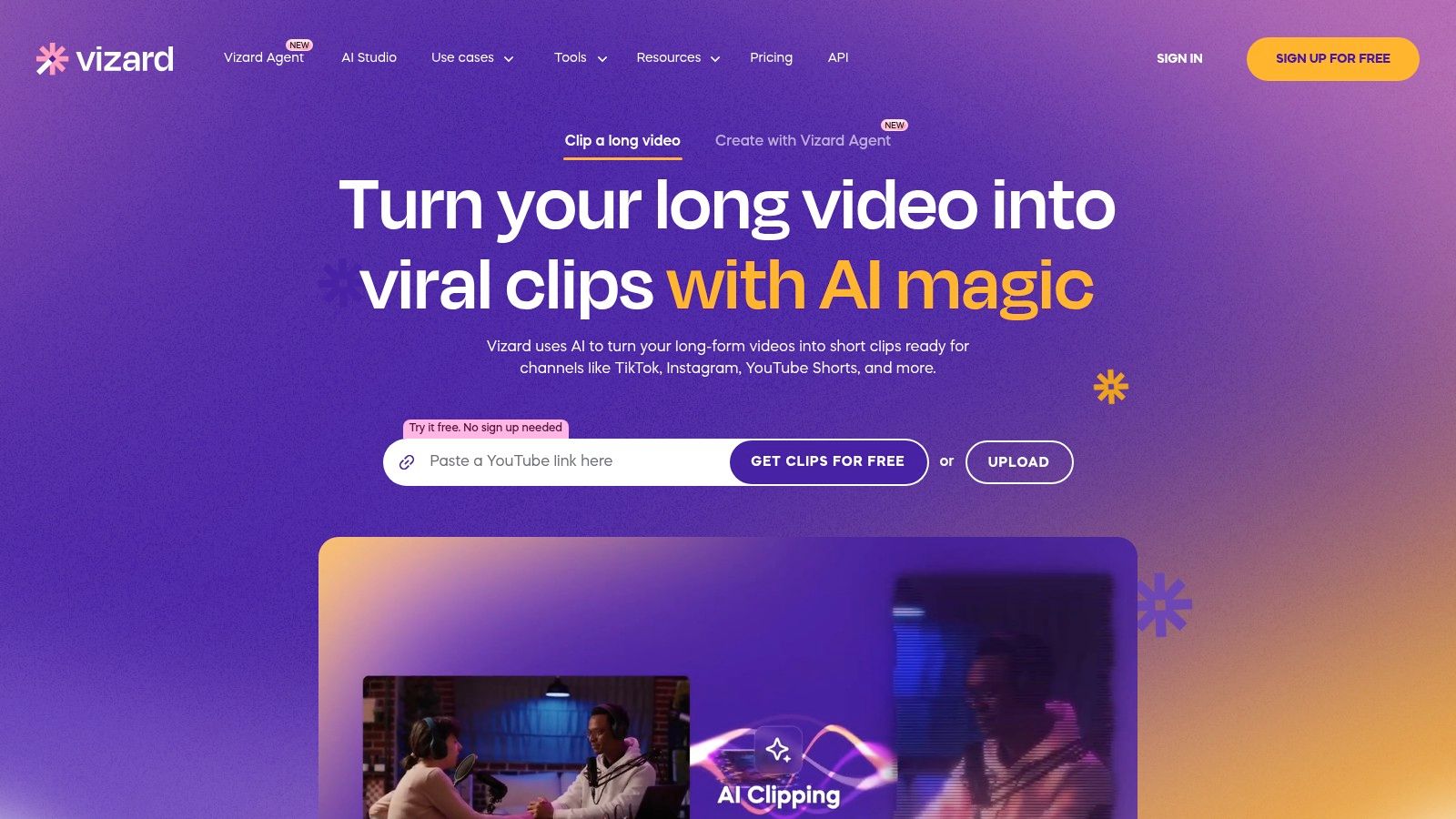
The interface is well matched to webinars, podcasts, YouTube recordings, and other sources where speech carries the story. A single upload can produce several starting points for review, which is faster than building every short from an empty timeline. Vizard also offers desktop and App Store access alongside its browser workflow through the Vizard video repurposing platform.
Where it stops short
Vizard's strength is the first draft. Editors who need detailed audio mixing, intricate B-roll timing, advanced motion graphics, or precise shot-level reframing may still need a dedicated NLE after the initial generation. That isn't a defect so much as a clear boundary between repurposing and finishing.
Caption quality deserves the same treatment. The captions can establish a strong starting point, but technical terms, proper names, punctuation, and line timing need inspection. A clip may also need a better opening or a shorter ending after the AI has selected its boundaries.
Plan allowances and free-tier limits can change, so verify them before processing a large library. Vizard is a good option for straightforward batch generation with a clear browser workflow. It is less suited to projects where every frame, caption animation, and transition must follow a strict brand specification.
9. Crossclip by Streamlabs
Crossclip is purpose-built for streamers who want to turn a live clip into a vertical post quickly. You can paste a Twitch, YouTube, or Kick clip URL, or upload a file, then prepare a 9:16 version with overlays and captioning options for Shorts, Reels, and TikTok.
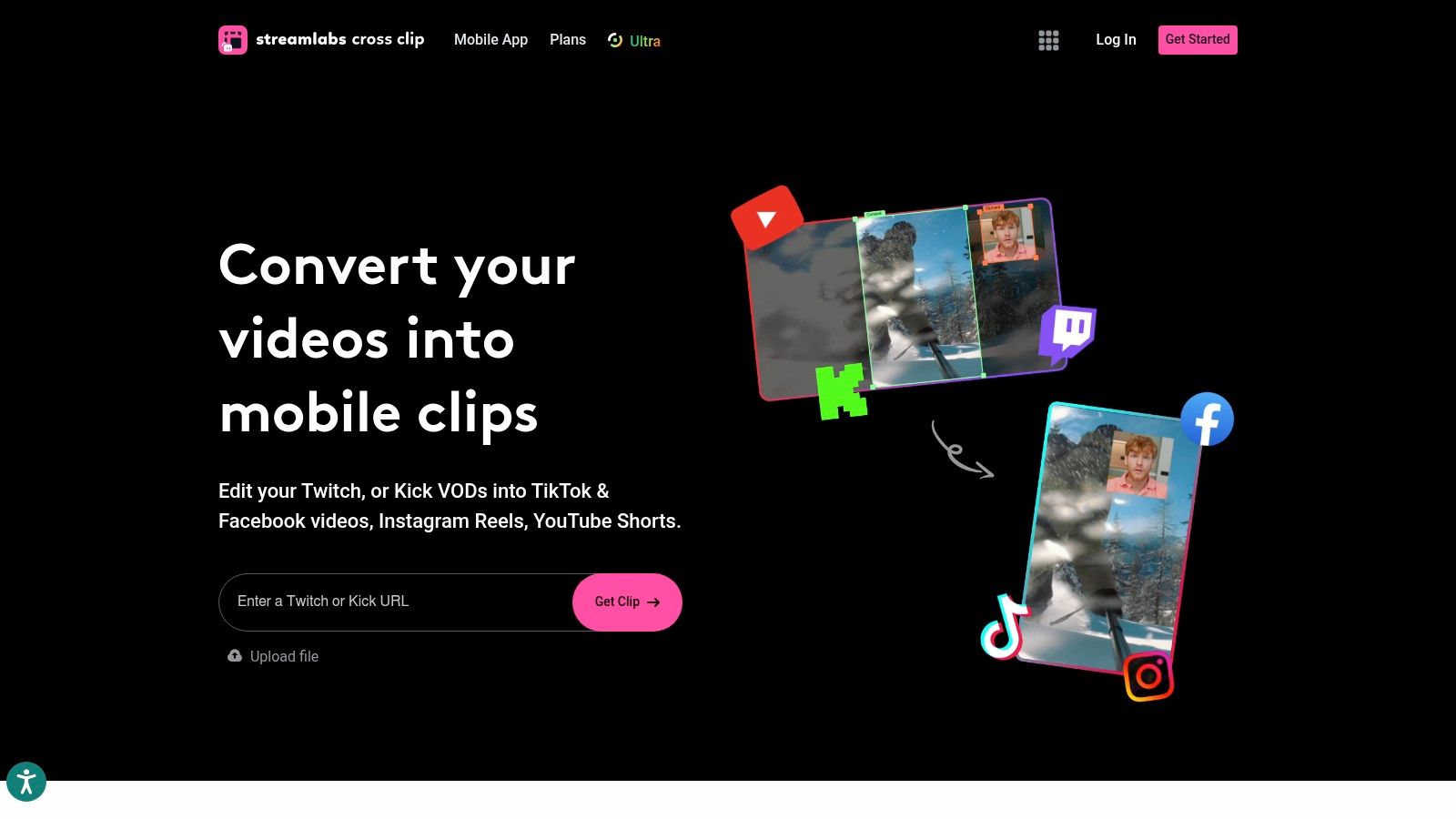
The link-based import is the main practical advantage. A streamer can move from a live platform clip to a social-ready draft without downloading the source, opening a full editor, and rebuilding the composition. The mobile workflow also supports quick turnarounds, while the Crossclip converter by Streamlabs keeps the tool focused on stream highlights.
Fast is not the same as flexible
Crossclip works best for a single highlight with one obvious focal point. It isn't a full editor, so advanced audio repair, multi-speaker composition, detailed keyframing, and complex visual cleanup remain limited. A gameplay clip with facecam, alerts, and rapidly changing action may need more manual control than its fast workflow provides.
The free plan includes branding, while Pro removes limits and branding. Check the current terms before building a branded publishing process around it. Also inspect whether the crop preserves the gameplay area, facecam, subtitles, and any alert that carries necessary context.
A streamer shouldn't choose Crossclip because it promises to solve every vertical conversion problem. Choose it because low-friction import and fast single-clip output matter more than deep editorial control. For a broader explanation of portrait dimensions and platform variants, see this guide to video aspect ratios.
10. Descript
Descript is a transcript-first editor for dialogue-heavy content. It can find highlights, edit spoken material through text, create portrait outputs, and apply animated captions and titles. That makes it particularly useful for interviews, podcasts, explainers, and educational recordings where the transcript is a better navigation layer than a conventional timeline.
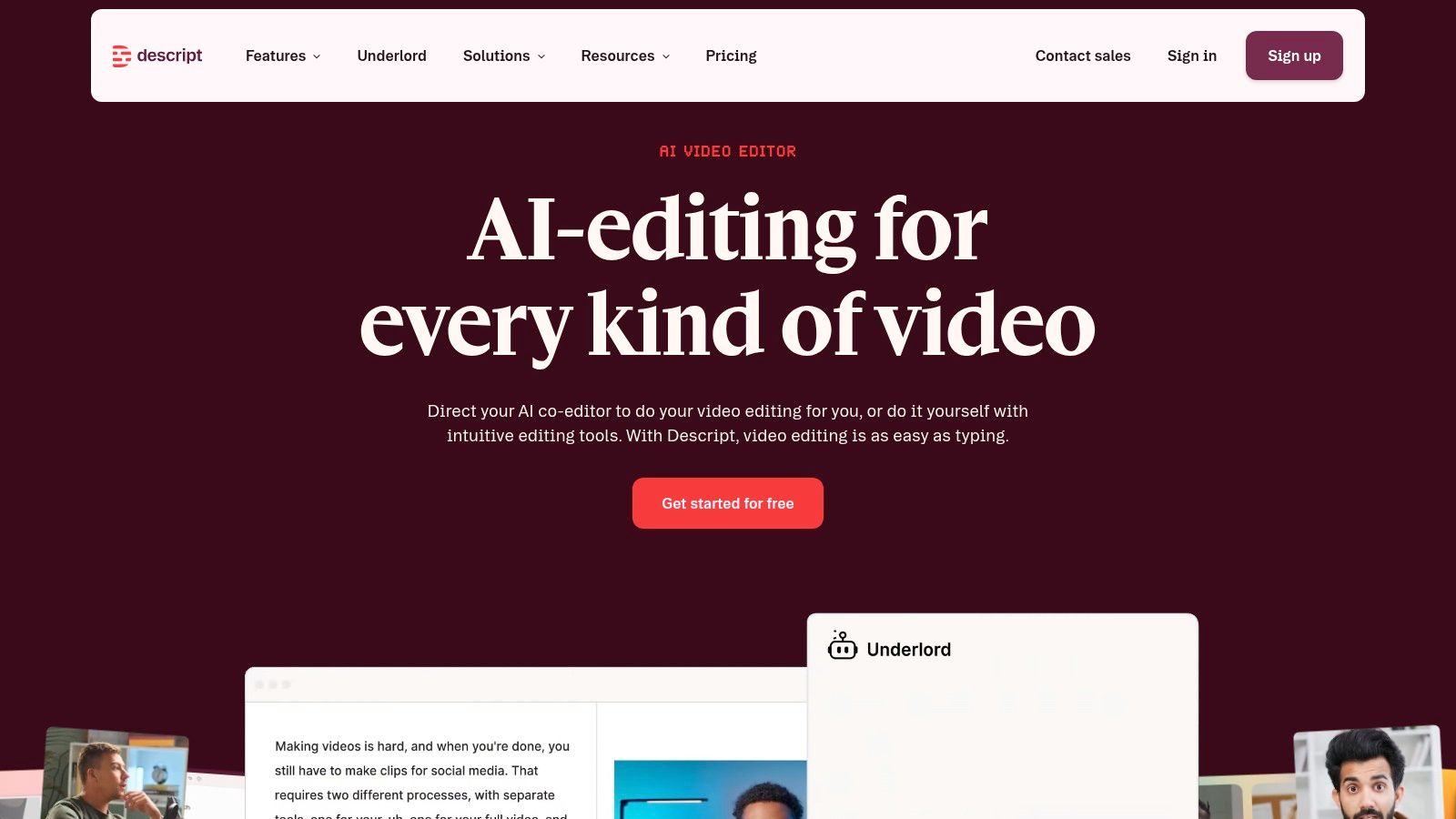
The text-based workflow speeds up the editorial search. Delete a sentence from the transcript and the corresponding video edit follows, then use templates and caption styling to prepare the vertical version. Descript's team-ready cloud projects also suit collaborative content operations. Its Descript video editing platform is strongest when spoken language drives the cut.
Dialogue precision versus visual complexity
Descript's advantage is not automatic reframing alone. It's the connection between what was said and what gets edited. That can make it easier to remove filler, tighten an answer, or build a coherent clip without hunting through the waveform. Caption styles and titles help produce a polished social presentation.
Plans use media minutes and AI credits, which may restrict some workflows. Heavy B-roll, fast action, elaborate motion graphics, and footage where the visual event matters more than speech can be faster to finish in a professional NLE. A transcript also can't understand every visual dependency. If a speaker refers to a chart, product, or second participant, the editor must confirm that the portrait composition preserves it.
Descript is a strong choice for human-guided dialogue repurposing. It offers more editorial agency than a one-click converter, but it still expects the user to review crops, captions, and context before export.
Top 10 Vertical Video Converters: Feature Comparison
| Product | Core features ✨ | Quality & UX ★ | Pricing & Value 💰 | Target audience 👥 |
|---|---|---|---|---|
| Keptbits 🏆 | Browser upload (up to 4h), word‑level transcript + speaker split, moment scoring, boundary‑snapped cuts, speaker‑locked reframes, burned‑in captions, multi‑aspect export | ★★★★/5, precise cuts, polished captions, minimal drift | 💰 Free (unlimited runs; 3×30s clips/run, watermark) · Pro $19.99/mo or $5.99/wk (1st week free) | 👥 Podcasters, streamers, social/media teams |
| CapCut | Auto Reframe (subject tracking), mobile/web editors, auto‑captions, social templates | ★★★★/5, fast, template‑driven; occasional imperfect crops | 💰 Free core; in‑app/region pricing for Pro features | 👥 Mobile creators, short‑form editors |
| Adobe Premiere Pro (Auto Reframe) | NLE Auto Reframe across edits, Adobe ecosystem integration, broadcast‑grade controls | ★★★★★/5, highly reliable; steeper learning curve | 💰 Creative Cloud subscription (higher cost) | 👥 Professional editors, agencies, broadcast teams |
| VEED | Web editor, one‑click crop presets, AI Background Expand to fill frames, on‑canvas reframing | ★★★★/5, accessible; AI expand preserves context | 💰 Free tier; paid plans for advanced AI and faster renders | 👥 Social marketers, small teams, quick converters |
| Kapwing | Browser Resize tool, presets (9:16/1:1/16:9), templates, captioning | ★★★★/5, quick & accessible for non‑editors | 💰 Free (watermark/limits); paid tiers lift limits | 👥 Non‑editors, content teams, educators |
| OpusClip | Auto clip finding from long recordings, vertical reframing, styled captions, direct posting | ★★★★/5, strong batch repurposing; human polish often helps | 💰 Subscription for watermark‑free and advanced features | 👥 Podcasters, creators repurposing long shows |
| Munch | AI clip selection + trend scoring, automatic reframing, brand presets on higher tiers | ★★★/5, trend‑aware prioritization; higher‑cost entry | 💰 Higher entry pricing; limited free options | 👥 Growth/marketing teams, brands |
| Vizard | AI‑generated clips from single source, vertical/square exports, simple upload‑to‑shorts flow | ★★★/5, simple flow; limited fine editing | 💰 Free tier (limits); paid plans via Stripe | 👥 Teams wanting fast shorts from webinars/podcasts |
| Crossclip (Streamlabs) | Link import (Twitch/YouTube/Kick), vertical presets, overlays & captioning, mobile app | ★★★/5, fastest path for streamer clips; limited depth | 💰 Free with branding; Pro removes branding/limits | 👥 Streamers, highlight editors |
| Descript | Transcript‑first editing, animated/burned captions, clip finding, team collaboration | ★★★★/5, fast dialogue editing; uses media minutes/credits | 💰 Tiered subscription (media minutes/AI credits) | 👥 Podcasters, editors, collaborative teams |
Choose by Footage, Control, and Cleanup Time
Start with the source, not the feature list. If you already have one finished clip and only need a portrait version, a lightweight browser editor such as VEED or Kapwing is usually the efficient choice. CapCut adds more social-native styling, while Crossclip is faster for a streamer who begins with a live-platform URL. These tools solve a narrow problem well: put an existing clip into a vertical canvas and make it presentable.
Long recordings require a different decision. OpusClip, Munch, Vizard, Descript, and Keptbits can help identify material inside a podcast, webinar, stream, or interview, but they don't make the same editorial assumptions. A transcript-first workflow is useful when dialogue carries the argument. Trend-oriented scoring helps organize a social queue. Keptbits is particularly focused on self-contained moments, word-boundary cuts, speaker separation, and multiple aspect-ratio outputs. None of these systems should publish without review when context, multiple speakers, or important visual action affects the meaning.
Professional editors occupy the other end of the spectrum. Premiere Pro takes more skill and setup, but it gives a team direct control over sequence structure, keyframes, graphics, captions, and finishing. That control is worth the effort for campaigns, broadcast material, complex demonstrations, and brand assets that need frame-level correction. It isn't the economical answer for every casual resize.
Short-form vertical video has become a large global behavior rather than a temporary format. Ampere Analysis reported that over 60% of the global online population watches short-form swiping video daily, and that the format ranked as the second-most used daily media format at 63%, behind generalist social apps at 73%, in research summarized by Vidico's short-form video statistics. That scale makes workflow reliability more important than novelty. A tool that saves time but creates unstable crops or inaccurate captions transfers the work to the final review.
The best converter is the one that leaves you with fewer consequential corrections, not the one that creates the first file fastest.
Test the same representative source in every shortlisted tool. Include a single-speaker passage, a two-speaker exchange, a section with a visual reference, and a moment with natural pauses. Then inspect:
- Subject placement: Does the crop stay on the right person, or does it drift when someone gestures or another face enters?
- Speech boundaries: Does the clip begin and end on complete words and thoughts, or does it cut through a syllable or remove necessary context?
- Caption readability: Are names, technical terms, punctuation, line breaks, and emphasis correct in the final 9:16 composition?
- Safe zones: Do subtitles and titles remain visible above platform controls and other interface overlays?
- Output quality: Does the rendered file preserve detail, audio clarity, transitions, and brand graphics?
- Commercial limits: Are watermarks, export restrictions, media allowances, AI credits, or changing plan terms acceptable?
- Cleanup time: How long does a human need to correct the generated result before it can be published?
Captioning deserves particular scrutiny because vertical feeds are often watched without sound. Benchmark work such as VCapsBench, with 5,677 videos and 109,796 question-answer pairs, and CaReBench, with 1,000 human-annotated videos, shows how captioning quality can be evaluated in fine-grained ways rather than treated as a generic transcription task, as described in this caption evaluation research. You don't need to reproduce those benchmarks in daily editing, but you should judge timing, completeness, speaker context, and visual placement with similar care.
Reframing also deserves a deliberate review. Automatic crops can fail when speakers are far apart, when a product matters more than a face, or when aggressive tracking makes the image feel restless. Guidance on editing vertical video for interviews and multi-speaker footage highlights why a crop-and-track approach doesn't always preserve meaning. Sometimes the correct fix is a split screen, a manual keyframe, a new shot, or a decision not to force that segment into portrait.
Finally, separate reframing from caption finishing. Create an uncaptioned master, establish the final composition, and then place subtitles in safe zones for each destination. The workflow described in this guide to editing for multiple aspect ratios reflects an important practical principle: one source can produce 9:16, 1:1, and 16:9 deliverables, but each output may need format-aware caption placement rather than one caption layer stretched across every version.
For a single resize, use a browser editor. For a live highlight, use a streamer-focused converter. For batches of long recordings, choose an AI repurposer that matches your dialogue and review capacity. When crop stability, dialogue integrity, and brand control matter more than speed, use a professional NLE or send the generated draft into one. The winning workflow is the one that preserves the story while reducing repetitive work.
Keptbits analyzes long recordings, scores self-contained moments, cuts on speech boundaries, reframes around the active speaker, and exports captioned 9:16, 1:1, and 16:9 clips. Try the free workflow on a representative interview, podcast, stream, or webinar, then visit Keptbits to see whether it reduces the manual cleanup your current vertical video process requires.
Keptbits cuts on sentence boundaries.
Paste a link or upload an episode, say how many clips you want, and get them back captioned and vertical. The free plan needs no card.
Start freeRead next
7 Online Video Editor Free Picks That Deliver in 2026
Compare 7 online video editor free options for 2026, including watermark limits, export quality, key features, and the best use for each tool.
How to Make Viral Video on YouTube in 2026
Learn how to make viral video on YouTube with proven hooks, thumbnail tests, retention fixes, and Shorts workflows that actually convert viewers into
How to Make YouTube Channel Setup That Actually Grows
Learn how to make YouTube channel setup that grows: account, branding, first videos, optimization, and monetization milestones explained step by step.