12 October 2026 · 13 min read
7 Best Video Editing Software for 2026: Desktop vs Cloud
Compare the best video editing software of 2026, from desktop NLEs to cloud editors, with features, pricing, and the use-cases each suits best.
Pick the editor that fits the job in front of you. A two-hour interview that needs vertical clips by Friday does not need the same tool as a documentary that needs careful color, audio, and finishing. The best video editing software is the one that matches the way you publish, the hardware you already own, and the part of the workflow that slows you down. That's why this list is sorted by workflow and budget, not by a generic “most powerful” ranking.
Table of Contents
- 1. Adobe Premiere Pro
- 2. Apple Final Cut Pro
- 3. Blackmagic DaVinci Resolve
- 4. Wondershare Filmora
- 5. Descript
- 6. CapCut
- 7. Microsoft Clipchamp
- Top 7 Video Editing Software, Feature Comparison
- Turn the Shortlist Into a Decision This Week
1. Adobe Premiere Pro
A client sends interview footage, the motion designer needs a rough cut, and social asks for vertical versions the same day. Adobe Premiere Pro fits that workflow. It is the non-linear editing tool for teams that need reversible edits, bins, and timeline control without giving up a familiar professional post setup.
Premiere Pro works best for editors who stay inside Adobe's ecosystem. The handoff with After Effects, Photoshop, Frame.io, and Adobe Express keeps rough cuts, motion graphics, review notes, and final exports in one working loop. Its timeline, captioning, audio tools, and social delivery options support long-form edits and short-form cutdowns in the same project. Premiere's text-based editing and auto-captions also handle rough cutdowns that used to need a separate pass, which shortens the path from master timeline to social deliverable.
Where it earns its place
The trade-off is clear. Premiere Pro is deep, but that depth brings a steeper learning curve and ongoing subscription cost. It suits editors who need professional timeline control first, then use AI features to speed specific steps rather than define the whole workflow.
Adobe positions the app for editors who want a mature NLE with regular updates. If your work is mostly transcript-led or mostly vertical repurposing, a specialist tool may fit better. Choose Premiere Pro when your team already depends on Adobe and wants one editing hub. See the product page for current features and plan structure at Adobe Premiere Pro.
2. Apple Final Cut Pro
Final Cut Pro is the Mac-first answer for editors who want speed, an intuitive timeline model, and a license structure that isn't subscription-only. Its Magnetic Timeline changes how clips behave, and on Apple silicon it's built for fast background rendering and smooth playback. That makes it a strong fit for solo creators and small teams that work inside Apple hardware from capture to export.
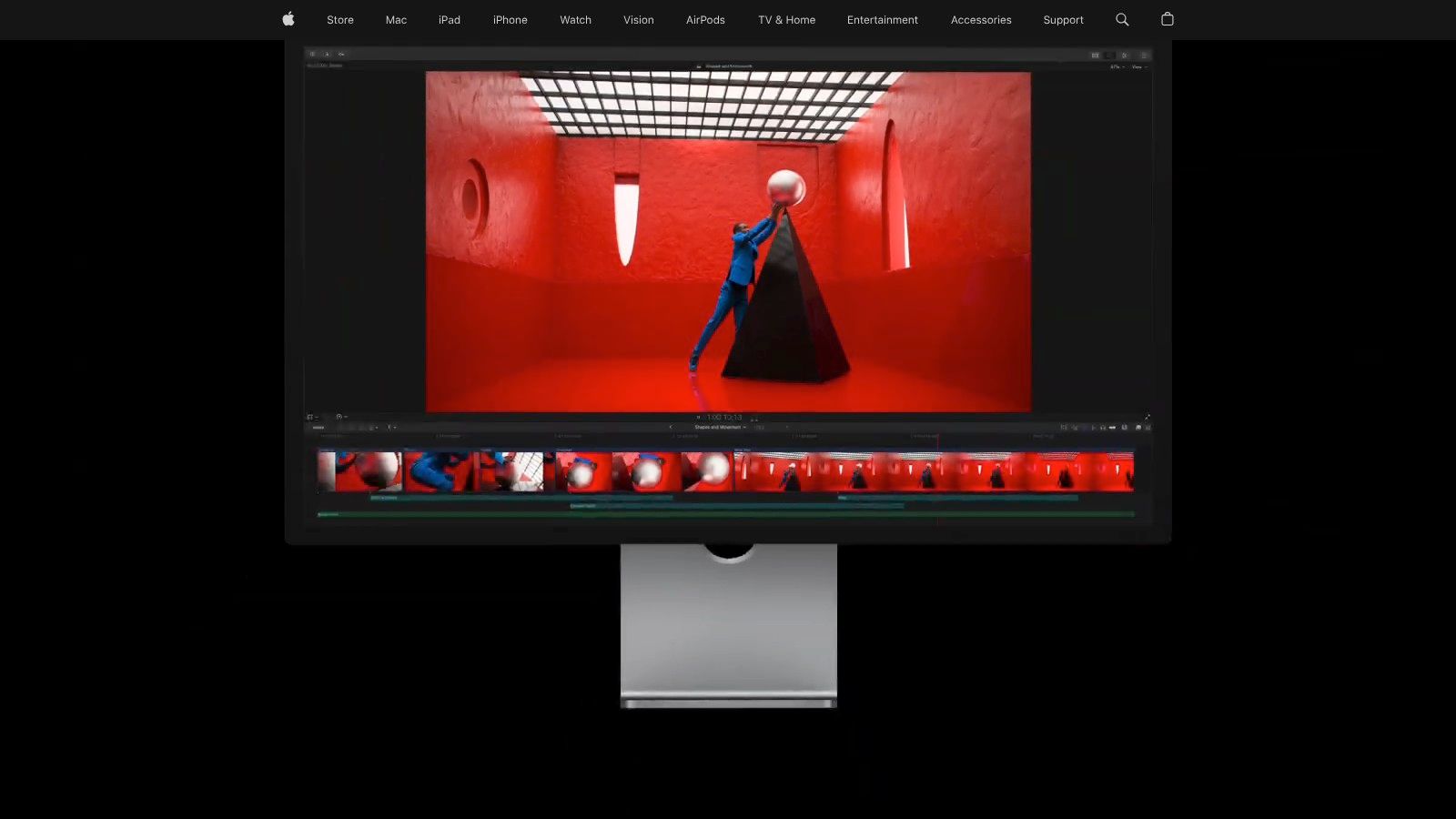
The editor is especially appealing if you're cutting lots of H.264 or HEVC footage and want quick turnaround without babysitting the timeline. Final Cut Pro also adds built-in captions, object tracking, and AI-assisted tools, plus an iPad version with Live Multicam and cross-device handoff. That combination matters for creators who start on mobile gear, then finish on a Mac.
Best fit and main limit
The workflow strength here is speed, not breadth. Final Cut Pro is Mac-only on desktop, so it's only the right answer if your hardware is already in the Apple ecosystem. It also has some premium content and features tied to Apple Creator Studio subscription options, so the cheapest path depends on what extras you really need.
For Mac-based creators who value fast playback and a simpler mental model than a classic track-heavy NLE, Final Cut Pro is a serious contender. For cross-platform teams, it can be a problem the moment someone needs to open the project on Windows. Check the current product details at Apple Final Cut Pro.
3. Blackmagic DaVinci Resolve
DaVinci Resolve is the strongest all-in-one option when editing, color, audio, and finishing all need to live in one place. It brings the Edit, Cut, Color, Fusion, and Fairlight pages into a single application, so a post team can move from rough assembly to grading and sound without jumping between tools. That structure makes it feel like a full post pipeline, not just an editor.
The free version is the big reason many teams try it first, but the depth of the Studio workflow is what keeps them there. Resolve fits projects where color accuracy and audio polish matter as much as the cut. Puget Systems notes that Resolve leans more heavily on the GPU than Premiere Pro, especially for GPU effects and color-focused work, so stronger graphics hardware matters here more than in lighter editorial tools (Puget Systems).
Why teams keep it in the shortlist
Resolve cuts down app-hopping. You can edit, grade, mix audio, and do VFX inside the same project, which is a clear advantage for finishing work. The trade-off is the learning curve. Fusion can feel heavy for quick social edits, and the interface asks more of the editor than browser-first tools do.
Resolve is the tool I'd hand to a creator who says, “I don't want four apps, I want one serious post suite.”
User sentiment also trends positive. SelectHub reports a 95/100 user-sentiment score for DaVinci Resolve from 465 reviews, compared with 91/100 for Adobe Premiere Pro from 2,201 reviews (SelectHub). That does not make one tool universally better, but it does show how strongly users respond to Resolve's integrated color and audio stack. Check current feature details at Blackmagic Design DaVinci Resolve.
4. Wondershare Filmora
Filmora is the practical pick for creators who want a gentler learning curve without giving up a real desktop timeline. It mixes conventional editing with templates, effects, and AI-assisted features, so a new editor can start fast instead of spending days learning a professional interface. That makes it a good fit for social content, local business videos, and creators who need a usable editor more than a post-production workstation.
Filmora's appeal comes from balance. It includes multi-camera editing, motion tracking, and a large built-in title and effects library, which means you can turn a rough idea into a polished clip without assembling a separate asset stack. It also offers multiple plan choices, including annual and perpetual options, so some buyers can avoid a subscription-only model.
What to watch before you commit
The free version exports with a watermark, which is fine for evaluation but not for production. The other thing to budget for is AI usage. Many AI features draw on credits, so heavy automation can change the total cost of a project once you start leaning on those tools often.
For small teams and solo creators, Filmora makes sense when speed and ease matter more than deep finishing control. For high-end grading, complex collaboration, or serious compositing, it can feel limiting once projects get harder. Start at Wondershare Filmora if you want a familiar desktop editor that doesn't fight you on day one.
5. Descript
Descript is the best fit when the edit is really a transcript problem. If you cut interviews, podcasts, webinars, or narrated explainers, editing words directly is often faster than scrubbing a timeline. That's the point of a text-based editor, and it's why Descript is such a strong match for dialog-heavy work.
The workflow is simple in concept and fast in practice. You get word-level transcription, text-based editing, dynamic captions, screen and remote recording, and multi-track speaker handling in one workspace. For teams producing spoken content, that can remove a lot of mechanical labor before anyone touches a traditional timeline.
Why it works for spoken footage
Descript is not a full substitute for heavy VFX, compositing, or advanced color work. It's built to cut speech, not to replace a full post suite. That boundary is important because a team can lose time if it tries to force every kind of video into a transcript-first interface.
Practical rule: use Descript when the quickest way to improve the video is to change the words, shorten pauses, or clean the dialogue.
It also fits a broader automation workflow, especially when you're repurposing long recordings into smaller pieces for different platforms. If your process needs a more structured automation layer around video repurposing, see Keptbits video editing automation for a related workflow. Descript's own product details are available at Descript.
6. CapCut
CapCut is built for creators who need vertical-first speed. It's browser-friendly, mobile-friendly, and heavily shaped around social formats like Shorts, Reels, and TikTok. If your job is turning long footage into punchy clips with captions and trendy effects, CapCut is one of the easiest tools to start with.
CapCut's strengths are obvious as soon as you open it. Auto-captions, transcript-based editing, AI templates, and “long video to shorts” automation all push the workflow toward rapid repurposing. The cloud project model also helps when you want to start on one device and finish on another without manually passing files around.
Where it saves time
The actual value is the template and effects library. It gives social teams a fast way to keep output moving without designing every post from scratch. That can be a major advantage when the brief is “get this clip out today,” not “build a finely tuned post workflow.”
There are trade-offs. Pricing and feature availability can vary by region or account, and the cloud or AI credit model can be confusing if you need predictable budgeting. That makes CapCut more of a speed tool than a cost-control tool.
If you publish a lot of short-form video and need a tool that favors turnaround over precision, CapCut belongs on the shortlist. For a more focused vertical workflow discussion, see Keptbits vertical video editor. The product page is at CapCut.
7. Microsoft Clipchamp
Clipchamp is the browser-based option for teams that want simple edits without adopting a heavier post-production stack. It's especially practical for people already working in Microsoft 365, because the editor fits neatly into OneDrive and other Microsoft workflows. That makes it a strong choice for internal comms, social managers, and office teams that need reliable output more than advanced control.
The interface is straightforward. You get drag-and-drop editing, stock media, captioning tools, webcam and screen recording, and a desktop app alongside web access. That combination is enough for quick branded cuts, training clips, and lightweight marketing assets.
Where it fits, and where it doesn't
Clipchamp is approachable for non-experts, which is a real strength if the people making videos aren't full-time editors. It also supports watermark-free exports up to 1080p on the Free plan, which lowers the barrier for routine publishing. For many teams, that's enough to standardize the basic video process without buying a more complex suite.
The limitation is obvious. Clipchamp is not built for high-end grading, heavy VFX, or deep post control. Some business and enterprise features also depend on Microsoft 365 subscriptions, so the total package depends on how your company is already licensed.
For distributed teams that only need a clean browser workflow, Clipchamp is often enough. For anything more demanding, it becomes a stepping stone rather than the final editor.
If your team lives in Microsoft 365 and wants a plain path from recording to export, review the current details at Microsoft Clipchamp. For a broader look at browser editors, see Keptbits video editing tools online.
Top 7 Video Editing Software, Feature Comparison
| Tool | 🔄 Implementation Complexity | ⚡ Resource Requirements | ⭐ Expected Outcome / Quality | 📊 Ideal Use Cases | 💡 Key Advantages / Tips |
|---|---|---|---|---|---|
| Adobe Premiere Pro | High, full-featured NLE with many workflows | High, strong CPU/GPU, large storage | Broadcast/pro-level results ⭐⭐⭐⭐⭐ | Collaborative long-form editing, Creative Cloud workflows | Deep CC integration, frequent AI updates; subscription cost |
| Apple Final Cut Pro | Moderate, streamlined Magnetic Timeline (Mac-only) | Optimized, excels on Apple silicon for fast rendering | High-quality, fast exports ⭐⭐⭐⭐ | Solo creators and Mac-based teams, fast turnarounds | One-time license option, iPad handoff, background render |
| Blackmagic DaVinci Resolve | High, multi-module app (Edit/Color/Fusion/Fairlight) | Moderate–High, GPU-accelerated; powerful free tier | Industry-leading color & audio ⭐⭐⭐⭐⭐ | Color grading, end-to-end post, small studios | Robust free version; Studio is perpetual license; steeper learning curve |
| Wondershare Filmora | Low, beginner-friendly with templates and presets | Low–Moderate, lighter hardware needs | Good social-ready outputs ⭐⭐⭐ | New creators, quick social edits, template-driven videos | Large assets library; free version watermark; AI uses credits |
| Descript | Low, text-first, transcript-driven editing | Low, cloud/desktop; limited by media minutes/credits | Excellent for dialogue-focused content ⭐⭐⭐⭐ | Podcasts, interviews, quick captioned clips | Fast text-based cuts and accurate captions; not for heavy VFX |
| CapCut | Low, template and AI-driven, mobile/web-first | Low, browser/mobile, cloud-synced projects | Strong vertical/social clips ⭐⭐⭐ | Shorts/Reels/TikTok automation and rapid social edits | Extensive templates/effects; regional pricing/credit nuances |
| Microsoft Clipchamp | Low, template-led, drag-and-drop web editor | Low, browser-based, integrates with Microsoft 365 | Reliable marketing/social videos ⭐⭐⭐ | Teams in M365, quick branded outputs and 1080p exports | Easy for non-experts; limited advanced color/VFX features |
Turn the Shortlist Into a Decision This Week
Start with the output, not the feature list. Decide what you publish, who has to review it, and how much flexibility you need on hardware and budget. Then shortlist two editors that match those constraints and run the same real project through both before you commit.
If your work is mostly long recordings that need to become short, self-contained clips for vertical and square feeds, Keptbits is built for that step. It analyzes long videos, scores candidate moments, and returns cut, captioned segments with speaker-aware framing, which makes it a useful companion to a full editor rather than a replacement for one. For teams that care about predictable workflow costs, the pricing model is also easy to understand because it isn't metered by source length.
Use Premiere Pro or Final Cut Pro when timeline control and ecosystem fit matter most. Use Resolve when color and audio finishing are central. Use Descript or CapCut when the fastest path is transcript-led repurposing or short-form social output.
If you need a faster way to turn interviews, webinars, or long recordings into short clips, try Keptbits. It's built for the repurposing step that many editors slow down on, with transcription, speaker-aware reframing, and exports aimed at vertical and square feeds. Visit it if you want a workflow that complements your main video editor instead of replacing it.
Keptbits cuts on sentence boundaries.
Paste a link or upload an episode, say how many clips you want, and get them back captioned and vertical. The free plan needs no card.
Start freeRead next
7 Online Video Editor Free Picks That Deliver in 2026
Compare 7 online video editor free options for 2026, including watermark limits, export quality, key features, and the best use for each tool.
How to Make Viral Video on YouTube in 2026
Learn how to make viral video on YouTube with proven hooks, thumbnail tests, retention fixes, and Shorts workflows that actually convert viewers into
How to Make YouTube Channel Setup That Actually Grows
Learn how to make YouTube channel setup that grows: account, branding, first videos, optimization, and monetization milestones explained step by step.