18 October 2026 · 16 min read
How to Create a Highlight Video That Actually Works
Learn how to create a highlight video with a step-by-step workflow covering scripting, clipping, pacing, captions, and export settings that perform.
“Find the best moment and make it shorter” is popular highlight-video advice. It's also how you end up with a punchy opening, an unexplained reference, and an ending that feels like someone pulled the plug. The exciting sentence isn't always the usable clip.
Learning how to create a highlight video means learning what you can remove without breaking the viewer's understanding. For podcasts, interviews, webinars, and streams, the job isn't just trimming footage. It's preserving the smallest complete version of an idea, then making that version readable and publishable wherever you intend to use it.
Table of Contents
- The Goal Is a Self-Contained Moment, Not a Shorter Clip
- Preparing the Source and Getting a Usable Transcript
- Scoring Candidate Moments for Narrative Completeness
- Cutting, Pacing, and the Mechanics of a Clean Edit
- Captions That Read, Land on Time, and Survive Reframing
- Aspect Ratios, Reframing, and Export Settings
- Pre-Export Checklist and a Retention-Based Feedback Loop
The Goal Is a Self-Contained Moment, Not a Shorter Clip
Shorter isn't automatically better. In Wistia's 2022 State of Video benchmarks, average engagement was 50% for videos shorter than 60 seconds, 48% for videos lasting 1–3 minutes, and 49% for videos lasting 3–5 minutes. Those figures don't support a simple rule that every reduction in duration improves engagement.
Use duration as a constraint, not an editorial objective. A discovery clip needs to establish its value quickly, while an excerpt explaining a technical process may need room for a demonstration or qualification. Neither benefits from removing the sentence that makes the conclusion intelligible.
Decide what the viewer should get
Before marking an in-point, write down the intended viewing context and the takeaway. Is this a vertical-feed introduction to an unfamiliar guest, a useful excerpt for existing subscribers, or a product explanation that someone will actively seek out?
That decision changes what belongs in the edit:
- Discovery: Introduce the subject immediately. Don't assume viewers recognize the speaker, product, or argument.
- Explanation: Preserve the example that makes an abstract claim useful.
- Demonstration: Keep the action and its result visible, even if the most quotable commentary happens elsewhere.
- Promotion: Show enough substance to justify watching the original, rather than withholding the entire payoff.
A hook can be a precise question, a visible problem, or a surprising claim. It doesn't have to be the loudest sentence in the recording. Choose an opening that accurately represents what follows, not one that promises a different conversation.
Editorial rule: Remove the waiting, not the understanding.
Give the clip a destination
A usable highlight has a setup, a meaningful development, and a resolution. The setup tells viewers what they're watching. The development gives them something worth considering, and the resolution answers the question or completes the action.
Watch the candidate without the source recording open. If you need to explain who “they” are, what “that approach” means, or why the speaker's answer matters, the excerpt isn't ready.
The right duration is the shortest cut that preserves those relationships. Highlight creation is editorial compression, not extraction. That distinction matters more than any target length you enter into an editing tool.
Preparing the Source and Getting a Usable Transcript
A transcript that's comfortable to read isn't necessarily usable for editing. You need text connected to the recording closely enough to locate the actual speech, distinguish speakers, and identify clean sentence boundaries.
Start by checking the source itself. Listen for missing audio, overlapping voices, distorted peaks, and sections where the recording freezes or loses synchronization. Keep an untouched original and work from a separate editing copy so cleanup decisions don't destroy your fallback.
Prepare a useful working range
For a long recording, choose a working range around a topic rather than around an arbitrary timestamp. Include the transition into the discussion and the answer's full ending. Starting too narrowly can exclude the definition or qualification you'll need later.
Browser-based ingestion with optional range selection is useful when you want to process a particular interview segment instead of the entire recording. A desktop editing workflow is equally workable if you prefer to inspect the media and transcript together on a timeline.
For recurring presentations, organize the recording by audience question or demonstration. This approach to repurposing webinar content keeps candidate excerpts attached to the problem they solve, rather than scattered across a collection of memorable phrases.
Before transcription, preserve useful production context:
- Speaker identities: Record names and roles so you can correct labels instead of guessing later.
- Specialist vocabulary: Note product names, acronyms, and technical terms that transcription may mishear.
- Visual dependencies: Mark passages where the speaker refers to a slide, screen, object, or gesture.
- Source references: Keep the original filename and selected range attached to the working material.
Check the transcript against the sound
Word-level timestamps let you inspect individual words instead of treating an entire paragraph as a single block. Speaker separation also gives you a practical reference for later framing decisions, especially when participants alternate rapidly.
Review punctuation carefully. A transcription system may place a period where the speaker merely hesitated, or merge separate thoughts into a run-on sentence. Listen to the passage before accepting those boundaries.
Correct names and terms before generating captions, but don't rewrite the speaker into polished prose that they never said. Preserve enough of the original phrasing to maintain reliable alignment with the audio.
The transcript is your navigation layer, not your final authority. If the text and the recording disagree about where a thought begins or ends, follow the recording.
Scoring Candidate Moments for Narrative Completeness
A quotable line can be a poor highlight. The problem usually isn't the sentence itself, but the missing information around it.
A 2025 short-form analysis reported by MarketingTech examined 5,696,685 videos from 582,456 accounts and found that the average TikTok lasted 41 seconds, while viewers watched 3.75 seconds on average and just 4% of videos were watched in full. That's a reason to establish the subject promptly, not evidence that deleting context will improve a particular clip.
Use a pass, repair, or reject score
Score candidates on narrative completeness before worrying about caption styles or transitions. Use pass, repair, or reject for each check, with a note explaining what's missing.
| Check | Pass condition | Common failure |
|---|---|---|
| Identifiable beginning | The opening establishes a subject or question | The speaker begins with an unexplained response |
| Understandable context | Necessary definitions and references are present | Viewers need the original conversation |
| Resolved ending | The claim, example, or action reaches a conclusion | The cut stops before the answer or qualification |
Use this checklist while reviewing the transcript.
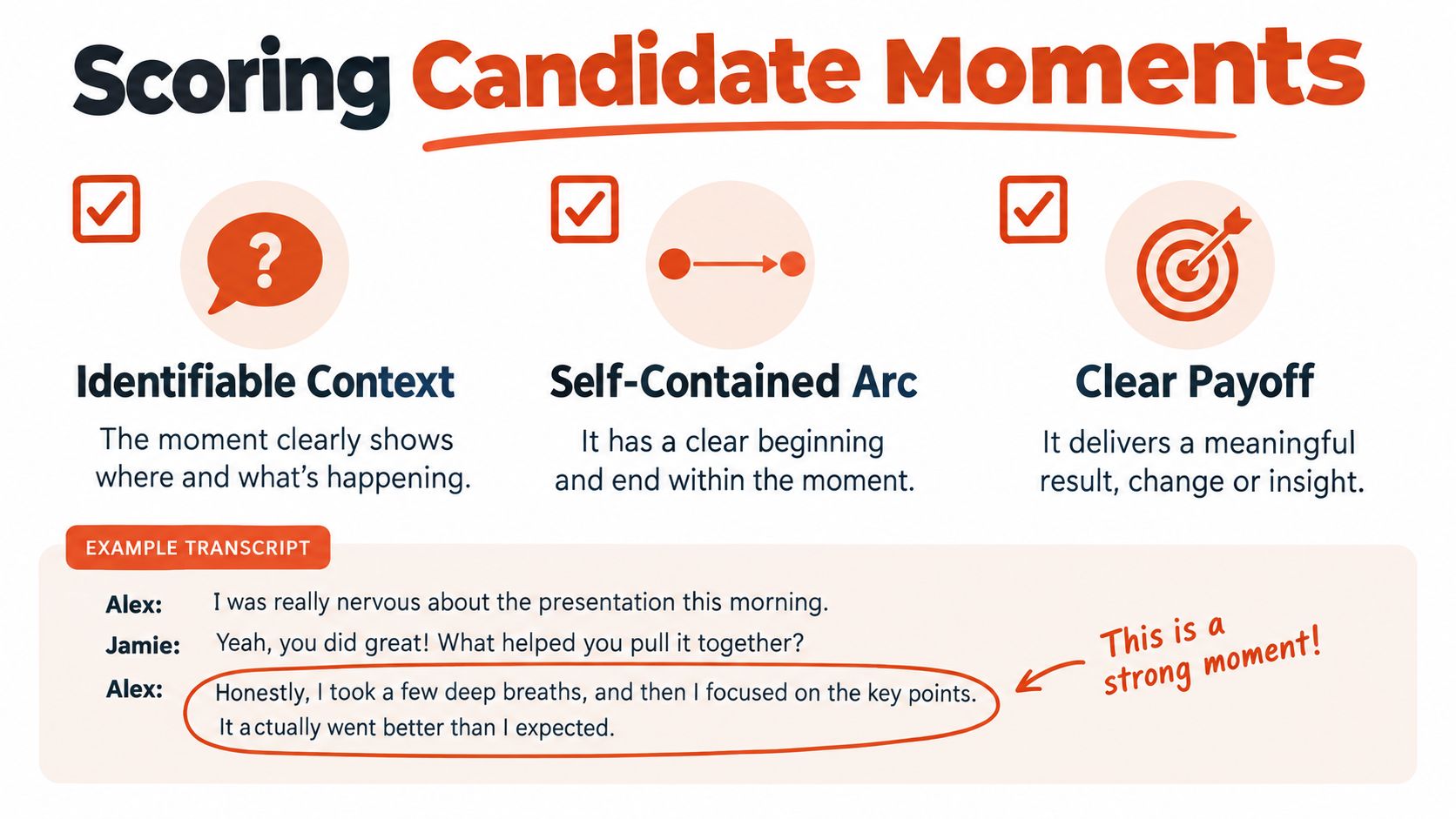
A repairable candidate needs a nearby sentence added or a confusing opening removed. Reject a candidate when understanding it requires a lengthy detour into another topic. Strong delivery doesn't compensate for that dependency.
Compare excitement with completeness
Consider this hypothetical podcast passage, written to illustrate the editing decision:
Exciting but incomplete: “That's why we stopped doing it. Everyone thought we were making a mistake.”
The delivery could be excellent, but viewers don't know what stopped or why. Starting there asks them to tolerate confusion before they can decide whether the topic interests them.
A more usable excerpt would include the premise and result:
Complete version: “We stopped opening customer interviews with a product demo. People were reacting to our interface instead of describing their problem. Starting with their current workflow gave us a clearer conversation.”
The added setup isn't filler. It identifies the action, explains the problem, and supplies the takeaway without requiring the original episode.
Compare candidates by the repair they need, not just their energy. A calmer passage that already resolves may be easier to publish than a dramatic sentence surrounded by missing context. Keep a shortlist with the essential setup marked explicitly, so you don't accidentally delete it during tightening.
Cutting, Pacing, and the Mechanics of a Clean Edit
Make the rough cut before adding effects. Assemble the selected passage in its intended order, then listen without watching the transcript. You're checking whether the speaker sounds like a person completing a thought, not like a collection of search results.
The simplest model is still useful: remove material deliberately, one boundary at a time.
Tighten without changing the claim
Prefer sentence starts for the opening, then use word boundaries for finer cleanup. A timestamp gets you near the cut; listening confirms whether you've preserved the beginning of a consonant and the end of the previous sound.
Remove repeated attempts at the same sentence when the final version stands alone. Shorten empty pauses, but retain a beat when the speaker is weighing an answer or when viewers need time to inspect a demonstration.
Be especially careful with qualifications:
- Keep logical limits: Words such as "sometimes," "unless," and "for this use case" may define the claim's actual scope.
- Check joined phrases: After removing a repetition, confirm that the remaining grammar still sounds natural.
- Protect audio continuity: Don't trade a small pause for a conspicuous jump in room tone.
- Use cutaways deliberately: Cover a visible jump with relevant footage, not an unrelated image that implies evidence the source never supplied.
Preview the first and last two seconds, listening for abrupt starts, clipped sounds, or an ending that still feels grammatically open. Then watch the entire cut, because a clean boundary can still connect incompatible thoughts.
Pace for the viewing situation
For TikTok, I'd test a more compressed introduction against a version that retains the setup. For YouTube Shorts, I'd make the same decision based on subject complexity rather than assume viewers always want a slower explanation. These are editorial hypotheses, not fixed platform rules.
On Reels or any vertical feed, don't confuse immediate comprehension with nonstop cutting. Hold a readable graphic or revealing reaction long enough for viewers to register it. If nothing new happens during the hold, tighten it.
For an additional editing reference, use this video alongside your timeline review.
Create variants by changing a single editorial variable: the opening sentence, the amount of setup, or the position of the example. Keep the other choices stable and label each export descriptively. Otherwise, when a version performs differently, you won't know which decision to revisit.
Captions That Read, Land on Time, and Survive Reframing
Correct words appearing at the wrong moment are still bad captions. Treat the caption layer as timed media, not decorative text pasted over a finished video.
W3C's WebVTT concepts describe time-indexed cues with start and end timestamps and synchronized text associated with media. That makes timing review part of production, not an optional styling pass.
Build readable phrases
Generate captions from the corrected transcript, then align each cue to the spoken audio. Break text into natural phrases so viewers aren't forced to assemble a sentence from disconnected flashes.
Keep punctuation that clarifies meaning. Preserve names, technical terms, negation, and qualifications exactly. Don't remove a meaningful word merely because the caption looks cleaner without it.
For burned-in captions, use consistent typography and strong contrast. Animated emphasis can be useful selectively, but highlighting every word makes it harder to tell which detail deserves attention.
Use this visual check while reviewing the rendered caption layer.
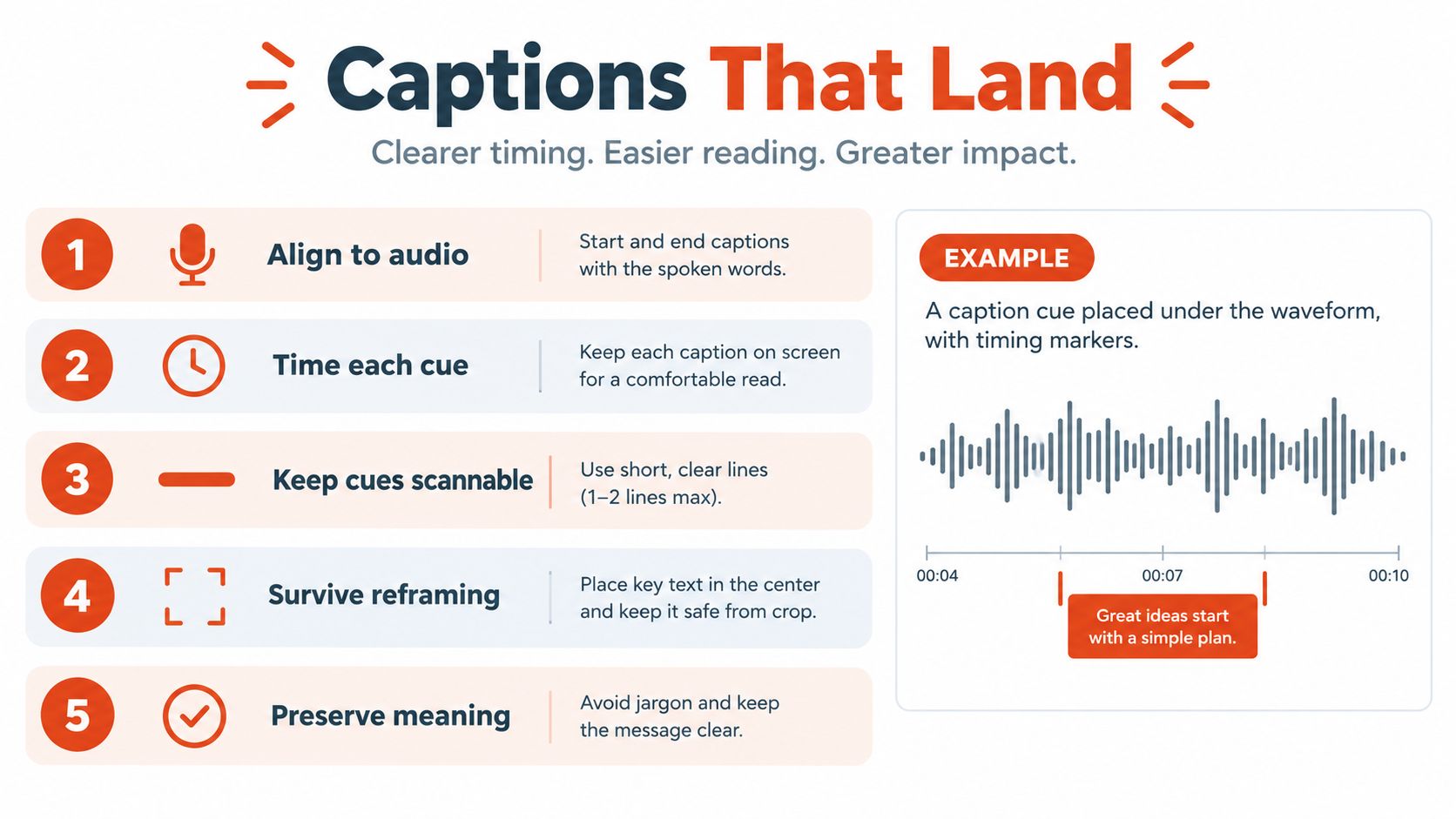
Should captions reproduce every utterance? Preserve the speech that remains audible and carries meaning, rather than summarizing it into a different statement. If you remove a false start from the edit, remove its caption too; don't leave text describing speech viewers can no longer hear.
Include speaker identification when the picture doesn't make attribution clear. Include meaningful non-speech audio when it contributes to understanding, such as laughter affecting the interpretation of an apparently serious remark.
Review the rendered result
Watch once at normal speed with audio, then again muted. The first pass exposes synchronization problems; the second shows whether viewers can follow the argument without hearing it.
- Timing: Cues shouldn't reveal a response before the speaker delivers it or linger over the next person's words.
- Placement: Keep text clear of faces, essential graphics, and the destination interface.
- Phrase integrity: Avoid breaks that separate a negative from the word it modifies.
- Localization: Create separate language variants and review translated line breaks rather than reusing the original layout blindly.
HubSpot's short-form video guidance recommends subtitles for accessibility and retention. The practical standard is comprehension, not whether text appears on screen.
An AI subtitle maker can handle the initial caption pass, but rendered review still matters. Retain a clean master and a separate WebVTT track where the player supports selectable captions, so future adaptations don't depend on removing text from an already flattened video.
Aspect Ratios, Reframing, and Export Settings
A finished timeline isn't a universal publishing asset. The same interview can need different compositions for a vertical feed, a square placement, and a widescreen upload.
For standard channels, YouTube's official Shorts guidance says videos uploaded after October 15, 2024 are categorized as Shorts when they're square or vertical and up to three minutes long; use a wider 16:9 format when you don't want that classification. Check duration and orientation together rather than relying on the filename or intended destination.
Choose a canvas for the content
| Format | Practical use | Main composition risk |
|---|---|---|
| 9:16 | Mobile-first versions for Shorts, Reels, and TikTok | Losing another speaker, slide content, or demonstration |
| 1:1 | Square-feed placements | Crowding faces and captions into limited space |
| 16:9 | Widescreen excerpts and context-heavy material | Leaving the main subject too small in the frame |
Compare the shapes before committing to a crop.
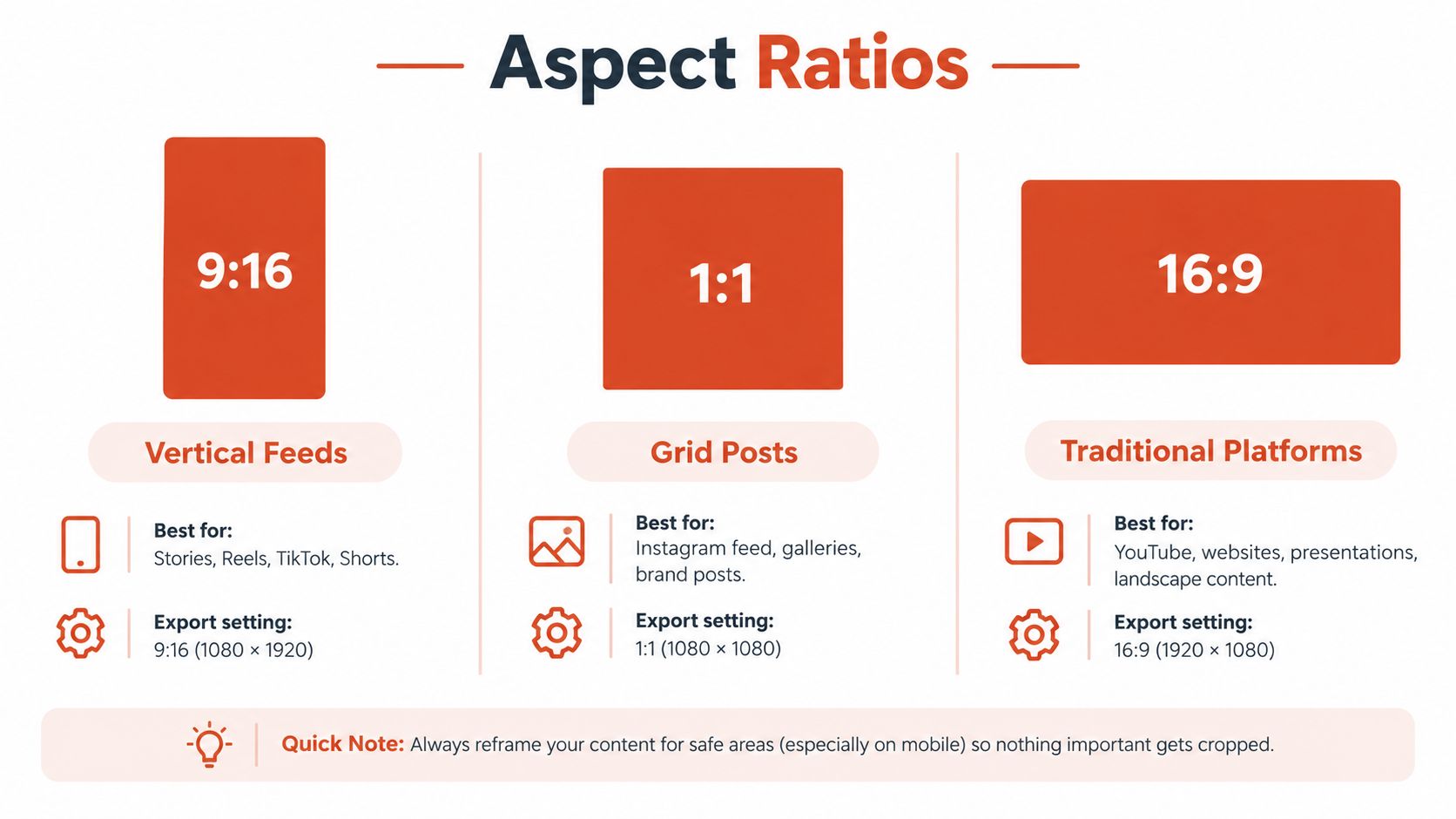
For a talking head, keep the active speaker framed steadily. Don't chase every small movement with an artificial pan. When speakers change, make a deliberate framing change rather than letting the crop drift between them.
A side crop is often the wrong solution for a presentation. Consider a layout that preserves the slide and speaker separately, or hold the relevant screen content while the explanation plays. If the demonstration becomes unreadable, the vertical version needs a redesigned composition, not a tighter zoom.
A vertical video editor is useful for checking these composition changes without rebuilding the source edit. Review each destination in its upload preview, because interface placement can affect where captions and visual details remain usable.
Export for clarity, not maximum file size
Use the destination's current accepted codec and file-container guidance rather than assuming a saved preset will always apply. Choose an output resolution appropriate to the source and canvas; enlarging soft footage won't restore missing detail.
Set bitrate high enough that caption edges and motion remain clean, then inspect the encoded file. If text looks smeared or a moving background breaks up, revise the export settings instead of judging only the timeline preview.
A sharp preview isn't proof of a sharp export. Review the file you'll actually upload.
Prepare the aspect-specific layouts together and render from the same approved edit. Keep framing, captions, and export presets organized by destination so a late wording change doesn't leave an outdated version in the publishing folder.
Pre-Export Checklist and a Retention-Based Feedback Loop
The final review should catch mistakes, not become another creative rewrite. Use the actual exported asset, with its final crop, captions, and audio, rather than a convenient preview from earlier in the workflow.
Approve the asset viewers will receive
Run each version through a compact checklist:
- Opening: The subject is immediately understandable, and the first audible word is intact.
- Ending: The excerpt finishes its point without cutting away from a necessary qualification.
- Captions: Names, timing, phrase breaks, and punctuation match the final audio.
- Safe areas: Text and important visuals remain clear in the destination's upload preview.
- Framing: The intended speaker or demonstration stays visible without distracting crop movement.
- Audio: Speech remains intelligible, joins sound natural, and music doesn't compete with the voice.
- File identity: The filename identifies the destination and variant, so the wrong asset isn't published accidentally.
If a defect appears in every version, fix the master. If it appears only in a particular crop, fix that composition rather than disturbing the approved editorial cut.
Use retention to locate the next decision
YouTube's Audience Retention report shows which moments hold attention and where viewers leave. Use those moments as prompts for inspection, not as proof that a particular editing technique always succeeds or fails.
An early drop might justify testing a clearer opening. A departure during setup might suggest repetition or an unexplained reference. A drop around a visual change deserves a closer look at the crop, graphic, and caption density before you blame the script.
Compare the controlled variants you prepared, then revise the next batch deliberately. Keep a short decision log describing what changed and what you'll test next; raw performance figures without the editing context aren't very useful.
The aim isn't to chase a universal completion benchmark. It's to identify where your viewers lose the thread, make a specific editorial adjustment, and check whether that adjustment helps the next comparable clip.
Keptbits turns long recordings into scored, self-contained clips with speech-aligned cuts, burned-in captions, and multi-aspect exports. Visit Keptbits to process a recording, review the candidate moments, and build a publishable highlight without starting every cut from scratch.
Keptbits cuts on sentence boundaries.
Paste a link or upload an episode, say how many clips you want, and get them back captioned and vertical. The free plan needs no card.
Start freeRead next
7 Online Video Editor Free Picks That Deliver in 2026
Compare 7 online video editor free options for 2026, including watermark limits, export quality, key features, and the best use for each tool.
How to Make Viral Video on YouTube in 2026
Learn how to make viral video on YouTube with proven hooks, thumbnail tests, retention fixes, and Shorts workflows that actually convert viewers into
How to Make YouTube Channel Setup That Actually Grows
Learn how to make YouTube channel setup that grows: account, branding, first videos, optimization, and monetization milestones explained step by step.