14 October 2026 · 14 min read
Repurpose Webinar Content: Workflow to Clips and Posts
Transform long webinars into clips, transcripts, social posts, and blogs. Master the repurpose webinar content workflow with Keptbits.
42% of total webinar views happen after the live session. That's why the actual job isn't just to repurpose webinar content, it's to turn one recording into a library of self-contained assets that still make sense weeks later.
A webinar often gets treated like a live event with a replay tacked on. In practice, it behaves more like a source file for clips, transcripts, posts, newsletters, and search-friendly articles. The difference between weak repurposing and useful repurposing usually comes down to one thing, whether the moment stands alone without the room, the slides, or the earlier setup.
Table of Contents
- Why Webinar Reach Extends Far Beyond the Live Session
- How to Extract Self-Contained Moments from Long Recordings
- Editing Clipped Video for Multiple Social Feeds
- Building a Complete Repurposing Workflow Beyond Video Clips
- Choosing Between Keyword-Based and Narrative-Based Clipping
- Measuring Repurposing Impact and Avoiding Common Pitfalls
Why Webinar Reach Extends Far Beyond the Live Session
The live broadcast is only one slice of webinar consumption. Goldcast's benchmark of more than 6,000 webinars, drawn from nearly 300 B2B brands and over 1.7 million registrants, found that organizations hosted an average of 22 webinars per year and that fewer than 30% of registrants attended live. The same benchmark also shows that a meaningful part of reach arrives later, through recordings and downstream distribution, while Contrast summarized a separate benchmark in which 42% of total webinar views occurred after the live session. Goldcast's B2B webinar benchmark report
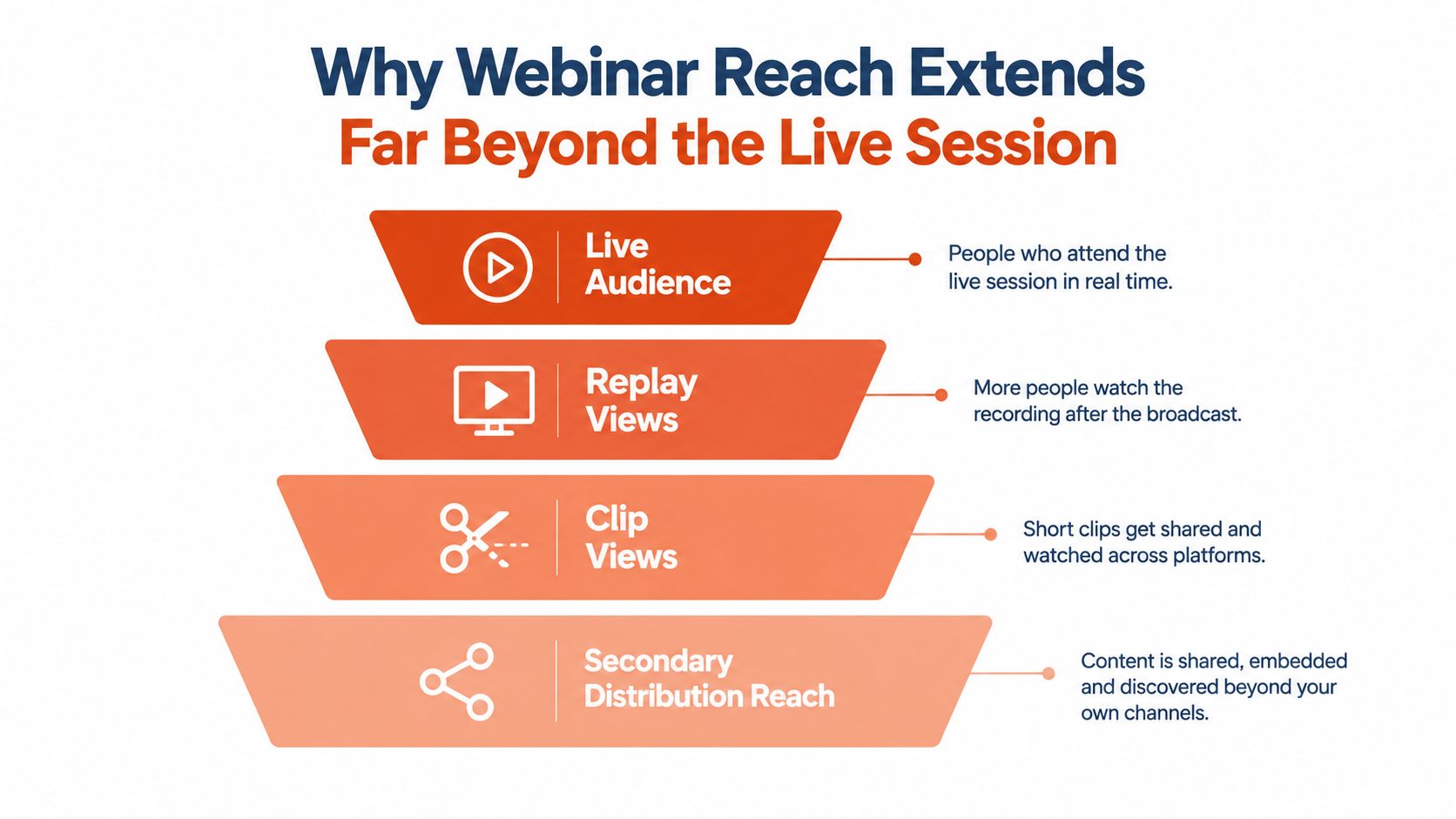
Why the post-event audience matters
That post-event audience is not a leftover. It includes registrants who missed the session, people who discover the topic later, and viewers who would rather watch a short segment than sit through a full replay. If you only publish the raw recording, you're forcing all of those people into one format that may not fit their intent.
Practical rule: treat the webinar as a source library, not a finished deliverable.
The editorial standard has to change with that view. A strong repurposed asset should open with enough context to orient a new viewer, deliver one clear idea, and end before the attention drops off. A clip that needs the original webinar to make sense isn't repurposing, it's just a fragment.
What good selection looks like
The best source moments are not always the loudest ones. They're the parts that contain a complete thought, a clean payoff, and a usable next step. That's why context independence matters more than raw clip count, applause, or how energetic the speaker sounded in the room.
One recording can support recordings, edited excerpts, transcripts, articles, email follow-ups, and social posts without requiring another live session. That is the shift that matters. Repurposing extends access to the people who didn't attend live and builds an evergreen content library from a time-bound event.
How to Extract Self-Contained Moments from Long Recordings
Start with structure, not keywords. A word-level transcript with speaker labels and timecodes gives you a solid foundation to build from, because you can see where an idea begins, where it turns, and where the answer finishes. If you skip that step, you end up scrubbing audio manually and guessing where the clip should start.
The selection pass should focus on moments that stand on their own, like frameworks, objections, audience questions, complete stories, and quantified claims. For a longer webinar, that means reading the transcript as if you were a new viewer with no context, then marking anything that opens a topic, carries enough setup, and resolves cleanly. The transcript becomes a map, not just a backup file.
Score the moment before you edit it
A useful clip has to pass four checks. It needs a clear opening premise, enough context to be understood on its own, a resolution or takeaway, and a natural end point. If any one of those is missing, the clip will usually feel thin once it's published.
That's also where a tool like Keptbits' AI shorts maker fits into the workflow. It's useful when the software helps you surface candidates that already feel complete, rather than forcing you to clean up fragments that should've been rejected earlier.
Here's the part many teams get wrong:
- Premise first. The clip should tell viewers what question is being answered before the answer starts.
- Context next. Enough setup has to survive the cut so the viewer knows why the moment matters.
- Payoff at the end. The candidate should resolve into a point, recommendation, or example.
- No dependency on earlier slides. If the speaker refers to material that's no longer visible, the clip needs more framing or it should be skipped.
Edit only after selection
Once the candidate earns a spot, trim to sentence or word boundaries, not arbitrary timestamps. Cut long pauses, remove dead air, and preserve the speaker's meaning. That sounds fussy, but it saves time later because you're polishing something coherent instead of rescuing something broken.
For long interview-style webinars and product demos, this method keeps the review queue manageable. You can move faster when the transcript has already told you which sections are complete ideas and which ones are just connective tissue.
Editing Clipped Video for Multiple Social Feeds
After selection, the edit has one job, preserve the speech while adapting it to the feed. That means snapping the in and out points to natural language boundaries, keeping the answer intact, and avoiding the kind of mid-thought cut that makes a viewer feel dropped into the middle of a conversation.
The same source can become several outputs if you're disciplined about framing. Vertical needs one crop, square needs another, and the wide format still has its place for sites and embeds. The point isn't to duplicate work, it's to make one clean edit usable across more than one channel.
Editing rule: don't let the format force you to break the sentence.
Keep the speaker centered and the meaning intact
Auto-reframing is useful only when it follows the active speaker, not when it drifts around trying to be clever. In webinar footage, especially product demos and panel discussions, the talking head often moves less than the slides, which makes speaker-aware framing more reliable than manual keyframing for every cut.
Burned-in captions help too, but only when they're readable and timed properly. They should support comprehension for muted playback, not clutter the frame. If the captions are sloppy, the clip looks unfinished no matter how good the content is.
A practical editing pass usually includes these choices:
- Boundary snapping. Cut on word or sentence edges so the clip sounds intentional.
- Silence trimming. Remove long pauses where the speaker is gathering thoughts.
- Speaker-aware framing. Keep the person speaking in view, especially in vertical crops.
- Platform-specific exports. Render versions for 9:16, 1:1, and 16:9 from the same source.
For teams that want a reference point, this guide on video editing for social media is a useful companion to the clip workflow, especially when you're trying to balance speed with output quality.
After that, the final polish should stay light. Add transitions only if they improve flow, use color grading sparingly, and don't introduce effects that distract from the argument. The best webinar clips feel finished because the structure is solid, not because they're overloaded with motion.
Export once, use across feeds
A single edit pass should produce versions that fit different placements without changing the underlying message. That's the practical win of repurposing, one transcript, one selection process, multiple delivery formats. If you're making separate edits for each feed, the workflow is already too expensive.
The value is especially clear when the clip is tied to a specific speaker moment. A stable crop, readable captions, and a clean start and finish make the asset feel native wherever it appears. That's the difference between a clip that gets skipped and one that can keep working after the webinar ends.
Building a Complete Repurposing Workflow Beyond Video Clips
Video clips are only one output. The more useful workflow starts with the transcript and then fans out into written and social formats that carry the same idea in different shapes. That's how a single webinar stops being a file and starts acting like a content engine.
The transcript is the source of truth for everything else. From there, the blog post gets a cleaner structure, pull quotes become social posts, and the most useful questions can be recast as standalone educational snippets. The key is consistency, especially when every derivative asset needs to point back to the same webinar source.
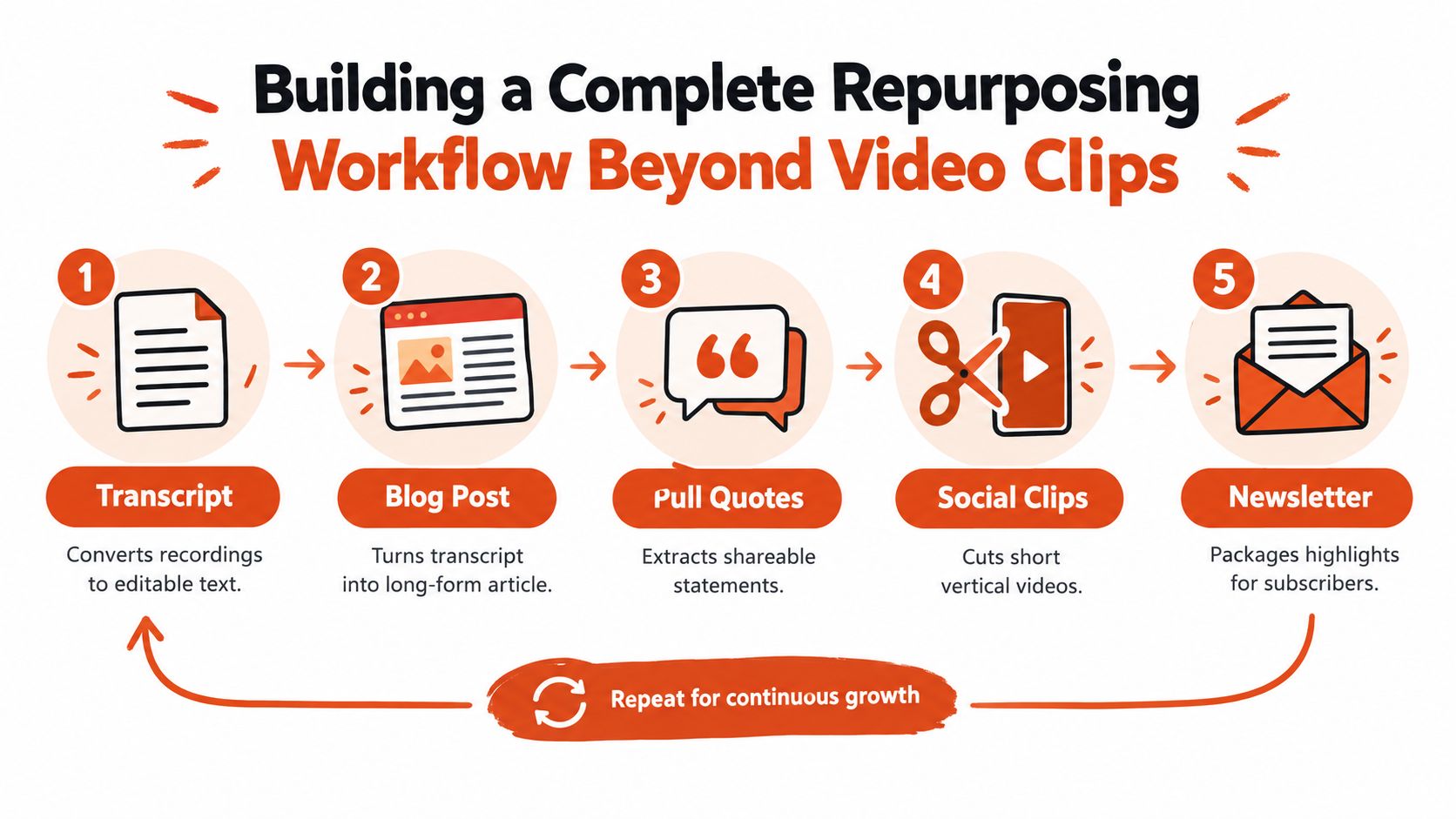
Connect the formats around one source identifier
If you don't tag every derivative asset back to the original recording, measurement gets messy fast. One webinar can generate clips, a recap article, email copy, and quote cards, but they should all share a source identifier so you can trace what worked. Without that thread, you're just publishing more material and hoping it helped.
Captions matter here too, not only as accessibility support but as a search layer. Clean word-level timing, speaker separation, and readable punctuation make the transcript usable for editors and easier to adapt into article copy or social snippets. If captions are broken, the written outputs usually inherit the same sloppiness.
A workable distribution sequence looks like this:
- Transcript to article. Turn the raw webinar into a readable long-form post with headings and selective editing.
- Pull quotes to social. Extract sharp lines that can stand alone in a feed.
- Q&A to newsletter. Package the best audience question and answer into a subscriber recap.
- Highlights to clips. Cut the most self-contained moments into short video.
- Every asset back to one webinar. Keep the attribution chain intact.
That's also where Keptbits' content creator tooling overview can serve as a practical reference if you're assembling a stack for transcript-led repurposing.
The main mistake is duplication. Don't repeat the same insight across every channel in the same wording. Let the blog expand the idea, let the clip demonstrate it, and let the email frame why it matters. Each format should do a different job.
Choosing Between Keyword-Based and Narrative-Based Clipping
Keyword-based clipping is fast, and that's why teams reach for it first. The problem is that speed often produces fragments, not finished thoughts. A word may be relevant, but relevance alone doesn't make a clip understandable to someone who didn't attend the webinar.
Narrative-based clipping takes longer up front, but it protects the meaning of the source. A clip built around a complete premise and payoff can survive outside the original room, while a clip built around a buzzword usually needs extra explanation. That difference matters most in educational webinars, coaching content, and sales demos where credibility comes from the setup as much as the answer.
Keyword hits versus context independence
A keyword search might find the loudest mention of a topic, but it won't tell you whether the speaker finished the point. Narrative-completeness scoring asks a better question, can this moment be understood without the preceding slide deck or audience discussion? That's a stricter test, and it saves a lot of weak exports.
The trade-off is straightforward. Keyword clipping gives you volume, while context independence gives you publishable assets. If the viewer has to backfill missing information, the clip is doing too much work.
When each method breaks down
Keyword extraction struggles most when the useful part of the answer comes after a setup. It also tends to overvalue repeated terms and underweight the moments where the speaker gives a full explanation. That's how you end up with clips that sound like they start halfway through a sentence.
Narrative scoring is slower, but it handles the messy parts better. It's especially useful when a product demo, customer story, or technical explanation needs the earlier premise to feel credible. A speaker can sound sharp in the room and still make a poor clip if the selection chops off the qualification that made the statement trustworthy.
A strong repurposed clip should feel complete to a stranger on mute, not just exciting to someone who was already in the webinar.
The decision framework is simple. Use keyword signals as a first pass if you need speed, then verify every candidate for standalone meaning before export. If a clip can't explain itself, it probably doesn't belong in the library.
Measuring Repurposing Impact and Avoiding Common Pitfalls
Repurposing works best when it behaves like a funnel, not a pile of assets. Start by attaching UTM parameters and a source-webinar identifier to every derivative, then track replay viewers, clip impressions, three-second and completion rates, saves, shares, clicks, and qualified conversions. If the tracking isn't in place, you'll never know which clips helped and which ones just added noise.
The planning benchmarks are useful, but they're only that, benchmarks. A 2025 dataset cited by Livestorm covered 33,786 sessions and more than seven million registrations, and it reported a 47.7% average show-up rate, 26 minutes of average viewing in a typical 68-minute session, 20.4 Q&A questions, and 2.77 polls per webinar. Those numbers point to the kinds of moments worth mining, especially the questions and poll results that already show audience intent. Livestorm webinar metrics
What to watch after publishing
Prioritize segments that earn continued production when they outperform your channel baseline on completion, rewatch, or click-through. Low-retention clips usually need a faster premise, a clearer payoff, or a different cut altogether. Views alone won't tell you that, which is why downstream clicks matter more than vanity counts.
It also helps to compare the derivative asset against the original webinar's attendance and replay behavior. If a clip drives interest but no meaningful next action, it may still be useful for discovery, but it's not doing the same job as a conversion-focused recap or Q&A snippet. Separate those goals before you judge performance.
Common mistakes to avoid
The errors are predictable, and they're expensive because they keep repeating across channels.
- Treating registrants as viewers. Registration is intent, not engagement.
- Duplicating the same insight everywhere. Each format should add a new layer, not echo the same sentence.
- Cutting before the answer is complete. A partial thought is not a clip.
- Measuring views without clicks. Output volume means little if nothing moves downstream.
- Skipping accessibility checks. Captions, layout, and readable framing affect how people consume the content.
When the workflow is built this way, repurposing stops being a post-event scramble. It becomes a repeatable editorial system that preserves meaning, reaches people after the live session, and gives every webinar a longer useful life.
Keptbits turns long recordings into short, self-contained clips by transcribing the source, scoring moments for standalone meaning, snapping cuts to speech boundaries, and exporting captioned video in multiple aspect ratios. If you're trying to repurpose webinar content without creating confusing fragments, visit Keptbits and see how the workflow fits your recordings.
Keptbits cuts on sentence boundaries.
Paste a link or upload an episode, say how many clips you want, and get them back captioned and vertical. The free plan needs no card.
Start freeRead next
7 Online Video Editor Free Picks That Deliver in 2026
Compare 7 online video editor free options for 2026, including watermark limits, export quality, key features, and the best use for each tool.
How to Make Viral Video on YouTube in 2026
Learn how to make viral video on YouTube with proven hooks, thumbnail tests, retention fixes, and Shorts workflows that actually convert viewers into
How to Make YouTube Channel Setup That Actually Grows
Learn how to make YouTube channel setup that grows: account, branding, first videos, optimization, and monetization milestones explained step by step.