23 September 2026 · 13 min read
How to Send Video by Email Without Bouncing or Clipping
Learn how to send video by email without bounces or spam filters. Compare attachments, compression and cloud links with size limits and best practices.
You've probably got the file open already. The video is edited, the caption is done, and now you're staring at an email draft wondering whether to attach it, compress it, or give up and paste a link. That last decision matters more than many expect, because email was never really designed to move modern video files around at native size.
Most mainstream inboxes still enforce 20 to 25 MB attachment limits, with Gmail's personal cap at 25 MB, Outlook.com commonly at 20 MB, Yahoo Mail at 25 MB, and iCloud Mail at 20 MB (SMTP2GO's file-size overview). Google, Microsoft, and Apple all push oversized files into cloud-sharing flows instead of letting them travel as standard attachments, which is why video-by-email keeps turning into a link workflow in practice. A 1-minute 4K video around 400 MB is nowhere near the usable envelope most inboxes still tolerate, so the question isn't whether video can be sent by email, it's which delivery path won't fail on the way in.
Table of Contents
- Why Most Video Emails Fail Before They Send
- Choosing the Right Way to Share Video by Email
- How to Send a Small Video as a Direct Attachment
- How to Share Larger Videos With Cloud Links and Smart Compression
- Avoiding Spam Filters Clipping and Bounces When You Send Video
- Your Go To Checklist for Sending Video by Email
Why Most Video Emails Fail Before They Send
The first send usually looks harmless. The clip is attached, the draft looks finished, and the sender expects the file to travel like any other attachment. Then the message bounces, gets replaced by a link, or never reaches the inbox in the form you intended.
The cap is lower than it looks
The visible limit is already tight, but the usable one is tighter. Microsoft notes that many providers land closer to 18 MB once encoding overhead is counted, even though attachment limits are often described as 20 to 25 MB (Microsoft guidance). That gap catches people because a file that looks safe in Finder or File Explorer can still fail after it is packaged for transit.
Practical rule: if the email has to work across consumer inboxes, treat 18 MB as the practical ceiling, not the marketing-friendly number on the provider page.
A 30-second screen recording can already push past that line once it is encoded for email. That is why the file size you see on disk is rarely the size the inbox has to handle.
Why attachment-first thinking breaks down
Directly attaching video creates two problems at once, deliverability and user experience. Large media can trigger spam or security filters, and once attachment limits are exceeded, the message may bounce entirely (Fyxer deliverability guide). Gmail also handles oversized video attachments by converting them into a Drive link, which means the workflow already assumes hosted sharing instead of pure file transfer.
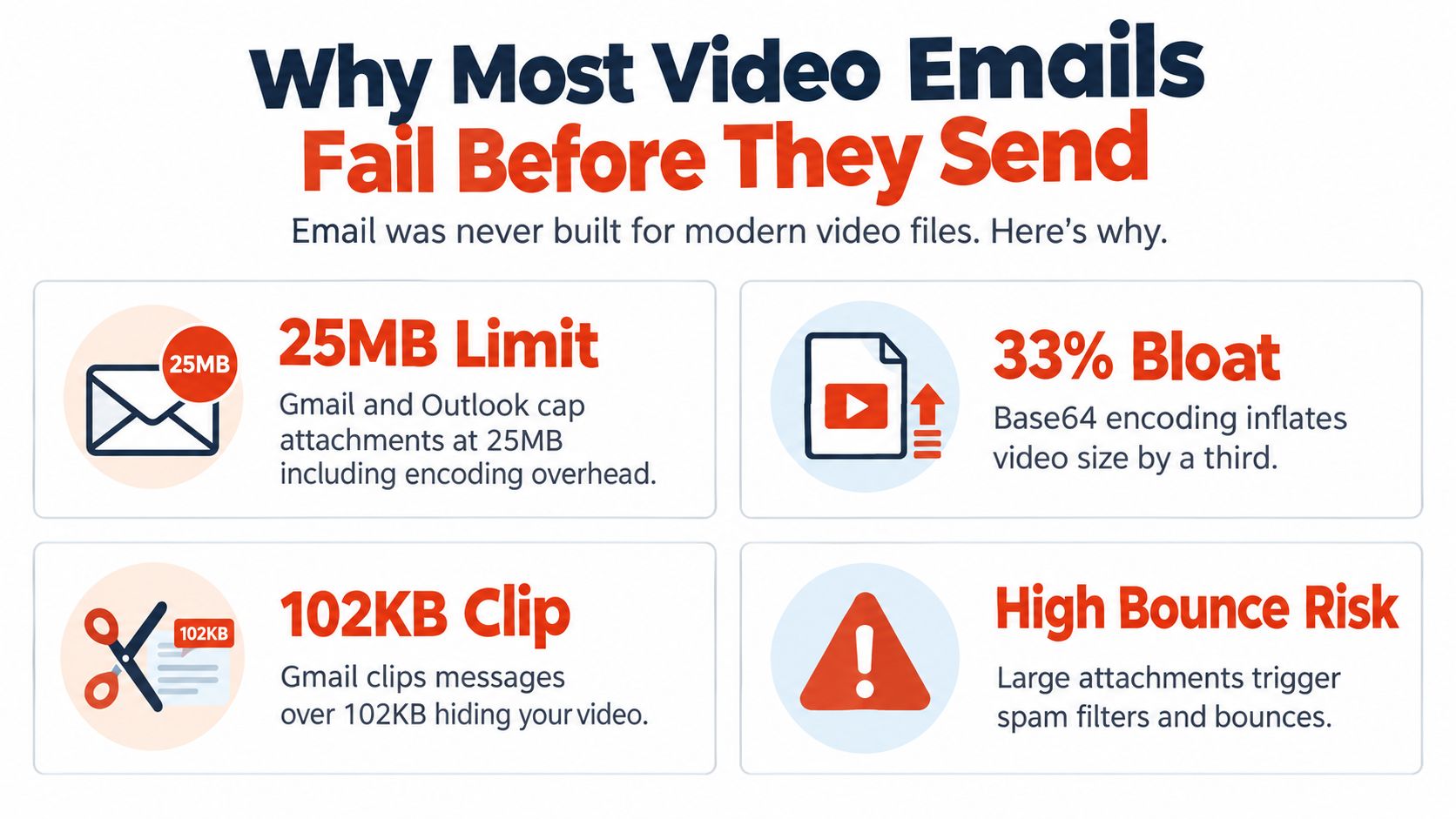
The four failure points are predictable. The file is too large for the provider limit, encoding adds hidden overhead, filters distrust heavy attachments, and some inboxes strip or replace the file before the recipient ever opens it.
That leaves three workable paths. Attach only when the clip is tiny, compress when the file is close to the ceiling, and use a hosted link when the video is meant to be watched rather than transported. For anything beyond a short, lightweight file, planning the link workflow up front saves time and avoids a second send.
Choosing the Right Way to Share Video by Email
The cleanest choice depends on what you're sending, who's receiving it, and how much control you need over playback. A quick internal note to yourself helps here, because “video by email” is really three different jobs: send the file, get the file watched, or get the viewer somewhere else.
Attachment, compressed attachment, or link
If you're sending a tiny proof clip to a colleague, a direct attachment can still make sense. If the file is near the limit, compression may buy you enough room to get through consumer inboxes, but it's still a gamble once the recipient uses a stricter enterprise system. If the goal is distribution, follow-up, or any kind of reliable viewing experience, a cloud link is the safer default.
The inbox-friendly default is simple: attach only when the clip is truly small, compress when you're close to the real ceiling, and link when the video is part of a broader message.
A fast way to decide
| Method | Best For | Size Limit | Deliverability Risk |
|---|---|---|---|
| Attachment | Tiny clips, internal review, one-off replies | Roughly under the usable ceiling discussed above | Higher if the file is near provider limits |
| Compressed attachment | Small videos that just need a little trimming down | Still constrained by the same inbox caps | Moderate, because encoding and recipient systems can still reject it |
| Preview link | Marketing emails, creator updates, customer education | No practical email attachment ceiling for the video itself | Lower, because the email carries a lightweight link instead of the file |
A preview link usually wins because it keeps the email light and still lets you control the watch experience. That's also the better choice when you need a thumbnail, a strong call to action, or a page that can carry context around the video. The attachment path only wins when speed matters more than polish and the file is undeniably tiny.
How to Send a Small Video as a Direct Attachment
A direct attachment still makes sense for short clips sent to one person, not a list. A sales rep sends a quick product demo to a prospect, a founder sends a brief update to an investor, or a manager shares a short internal walkthrough with a teammate. In those cases, the file can go through cleanly, but only if it stays small and the message looks like a normal one-to-one email.
Check the file size the way the inbox will see it
Start with the final .mp4, not the raw export. Open Properties, check the file size, then remember that email packaging adds overhead before the recipient ever sees it. A clip that looks safe on your desktop can cross the line once it is encoded for transit, so a file near the limit is already risky.
Use a plain subject line and say why the attachment is there. “Quick product walkthrough video” reads as normal business mail. A vague subject makes the file look more suspicious, especially if the recipient does not know to expect it.
Know what the recipient's inbox will do
Attachment handling changes by provider and by company policy. Gmail, Outlook.com, Yahoo Mail, and iCloud Mail all behave differently, and a corporate Exchange system can be stricter still. A file that sends from your account may still bounce, clip, or get blocked on the other end.
That is the part guides often skip. The file does not just need to be small, it needs to survive the path from your outbox to the recipient's inbox without triggering a rejection rule.
A fast pre-send check keeps things sane:
- Verify the final encoded size, not just the raw video export.
- Keep the whole message light, since the attachment is not the only thing the inbox evaluates.
- Confirm the recipient's mailbox type if you already know they use a stricter corporate system.
- Send a test first when the clip matters enough to justify the extra minute.
If the file is close to the edge, stop forcing it through. At that point, a cloud link is the cleaner move, and the email itself stays far less likely to bounce or get clipped.
How to Share Larger Videos With Cloud Links and Smart Compression
For anything over the usable ceiling, hosted sharing is the default workflow, not the backup plan. Upload the video to Google Drive, OneDrive, Dropbox, or Mail Drop, set the right permissions, and send a lightweight email that points people to the file instead of carrying the file itself. That approach is faster to deliver, easier to control, and far less likely to disappear into a rejection queue.
Build the hosted flow first
Start with the upload, then set the permissions so the recipient can open the video. If you're using a “anyone with the link can view” style setting, make sure it matches the audience and doesn't expose something that should stay private. Once the share link is ready, paste it into the body of the email, not the attachment field.
The email itself should stay spare. A thumbnail image linked to the video feels more intentional than a plain text URL, and it gives the recipient a clear visual cue about what they're about to watch. That keeps the message useful without asking the inbox to carry a heavy media payload.
Compress only when it helps the workflow
Compression is worth it when the file is just over the line and you need a smaller transfer or a lighter hosted upload. Tools like HandBrake can reduce the size of a clip without breaking the whole viewing experience, and for short self-contained segments, trimming first can help even more. A cleaner export beats trying to shove a bloated file through an inbox that was never meant for it.
If the clip is part of a longer recording, cut it down before you compress. Shorter clips are easier to share, easier to preview, and easier for recipients to consume on the spot. The best workflow is usually “make the moment shorter, then make the file smaller.”
Keep the email light and obvious
Once the link is ready, the message should do one thing well, get the viewer to click. Use a short intro, one clear thumbnail, and a direct call to action such as “Watch the video” or “View the clip.” That's cleaner than trying to simulate a file transfer inside the email itself.
The biggest advantage of this approach is that the email and the video stop competing with each other. The email becomes the wrapper, the video becomes the destination, and the recipient gets a cleaner path to play it. That's the workflow that should be the default whenever consistency across inboxes is needed.
Avoiding Spam Filters Clipping and Bounces When You Send Video
Deliverability is where video emails fall apart. A message can technically send and still land badly if the attachment looks risky, the HTML is too heavy, or the inbox clips the content before the viewer ever reaches the call to action. The job isn't just to send a video, it's to get a readable message into the primary inbox.
Why heavy emails get less friendly treatment
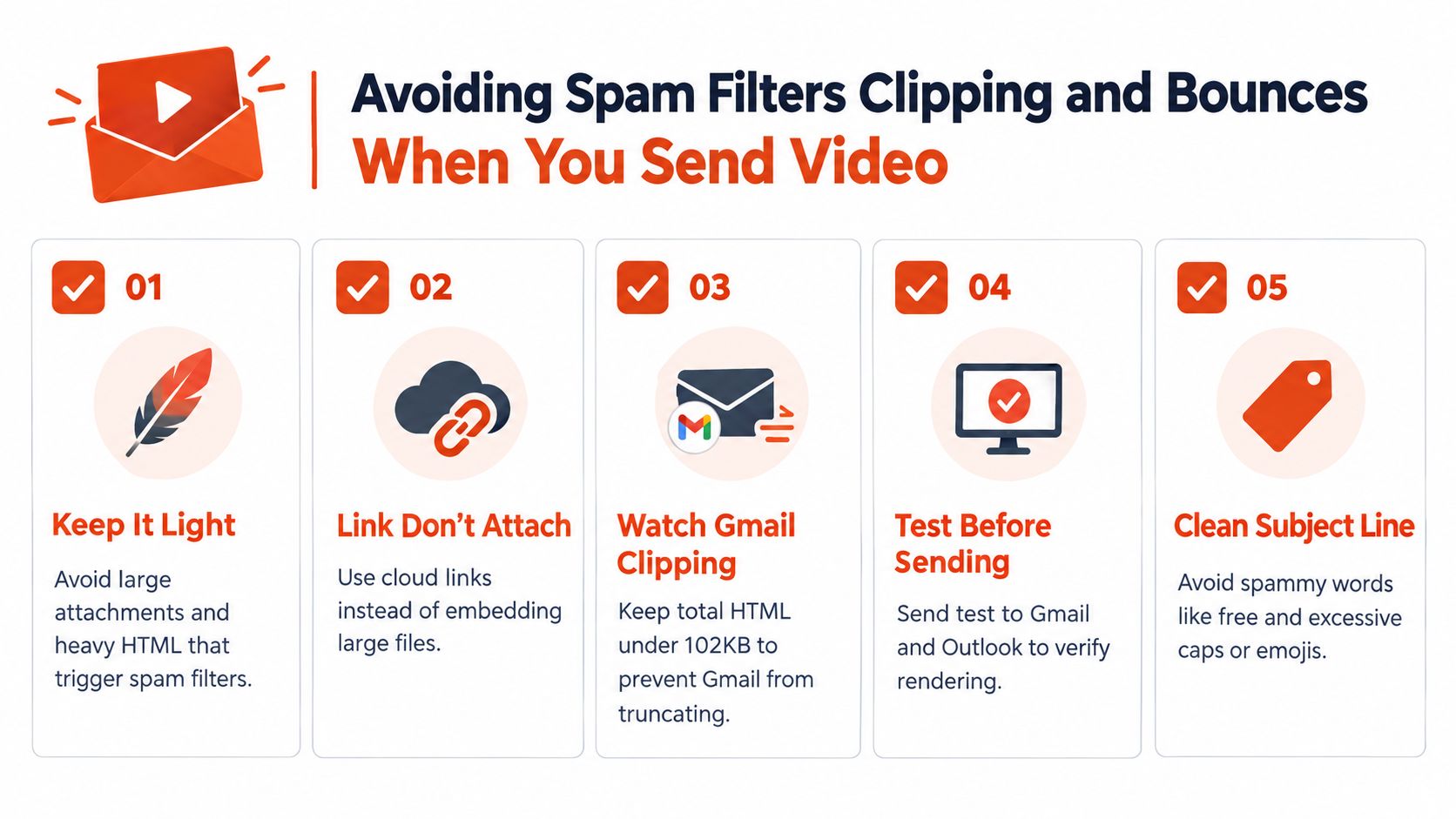
A 2026 best-practices guide notes that Gmail clips messages whose HTML exceeds roughly 102 KB, hiding the rest behind a “view entire message” link, and warns that large attachments attract more suspicion from filters (Warmy's email best-practices guide). That means a video-heavy email can fail in two different ways at once, it can be too large for the attachment rules, and too heavy for the rendering rules. The result is a message that technically lands but doesn't fully show up.
This is why embedded video is rarely the smart move inside standard email clients. The safer pattern is a linked thumbnail, a light body copy block, and a clear destination page. You want the message to render cleanly before you worry about whether the clip itself looks polished.
Keep the message clean enough to survive transit
A better email is often a simpler one. Avoid stuffing the layout with extra images, redundant buttons, and copy that bloats the HTML. Keep the subject line direct and avoid spammy language that makes the message look promotional before it's even opened.
A few habits help more than clever formatting:
- Use a linked thumbnail instead of trying to embed a full video.
- Keep HTML light so Gmail doesn't clip the message unexpectedly.
- Test in Gmail and Outlook before sending to a real audience.
- Avoid suspicious attachments if a cloud link solves the same job more reliably.
- Write a plain subject line that describes the video without shouting.
Measure success by rendering, not just delivery
The question isn't whether the file leaves your outbox. It's whether the recipient sees a complete, trustworthy message in the inbox they use. If the video is central to the campaign, a clipped or bounced email is a failed send even if your SMTP server reported success.
That's why linked video wins so often. It reduces the size of the message, lowers the chance of bounce risk, and gives you a cleaner path to playback. In practice, that trade-off is usually better than forcing video into a format email never handled well in the first place.
Your Go To Checklist for Sending Video by Email
Use the same checklist every time and the decision gets easier. Check the true file size, choose attachment only when the video is small, and default to a cloud link when the clip is meant for broader viewing. If the file is close to the edge, assume the recipient's mail system is stricter than yours.
Before you send, confirm the permissions on the link, preview the thumbnail, and test the message in a real inbox. If the recipient uses a corporate Exchange environment, expect tighter limits than consumer mail and shift to hosting sooner rather than later. For teams that send video regularly, a clean workflow matters more than squeezing one more attachment through.
If you also repurpose long recordings into shorter clips, the next step is making those clips easier to share across inboxes and feeds. You can review Keptbits' AI subtitle maker as part of a broader workflow for turning long source material into shorter, cleaner assets that are easier to distribute by email and beyond.
Keptbits helps turn long recordings into short, self-contained clips that are easier to share, watch, and follow up on. If you're sending video by email often, that kind of cut-down workflow saves time before the file ever reaches the inbox. Visit Keptbits to see how it fits into your video sharing process.
Keptbits cuts on sentence boundaries.
Paste a link or upload an episode, say how many clips you want, and get them back captioned and vertical. The free plan needs no card.
Start freeRead next
10 Auto Caption Generator Tools Compared
Compare 10 auto caption generator tools for accuracy, languages, speaker separation, burn-in captions, sidecar files, and practical workflows.
10 AI Subtitle Maker Tools Compared for Video
Compare 10 ai subtitle maker tools for accuracy, formatting, burned-in captions, file exports, speaker separation, and practical workflows.
Why your clips start halfway through a sentence
Almost every automatic clipper cuts on a timer, which is why so many clips open on a fragment. Here is what is actually going wrong, and how to fix it whatever tool you use.