17 October 2026 · 17 min read
AI Content Repurposing Tool: 10 Options Compared for 2026
Compare 10 AI content repurposing tool options on webinar clipping, batch exports, aspect ratios, and pricing. Honest limits and best-fit use cases for 2026.
You're staring at a two-hour webinar and a podcast backlog, and Friday's publishing plan still has to happen. The question isn't which ai content repurposing tool looks smartest in a demo, it's which one can pull usable clips out of a long recording, keep captions readable, hold the speaker in frame, and make a full batch export without turning into a pricing puzzle. That's especially true now that short-form output is exploding across platforms, while attention is getting harder to win, not easier. Metricool's 2025 short-form analysis covered 5,696,685 videos from 582,456 accounts worldwide, found video publishing up 71% year over year, and showed TikTok posts up 156% in its 2025 short-form report. So every tool below gets judged the same way, on webinar-to-clip extraction, batch exports, multi-aspect outputs, and pricing predictability.
Table of Contents
- 1. OpusClip
- 2. quso.ai
- 3. Vizard
- 4. Pictory
- 5. Descript
- 6. VEED
- 7. Kapwing
- 8. Riverside Magic Clips
- 9. Wisecut
- 10. Castmagic
- Top 10 AI Content Repurposing Tools: Feature Comparison
- Matching the Tool to Your Repurposing Workflow
1. OpusClip
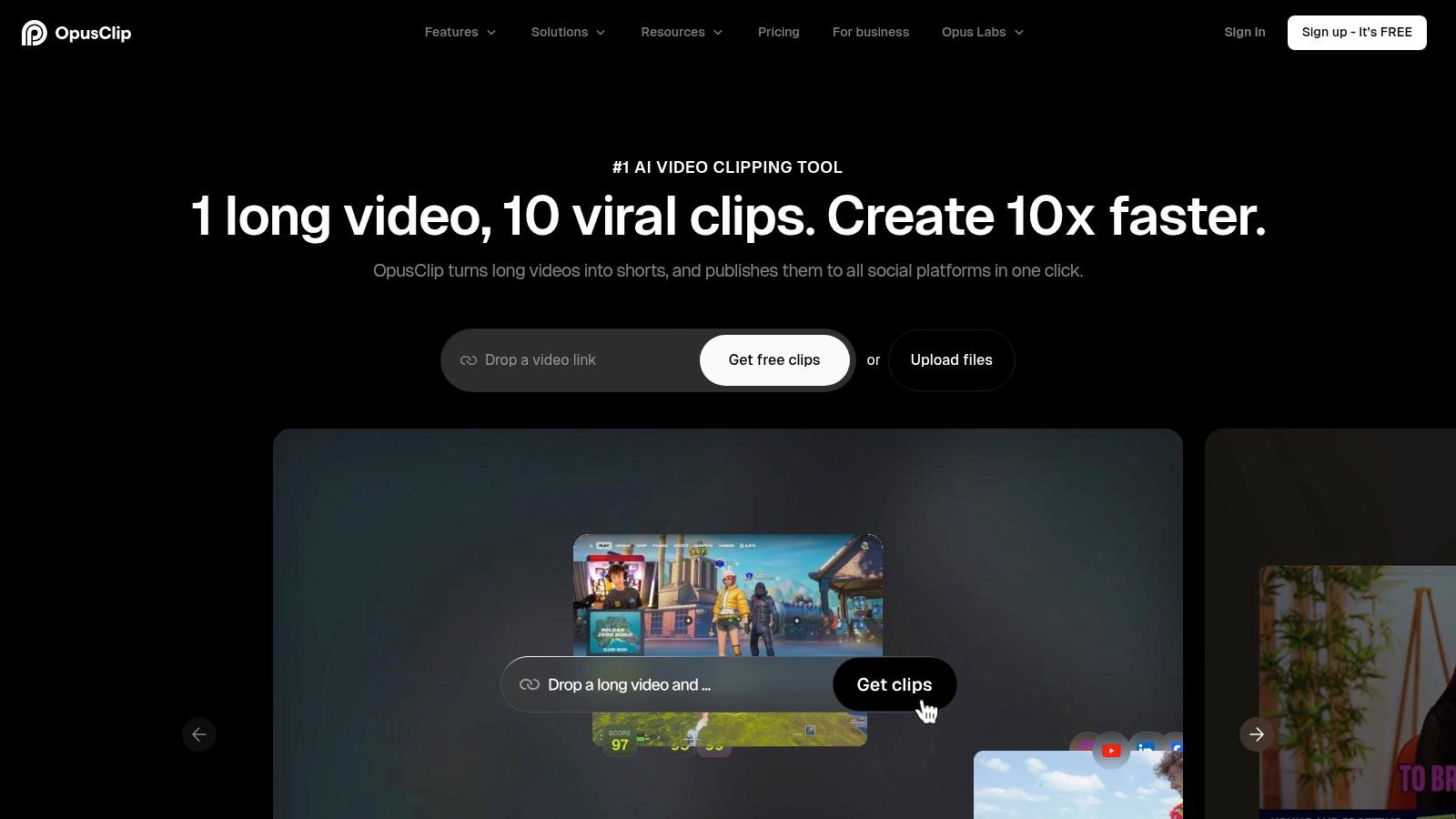
OpusClip is a strong first stop if your raw material is long interviews, podcasts, streams, or webinars and you want the tool to do most of the triage. Its core appeal is simple, upload once, then let the system score likely clip moments, generate hooks, and push out short-form versions fast.
Where it works best
OpusClip is built for webinar-to-clip extraction first. The Virality Score and AI hook suggestions make it easier to sort the first pass, and the automatic reframing plus 9:16, 1:1, and 16:9 exports cover the usual publishing mix. The built-in editor and scheduler on Pro help when you want to keep the whole workflow inside one product.
The free plan is useful for testing fit, but it's not a production answer. Free exports are watermarked, and editing isn't available there, so you're mostly checking whether its clip selection matches your style before paying.
If you want a deeper look at how a clip generator thinks about source selection and sentence boundaries, Keptbits has a focused breakdown of the same problem in its clip generator guide.
Practical rule: Use OpusClip when you need speed and volume from long recordings, then review every batch for clipped context and awkward hook choices.
The main trade-off
Its strength is also its weakness, because the tool wants to move quickly. That's great for volume, but if you're trying to protect nuance in an interview answer, you'll still need to check whether the selected moment stands on its own. The free tier makes sense for trials, but the watermark and feature limits mean you can't treat it as a real publishing layer.
Website: OpusClip
2. quso.ai
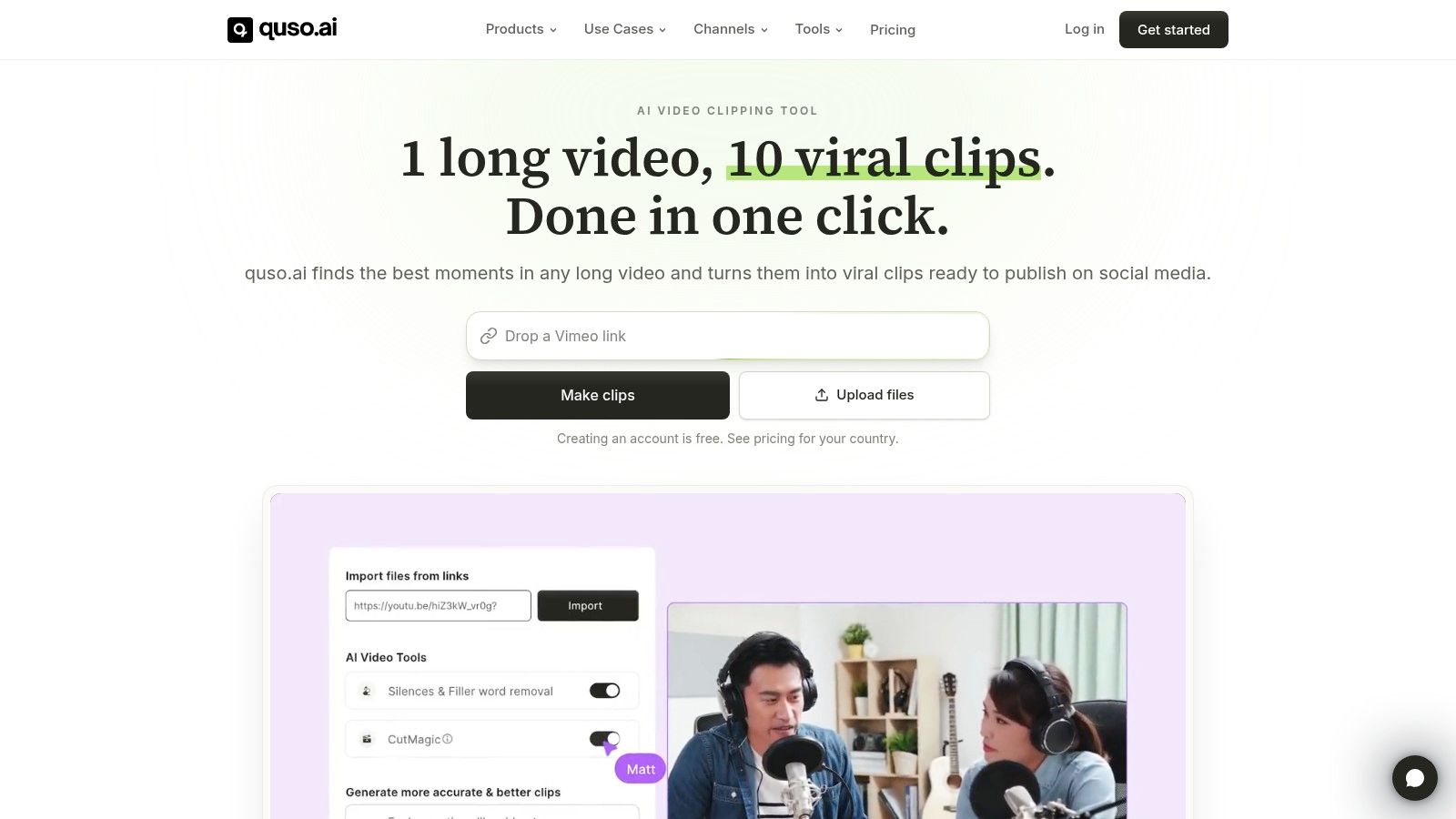
quso.ai, formerly vidyo.ai, is a good fit when you want clipping, publishing, and analytics living in one place. It imports from a wide range of sources, including YouTube, Zoom, Drive, Dropbox, Twitch, and Rumble, which makes it convenient for teams with recordings spread across different systems.
Good for mixed-source teams
For batch work, quso.ai has a practical edge because it doesn't assume your content comes from one capture stack. That matters if a webinar lives in Zoom, a podcast lives in Drive, and a live session comes from Twitch. Its Intelliclip detection and virality scoring give you a starting point, and the brand kits and templates help make exports feel less fragmented.
It also handles the social side better than clip-only tools, since scheduling and analytics sit in the same product. That's useful when the person who clips the webinar isn't the same person who publishes to LinkedIn, TikTok, or X.
What to check before you commit
The pricing story is the catch. Plan names and pricing can vary across pages, so you should verify the current in-app or regional offer before you budget around it. The credit-to-minute model can help estimate capacity, but it also means you need to understand how quickly your own library burns through processing.
Practical rule: quso.ai makes sense when the workflow spans more than one source and more than one channel, but you should confirm the current tier details before building your monthly forecast.
Website: quso.ai
3. Vizard
Vizard is one of the cleanest options when your main job is turning conversational video into polished short clips without a lot of setup. Its Magic Clips feature is straightforward, and that simplicity is part of the appeal.

Why teams like it
For batch exports, Vizard is easy to live with because the workflow stays clip-focused. You import from YouTube, Zoom, or Drive, let the system find notable moments, then export captioned clips in multiple aspect ratios. That makes it a practical choice for webinars, interviews, and long-form explainers that need to become a set of shorts.
The API option is also useful if you're doing recurring production. Teams that publish a standing webinar series or a weekly podcast can wire the same workflow into a repeatable system instead of recreating it manually every time.
One thing to watch
Some AI features sit behind particular plans, so Vizard needs a tier check before you standardize on it. That's the main limitation here, not the editing experience itself. If your team wants a simple clipper with less friction than a full editor, it works well, but you still need to verify that the exact plan includes the features you want.
For teams comparing clip-first tools with more control-heavy editors, Keptbits' AI content creation tools overview is a useful adjacent read.
Website: Vizard
4. Pictory
Pictory sits closer to the repurposing-plus-derivative-assets end of the spectrum. It can turn long videos, webinars, and podcasts into highlights, clips, reels, and summaries, so it's attractive if your team wants more than short-form cutdowns.

Best when you need extra assets
Pictory is useful when one source file has to produce more than one format. Short clips are only part of the job for many marketers, and this tool also supports summaries and derivative video outputs. That makes it a better fit for webinar teams, internal training teams, and marketers who need something usable even when the original recording isn't especially polished.
The higher tiers can also add hosting and interactive video features, which changes its role from a clip generator into something broader. That's useful if you want the content asset and the playback destination in one vendor.
The trade-off is complexity
The interface and plan structure deserve attention before you buy. Pictory has enough going on that a quick test run is better than a blind annual commitment. Users should confirm current tier limits, minutes, and credits before they decide, because the practical value depends on how much source material they run each month.
Website: Pictory
5. Descript
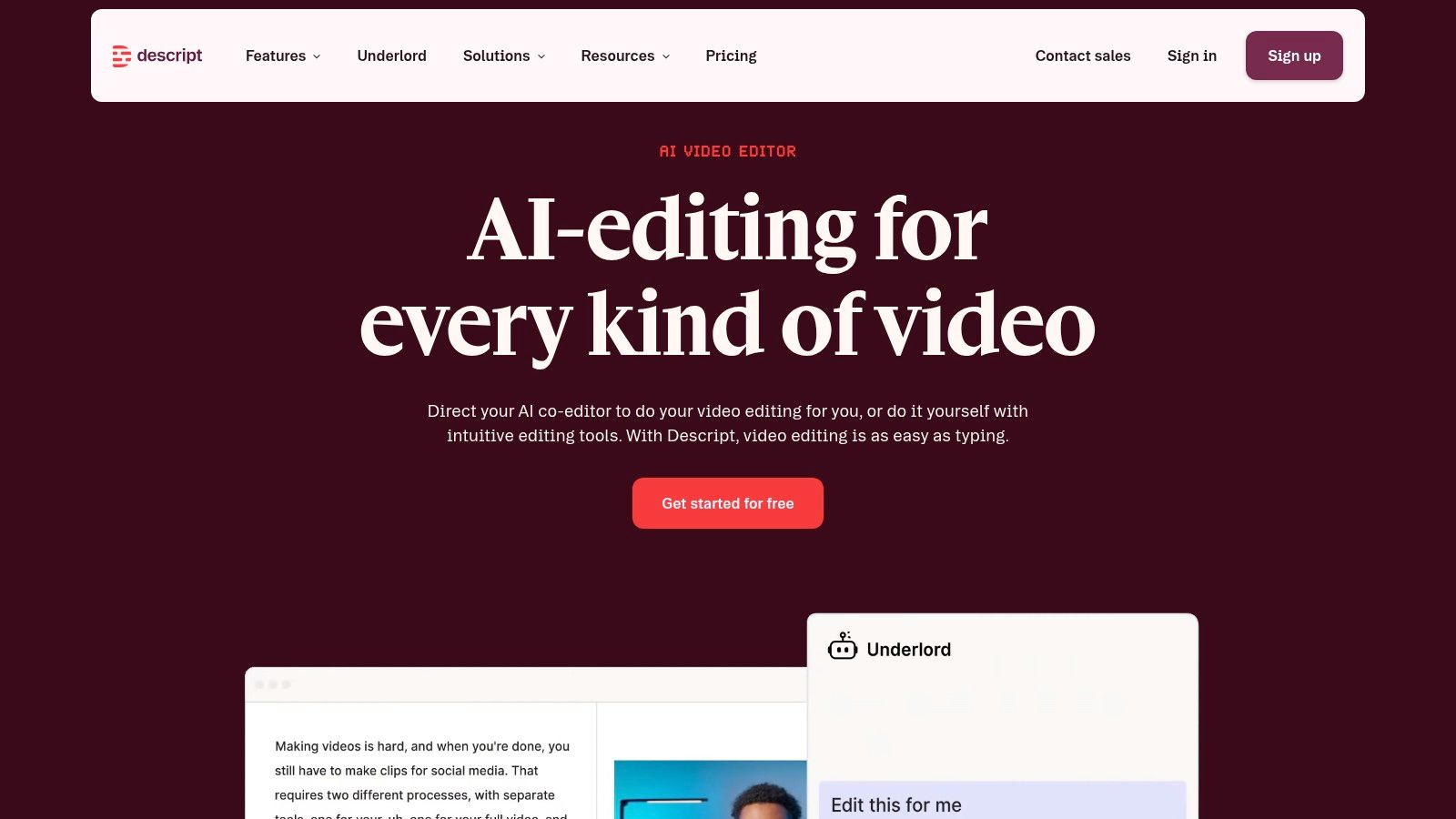
Descript is the tool to look at when you want repurposing to sit inside a real editing workflow instead of a black-box clipper. It's a full audio and video editor with transcription, text-based editing, and the Underlord AI co-editor, so it gives you much more control than a one-click extractor.
Strong when human review matters
Descript is especially useful when the clip has to be right, not just fast. You can edit by transcript, remove filler words, and use the clip tools to shape highlight reels. That makes it a strong fit for creators who repurpose their own webinars or podcasts and still want to clean up delivery before anything goes public.
The AI side helps, but the editing control is the main reason teams stick with it. If your current issue is that automatic clipping keeps missing the point, a transcript-first editor is often the safer choice.
Keep an eye on usage math
The downside is that credits and media-minute usage can be confusing, and that makes cost predictability harder than it should be. Some users also report cost creep and clip quality that still needs direction. In practice, Descript works best when a team is willing to inspect outputs and make targeted corrections instead of expecting fully finished clips on the first pass.
Website: Descript
6. VEED
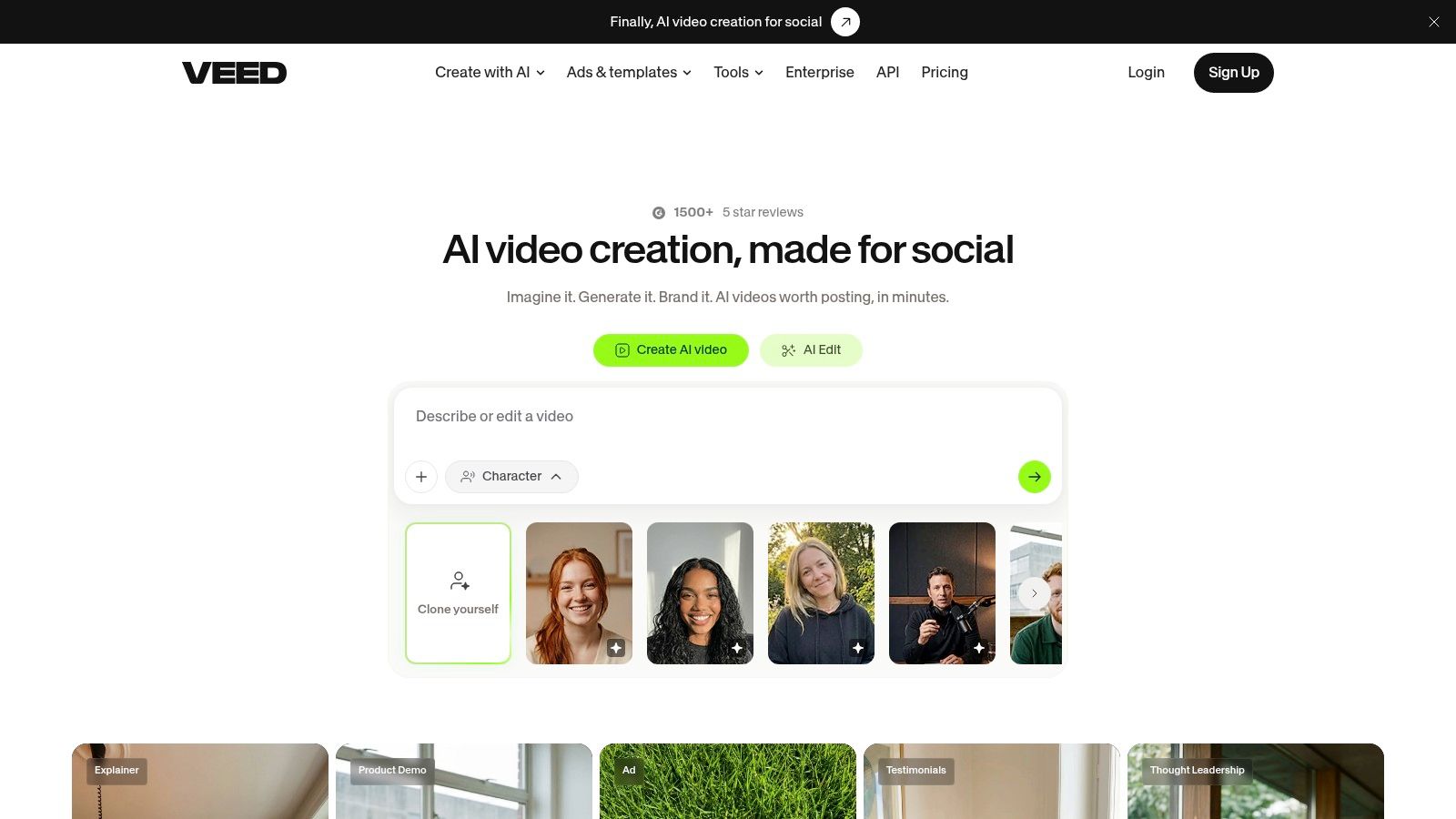
VEED is the browser-based option for teams that care about quick trimming, captions, resizing, and simple social packaging more than deep post-production. It's less specialized than the best clip extractors, but the workflow is easy to learn and easy to hand off.
Useful for speed, not perfection
VEED's Magic Cut can strip pauses, fillers, and mistakes, which is handy for webinar cleanup and talking-head edits. Auto-subtitles, subtitle translation, and social-format resizing make it practical when you need to turn one recording into a platform-ready asset quickly.
The broader toolset matters too. Templates, brand tools, and an API mean it can fit into more workflows than a single-purpose clipper. That's valuable for teams that publish regularly but don't want to jump into a heavyweight editor every time.
Where it can frustrate you
Customer support complaints show up often enough that I'd avoid treating VEED as a set-and-forget system. Pricing and included AI credits should also be checked carefully before you commit. It's a good utility tool, but you should test the exact workflow you plan to run, especially if your team depends on captions and repeated exports.
Website: VEED
7. Kapwing
Kapwing makes sense when several people need to collaborate on the same clip inside a browser. Its AI Repurpose hub and AI Clip Maker are built for teams that want highlights, subtitles, and resized versions without moving files across too many tools.
Collaboration is the draw
Kapwing is less about raw extraction power and more about working comfortably as a team. Brand assets live in the browser, templates are easy to reuse, and the credit system is documented well enough that you can understand what some AI actions cost before you start.
That makes it a sensible fit for social teams and agencies where one person finds the clip, another writes the caption, and a third handles final approval. You don't get the same feeling of an isolated black-box generator, which can be a plus when multiple people need visibility.
The limitation is credit management
High-volume users need to watch credit usage carefully. Some advanced AI features depend on credits, so the tool is only predictable if you know what each run consumes. If your output volume changes week to week, Kapwing is best when someone on the team owns the usage tracking.
Website: Kapwing
8. Riverside Magic Clips
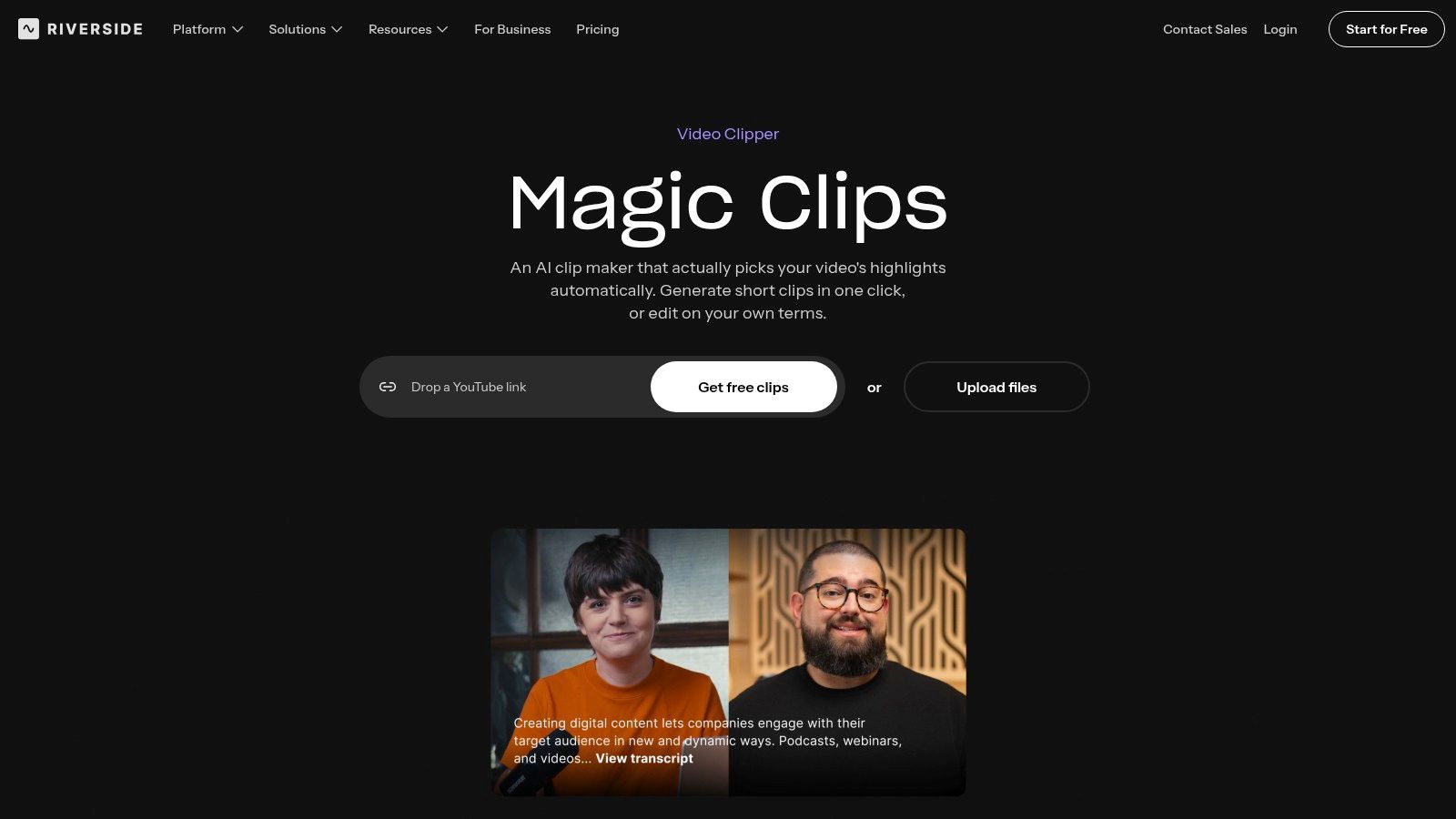
Riverside Magic Clips is the most natural choice if you already record inside Riverside. It shortens the distance between capture and clipping, which is why a lot of podcasters treat it as a built-in convenience rather than a separate tool.
Best for capture-to-clip flow
If your recording already lives in Riverside, the workflow is smooth. Magic Clips identifies highlights and generates captioned vertical clips from recordings or uploaded files, so you can move from session to social output without switching ecosystems.
That convenience matters more than people expect. When the raw recording is already there, the less friction between publishing decisions and clip creation, the better. The tool also comes with onboarding and help-center guidance, which helps non-editors get moving faster.
The weak point is final refinement
The AI-selected clips often need human cleanup, especially if you care about exact framing or a different final moment inside the same conversation. In some cases, final edits may require re-uploading to get the best match. That's fine for convenience, but it's not ideal if you need a highly controlled editorial pass every time.
Website: Riverside Magic Clips
9. Wisecut
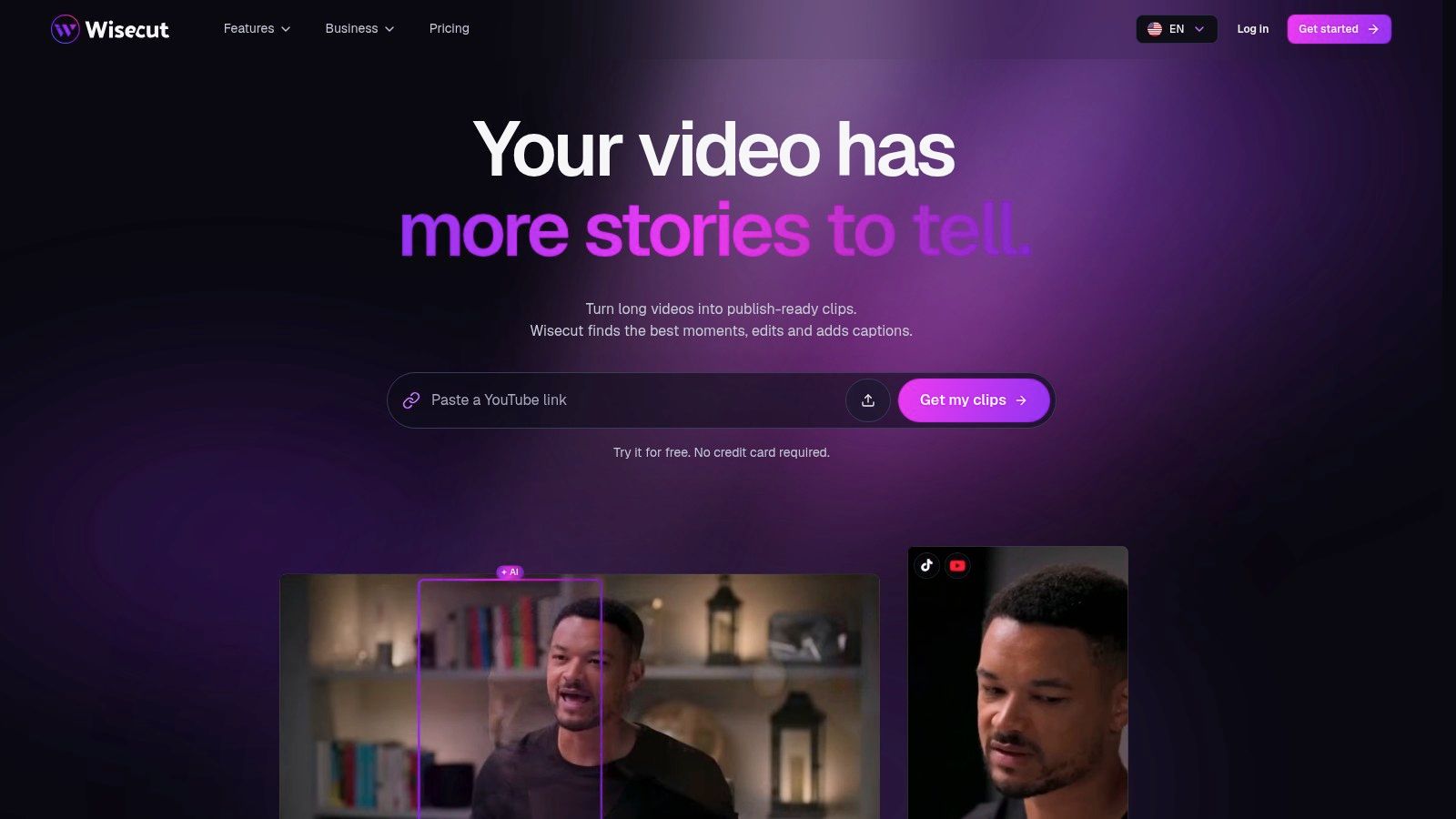
Wisecut is the speech-heavy editing tool on this list. If your source material is mostly talking heads, webinars, or instructional recordings, it can save time by removing silences and fillers and smoothing the pacing before you publish.
A better fit for cleanup than discovery
Wisecut is most useful when you already know what you want to keep, and the problem is pacing. It adds captions, background music, and music ducking, then helps create social snippets from the source. That makes it practical for internal presentations, educational webinars, and founder-style talking-head videos.
For long, speech-led sessions, that cleanup layer can be more valuable than fancy selection logic. It doesn't try to be the biggest all-in-one suite, and that keeps it focused on making spoken content easier to publish.
Know the limits
It has fewer advanced design and scheduling tools than bigger suites, so it's not the best choice if you need a full publishing workflow. Credits also apply across editing and automation features, which means the economics matter if you process a lot of source material. It's solid for pacing, but not a full replacement for a repurposing stack.
Website: Wisecut
10. Castmagic
Castmagic goes wider than clip generation. It turns podcast and video content into captioned clips, show notes, summaries, social posts, newsletters, and blog drafts, which makes it a strong fit for teams that want both video and written assets from the same recording.

Strong for back catalogs
Castmagic is useful when a recording should feed a whole content system. The import options, including RSS feeds and links such as YouTube and TikTok/Reels, make it easier to work through an archive instead of just the latest upload. For creators with a backlog, that's a real advantage.
The Studio tools and workflow hooks also make it more than a one-off generator. If you're building repeatable repurposing operations, that matters.
The trade-off is price and scope
It's usually more expensive than simpler clip-only tools, so it only makes sense if you'll use the written outputs, not just the clips. The best use case is a podcast or video team that wants show notes, newsletter drafts, and social copy from the same source. If all you need is a quick vertical export, this is more tool than you need.
For teams specifically repurposing webinar content into multi-format assets, Keptbits' webinar repurposing guide is worth comparing alongside it.
Website: Castmagic
Top 10 AI Content Repurposing Tools: Feature Comparison
| Tool | Clip Workflow & Outputs | Standout Advantage | Best For | Price & Value |
|---|---|---|---|---|
| Keptbits | Word-accurate cuts, speaker-aware framing, captions; 9:16, 1:1, 16:9 | ✨ Self-contained moment scoring; flat, non-minute-based pricing | 👥 Creators wanting polished clips with minimal editing | 💰 Free unlimited runs (up to 3 × 30-second clips/run, watermarked); Pro $19.99/month or $5.99/week |
| OpusClip | AI clips, animated captions, reframing; editor and scheduler on Pro | ✨ Virality scores and AI hook suggestions | 👥 Creators and teams repurposing long videos | 💰 Free tier available; exports limited and watermarked; check paid plans |
| quso.ai | AI clips, captions, reframing, publishing, analytics | ✨ Brand kits and broad social scheduling | 👥 Social teams managing multiple channels | 💰 Credit/minute-based; pricing and plan details may vary |
| Vizard | One-click clips, captions, multi-aspect exports; API available | ✨ API supports recurring automated workflows | 👥 Teams and creators clipping interviews or webinars | 💰 Plan-dependent; verify feature access and limits |
| Pictory | Highlights, clips, reels, summaries, and other video assets | ✨ Stock media, AI voices, and hosting options | 👥 Teams needing video plus derivative content | 💰 Tier limits and credits vary; check current plans |
| Descript | AI clips and highlight reels within a full text-based editor | ✨ Detailed editing, filler removal, and audio cleanup | 👥 Editors wanting precise control beyond auto-clipping | 💰 Usage-based AI credits and media minutes; monitor costs |
| VEED | Browser editing, auto-subtitles, translation, resizing, Magic Cut | ✨ Broad social editing and automation tools | 👥 Creators seeking an accessible all-purpose editor | 💰 Verify pricing and included AI credits |
| Kapwing | AI highlights, subtitles, resizing, and social templates | ✨ Browser-based team collaboration | 👥 Teams making cross-platform versions together | 💰 Some AI actions use credits; track usage at scale |
| Riverside Magic Clips | Captioned highlight clips from recordings or uploads | ✨ Capture-to-clips workflow within Riverside | 👥 Podcasters already recording on Riverside | 💰 Plan-dependent; selected clips may need refinement |
| Wisecut | Removes silences and fillers; adds captions, music, and snippets | ✨ Speech-focused pacing edits with music ducking | 👥 Creators editing talking-head videos and webinars | 💰 Credits apply across features; compare plan allowances |
| Castmagic | Captioned clips plus notes, summaries, posts, newsletters, and blogs | ✨ Broad written and video repurposing from one recording | 👥 Podcasters and teams processing content libraries | 💰 Typically pricier than clip-only tools; check hours and limits |
Matching the Tool to Your Repurposing Workflow
The cleanest way to choose is to run one real recording through each free tier or trial, then compare the results on the same footage. Judge three things first, clip selection, caption readability, and whether the speaker stays centered in the frame. That tells you more than any feature list.
Then compare exports for the platforms you publish to. A tool that looks great on one source often gets awkward when you move between vertical, square, and wide delivery. If your team posts to TikTok, Reels, Shorts, LinkedIn, and YouTube, the export mix matters as much as the clip itself.
After that, check how the pricing behaves under your own volume. Some tools use credits, some use minutes, some use seats, and some use flat subscriptions with feature limits. You want to know what a normal month costs before the monthly run turns into a surprise.
A quick verification checklist helps keep the trial honest. Confirm whether exports are watermarked, whether included credits reset monthly or per run, and whether the tier you're testing includes editing, scheduling, or API access. Also verify how many aspect ratios you can export without extra steps, because that's where a lot of repurposing workflows slow down.
Keptbits fits into the same trial process. Its free plan allows unlimited runs with up to three 30-second clips per run and a small watermark, while the Pro plan removes the watermark and includes 20 caption styles, so teams can judge its scoring and cut quality on their own footage before they commit.
The best ai content repurposing tool is the one that matches your source format and your publishing reality. If your workflow is webinar-heavy, long-form video heavy, or podcast heavy, don't buy the tool that looks biggest, buy the one that makes the same recording easier to publish in the formats you already use. Start with one trial, one recording, and one real publishing week.
If you're comparing tools for long recordings, Keptbits is built for the same repurposing problem this guide covers. It analyzes a full video, scores self-contained moments, reframes around the active speaker, and exports clips for vertical, square, and horizontal feeds. Visit Keptbits to test it on your own webinar, podcast, or stream and see how the scoring and cut quality hold up on real footage.
Keptbits cuts on sentence boundaries.
Paste a link or upload an episode, say how many clips you want, and get them back captioned and vertical. The free plan needs no card.
Start freeRead next
7 Online Video Editor Free Picks That Deliver in 2026
Compare 7 online video editor free options for 2026, including watermark limits, export quality, key features, and the best use for each tool.
How to Make Viral Video on YouTube in 2026
Learn how to make viral video on YouTube with proven hooks, thumbnail tests, retention fixes, and Shorts workflows that actually convert viewers into
How to Make YouTube Channel Setup That Actually Grows
Learn how to make YouTube channel setup that grows: account, branding, first videos, optimization, and monetization milestones explained step by step.