10 October 2026 · 24 min read
Top 10 AI Content Creation Tools for Video, Audio and Text
Compare 10 AI content creation tools for video, audio, text and imagery, with repurposing features, pricing notes and honest limitations for each.
A four-hour interview can contain the raw material for dozens of posts, clips, captions, and platform-specific exports. The hard part isn't finding more ideas. It's choosing a tool that can identify a complete moment, cut it cleanly, preserve the speaker's framing, and keep costs predictable once publishing becomes routine.
This list compares 10 AI content creation tools for repurposing video, audio, and text. Most entries focus on long-form video and audio workflows, so text and imagery support are called out where they're narrow. Pricing mechanics matter just as much as features, because a tool that looks affordable for occasional experiments can become difficult to forecast when every minute, credit, export, or generated clip is metered.
AI-assisted production is already part of mainstream creative work. Adobe's 2025 Creators' Toolkit Report surveyed more than 16,000 creators across several markets and found that 86% were actively using creative generative AI. The strongest use cases were editing, enhancement, new asset creation, and ideation, which is a useful signal for anyone building a workflow around repurposing rather than fully automated publishing.
Table of Contents
- 1. Keptbits
- 2. OpusClip
- 3. Descript
- 4. Captions
- 5. Wisecut
- 6. VEED
- 7. Kapwing
- 8. Riverside Magic Clips
- 9. Klap
- 10. Choppity
- Top 10 AI Content Creation Tools Comparison
- Matching Your Stack to Your Publishing Volume
1. Keptbits
A long panel recording often gives you three or four clips that can stand alone, plus a pile of near-misses that fall apart once you cut the setup. Keptbits is built for that sorting job. It takes long-form video or audio and looks for segments that already have a beginning, a point, and a clean ending, which is why it fits podcasts, interviews, webinars, lectures, demos, and stream recordings better than a generic clipper.
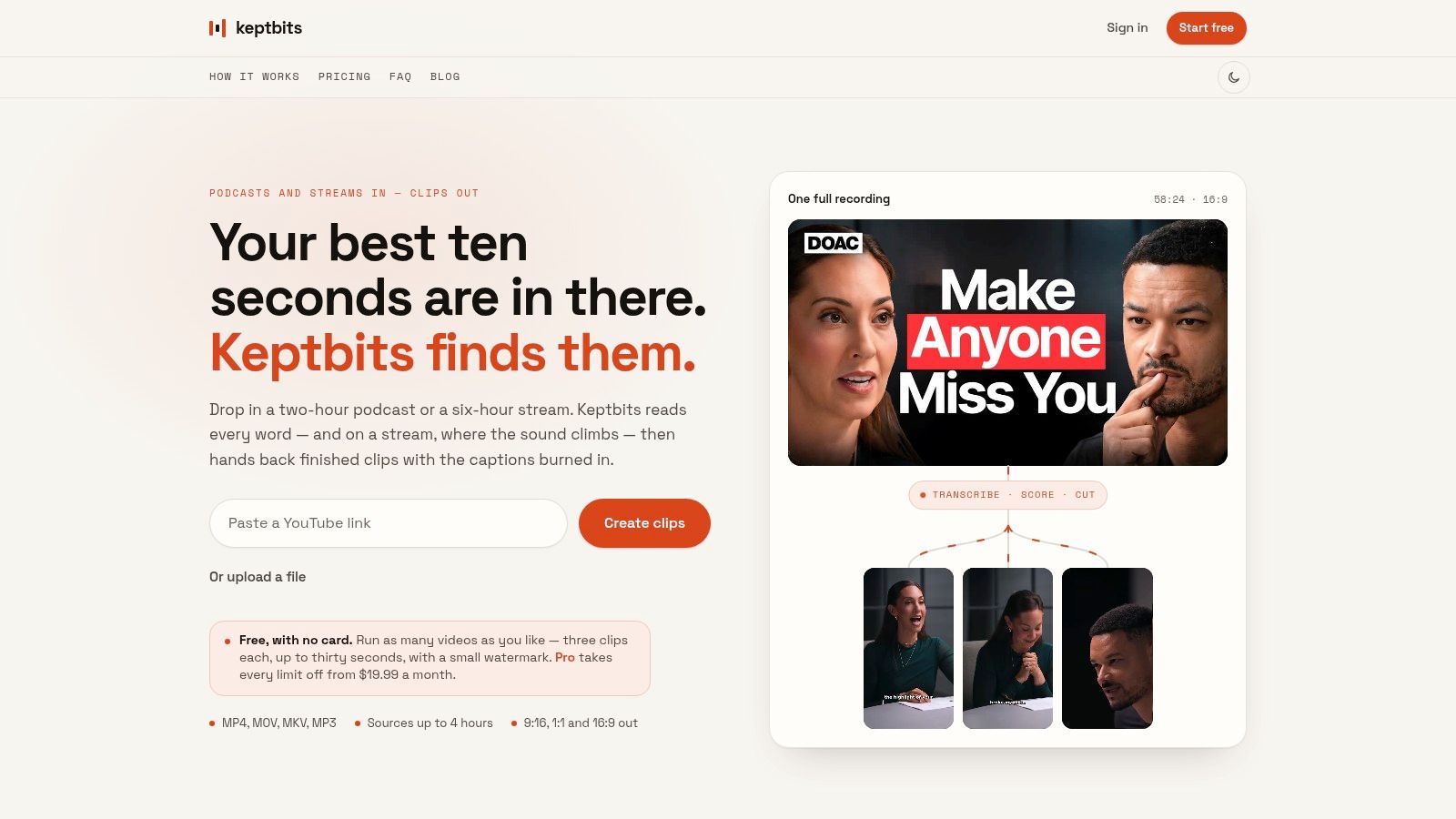
You upload MP4, MOV, MKV, or MP3 files up to four hours and choose Talking or Stream mode. That split matters. Talking mode looks for answers, stories, and statements that resolve inside the clip. Stream mode is better for audio-driven peaks such as reactions, laughs, shouts, or gameplay moments that land through timing rather than explanation. On a 90-minute panel, that difference is practical. Talking mode can surface several self-contained answers in the first pass, while Stream mode is more useful when the best moments are interruptions, crowd reactions, or fast exchanges.
The production mechanics are strong in the places that usually eat editing time. Keptbits transcribes at word level, separates speakers, scores likely highlights, cuts on real word boundaries, reframes around the active speaker, and adds captions. One run also outputs 9:16, 1:1, and 16:9, so teams publishing across Shorts, Reels, TikTok, square feeds, and standard video do not have to rebuild the same clip for each format.
Where Keptbits earns its place
The advantage is not just speed. It removes several repetitive fixes that make high-volume repurposing expensive in practice. Editors spend less time hunting through full recordings, repairing awkward cut points, redoing vertical crops, and rebuilding caption layouts for each aspect ratio. Pro also adds silence removal, transitions, color grading, and a built-in editor for the moments where automation gets you close but not all the way.
Its pricing model is also easier to predict than tools that meter every processed minute or generated output. The free tier allows unlimited runs, with three clips per run up to 30 seconds, a small watermark, and Bold Pop captions. Pro costs $19.99 per month or $5.99 per week, with the first week free, and removes the watermark and run limits while extending clips to three minutes and opening all 20 caption styles.
Practical rule: Judge the selection quality and the review load together. A fast generator loses value if every candidate still needs a full editorial recut.
Keptbits is narrower than an all-purpose content suite, and that limitation is worth stating clearly. Its text support stays close to transcripts, captions, and repurposing tasks. It is not designed for long-form blog drafting. Its imagery support is also limited to video presentation choices rather than standalone image generation. That narrower scope is fine if your bottleneck is turning recordings into publishable clips. It is less useful if you want one tool to cover writing, design, and distribution in one place.
Best for: Podcasters, interview shows, streamers, agencies, social managers, and marketing teams turning long recordings into Shorts, Reels, TikToks, and square or full-frame posts.
2. OpusClip
OpusClip is a strong choice for teams that want a broad pick, clip, caption, schedule, and publish workflow. It analyzes long videos, identifies likely highlights, and produces vertical or square clips with animated captions, keyword emphasis, auto-reframing, and optional B-roll.
Its differentiator is the publishing layer around the clip generator. Brand templates, team workspaces, a social scheduler, analytics, speech enhancement, and exports for Premiere Pro and DaVinci Resolve make it more than a clipping button. If the same team handles selection, approval, scheduling, and distribution, keeping those steps together can remove handoffs.
The real cost is review capacity
OpusClip uses a credit system with rollover rules and on-demand top-ups. That structure is more understandable than an entirely opaque allowance, but the practical cost per finished clip can still become difficult to estimate when one source produces many candidates and only some survive review. Teams should calculate cost against approved outputs, not generated outputs.
AI selection is useful for finding moments quickly, especially in interviews, podcasts, and webinars. It isn't a substitute for editorial judgment. Some generated clips still need review for context, opening strength, caption accuracy, and whether the “viral” framing suits the brand.
OpusClip also reaches beyond video clipping into B-roll, social scheduling, analytics, and team production. Its text and imagery support is therefore broader than a specialist clipper, but those features are attached to the video workflow rather than presented as a dedicated writing or image studio. For a team primarily producing blog posts or standalone campaign graphics, it won't replace those tools.
For a narrower long-to-short workflow, compare its operating model with Keptbits' approach to making AI shorts. The choice comes down to whether you value an integrated publishing system or a simpler output-focused pipeline.
Best for: Marketing teams and agencies that want clipping, brand controls, scheduling, analytics, and collaboration in one workspace.
3. Descript
Descript takes a different route. Instead of treating the timeline as the primary interface, it turns audio and video into editable text. Delete a sentence from the transcript, and the corresponding footage disappears. For interviews, podcasts, and talking-head recordings, that can make rough cuts accessible to people who think in language rather than traditional editing tracks.
The app combines transcript editing with filler-word and retake removal, Studio Sound, Eye Contact, Green Screen, captions, translation, multicam support, stock media, brand tools, and clip creation. Its Underlord AI co-editor can help with cuts, show notes, social copy, and video generation, while the normal editor remains available for precise changes.
A capable editor with two meters
Descript's pricing behavior matters because it combines media hours and AI credits. Media hours govern how much source material you can work with, while AI credits apply to advanced features. New users can understand the model from the pricing information, but heavy use can still consume credits faster than expected, particularly when experimenting with several AI-assisted operations.
That dual allowance is sensible for a full editor, but it isn't as straightforward as a flat subscription or a simple per-output model. Before choosing a plan, estimate both the hours of raw material you import and the AI operations you expect to run. A podcaster who edits carefully in the transcript may have a different usage pattern from a social team generating many variations.
Descript is stronger for fine control and cleanup than for fully automatic clip discovery. It can help produce clips, but the main value is the ability to make a human-directed edit quickly and then reuse the same transcript for titles, notes, and social copy. Its imagery support comes through stock and generative production features, not a dedicated image-first design workflow.
Best for: Interview and podcast teams that want transcript-based editing, audio cleanup, and detailed control in one application.
4. Captions
Captions is designed for creators who want to move from an idea to a polished short quickly, especially on mobile. Its AI Edit styles, chat-based editor, caption templates, eye-contact correction, B-roll, music, sound effects, translation, and lip dubbing support a highly visual social workflow.
The long-to-short Clips feature lets users generate short videos from longer recordings, while AI Actors and digital twins extend the product into generated presenter content. That makes Captions more expansive than a conventional repurposing tool. It can help create new social assets as well as edit material that already exists.
Fast output, platform-specific pricing
The strongest fit is a solo creator or social manager who values speed, visual style, and mobile access over deep timeline control. Caption presentation is a central part of the product, and the generative toolkit can fill gaps when a recording needs extra B-roll, music, or a presenter-led variation.
The trade-off is pricing visibility. Plans and credits are shown primarily through the iOS experience, and desktop or web entitlements can differ by platform. Credit rollover can also apply differently depending on the plan. Check the exact device, export, and credit rules before adopting Captions for a team workflow.
Text and imagery support are broader here than in specialist clippers, but neither is a replacement for a dedicated writing system or image studio. The text layer is mainly captions, scripts, prompts, and social production. The visual layer is aimed at short-form video, generated assets, and presentation polish rather than detailed standalone design work.
Best for: Mobile-first creators, social managers, and solo publishers who need stylish clips and generative production tools with minimal setup.
5. Wisecut
Wisecut focuses on talking-head editing and the repetitive work that follows a long recording. It can remove silences, apply automatic punch-ins and punch-outs, reframe the speaker, create captions, and add music or sound effects. Its Autopilot and Social Hub extend the workflow into clip creation, scheduling, and posting.
The credit model is comparatively easy to reason about. Wisecut defines one credit as one minute in Editor and two credits as one minute in Autopilot, with credit packs available when the included allowance isn't enough. A preview of task cost before execution is useful because it lets a team estimate the impact of an operation before spending credits.
Good automation with practical file limits
Wisecut is a good fit when the source is primarily a presenter speaking to camera and the desired edits are predictable. Silence removal and punch-ins can make a long explanation tighter without requiring an editor to mark every pause. Autopilot is more ambitious, but the added automation also means you need a review step for pacing, context, and clip usefulness.
The main constraints are operational rather than conceptual. File size caps of 4 to 5 GB and export time limits can restrict very long projects on lower tiers. A four-hour recording may be technically suitable for the workflow but still awkward if its file size or final export exceeds the plan's limits.
Wisecut supports music and sound-effect generation, but its text and imagery capabilities remain subordinate to video editing. It can help package a talking-head recording, not replace a full content team for articles, graphic design, or image-led campaigns.
Best for: Talking-head creators and teams that want transparent minute-based credits, silence removal, automatic reframing, and scheduling.
6. VEED
VEED is a broad browser-based editing and content-generation workspace. Its AI clip generator, subtitles, translation, dubbing, avatars, lip-sync tools, voice cloning, and AI Playground make it useful for teams that need several production modes without moving between separate applications.
For long recordings, VEED handles the familiar repurposing tasks, including automatic subtitles, translated versions, and social-ready clips. The browser workflow also supports collaboration, while mobile apps and APIs make it more relevant to teams that want to connect content production with a larger marketing stack.
Broad coverage, changing cost boundaries
VEED's strength is breadth. A team can edit a source recording, produce captions, localize it, create an avatar-led variation, and access generative video or image models from one workspace. That reduces tool switching, but generalist coverage also means each individual feature may be less specialized than a dedicated clipper, transcript editor, or image platform.
Pricing and credit details are dynamic and can vary by region. Verify the current plan before upgrading, especially if you need avatars, voice tools, generative models, API access, or high-volume exports. A low entry price doesn't tell you how much the specific workflow will cost once premium AI operations are included.
VEED's text support is practical for transcripts, subtitles, translations, scripts, and social copy. Its imagery support is connected to video and generative production rather than editorial illustration or a complete design system. For a marketing team that values one broad workspace, that's often enough. For a specialist team, the breadth may not compensate for less precise control.
Best for: Teams combining browser-based editing, localization, avatars, generative media, collaboration, and API workflows.
7. Kapwing
Kapwing is a browser-first editor where collaboration and speed matter as much as AI generation. Smart Cut removes silences, Find Scenes helps locate sections, and the AI Clip Maker turns longer recordings into social candidates. Auto-subtitles, translation, dubbing, voice cloning, lip-sync, and the Kai AI assistant extend the platform beyond basic cutting.
Kapwing's plan tables make the usage model relatively easy to inspect. Minute allowances, credits, and export limits are shown directly, which is valuable for teams that need to estimate costs before assigning a workflow to several people. Some AI features are credit-metered, so the subscription alone doesn't describe the full operating cost.
A useful team editor with narrow image depth
The collaboration layer is one of Kapwing's practical advantages. Brand kits, shared workspaces, and browser access make it suitable for a distributed content team that needs to review and modify assets without installing desktop software. Paid plans support 4K exports, which matters when a social clip is also being reused in a higher-quality channel.
Its AI tools cover video editing, captions, dubbing, voice, and clip creation well enough for a cross-functional team. Text support centers on those production tasks rather than long-form content strategy or publishing-quality articles. Imagery is useful inside video and design compositions, but Kapwing shouldn't be treated as a deep standalone image-generation environment.
The absence of a separate paid trial means the free tier has to carry the evaluation. Use it to test the full path from upload to collaborative review, not just the AI clip button. Check whether the export, credit, and team limits fit the way your editors work.
Best for: Collaborative marketing teams that want browser-based editing, brand controls, captions, dubbing, and shared review.
8. Riverside Magic Clips
Riverside Magic Clips is most compelling when Riverside already records the source material. Its AI scans recordings and suggests social clips, generally targeting short segments suitable for distribution. Because Riverside works with locally recorded, high-quality files, the workflow can avoid quality loss caused by repeatedly downloading and re-uploading compressed recordings.
That source-quality advantage is practical. If your interviews, podcasts, or remote conversations already live inside Riverside, Magic Clips can remove the export step between recording and selection. Higher plans add controls around duration, keywords, and speaker focus, while eligible plans include core AI features without separate credits.
The limitation is the recording context
Magic Clips works best before the source leaves Riverside. It isn't a universal answer for a library of recordings created elsewhere, and the AI may analyze raw takes rather than a cleaned timeline. If you edit out mistakes in Riverside first, the workaround is to export the cleaned version and upload it again, which adds a step.
That makes Riverside a workflow decision rather than just a feature decision. Teams already using Riverside get a coherent record-to-clip path. Teams with an established editor, a mixed source library, or a need for more deliberate narrative scoring may prefer a dedicated long-to-short tool.
Text support is centered on transcripts, captions, clip descriptions, and recording-based content. Imagery support is limited compared with broader creative suites. Magic Clips is about extracting useful video from recorded conversations, not generating standalone visual campaigns.
Best for: Riverside users who want to record, identify clips, edit, and publish without moving the source between platforms.
9. Klap
Klap uses a straightforward long-to-short workflow. Upload a long video, let the system identify social-ready moments, and receive a batch of clips in formats designed for creator platforms. Its creator-oriented interface and mobile options suit people who want minimal configuration between source recording and output.
The central pricing idea is paying for generated clips, rather than primarily paying for minutes analyzed. That can work well for campaign-based teams that publish in bursts and want the cost tied to the number of outputs. It can work less well when a team generates many candidates, rejects most of them, and needs repeated versions before reaching an approved set.
Output-based pricing needs an approval calculation
Pay-per-clip sounds simple, but the useful calculation is not the price of one generated asset. It is the cost of one approved clip after review, caption correction, reframing, and any recuts. If your workflow produces a large batch but only a small portion is publishable, the effective cost is higher than the advertised output unit.
Klap's strength is speed and low setup. It isn't positioned as a full transcript editor, social analytics suite, image-generation environment, or long-form writing assistant. Text support is mainly tied to captions and clip packaging, while visual control focuses on social video formats.
Promotions, billing toggles, and regional or platform differences can affect the displayed price. Verify the current per-clip and monthly or annual terms at checkout. For a creator publishing intermittently, that check matters more than a generic comparison of feature counts.
If your publishing workflow also needs short-form formats and a stronger reel-production focus, compare the output requirements with Keptbits' AI reel maker workflow.
Best for: Creators and campaign-based teams that prefer a simple upload-to-batch workflow and output-oriented metering.
10. Choppity
Choppity combines long-to-short generation with a transcript-linked editor, ideas board, caption tools, brand templates, storage, and social scheduling. Its pricing separates AI Analysis Hours from storage, which makes the relationship between source processing and file retention easier to understand.
The product suits teams that want a visible monthly allowance rather than an opaque collection of credits. Pro hours can be scaled with a slider up to 100 hours per month, giving a high-volume publisher a more direct way to match the subscription to its source library. Annual and monthly options are shown separately, so check which billing commitment the displayed plan assumes.
Transparent structure, younger product history
Choppity's free plan lets you generate and edit before paying, although exports and scheduling remain locked until upgrade. That makes it useful for testing selection quality and transcript editing without immediately committing to a paid workflow. The test should include representative recordings, not just a clean, well-lit clip.
The main trade-off is maturity. Choppity is newer than several incumbents, so community feedback and long-term operational history are shallower. That doesn't make it a poor choice, but it does make a trial important for teams that need reliable scheduling, consistent exports, and repeatable brand templates.
Its text support is stronger than a basic clipper because the transcript and ideas board support planning. Its imagery support remains mostly video-oriented, through branded templates and social packaging rather than standalone image creation. For subtitle-heavy workflows, a focused caption workflow such as Keptbits' AI subtitle maker may also be worth comparing.
Best for: Publishers that want transparent analysis-hour allowances, transcript editing, ideas management, and integrated scheduling.
Top 10 AI Content Creation Tools Comparison
| Product | Core features | UX & Quality | Pricing & Value | Target audience | Unique strengths |
|---|---|---|---|---|---|
| Keptbits 🏆 | Word-level transcription, narrative scoring, auto-reframe, burned-in captions, multi-aspect export | ★★★★★ Word-accurate cuts, steady crops, low manual review | 💰 Free (unlimited runs, 3×30s clips/run, watermark); Pro $19.99/mo or $5.99/wk, no per-minute metering | 👥 Podcasters, streamers, social creators, agencies | ✨ Narrative-aware clips; boundary snapping; browser-stream upload; flat predictable pricing |
| OpusClip (Opus.pro) | Viral scoring, auto-reframe, captions, B-roll, social scheduler | ★★★★☆ Strong auto picks; may need manual review | 💰 Credit system with top-ups; rollover rules | 👥 Teams wanting automated pick→clip→post pipeline | ✨ Scheduler, analytics, team workspaces |
| Descript | Text-based editing, AI cleanup, dubbing/translation, multicam, clip tools | ★★★★☆ Precise text edits; excellent audio cleanup | 💰 Media-hours + AI-credits; 1080p/4K tiers | 👥 Podcasters, editors & producers needing fine control | ✨ Text-first editing + Studio Sound & AI co-editor |
| Captions | Mobile-first AI studio, one-tap edits, AI actors/twins, caption templates | ★★★★☆ Rapid mobile workflow; high-style captions | 💰 Credit-based (iOS-heavy billing nuances) | 👥 Social managers, solo mobile creators | ✨ AI actors/twins, rich caption styles, one-tap clips |
| Wisecut | Silence removal, auto-reframe, Autopilot clipgen, captions & SFX | ★★★★☆ Transparent task costs; good for talking-heads | 💰 Credit system (minutes); clear cost preview | 👥 Talking-head creators, long-form→short workflows | ✨ Autopilot + clear credit math; scheduling |
| VEED | AI clip generator, subtitles/dubbing, avatars/lip-sync, APIs | ★★★★☆ Broad toolset; collaborative features | 💰 Region-variable plans; APIs for automation | 👥 Teams combining editing + generative workflows | ✨ All-in-one editor + generative models + APIs |
| Kapwing | Smart Cut, AI Assistant, AI Clip Maker, collaboration & brand kits | ★★★★☆ Fast, collaborative, easy to learn | 💰 Minute/credit allowances; free tier with limits | 👥 Teams & collaborative creators | ✨ Smart Cut + strong collaboration tools |
| Riverside Magic Clips | Auto-suggests 30–90s clips from high-quality local recordings | ★★★★☆ Preserves source quality; integrated flow | 💰 Included on eligible plans; free option exists | 👥 Riverside users (podcasts, interviews) | ✨ Works on locally recorded files, avoids recompression |
| Klap | Pay-per-clip AI clipping, mobile options, batch shorts | ★★★☆☆ Simple UX focused on outputs | 💰 Pay-per-clip pricing, good for campaign billing | 👥 Campaign teams, creators wanting per-output metering | ✨ Straightforward pay-for-clips model; batch generation |
| Choppity | AI analysis hours, transcript-based editing, clipgen, scheduling | ★★★☆☆ Newer entrant; transcript-linked editor | 💰 Clear analysis-hour tiers; free generate/edit (export locked) | 👥 Creators needing transparent hourly allowances | ✨ Transparent pricing slider; transcript-first workflows |
Matching Your Stack to Your Publishing Volume
The best tool depends less on the longest feature list than on where your workflow becomes expensive. A podcaster publishing a few carefully edited clips each week has different needs from an agency processing client recordings, a streamer producing daily highlights, or a marketing team turning webinars into multiple formats.
Start with the source. If you already record in Riverside, Magic Clips offers the least disruptive path because the recording and clipping steps live together. If you need a full edit based on words, Descript is the more natural choice. If the work starts with a long file and ends with self-contained, multi-aspect clips, Keptbits puts more emphasis on narrative completeness, word-level cuts, speaker-aware framing, and predictable per-run usage.
Then look at the pricing unit. Tools generally behave according to one of several models:
- Flat subscription: Easier to budget when the tool doesn't meter every minute or output, as with Keptbits' free and Pro structure.
- Media hours plus AI credits: Powerful for full editors such as Descript, but you need to estimate two different consumption patterns.
- Minute-based credits: Wisecut makes this explicit, which helps teams forecast processing costs before running an operation.
- Generated-output pricing: Klap's model can suit campaign bursts, but calculate the cost of approved clips rather than raw generations.
- Broader plan allowances: Choppity separates analysis hours from storage, while other platforms bundle publishing, collaboration, or generative features into higher tiers.
Run one long recording through two or three tools on their free or trial tiers before committing. Use the same source, the same desired duration, and the same output formats so the comparison reflects workflow fit rather than a favorable demo.
Score each result on four practical dimensions:
- Cut quality: Does the clip begin with a clear hook and end without requiring missing context?
- Caption accuracy: Do names, technical terms, punctuation, and speaker changes need correction?
- Reframing stability: Does the crop hold the active speaker naturally, or does it drift and require keyframes?
- Remaining manual work: How many clips can an editor approve, and how many need a recut?
The final metric is total time to publish. Adobe's 2025 Digital Trends research found that approximately two-thirds of organizations were testing or actively using generative AI for ideation and concept creation, while 49% were still piloting or evaluating effectiveness and only 14% had implemented solutions with proven return on investment. Adobe's research on AI and digital trends points to a practical conclusion: buyers need workflow evidence, not broad promises about AI capability.
Track editor-hours per finished short, review time, acceptance rate, caption correction rate, framing corrections, and hours saved per recording. A tool that generates more clips isn't automatically better if it creates more review debt. Adobe Express reported that teams using AI for both content creation and automation produced 75% more content per week than teams not using AI, and AI users reported saving an average of 14 hours weekly, but that survey was self-reported and U.S.-focused. The Adobe Express survey is best used as a planning benchmark, not as a guarantee for your own operation.
Governance also belongs in the comparison. The IAB reported that more than 70% of advertising executives had encountered AI-related incidents involving hallucinations, bias, or off-brand content, while fewer than 35% planned to increase investment in AI governance or brand-integrity oversight over the following 12 months. The IAB's responsible AI findings show why publishing speed can't be the only evaluation criterion.
Build a review gate into the workflow. Verify factual claims against primary sources, inspect transcripts for sensitive or private material, check captions and translations, review visuals for brand-safety issues, keep an approval trail, and define when a human editor must override the generated result. This matters for clips as much as articles. A short video can still contain an inaccurate claim, an incomplete answer, or a context problem that the selection model didn't recognize.
The right stack will be small for many teams. A creator may need one specialist clipper and a separate design or writing tool. An agency may need collaboration, scheduling, brand templates, and API access. A podcast editor may prefer transcript control over automated scoring. A marketing team may value predictable pricing and multi-aspect output more than generative avatars or image effects.
Choose the tool that reduces the most expensive manual step while leaving a review process you can maintain. If the product saves time in generation but adds correction work, measure both. If the subscription looks cheap but every useful action consumes credits, model a busy month before signing up. And if the free plan supports unlimited or meaningful testing, use it with a real recording rather than trusting a polished sample.
Keptbits turns recordings up to four hours into self-contained, captioned clips with word-level timing, speaker-aware reframing, and 9:16, 1:1, and 16:9 exports. Try the workflow on your own interview, podcast, stream, or webinar by visiting Keptbits, then compare the approved-output time and pricing behavior against the tools you already use.
Keptbits cuts on sentence boundaries.
Paste a link or upload an episode, say how many clips you want, and get them back captioned and vertical. The free plan needs no card.
Start freeRead next
7 Online Video Editor Free Picks That Deliver in 2026
Compare 7 online video editor free options for 2026, including watermark limits, export quality, key features, and the best use for each tool.
How to Make Viral Video on YouTube in 2026
Learn how to make viral video on YouTube with proven hooks, thumbnail tests, retention fixes, and Shorts workflows that actually convert viewers into
How to Make YouTube Channel Setup That Actually Grows
Learn how to make YouTube channel setup that grows: account, branding, first videos, optimization, and monetization milestones explained step by step.