16 October 2026 · 17 min read
Best AI Clip Generator Tools for 2026: 10 Compared
Compare 10 AI clip generator tools that cut long podcasts, streams and interviews into captioned, reframed shorts. Pricing, limits and trade-offs for 2026.
You've got the episode file open, the deadline is real, and the ask is specific: five vertical clips from a two-hour recording, captions that don't look rushed, square crops for one channel, maybe widescreen for another, and a cost you can forecast. That's exactly where an ai clip generator earns its keep. The best ones don't just trim video, they find moments that stand alone, cut on clean boundaries, and keep the speaker framed without a shaky crop.
This list is ranked by workflow, not hype. Some tools are built for talking-head podcasts, some for gaming streams, some for marketing teams that need clips plus copy, and some for API pipelines where volume matters more than a fancy editor. The trade-off is simple, tools that do more usually ask for more review, while dedicated clippers are faster but narrower. Keep that in mind as you compare them.
Table of Contents
- 1. Keptbits
- 2. OpusClip
- 3. Munch
- 4. Quso, formerly Vidyo.ai
- 5. Klap
- 6. Vizard
- 7. Riverside Magic Clips
- 8. VEED AI Clips
- 9. Pictory
- 10. ClipFM
- Top 10 AI Clip Generators, Feature Comparison
- Matching Your Clip Generator to Your Production Setup
1. Keptbits
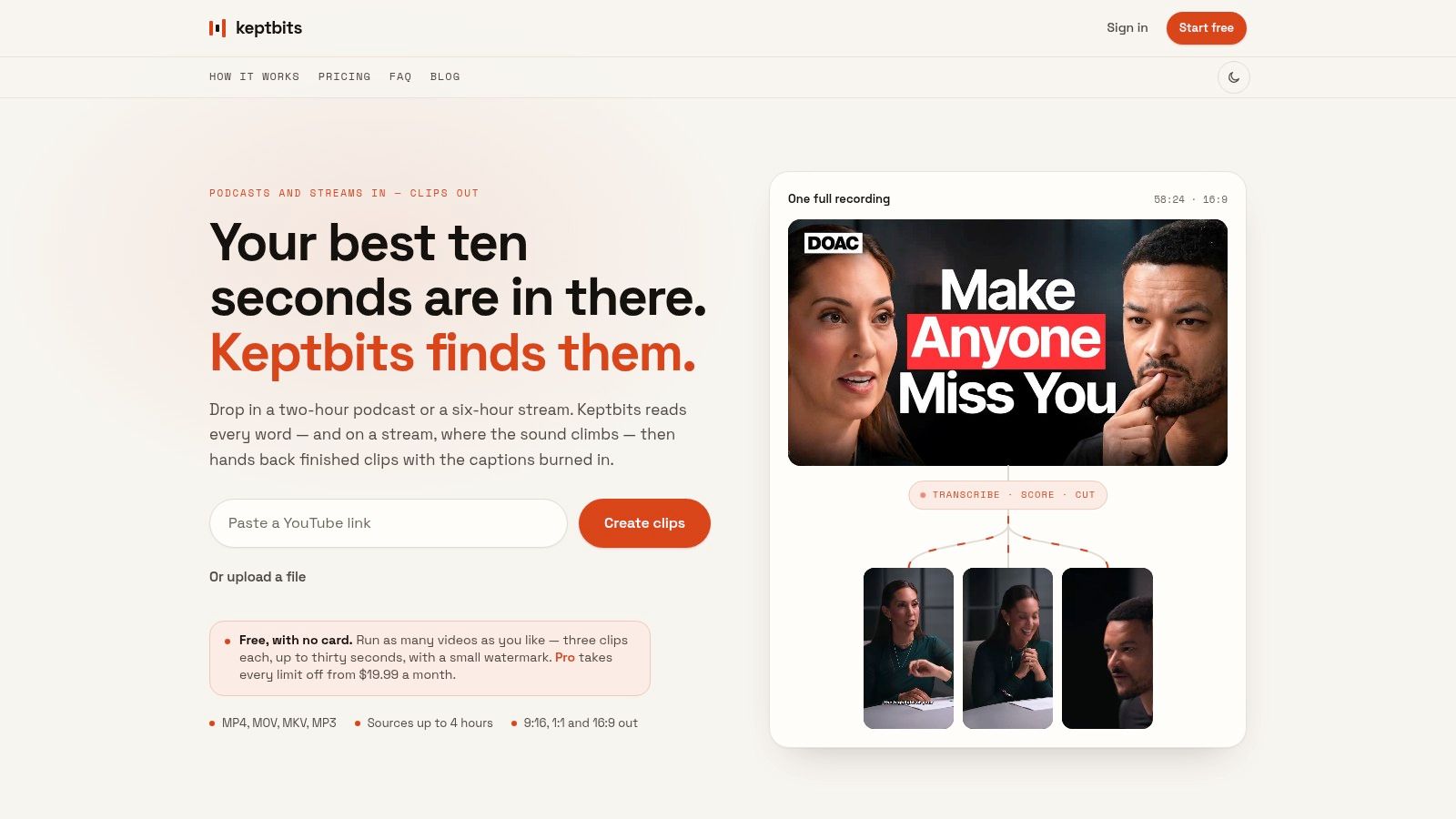
Keptbits is the closest fit for creators who want long recordings turned into ready-to-post clips without babysitting the timeline. Drop in a file or paste a link in the browser, and it reads the transcript, separates speakers, and scores moments for narrative completeness instead of just chasing keywords. That matters when the clip has to make sense on its own, especially for podcasts, interviews, and webinar extracts.
Where it behaves well
The strongest part is how it handles selection and framing together. Cuts snap to word and sentence boundaries, so you don't get the chopped-in-half feel that ruins a good quote, and the crop follows the active speaker so vertical outputs stay stable. It also exports 9:16, 1:1, and 16:9 from the same run, which is useful when one recording has to feed Shorts, Reels, and a standard feed.
Practical rule: if a tool finds a great moment but the crop wobbles or the caption timing is late, you still end up editing by hand. Keptbits is built to reduce that second pass.
The split between Talking and Stream mode is also practical. Talking mode is better for podcasts and interviews, while Stream mode pays attention to reactions and sound spikes, which is what gaming and IRL clips need. The free plan lets you run unlimited uploads in the browser, but each run is capped at three 30-second clips with a watermark, while Pro removes the limit, extends clips up to 3 minutes, and adds a built-in editor, silence removal, transitions, and color grading.
For teams that want a deeper walkthrough, the Keptbits AI Shorts Maker guide shows how the repurposing flow works in practice. Pricing is flat rather than metered by minutes, so it's easier to predict than many credit-led tools.
2. OpusClip
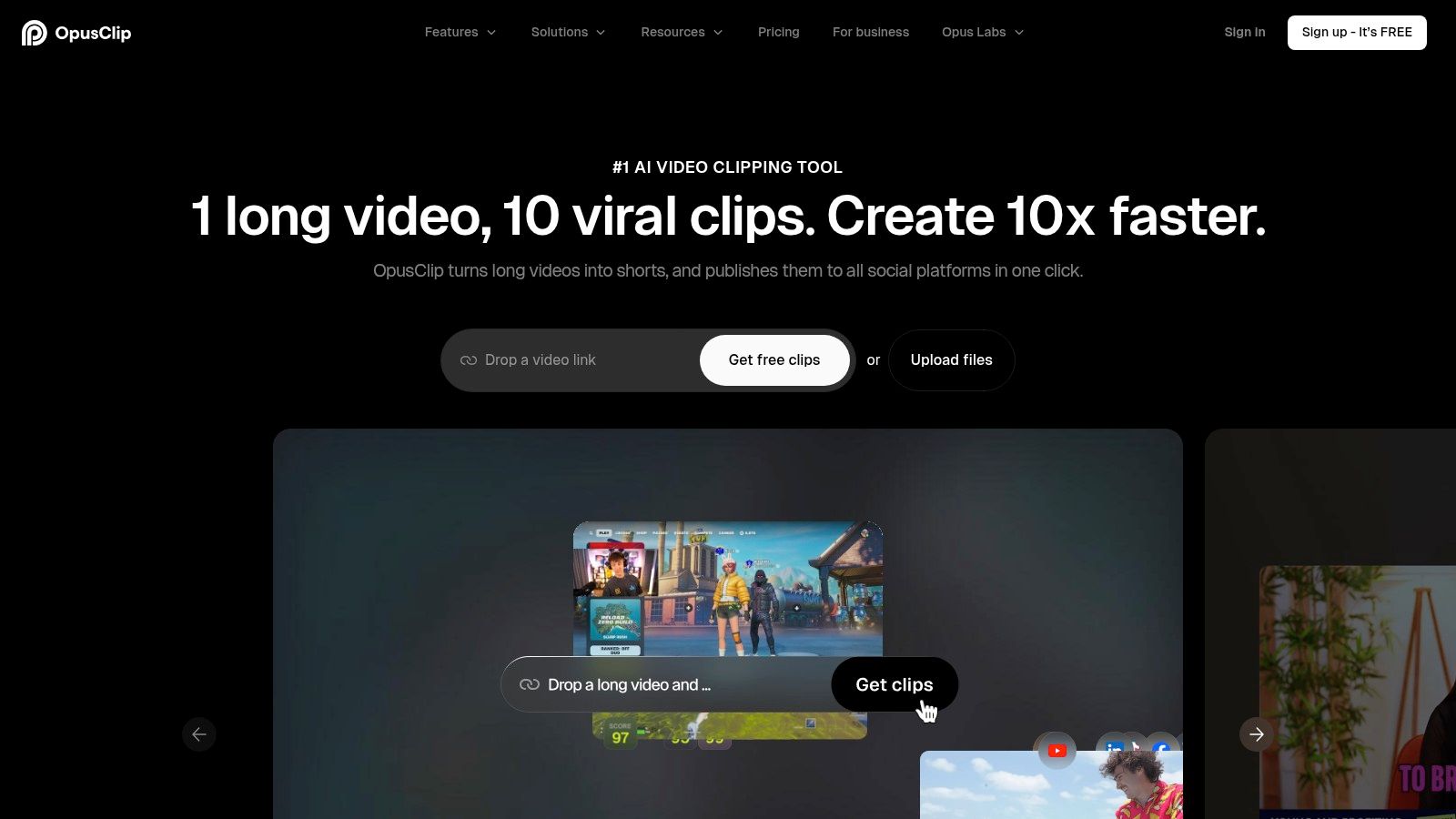
OpusClip fits creators who want a guided path from long-form upload to posted short-form clip. It's a strong choice for people who don't want to assemble clips from scratch, because the product is built around highlight detection, automatic reframing, animated captions, and a publishing flow that keeps the work moving.
What it's good at, and where it stops
The upside is speed with a familiar creator workflow. You upload long content, it finds moments worth cutting, and it helps shape them into vertical formats that are ready for Reels, Shorts, or TikTok. The output usually gets you close, but brand-heavy teams should expect to polish the final clip before publishing, because automated virality scoring still doesn't replace editorial judgment.
The main drawback is the credit and minute-based model. That can work fine for occasional repurposing, but it gets less comfortable when you process a lot of long sessions every week. If you're comparing tools on cost predictability, make sure you understand how many uploads, exports, and generated minutes your plan covers before you commit.
OpusClip is strongest when the priority is “get me from long video to publishable short quickly.” It's weaker when you need tight control over every frame, caption line, and export limit.
For creators already working inside the Opus ecosystem, the path is smooth. For heavier agency use, the question is less about features and more about whether the billing model matches your volume. If your workflow is high-output and repetitive, test one long interview and one stream archive before deciding.
3. Munch
Munch is a better fit for marketing teams than for solo creators. It doesn't just make clips, it helps draft the supporting text around them, which is why it feels more like a repurposing suite than a lightweight clipper. That's useful when one upload has to become a clip, a YouTube description, a LinkedIn post, and maybe a thread or two.
Built for multi-channel delivery
The appeal here is consolidation. Agencies and in-house teams can keep the source file, the clip, and the copy in one workflow instead of bouncing between tools. That makes it easier to standardize deliverables, especially when multiple people touch the same campaign asset.
The trade-off is obvious. Munch can feel heavy if all you want is a fast short-form extract from a podcast or a webinar. The broader the suite, the more it leans toward process and coordination, which is helpful for teams but sometimes slow for a creator who just wants to export three clean vertical clips and move on.
A useful way to evaluate it is to ask whether your bottleneck is clip generation or content packaging. If you also need a draft post for every clip, Munch starts to make sense. If not, the extra surface area may just get in the way.
4. Quso, formerly Vidyo.ai
Quso is the rebranded option for teams that liked Vidyo.ai's clipping flow and want a social manager on top. The pitch is simple, identify moments, caption them, resize them for each platform, then schedule and publish from the same dashboard. That consolidation matters when you want clipping and distribution under one roof.
Strong when publishing matters too
The biggest advantage is convenience. A clip-first workflow can turn into a scheduling workflow without dragging the file through another editor, which is useful for small teams wearing too many hats. It also gives former Vidyo.ai users a familiar path, so the migration friction is lower than switching to a totally different interface.
The caution is the rebrand itself. When product names, interface labels, and plan names shift, the safest move is to verify allowances on the current pricing page before you buy. That matters more than a long feature list because you're not just buying clip generation, you're buying whatever the current packaging says the plan includes.
Quso is most attractive for teams that need a combined clipping and publishing stack. It's less compelling if you want a minimalist clipper with a single job and a narrow bill. If the editorial team and the social team are the same people, the consolidation can save time.
5. Klap
Klap is the straightforward choice for people who want vertical shorts fast. It keeps the workflow simple, clips are generated from long videos, reframed for TikTok, Reels, or Shorts, then captioned with presets that keep the output clean enough for rapid posting. The interface is intentionally light, which is part of the appeal.
Automation first, editing second
The API is what sets Klap apart for volume. If you're building a pipeline for agencies or internal tools, the developer path matters more than another template gallery. That makes it a useful fit for teams that want to feed in source content programmatically and let the system do the first pass of clipping.
The flip side is that Klap leans hard toward clips-first production. If you need stronger long-form editing, deeper polish tools, or a broader publishing layer, you may hit the ceiling sooner than with an all-in-one suite. Plan details can also vary across pages, so confirm what you are getting at checkout rather than assuming the homepage copy is the final word.
6. Vizard
Vizard is strongest when you care about what happens after the automatic cut. It gives you AI clipping, but it also gives you a text-based editor, which is where the tool becomes more useful for people who want to clean up captions, trim by transcript, and refine the result without jumping to another app.
A practical editor, not just a clipper
The browser workflow makes sense for teams that work in text first. If you like editing by transcript and want word-level caption control, Vizard gives you more room to fix the rough edges than some pure clippers do. The API access is also valuable if you need custom workflows, and the announced agent-style surface suggests the product is aiming at more guided automation.
The main consideration is planning for credits. That's a recurring issue in tools that bundle clipping with broader editing functions, because the cost model can get harder to forecast when output volume rises. If you're doing a lot of weekly exports, check what higher-tier usage really covers and how 4K or heavier processing is billed.
For a deeper clip-repurposing workflow, the Keptbits AI Reel Maker guide is useful context alongside any browser-based editor. Vizard is a solid option when you want more control than a one-click clipper gives you, but still don't want a full desktop editing stack.
If your team argues about caption timing more than about clip ideas, Vizard's text-first workflow is probably the part you'll appreciate.
7. Riverside Magic Clips
Riverside Magic Clips makes the most sense if you already record inside Riverside. The biggest advantage is source quality, because the clips can use the original local files rather than a lower-quality re-upload path. That makes a difference when you're clipping interviews, podcasts, or remote conversations where visual clarity still matters.
Best inside the Riverside ecosystem
This is a good fit for teams that already standardize on Riverside for capture and editing. You can move from recording to highlights to polish without leaving the environment, which reduces friction and keeps brand presets in the same place. Speaker focus, keyword targeting, captions, and layout options all help turn a long session into a usable clip set.
The limitation is clear. If you don't record in Riverside, the workflow feels less smooth because you're importing instead of staying inside the native flow. Also, many clips still need a review pass before they feel finished, which is normal for this category but worth remembering if you're working under a tight turnaround.
For webinar teams, the Keptbits webinar repurposing guide is a useful contrast point. Riverside is strongest when it sits inside your recording pipeline. If your source material comes from everywhere, not just one studio, a more source-agnostic clipper may fit better.
8. VEED AI Clips
VEED's AI Clips feature works well for people who want clipping inside a broader online editor. It's not just about finding a highlight, it's about taking that highlight and moving it through a familiar editing surface with subtitles, templates, collaboration, and export options already in place.
Good for teams that still edit after clipping
This is one of the better choices when you need caption styling and brand elements to travel together. The editor around the clip workflow makes it easier to clean up pacing, switch styles, and handle multi-platform exports without bouncing between tools. The caption export options are also useful for teams that repurpose the same transcript elsewhere.
The downside is scope. VEED is broader than a dedicated repurposing tool, so publishing and scheduling are not the center of gravity in the same way they are in some clip-first platforms. That's fine if you need a flexible editor, but less ideal if your only goal is to extract the best moments from long-form content and send them out fast.
VEED is the kind of tool you choose when post-production matters as much as detection. If you want the clip to pass through a brand review, caption refinement, and maybe a final layout tweak, it gives you enough control to do that without switching apps.
9. Pictory
Pictory works best when short clips are only one part of the output you need. It's known for text-to-video and stock-assisted creation, but its highlights and short-clip features make it useful for turning a long recording into something more polished with stock footage, voiceover, or a quick transcript-based edit layered in.
Useful when the source needs help
That makes Pictory a strong option for marketing explainers, training material, and simpler repurposing jobs where the clip needs supplemental visuals. If you want the tool to fill gaps with stock, AI voices, or music, Pictory does more of that work than a bare clipper would.
The trade-off is specialization. It's not as tightly focused on podcast or stream repurposing as the best dedicated clippers are, and the plan structure can require more juggling if you're pushing out a lot of content. That's a recurring issue with minute- or credit-led platforms, especially in busy months when volume spikes.
Pictory is worth testing if your workflow starts with transcripts and ends with a mix of clips and assembled video. It's less appealing if you only need a clean, fast highlight generator for a podcast queue.
10. ClipFM
ClipFM is aimed at teams that care about automation and batch clipping. The product spots strong moments, formats them for short-form platforms, and exposes developer documentation, which makes it a practical choice for agencies or internal systems that want instant clip generation built into a larger pipeline.
A developer-friendly clipper
The biggest reason to look at ClipFM is the API. That gives it a place in workflows where a human doesn't want to open a browser, click through every source, and manually export each variant. If you're building tooling for repurposing at scale, that matters more than a flashy front end.
The limitation is ecosystem depth. Smaller tools often move faster on the core use case but don't match the editing breadth or support surface of the bigger suites. That usually means the clips still need review, especially if you're after the kind of polish a brand team expects before publication.
ClipFM makes sense for teams that know their output format in advance and want the generation step automated. If your workflow is more editorial and less pipeline-driven, it may feel too barebones.
Top 10 AI Clip Generators, Feature Comparison
| Product | Core features | UX / Quality (★) | Pricing & Value (💰) | Best for (👥) | Unique selling point (✨) |
|---|---|---|---|---|---|
| Keptbits 🏆 | Word‑level transcript, narrative scoring, speaker‑aware reframing, multi‑aspect exports | ★★★★☆ Broadcast‑quality cuts & captions | Free (watermarked, 3×30s/run); Pro $19.99/mo or $5.99/wk 💰 | Podcasters, streamers, creators, social managers | ✨ Self‑contained moment scoring + precise boundary snapping; browser streaming uploads |
| OpusClip (Opus.pro) | Virality scoring, auto‑reframe, animated captions, b‑roll assist, scheduler | ★★★★☆ End‑to‑end creator flow | Free tier + credit/minute model 💰 | Creators wanting fast publishing & scheduling | ✨ Virality scoring + built‑in scheduling |
| Munch (munch.video) | Auto clipping + platform optimization, social copy & brand voice presets | ★★★☆☆ Team/agency workflow | Public tiered pricing for teams 💰 | Marketing teams, agencies | ✨ Generates cross‑channel social copy with clips |
| Quso (quso.ai) | AI clipping, animated word‑level captions, brand kits, scheduler | ★★★☆☆ Consolidated clipping + publishing | Permanent free tier; paid plans 💰 | Users wanting clipping + publishing in one place | ✨ Clip‑first + integrated social manager (Vidyo.ai successor) |
| Klap (klap.app) | One‑click vertical shorts, auto‑reframe, captions, developer API | ★★★☆☆ Fast, minimal‑friction outputs | Competitive entry pricing; API plans 💰 | Creators, agencies, automation pipelines | ✨ Developer API for high‑volume automation |
| Vizard (vizard.ai) | AI moment detection, text‑based editing, word‑level captions, multi‑aspect exports | ★★★☆☆ Strong captions & text editor | Credit system; higher tiers for 4K 💰 | Editors & teams needing text‑based workflows | ✨ Robust text/captions editor + API/Agent features |
| Riverside Magic Clips | Auto highlights (30–90s), speaker focus, layouts; uses local files when recorded in Riverside | ★★★☆☆ Best when recorded in Riverside | Included in Riverside plans; feature‑based 💰 | Podcast teams recording in Riverside | ✨ Uses original local files for higher visual quality |
| VEED (AI Clips) | Auto highlight detection, dynamic subtitles, full editor & templates | ★★★☆☆ Flexible editor with caption tools | Subscription tiers; locale‑dependent 💰 | Creators needing broader editing & brand templates | ✨ Rich caption customization & export options |
| Pictory (pictory.ai) | Highlights, transcript editing, stock libraries, AI voices | ★★★☆☆ Good for stock & voice‑assisted clips | Minute/credit‑based plans 💰 | Marketers, training & explainers teams | ✨ Integrated stock assets & AI voiceover options |
| ClipFM (clip.fm) | AI highlight detection, animated captions, per‑platform outputs, developer API | ★★★☆☆ Fast, API‑centric clipping | Visible pricing; developer tiers 💰 | Agencies, developers, creators needing batch clipping | ✨ Instant/batch clip generation via API |
Matching Your Clip Generator to Your Production Setup
The right ai clip generator depends on the job you're doing. If your library is mostly podcasts, interviews, streams, or webinars, choose a tool that treats speech and reactions as the core of the workflow. If your team needs captions, clips, and social copy in one pass, an all-in-one suite makes more sense. If you already have a heavier post-production process, an editor with clip features is often the safer choice.
The fastest way to compare tools is to run one long recording through two of them. Check whether the selected moments stand alone without extra context, then look at caption timing, crop stability in 9:16, and how much manual cleanup the result still needs. That gives you a clearer answer than any homepage feature grid. It also shows whether a tool is really saving time, or just moving the editing work to a different screen.
Pricing is the other part that gets missed. Some tools are flat and predictable, others are credit-based, minute-based, or tied to posting limits, and those models behave very differently once you process content every week. Verify the current plan limits on the official pricing page before you buy, because allowances and plan names change often.
The decision comes down to where the friction sits. Talking-head shows and streams need strong transcript or reaction-based clipping. Marketing teams need clips plus copy and brand controls. API-heavy operations need automation first. If you match the tool to the workflow, the output gets better and the editing bill gets smaller.
If you want a clipper built for long recordings, speaker-aware reframing, and self-contained moments that are ready for vertical and square feeds, take a look at Keptbits. It's designed for podcasters, streamers, agencies, and marketing teams that need reliable short-form output without unpredictable pricing. If your next batch of clips has to ship fast and still look finished, Keptbits is worth testing on one real recording.
Keptbits cuts on sentence boundaries.
Paste a link or upload an episode, say how many clips you want, and get them back captioned and vertical. The free plan needs no card.
Start freeRead next
7 Online Video Editor Free Picks That Deliver in 2026
Compare 7 online video editor free options for 2026, including watermark limits, export quality, key features, and the best use for each tool.
How to Make Viral Video on YouTube in 2026
Learn how to make viral video on YouTube with proven hooks, thumbnail tests, retention fixes, and Shorts workflows that actually convert viewers into
How to Make YouTube Channel Setup That Actually Grows
Learn how to make YouTube channel setup that grows: account, branding, first videos, optimization, and monetization milestones explained step by step.