3 October 2026 · 12 min read
How to Add a Video to PowerPoint in 2026
Learn how to add a video to PowerPoint with step-by-step instructions for embedding, linking, and playback. Fix compatibility issues and ensure reliable
You're three minutes into a client presentation. The opening slides landed well, the room is paying attention, and then the video stops on a black frame. PowerPoint displays a codec warning, the audio disappears, or the clip just refuses to start. You click again. Nothing happens. The audience waits while you search for a workaround.
Most failures when you add a video to PowerPoint aren't random. They usually come from an unsupported codec, a broken file path, or a presentation tested only on the computer used to create it. Microsoft's current guidance places modern MP4 workflows at the center of PowerPoint video support, while also distinguishing between inserting media and getting it to play reliably across platforms (Microsoft's supported video and audio formats).
Table of Contents
- Why Your Video Fails And How To Prevent It
- Step-by-Step Inserting Video Into Your Presentation
- The Format Matters More Than You Think
- Embedded Versus Linked Videos Choosing The Right Path
- Troubleshooting Playback Issues Before They Happen
- Your Pre-Presentation Video Validation Checklist
Why Your Video Fails And How To Prevent It
A video can insert successfully and still fail during the slideshow. That distinction matters. The insertion step confirms that PowerPoint has accepted the file, but it doesn't prove the presenting device can decode the video and audio streams.

The failure usually starts before PowerPoint
The safest workflow begins with the source file, not the slide. If the video uses a codec that the target PowerPoint version or operating system can't handle, changing playback settings won't solve the underlying problem. Re-encoding the clip before insertion removes much of that uncertainty.
Microsoft now identifies MP4 with H.264 video and AAC audio as the most reliable combination for Windows, Mac, and PowerPoint for the web. Its documentation also lists MP4/M4V, MOV, and WebM as supported formats, while noting limitations and deprecation for older formats in newer PowerPoint versions. That shift reflects PowerPoint's move away from a broad collection of legacy media types toward a more consistent modern workflow.
Practical rule: Treat video preparation as part of presentation preparation. Don't wait until the slide is finished to discover that the file depends on a codec your presentation computer doesn't have.
Recent PowerPoint builds also include compatibility improvements and automatic media conversion features, which can help with inserted media. They aren't a substitute for testing. The actual presenting device, Office version, operating system, display connection, and available audio output all influence the result.
Keep the presentation and its media together during development, choose a standard format, and run the slideshow on the machine you'll use in the room. That short rehearsal catches more problems than adjusting a setting while an audience watches.
Step-by-Step Inserting Video Into Your Presentation
Open the slide where the video belongs, then select the Insert tab in the PowerPoint ribbon. In the Media group, open Video and choose the option for a video on your device. Browse to the prepared file and select Insert.

PowerPoint places a video frame on the slide. Drag the frame to reposition it, and use a corner handle to resize it while preserving its proportions. Avoid pulling a side handle too far, because that stretches faces, screens, and text inside the footage.
At this point, make the important file-management choice. Insert generally embeds the video in the presentation, while a linked option keeps the media outside the presentation and records its location. Embedding is the safer choice when someone else will open the file or when you'll present from another computer. Linking can be useful for large media files or working files shared by several presentations, but the external path must remain available.
Select the video to reveal the Playback controls. From there, choose whether it starts automatically, in the click sequence, or when you click the video itself. You can also trim the beginning and end, adjust volume, apply fade settings, and configure looping where the presentation calls for it.
The default behavior should match your delivery style. Automatic playback works for a planned demonstration, while click-triggered playback gives you control during a discussion. Either way, run the slide in Slide Show mode rather than relying only on the editing view.
For Microsoft's current insertion guidance, follow the PowerPoint instructions for inserting and playing a video from your computer.
The Format Matters More Than You Think
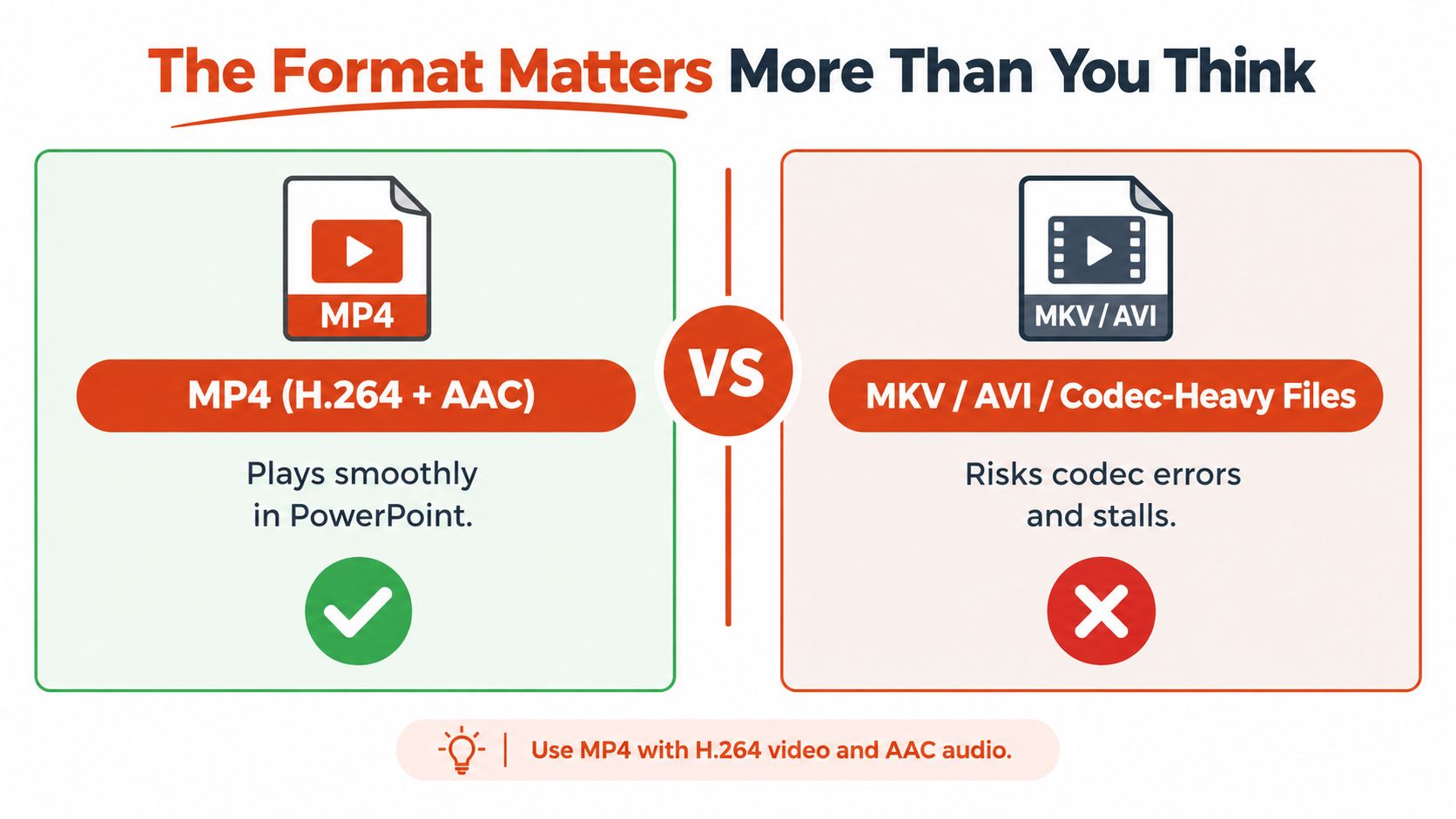
A file extension tells you only part of the story. Two MP4 files can behave differently if they use different video or audio codecs. PowerPoint needs to decode both streams, so a file that looks familiar can still produce a blank frame, missing audio, or an insertion error.
The dependable target is MP4 with H.264 video and AAC audio. Microsoft recommends that combination for Windows, Mac, and PowerPoint for the web because it offers a practical path to cross-platform playback. Encode to that standard before inserting the video instead of asking PowerPoint to interpret an unknown source file.
Why legacy formats create avoidable risk
PowerPoint still identifies several older formats in its documentation, but Microsoft notes that formats such as WMV, AVI, MPEG-2, and 3GP are limited or deprecated in newer versions. Some legacy files may be converted to MPEG-4 when inserted, but automatic conversion isn't a guarantee that every codec, audio track, or playback environment will behave correctly.
| File choice | Practical decision |
|---|---|
| MP4 with H.264 and AAC | Preferred starting point for compatibility |
| MOV or WebM | May be supported, but validate on the target platform |
| WMV, AVI, MPEG-2, or 3GP | Treat as higher-risk legacy media |
| MKV or codec-heavy files | Convert before relying on them in a live presentation |
If your source is a screen recording, export it again using the recommended video and audio settings. Don't assume that renaming an extension converts the file. It doesn't change the streams inside it.
For footage that needs a different orientation before insertion, use a suitable vertical video converter, then export the finished file to the PowerPoint-friendly standard. The objective is simple: give PowerPoint a file it can decode consistently, rather than depending on last-minute conversion.
Embedded Versus Linked Videos Choosing The Right Path
Embedding and linking solve different problems. An embedded video travels with the presentation, which makes the deck easier to move between computers. A linked video stays outside the presentation, which keeps the deck lighter but adds a dependency that can fail.
Choose embedded media when the presentation will be emailed, uploaded, copied to a USB drive, or opened by another presenter. It's also the better option when you don't control the destination computer. The trade-off is a larger presentation file and a less convenient workflow when the source video changes frequently.
A linked video can make sense when the file is unusually large, when a team maintains one shared master clip, or when several presentations point to the same media. The person presenting must carry the video with the deck, preserve its expected path, and confirm that PowerPoint can still access it.
The portability test
Ask one question before choosing: Will the presentation and the video always stay together on the same computer?
If the answer is no, embed the video whenever the file size and PowerPoint version allow it. If you must link the media, place the video in the same folder as the presentation and keep the filename unchanged. Microsoft warns that links can break when files move, and its guidance recommends keeping linked media alongside the presentation (Microsoft's advice on media compatibility and playback).
A small presentation with a missing video is less useful than a larger presentation that opens and plays without hunting for dependencies.
The same principle applies when sharing media outside PowerPoint. If you're preparing a clip for delivery by email, review the practical constraints in this guide to sending video by email. For a live deck, however, portability and playback certainty should outweigh the appeal of a smaller file.
Troubleshooting Playback Issues Before They Happen
Start with the symptom, not the setting. A video that won't insert has a different problem from one that inserts but won't play, and both differ from a file that works on your computer but fails elsewhere.
If the video won't insert
Check the actual encoding first. Convert the source to MP4 with H.264 video and AAC audio, then insert the converted file rather than repeatedly retrying the original. A familiar extension doesn't prove that the codec is supported.
If PowerPoint reports a missing codec, conversion is usually more reliable than searching for a codec package on the presentation computer. Codec installations can vary by device and may create a new dependency you haven't tested.
If it inserts but won't play
Run the presentation in Slide Show mode. If the frame appears but playback fails, inspect the encoding and audio stream, then test the same file in the current PowerPoint version on the target device. Microsoft separates format support from playback guidance because the environment matters as much as the insertion command.
For web playback or problematic media, use Optimize Media Compatibility or Optimize Compatibility when the option is available. Microsoft describes this as a way to improve compatibility, particularly when media must work in browser-friendly or shared environments.
If it works on one computer only
Treat the presentation computer as a separate delivery environment. Copy the complete deck and any linked media to it, disconnect from assumptions about your development setup, and test the exact sequence you'll use in front of the audience.
| Symptom | First check | Likely response |
|---|---|---|
| No video or codec message | Encoding and codec | Convert to MP4, H.264, and AAC |
| Video frame appears but stays still | Slide Show playback and PowerPoint version | Test the converted file on the target device |
| Video plays without sound | Audio stream, volume, and output device | Confirm AAC audio and the selected speakers |
| Media disappears after moving the deck | Embed or link status | Restore the linked file path or embed the media |
The Microsoft guidance for adding, formatting, and recording video reinforces the practical distinction: inserting media is only one part of a successful presentation workflow.
Your Pre-Presentation Video Validation Checklist
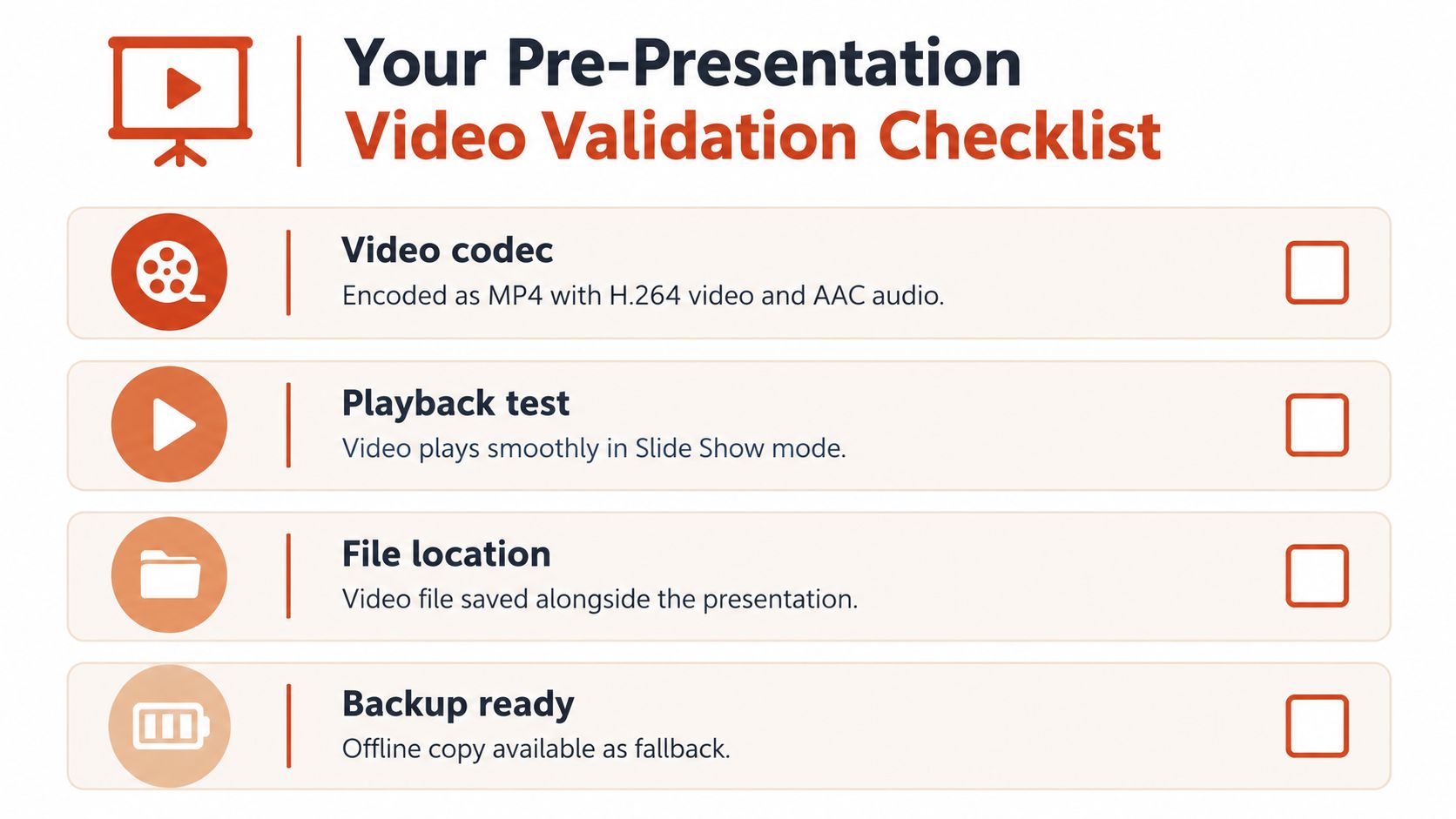
Run this check after the deck is complete and again on the device used for delivery. The second test matters because a file can behave differently when the operating system, PowerPoint build, display, speakers, or folder location changes.
Confirm the file before checking the slide
- Video codec: Verify that the file is MP4 with H.264 video and AAC audio. Don't rely on the extension alone.
- Presentation location: Decide whether the video is embedded or linked. If it's linked, keep the video in the same folder as the presentation and preserve its filename.
- Playback trigger: Select the correct start behavior. Automatic playback suits a planned sequence, while click-based playback gives you control during discussion.
- Trim and volume: Remove unnecessary footage, confirm the clip starts at the intended moment, and check that the volume is audible through the actual presentation speakers.
- Slide Show test: Play the complete slide in presentation mode. Editing view isn't enough.
- Target-device test: Open the final copy on the presentation computer and test the display and audio connection you'll use.
- Fallback copy: Keep an offline copy of the video and the final presentation available. If a linked file goes missing, a fallback gives you a way to recover without rebuilding the deck.
- Accessibility review: If the video contains speech, consider captions or subtitles and confirm that they remain readable against the footage. A dedicated auto-caption generator can help prepare captioned media before you place it in the deck.
Don't make a last-minute change to the video after this validation without repeating the test. A new export can introduce a different codec, altered audio track, or changed filename, even when the clip looks identical.
Delivery habit: Open the final presentation from its delivery folder, start the slideshow, play every video, and listen through the room's actual speakers. That rehearsal is your best defense against a silent screen.
The reliable way to add a video to PowerPoint is to select Insert and prepare the file as MP4 with H.264 video and AAC audio, choose embedding or linking deliberately, and validate playback on the machine that will run the presentation. That routine turns a fragile media element into a dependable part of the story.
Keptbits turns long recordings into short, self-contained clips with word-accurate cuts, speaker-aware framing, burned-in captions, and exports for vertical, square, and widescreen formats. Use it to prepare polished presentation clips from interviews, webinars, or product demos, then visit Keptbits to create your next video asset.
Keptbits cuts on sentence boundaries.
Paste a link or upload an episode, say how many clips you want, and get them back captioned and vertical. The free plan needs no card.
Start freeRead next
7 Online Video Editor Free Picks That Deliver in 2026
Compare 7 online video editor free options for 2026, including watermark limits, export quality, key features, and the best use for each tool.
How to Make Viral Video on YouTube in 2026
Learn how to make viral video on YouTube with proven hooks, thumbnail tests, retention fixes, and Shorts workflows that actually convert viewers into
How to Make YouTube Channel Setup That Actually Grows
Learn how to make YouTube channel setup that grows: account, branding, first videos, optimization, and monetization milestones explained step by step.