11 October 2026 · 20 min read
10 Short Form Video Creator Tools Compared for 2026
Compare 10 short form video creator tools on clipping, captions, aspect ratios, and automation, with honest limits and use cases for 2026.
A two-hour interview is easy to upload and annoying to cut. The hard part is finding the moments that stand alone, then shaping them so they still read cleanly in vertical video. In practice, the difference between a usable short and a clip you rebuild by hand usually comes down to four things, where the cut lands, how captions are controlled, how the crop behaves around multiple speakers, and how far the automation can run without you.
That's why this short form video creator comparison starts with production behavior, not feature lists. If you repurpose podcasts, streams, webinars, or founder interviews, you need a tool that fits the way the source was recorded. Some tools are better at fast batch clipping. Others are better at transcript-led editing, caption styling, or final polish.
Table of Contents
- 1. Keptbits
- 2. Opus Clip
- 3. Vizard
- 4. Vidyo.ai
- 5. Klap
- 6. Munch
- 7. Wisecut
- 8. Descript
- 9. Kapwing
- 10. Riverside Magic Clips
- Top 10 Short-Form Video Creator Comparison
- Test Two Tools on One Real Recording Before You Commit
1. Keptbits
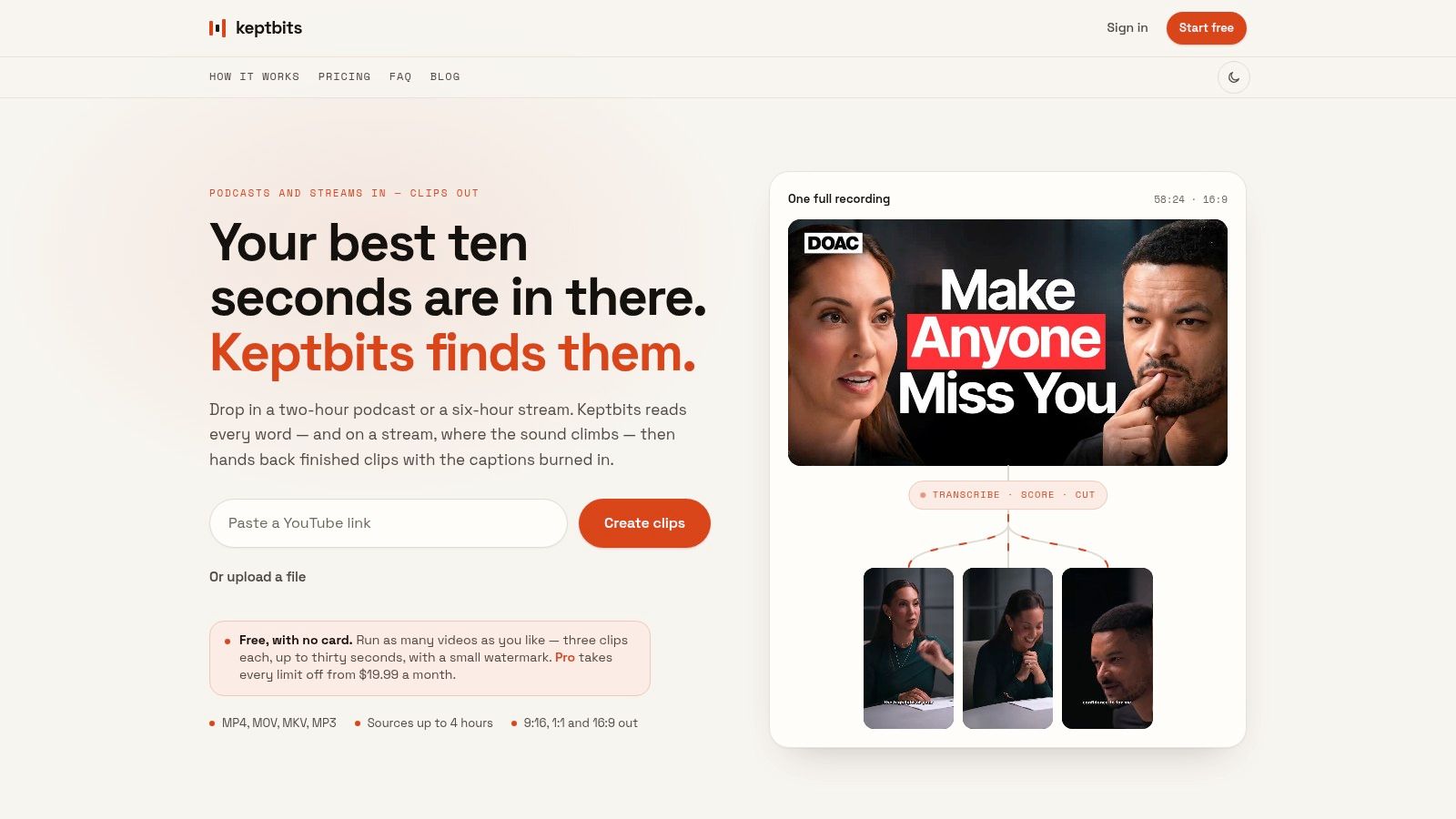
Keptbits is built for the part of clipping that usually burns the most time: finding moments in a long recording that can stand on their own before you start trimming. It handles browser uploads up to four hours, creates word-level transcripts with speaker separation, and surfaces scored clip candidates before you touch the timeline. That changes the first production decision. Instead of scrubbing through a full interview asking where a short might exist, you start by checking which candidate already sounds complete.
Where the cuts land
The main strength here is cut placement. Keptbits snaps cuts to word boundaries and sentence starts, so clips are less likely to open half a beat late or end in the middle of a thought. On founder interviews, podcasts, and webinar answers, that matters more than flashy scoring. A short that begins cleanly is easier to publish and easier to trust.
It also scores clips differently depending on source type. Talking mode looks for narrative completeness. Stream mode puts more weight on audio prominence. That split is useful in practice because livestream material and interview material usually fail in different ways. One needs help finding the loud or eventful moment. The other needs help preserving the setup and payoff.
Practical rule: If a clip still needs the surrounding paragraph to make sense, it is not ready.
How captions and crops behave
Captions and crops are where many auto-clippers start looking good in preview and then fall apart on export. Keptbits does better than that. It burns captions into the video in several styles, with Bold Pop on the free plan and the full set of 20 styles on Pro. More important, the captions are tied closely to the chosen segment, so they read like part of the edit rather than decoration added later.
The vertical crop follows the active speaker instead of drifting around the frame. That makes a difference on two-person interviews, remote podcasts, and panel recordings where a fixed center crop would waste half the screen. I would still review every clip with overlapping speakers, fast interruptions, or reaction-led moments. Speaker-aware crops are helpful, but they do not always know when the visual point is the listener rather than the person talking.
Who it fits and where repair is likely
Keptbits fits teams working from real long-form source recordings, podcasters, streamers, interview shows, social teams, agencies, and marketers repurposing webinars or discussions. The browser workflow is efficient because uploads stream directly instead of being staged on another server first. Pro also adds silence removal, transitions, color grading, and a built-in editor, so automation can run a fair distance before you need another tool.
The free plan is enough to test how the scoring behaves on your footage. It allows unlimited runs, up to three clips per run, and clips up to 30 seconds with a small watermark. Pro removes the watermark, extends clips to three minutes, and opens the full editing and render set.
In practice, Keptbits pays off when the bottleneck is finding complete moments rather than polishing them.
2. Opus Clip
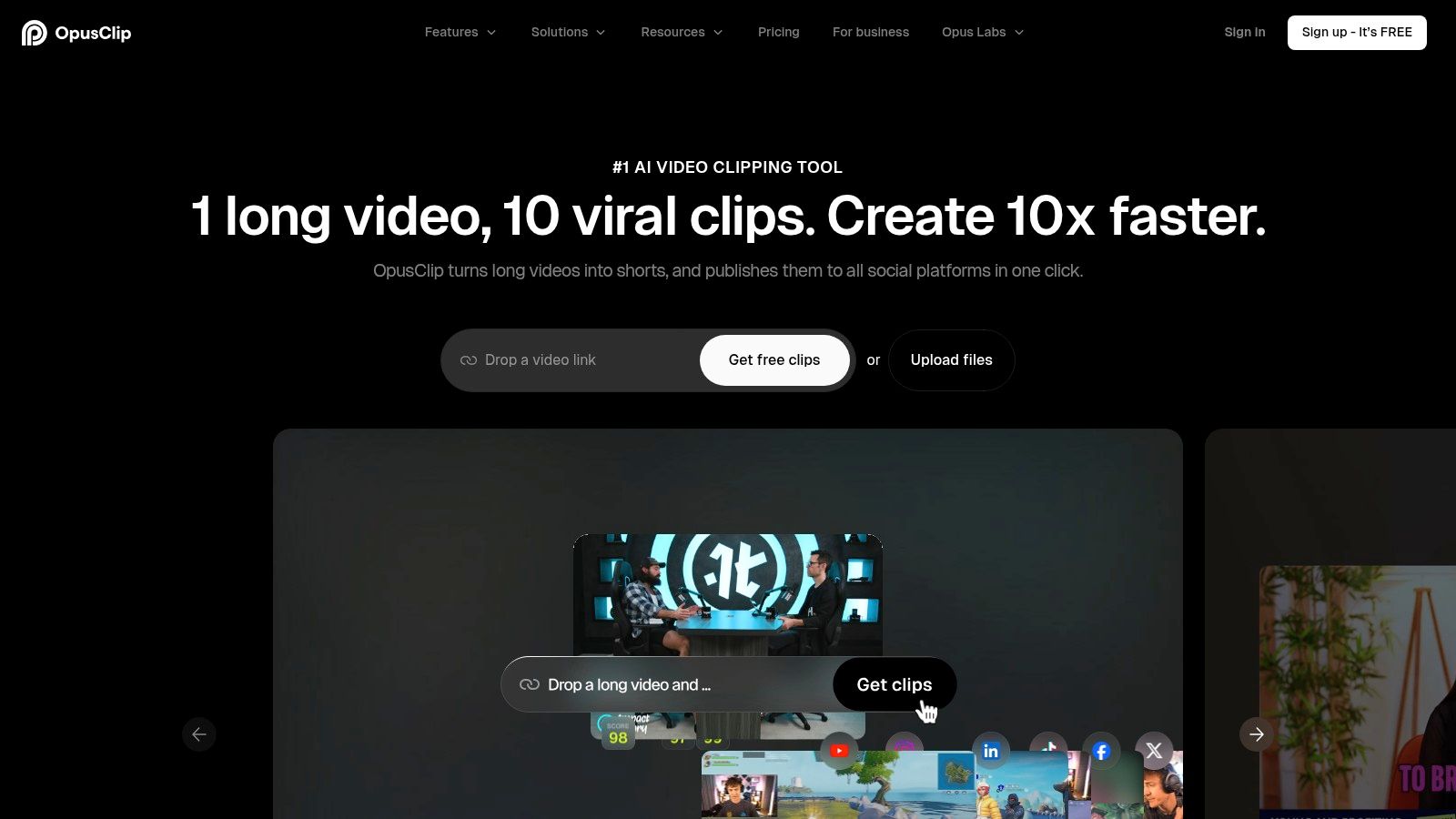
Opus Clip is for teams that want a fast batch of ranked clips from one long upload. Its main production promise is speed with sorting, because the tool generates multiple options and then pushes them through a Virality Score. The upside is obvious when you've got a backlog of interviews or livestreams. The downside is that the ranking is still heuristic, so the clip that looks best on paper can still need a human eye. Opus Clip
It is a good fit when the source is already clean, the talking pace is steady, and you want to review a slate of candidates rather than build every cut manually. The per-word transcript and clip timing help with precision, and the built-in editor lets you correct the obvious misses. For automation, the API, agent support, and autopost or scheduling options give it a broader finish line than many clip-first tools.
The weak point is the same one I see in a lot of predictive clipping systems. Mid-thought cuts can still happen, especially when the best soundbite starts before the model has fully committed to the idea. That means it often needs a pass for narrative edge cases, such as a joke that lands only after a setup, or a technical explanation that is fine in isolation but stronger with one extra sentence.
You can use it directly with the workflow guide Keptbits published for AI shorts maker setups, which is useful if you're comparing repurposing paths rather than editing styles. Opus Clip works best when you treat automation as a first draft generator, then choose the clips that resolve cleanly on their own. That's also where its ranking is most useful, because it speeds selection even when you still need to repair the final cut.
3. Vizard
Vizard suits interview and podcast teams that care about sentence integrity more than flashy treatment. The tool reads the full context before it cuts, which is the right starting point for dialogue where one half of a thought can't stand alone. That makes it more useful for conversational source than for fast reaction montage.
Caption control and aspect handling
The practical value here is control over clip duration, aspect ratios, and brand templates. That means you can set the shape of the output without rebuilding the same formatting decisions every time. For short form video creator workflows that repeat weekly, that saves real time.
The API matters too, because it gives Vizard a place in a larger production stack. If you already have upload, review, and publishing steps split across people, programmatic access is more useful than a prettier interface.
Vizard is the kind of tool you use when the transcript needs to stay intact more than the timeline needs to look clever.
Where manual repair still shows up
Its downside is that some of the more advanced AI Edit features are still in beta, so you can't always assume the newest promise is the one you'll rely on in production. Free exports are also limited, and some capabilities sit behind paid tiers. That usually means a quick test run is enough to see whether the sentence handling fits your material, but not enough to judge long-term throughput by itself.
For cleanly spoken interviews, Vizard is a solid middle ground. It protects context better than tools that chase rapid cuts first, but it still leaves room for a human pass when the guest speaks in long, nested answers or when two speakers interrupt each other.
4. Vidyo.ai
Vidyo.ai is the straightforward option for creators who want highlight detection, vertical reframes, and word-timed captions without a lot of setup friction. The interface is built for social output first, which is why it has stayed popular with YouTube creators and podcasters repurposing long recordings. It's less about editing philosophy and more about moving from source to shareable short with a minimum of decisions. Vidyo.ai
That simplicity is the reason it works well for fast social delivery, especially when the recording already has a clear speaker and a clean topic structure. It is also the reason you should test how much manual shaping you still need after export. When the source includes shifting camera angles, multiple people talking at once, or visual cues that don't sit neatly in a center crop, the tool's speed can outpace its framing judgment.
The public site is less transparent about current pricing details, so this is the tool I'd verify directly before building a workflow around it. The clip behavior is clear enough to test quickly, but the plan limits deserve a check before you commit a team or a publishing calendar.
Vidyo.ai is a pragmatic short form video creator choice when your source is already strong and your goal is fast social output. It doesn't try to be a deep editor. That keeps the workflow simple, but it also means more responsibility lands on the person reviewing the final export.
5. Klap
Klap suits a team with a set publishing cadence and a clear target for how many shorts need to come out each week. It produces multiple clips from a longer source, adds captions, handles vertical reframes, and offers an API for batch workflows. Klap
Clipping is already handled here. The production call is whether the clip allowance fits your publishing rhythm. For scheduled output, that predictability helps. For irregular campaigns, live event spikes, or a backlog that gets processed in bursts, the same limit can create avoidable friction.
The more useful way to judge Klap is across the four editing decisions that shape the final short. First, where cuts land. It works best on interviews, podcasts, and talking-head footage with clean turn-taking and obvious sentence boundaries. Second, caption control. The tool covers the base job, but brand-level caption styling or line-break cleanup may still need a manual pass. Third, vertical crops with multiple speakers. If one person carries the frame, results are usually serviceable. Cross-talk, side-by-side guests, and reaction-heavy moments are where you should expect repair.
Automation can run fairly far unattended, which is the point. That makes Klap practical for steady source pipelines where speed matters more than edit finesse. It is less persuasive when each clip needs a producer to shape timing, crop choices, and visual emphasis by hand.
Check the official site for whether higher plans include features such as 4K exports or multilingual dubbing before you commit. I would verify that early if delivery specs matter, because the difference between a social-first export and a client-safe master is often where costs and workflow compromises show up.
6. Munch
Munch is one of the clearer “single pass” tools in this group. You hand it one long asset, and it can return multiple short outputs plus social copy, which is useful when the bottleneck is not only cutting video but also writing the accompanying text. That makes it attractive to solo creators and lean social teams that need both assets and captions from one workflow. Munch
The practical trade-off is that it leans more toward workflow efficiency than deep editing control. That's not a flaw if the goal is to turn interviews, webinars, or recordings into publishable social packages quickly. It does become a limitation when you want to shape the clip with frame-level precision, more detailed pacing, or nuanced visual design.
Caption and crop behavior
Munch's biggest appeal is that it covers the obvious repurposing chores without asking for much manual setup. The clip output is designed for Shorts, Reels, and TikToks, while the social text assets extend the same source into captions or post copy. That saves time for teams that have already decided what should be said, but not yet how it should be repackaged.
The weak point is edit depth. If your content depends on precise turn-taking, on-screen reactions, or a crop that has to follow more than one person, you may end up finishing the clip elsewhere. Munch is best when the first pass is enough to prove value, not when the final version has to satisfy a picky producer or client.
You can also pair it with Keptbits' notes on AI reel maker workflows if you're comparing multi-asset repurposing approaches. That comparison is useful because Munch thinks in outputs, while some other tools think more strictly in clip selection.
7. Wisecut
Wisecut is the rough-to-polished editor in this list. It automates jump cuts, silence removal, background music ducking, captions, and pacing, so it is especially useful when the source is a monologue or a straightforward interview that needs to feel tighter fast. It doesn't try to reinvent the content. It just strips away the dead air and makes the clip easier to watch.
The tool fits creators who want less manual trimming and more finished output. That usually means the recording already has decent audio and a clear speaker rhythm. If the source is messy, you'll still need a human pass, because silence removal can make timing feel too tight when the speaker is thinking, reacting, or sharing a story with pauses that matter.
Plan structure is clearer here than in some other tools, which helps if you're comparing allowance-based workflows. Higher tiers also reach up to 4K exports, so it can sit between a pure social clipper and a more serious finishing tool. Still, the main advantage is not resolution. It is the time saved on pacing and cleanup.
Wisecut is a good choice when you care more about making long speech feel tight than about rethinking the clip creatively. It gets you to presentable faster, but it won't replace an editor when the story needs more shaping.
8. Descript
Descript is the transcript-first option. If you already think in dialogue, it gives you per-word timing, speaker detection, and multi-language transcription, which makes it strong for podcast and interview editing. The short-form output is part of a broader editing environment, so it works best when you need both the long version and the clipped version from the same project. Descript
The key production difference is that it feels like editing a script rather than moving blocks around a timeline. That's very useful when an answer has to stay intact, or when you want to remove a false start without breaking the meaning of the line. It's also why many dialogue-heavy teams keep it in the stack even when they use a separate tool for faster clipping.
The trade-off is throughput. Credit and minute models can feel tight when you're processing a lot of source material, and plan choice affects media minutes, storage, and exports. That can make Descript feel expensive in a high-volume repurposing workflow, even if the editing experience itself is strong.
Descript is best when the short clip is one output of a wider editorial process. It is less ideal when you want a mostly unattended pipeline that just keeps pulling usable highlights out of a backlog.
9. Kapwing
Kapwing is the browser-based choice for teams that want solid subtitling, brand kits, and collaboration without leaning on a desktop NLE. It can handle auto-subtitles, AI dubbing, lip-sync features, and 4K exports on paid plans, which makes it a flexible middle layer between clipping and publishing. For a short form video creator working with a small team, the browser workflow is easy to adopt.
The important production detail is that Kapwing spends credits on some AI features. That means the tool can feel light for occasional use and heavier when you lean on AI all day. It is a good fit if you want to format, caption, and export vertical clips quickly, but not if you expect unlimited AI assistance without watching consumption.
For a brand or agency, the workspace model is useful because it keeps shared assets organized. That helps when the same clip has to move through caption review, brand review, and final export. The trade-off is that deeper AI use can push you toward a higher tier than expected if you're processing a lot of material.
You can also pair it with Keptbits' guidance on vertical video editor workflows if your main problem is fitting talking-head footage into 9:16 cleanly. Kapwing is strongest when formatting and collaboration matter more than fully automatic clipping.
10. Riverside Magic Clips
Riverside makes the most sense when you record there first and clip later. Its native multitrack recording, up to 4K, gives the short-form workflow a cleaner source to work from, and Magic Clips turns the recorded session into shareable highlights with captions. That capture-to-clips path is its real advantage, not just the clipper alone. Riverside
The crop behavior and cut placement depend heavily on the quality of the original recording. Because Riverside is strongest in its own ecosystem, it works best when you can control the session from the start. Remote interviews, recurring shows, and guest conversations are the obvious use cases, especially when you want the recording and repurposing steps to live in one place.
The limitation is source flexibility. If your best footage already lives elsewhere, Riverside is less central to the workflow. In that case, a dedicated repurposing tool may fit better because it is designed to ingest and analyze external recordings rather than assume the recording began in its own studio stack.
Riverside is a smart choice when the recording environment matters as much as the edit. If the source is clean, the short clips are usually cleaner too.
Top 10 Short-Form Video Creator Comparison
| Product | Core features | UX / Quality (★) | Price & Value (💰) | Target audience (👥) | Unique selling points (✨) |
|---|---|---|---|---|---|
| Keptbits 🏆 | Browser upload ≤4h, word-level transcript, speaker-aware reframes, 9:16/1:1/16:9, burned-in captions | ★★★★☆, sentence-accurate cuts, stable crops | 💰 Free (unlimited runs, 3×30s/run, watermark); Pro $19.99/mo or $5.99/wk (no watermark) | 👥 Podcasters, streamers, social managers, agencies | ✨ Self-contained moment scoring; transcript boundary snapping; speaker-locked framing; flat outcome pricing |
| Opus Clip (Opus.pro) | Virality Score, auto-reframes, animated captions, API & autopost | ★★★★, fast batch outputs, ranked clips | 💰 Freemium → paid tiers; automation-focused | 👥 Creators wanting performance-ranked batches & scheduling | ✨ Virality Score ranking; strong autopost/API automation |
| Vizard | Context-first clipping, duration/aspect controls, brand templates, API | ★★★★, preserves sentence integrity | 💰 Free limited exports; paid tiers unlock features | 👥 Podcast/interview producers, devs using API | ✨ Reads full context before cutting; brand templates |
| Vidyo.ai | Auto highlight detection, vertical reframes, word-timed captions | ★★★★, quick, creator-friendly workflow | 💰 Freemium (pricing less prominent) | 👥 YouTube creators, podcasters repurposing long VOD | ✨ Social-ready presets; fast highlight discovery |
| Klap | Multi-clip generation, API, higher-tier 4K & dubbing | ★★★★, predictable quotas for steady output | 💰 Clip-allowance pricing (no ongoing free tier) | 👥 Teams with steady publishing cadences | ✨ Predictable clips/month model; high-res & multilingual top tiers |
| Munch | One-URL → up to 8 outputs + platform copy, brand voice presets | ★★★★, single-pass asset + copy delivery | 💰 Pay-as-you-go, low-cost entry options | 👥 Solo creators & social teams needing assets + copy | ✨ Outputs post copy, captions and multiple aspect clips in one pass |
| Wisecut | Auto silence removal, pacing, music ducking, captions | ★★★★, fast polish for monologues/interviews | 💰 Plan-based minutes; tiered exports (up to 4K) | 👥 Creators wanting minimal manual editing | ✨ Auto pacing & music ducking for punchier edits |
| Descript | Edit-by-text, per-word timing, speaker detection, dynamic captions | ★★★★★, gold standard for transcript-first editing | 💰 Tiered plans with credit/minute models | 👥 Podcasters, editors who edit via transcript | ✨ Full transcript editor + powerful short-form exports |
| Kapwing | Auto-subtitles, AI dubbing/lip-sync, brand kits, team workspaces | ★★★★, smooth browser workflow, collaborative | 💰 Free tier; credit-based AI features; paid 4K/team plans | 👥 Teams, marketers, quick browser editors | ✨ Credit-driven AI features + team collaboration tools |
| Riverside (Magic Clips) | Magic Clips, multitrack up to 4K recording, show notes | ★★★★, best capture-to-clips when recorded natively | 💰 Paid plans for watermark-free & higher quality | 👥 Remote interview shows, podcasters & producers | ✨ Seamless native capture → clips pipeline; multitrack fidelity |
Test Two Tools on One Real Recording Before You Commit
The best tool is the one that fits your source. A podcast guest, a live stream, and a polished webinar do not need the same clipping behavior, caption treatment, or crop logic. That is why a single feature checklist usually fails. The better test is to run one real episode through two candidates and judge the result on the same four production decisions, where the cuts land, how captions are controlled, how the vertical crop behaves with multiple speakers, and how much of the pipeline runs unattended.
Start with the tool that matches your recording format most closely. If you record interviews, look first at tools that understand dialogue and sentence integrity. If you publish from streams, prioritize systems that can score moments from looser, less scripted footage. If you already have a tight edit, choose the tool that will format and caption it quickly without breaking the story.
Then look at the repair burden. A tool can be fast and still cost you time if every clip needs a manual crop fix, a subtitle reset, or a cut extension to make the thought complete. That is where many short form video creator tools separate in practice. The first draft may look fine, but the true test is how much cleanup you still owe before the clip is ready to publish.
Pricing only makes sense after you've seen the output. Free tiers are useful for that first pass, but the right comparison is always your actual publishing cadence against the tool's limits, watermarks, and usage model. A clipper that looks cheap on paper can become expensive if it slows the review stage. A more structured tool can save time if it gives you cleaner clips from the same source.
If you want a system built around self-contained moment scoring, sentence-aligned cuts, speaker-aware reframing, and flat pricing, Keptbits is worth testing on your next long recording. It's made for turning interviews, podcasts, streams, and webinars into finished short clips with less manual repair. Start with one real file, compare it against your current workflow, and see which tool gets you to publishable output faster.
Keptbits cuts on sentence boundaries.
Paste a link or upload an episode, say how many clips you want, and get them back captioned and vertical. The free plan needs no card.
Start freeRead next
7 Online Video Editor Free Picks That Deliver in 2026
Compare 7 online video editor free options for 2026, including watermark limits, export quality, key features, and the best use for each tool.
How to Make Viral Video on YouTube in 2026
Learn how to make viral video on YouTube with proven hooks, thumbnail tests, retention fixes, and Shorts workflows that actually convert viewers into
How to Make YouTube Channel Setup That Actually Grows
Learn how to make YouTube channel setup that grows: account, branding, first videos, optimization, and monetization milestones explained step by step.