13 October 2026 · 14 min read
Best Tools for Content Creators in 2026: 7 Picks Compared
Compare the best tools for content creators in 2026: 7 AI clippers and editors for repurposing long videos into shorts, with pricing and trade-offs.
You've got the recording already. The problem is that a ninety-minute interview has to become ten clips, fit three platforms, and still look intentional by Friday. The right best tools for content creators are the ones that match the bottleneck, whether that's finding the moment, cutting it cleanly, reframing it for vertical feeds, or polishing the final export.
Table of Contents
- 1. Keptbits
- 2. Opus Clip
- 3. Klap
- 4. CapCut Web and Desktop
- 5. VEED
- 6. Riverside Magic Clips
- 7. Adobe Premiere Pro
- Top 7 Content Creator Tools: Feature Comparison
- Matching Your Stack to Your Publishing Volume
1. Keptbits
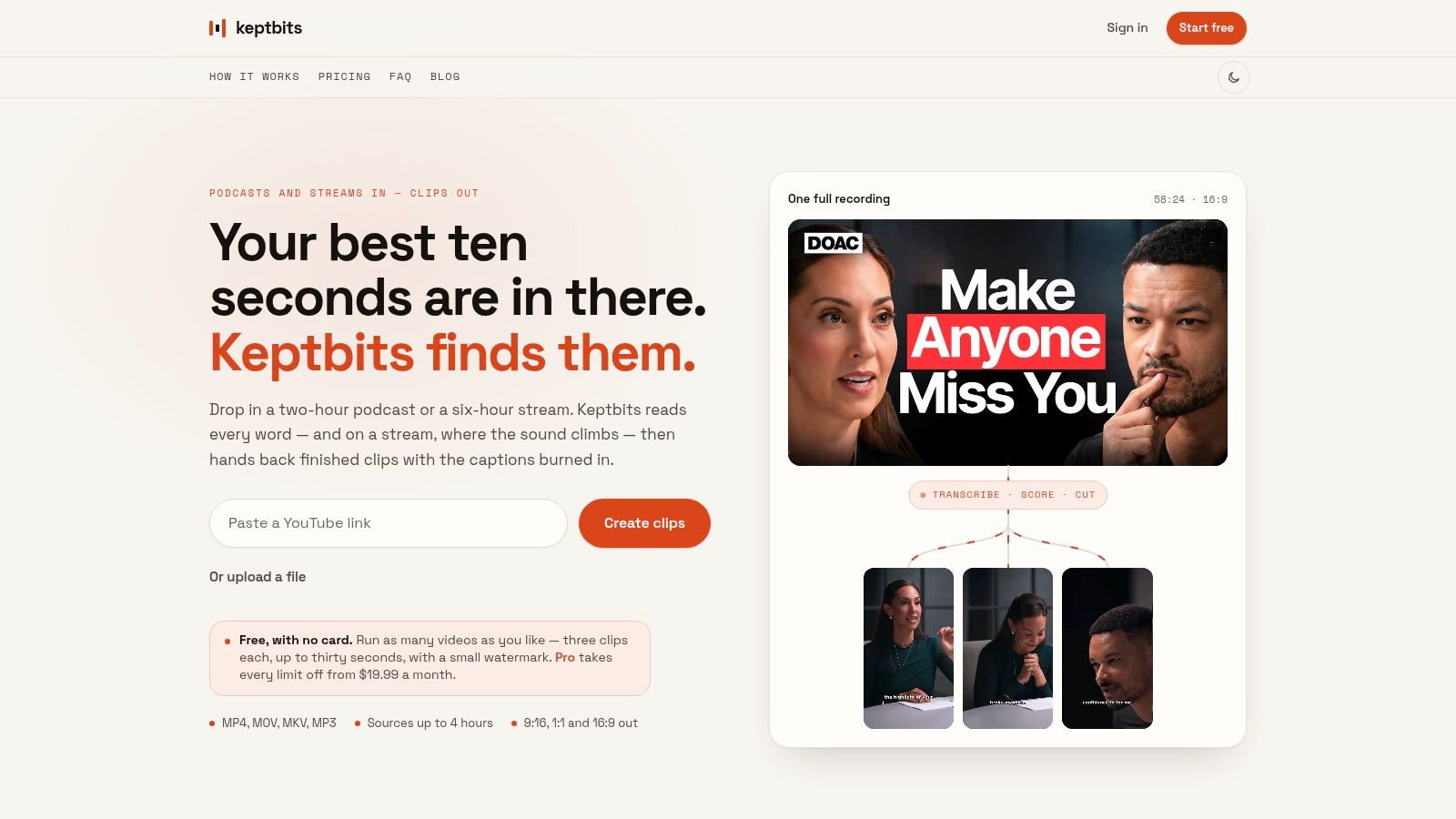
A long recording usually fails at the same point, the clip is usable but does not feel self-contained. Keptbits starts with the full source, scores moments for narrative completeness, and returns clips that already fit TikTok, Reels, Shorts, or a square feed.
Why it earns the first slot
Keptbits handles podcasts, interviews, streams, and webinars by transcribing the full file, separating speakers, and cutting on real word and sentence boundaries instead of slicing mid-thought. That matters because a clip that opens cleanly and lands on its own needs less rescue work later. Its speaker-aware reframing also keeps the active subject centered in vertical crops, which saves time that would otherwise go into manual keyframing.
The workflow is straightforward. Drop in a file or paste a link in the browser, choose whether the source is a Talking or Stream recording, and let the app return captioned clips in 9:16, 1:1, and 16:9. Pro adds a built-in clip editor, silence removal, transition effects, and color grading, so it fits better once you stop testing and start publishing at volume.
Practical rule: if your biggest bottleneck is scrubbing long episodes for usable moments, a narrative-aware clipper will save more time than a prettier editor with weaker detection.
The pricing is unusually easy to evaluate. The free tier allows unlimited runs, with up to three 30-second clips per run and a small watermark, while Pro is a flat $19.99/month or $5.99/week, with the first week free, no watermark, and clips up to 3 minutes. Keptbits also supports files up to 4 hours and says uploads stream directly from the browser rather than being staged on intermediate servers, which is a practical privacy and workflow win. For more detail on how that clipping approach works in practice, the comparison later in this roundup covers the trade-offs.
Pros
- Narrative-aware clipping: it favors moments that open and resolve on their own, not just keyword hits.
- Clean cuts and captions: word-level transcription with speaker separation helps avoid awkward mid-syllable edits.
- Multi-aspect exports: one source can become vertical, square, or widescreen output without re-editing from scratch.
- Predictable pricing: the free tier is usable for testing, and Pro removes the friction of watermarks and short limits.
Cons
- Free tier limits: three 30-second clips per run is enough to test, not enough to replace a full workflow.
- Short clip ceiling on Pro: clips max out at 3 minutes, so it is built for highlights, not full episode editing.
- Limited enterprise signals: no public awards or third-party certifications are listed on the site.
Website: Keptbits
2. Opus Clip
Opus Clip fits the point in the workflow where you already have a long recording and need a fast shortlist of shorts. It turns one source into multiple vertical or square clips, which helps social teams keep pace with a posting calendar without spending hours inside a timeline.
Its main strength is speed with enough triage to stay useful. The Virality Score helps you decide what to review first, and the browser-based workflow stays light for solo creators who do not want a heavier editor in the loop. Multi-language transcription, animated captions, and auto reframe cover the core jobs, while team workspaces make it easier for agencies to pass clips around before publishing.
The trade-off is the credit model. It can work well for steady batch publishing, but it becomes harder to predict when output spikes and you have not planned usage closely. The free plan includes a watermark and limited editing, so it works better as a test than as a final production setup.
If forecastable pricing matters more than bulk speed, a flat-rate alternative is worth comparing, see Keptbits' AI shorts maker guide for a credit-free approach.
Opus Clip is strongest for creators who want a shortlist quickly and are fine doing a light polish pass elsewhere. It is less attractive if you need tight control over every clip or a subscription that is easy to forecast month after month.
Website: Opus Clip
3. Klap
Klap fits teams that think in batches. It takes long-form video and turns it into multiple shorts using transcript-based editing, ranking, and speaker-aware reframing, so the workflow stays close to the actual language in the recording instead of forcing you back onto a timeline too early.
The big advantage is editing by text. Being able to keep or cut sentences without scrubbing every second of the timeline is a real win for interview and podcast workflows, especially when you're reviewing several candidate clips in a row. AI Reframe 2 helps with multi-aspect exports, and the dubbing plus translation support gives it more range than a basic clipper. For agencies or production teams, the API option is also useful because it makes Klap easier to slot into a larger pipeline.
That said, it can take a little care to understand what you're buying. Pricing and bundles can vary by billing term, so you need to confirm the checkout total instead of assuming the visible tier is the final number. The API is usage-billed separately too, which is fine for developers but adds complexity if you were hoping for one simple all-in plan.
For creators who publish a lot of interview-derived shorts, Klap is appealing because it feels built for selection and cleanup, not just auto-generation. It's a good middle ground when you want automation but still need enough manual control to protect tone and context.
Website: Klap
4. CapCut Web and Desktop
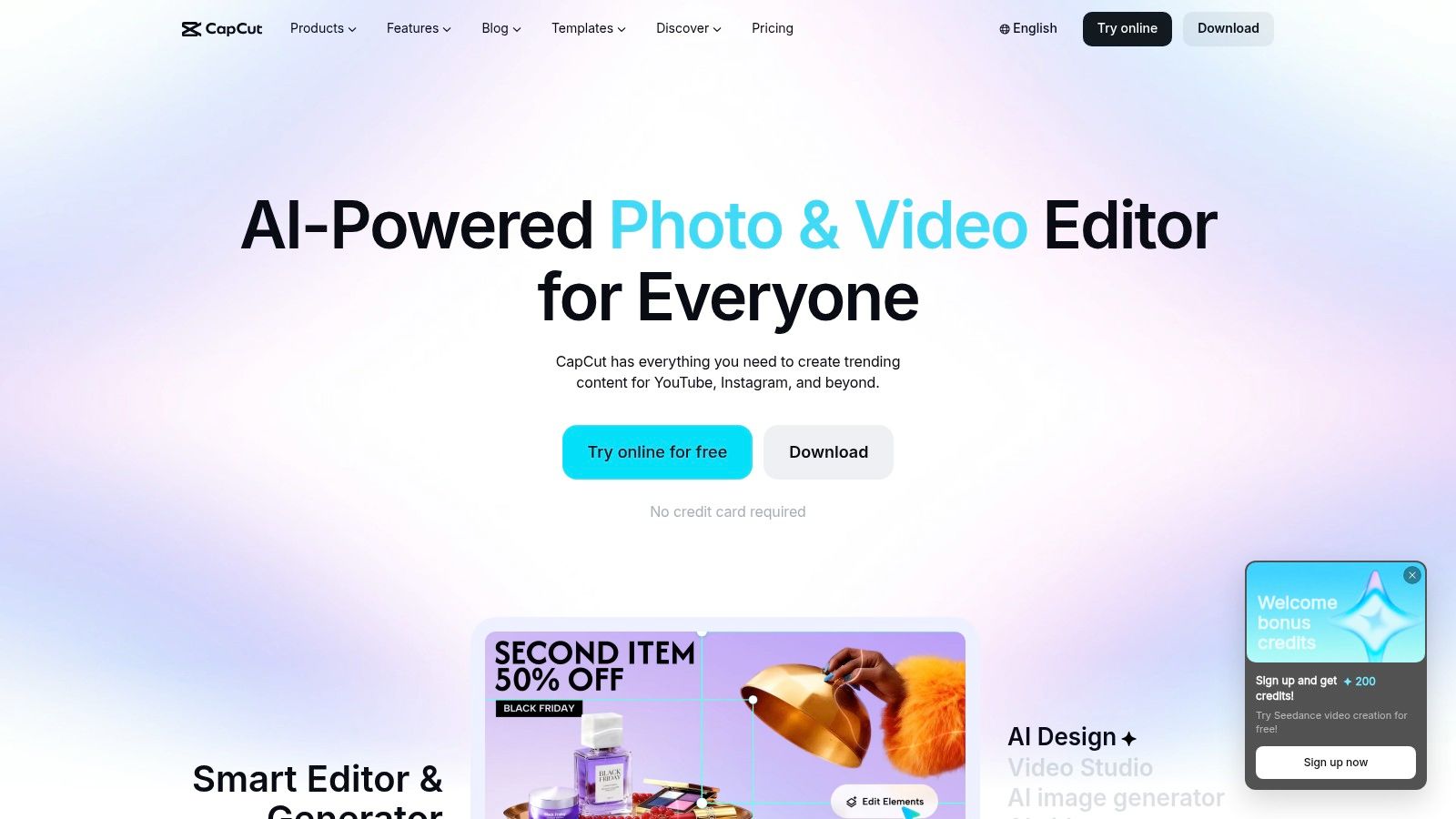
CapCut is the easiest recommendation for creators who care about turnaround speed more than deep finishing control. It's popular for a reason, the template library is broad, the editing workflow is familiar, and the app is designed around short-form output from the start.
Where CapCut works and where it doesn't
CapCut is strong when you need something that moves quickly across web, desktop, and mobile. Auto-captions, motion tracking, green screen, and the brand kit features make it useful for creators and small teams who want polished social clips without rebuilding the same layout every time. The cloud workspace helps too, because it keeps projects moving across devices without much friction.
The downside is that the free plan can get gated by premium elements and AI credits, so what looks simple at first can become more annoying once you're pushing toward consistent output. Pricing and promotions also vary by region and sign-in state, which makes it harder to forecast costs than a flatter subscription model. That isn't a dealbreaker, but it does matter if you're managing budgets for a team.
CapCut is best for the creator who already knows the aesthetic they want. It's less about discovering the right clip and more about finishing one fast with templates, effects, and captions that already fit platform expectations.
Pros
- Low barrier to entry: you can get a usable short out quickly.
- Template depth: platform-native styling is easy to apply.
- Cross-device workflow: web, desktop, and mobile all fit into the same loop.
Cons
- Plan variability: regional pricing and promotions can make budgeting messy.
- Free-tier gating: some premium effects and AI features sit behind limits.
Website: CapCut
5. VEED
VEED works well when you want an all-online workflow and don't want to juggle separate tools for captions, subtitles, recording, and social exports. It's especially friendly to solo creators and small teams that value convenience over deep post-production complexity.
The browser editor keeps things light, and the combination of auto-subtitles, translation, AI clip generation, avatars, voice dubbing, and social templates covers a lot of everyday creator work. The screen and webcam recorder also make it a practical choice for people who record explainers, walkthroughs, or talking-head content directly in the browser. That can be a major advantage when speed matters more than building a perfect media pipeline.
The main trade-off is metering. Advanced AI features are credit-based, so you need to pay attention to plan limits instead of assuming every feature is open-ended. Locale-based pricing display can also make checkout feel less predictable than it should, which is annoying if you're trying to compare tools on a clean monthly budget.
For anyone who wants one web app to handle a large share of the routine work, VEED is easy to justify. For teams that need strict cost predictability, it deserves a closer look before you commit. For a broader comparison of online editors, Keptbits' guide to online video editing tools is worth a look.
Website: VEED
6. Riverside Magic Clips
Riverside makes the most sense when recording quality is already part of your workflow. If you capture interviews or podcasts there, Magic Clips turns that same recording environment into a publishing pipeline, which is a cleaner setup than exporting and re-uploading a compressed file somewhere else.
That local-first approach matters because the short clips are generated from original, high-resolution participant recordings. In practice, that gives you a better starting point for social cutdowns and reduces the quality loss that can creep in when a tool works off a weaker re-upload. Riverside also keeps recording, transcription, captions, audio cleanup, and export in the same place, which is useful for recurring shows.
The downside is obvious. If you do not already record in Riverside, it becomes less compelling as a standalone clipper. The value is strongest when the platform owns the recording phase, not just the editing phase. That makes it a smart fit for shows with repeat guests, remote interviews, and podcast teams that want a single environment from capture to clip.
The best integrated tools usually win by removing handoffs, not by adding more buttons.
Riverside is a workflow choice as much as a feature choice. If your recording is already there, the clipper feels natural. If your source lives elsewhere, another tool may fit better.
Website: Riverside
7. Adobe Premiere Pro
Premiere Pro earns its place at the end of the workflow, after the rough cut is already decided. It suits creators and teams that need transcript-based editing, detailed audio work, and a timeline that can handle complex finishing without forcing a simplified export path first.
Best for the final polish
Text-Based Editing changes how dialogue-heavy projects get finished. You can cut from the transcript, match edits to timecode, and move faster than scrubbing through a long timeline by hand. Auto Reframe is useful when a horizontal master needs to become a vertical or square version, and Speech to Text captions keep transcription and captioning inside the same workflow.
The trade-off is time. Premiere Pro gives you more control than an automated clipper, but that control takes longer to learn and use, especially on simple jobs that do not need advanced finishing. Subscription pricing and some AI features that use generative credits also make it a less predictable starting point if your only goal is short-form social output.
For creators who need layered graphics, tighter audio cleanup, or client review cycles, that extra control is worth the effort. For a more detailed look at finishing workflows, this guide to the best video editing software gives useful context.
Pros
- Maximum finishing control: useful for more demanding edits.
- Transcript-based workflow: faster than timeline-only editing for speech-heavy material.
- Ecosystem depth: it fits cleanly into the broader Adobe stack.
Cons
- Higher learning curve: beginners usually need time to get comfortable.
- Subscription overhead: cost and credits matter if you only need short-form output.
Website: Adobe Premiere Pro
Top 7 Content Creator Tools: Feature Comparison
| Tool | Implementation 🔄 | Resource requirements ⚡ | Expected outcomes ⭐ | Ideal use cases 📊 | Key advantages 💡 |
|---|---|---|---|---|---|
| Keptbits | Low, browser-based, drop/paste workflow; no staging | Low, free tier (limited clips/watermark); Pro $19.99/mo; source ≤4h | High, narrative-aware, word-accurate cuts and burned-in captions | Podcasts, interviews, streams; creators who want coherent micro-stories | Narrative-aware clipping; speaker-aware reframing; multi-aspect export |
| Opus Clip | Low, simple browser flow for bulk clipping | Medium, credit-based system; free tier with watermark | High volume, many candidate shorts quickly; Virality Score prioritization | Creators needing many quick shorts and simple workflow | Fast bulk generation; animated captions; credit rollover on Pro |
| Klap | Low–Medium, browser-first with API for pipelines | Variable, clear per-clip allowances; API billed separately | High, transcript-first precision, ranked clips, multi-language dubbing | Agencies, teams, production pipelines and podcasts | Promptable clip finding, API support, translation/dubbing |
| CapCut (Web/Desktop) | Low, template-driven across web/desktop/mobile | Low–Medium, capable free tier; Pro/Ultra add AI credits and cloud | Good, rapid, template-based outputs and one-click effects | Volume creators producing Shorts/Reels/TikToks across devices | Huge template/effects library; cross-device cloud workflows |
| VEED | Low, all-in-one browser editor with collaboration | Medium, AI features metered via credits; plan pricing varies | Good, end-to-end web workflow with fast subtitle styling | Solo creators and small teams wanting online end-to-end editing | Auto-subtitles/translation, AI voices/avatars, web recorder |
| Riverside (Magic Clips) | Medium, integrated recording + auto-clipping | Medium, subscription; best when recording on platform (local 4K) | High, studio-quality clips from local high-res sources | Remote-recorded podcasts/shows where recording and clipping are unified | Magic Clips from local files; built-in editor and audio cleanup |
| Adobe Premiere Pro | High, professional app with steeper learning curve | High, subscription cost; powerful workstation recommended | Very high, pro-grade finishing, advanced color/audio and transcripts | Teams needing maximum control, complex multi-track projects | Text-based editing, Auto Reframe, deep Creative Cloud integration |
Matching Your Stack to Your Publishing Volume
The best choice depends on where your workflow slows down. If the bottleneck is finding good moments in a long recording, start with an automated clipper such as Keptbits, Opus Clip, Klap, or Riverside Magic Clips. If the bottleneck is finishing, motion, or client-grade polish, use a stronger editor like CapCut or Premiere Pro after the first pass.
Creators who publish a lot of short-form content should pay close attention to the parts that eat time, watermark removal, credit systems, clip length caps, and how much manual cleanup remains after the tool finishes. A cheaper plan that forces repeated fixes can cost more than a flatter subscription that gets you closer to publishable output on the first pass. That's why pricing predictability matters as much as feature depth.
Teams should also think in stages. One tool can handle the rough cut, another can handle social formatting, and a third can handle final review. That stack works well when the handoffs are clean, but it fails fast when every extra step creates another place for captions, framing, or approvals to break.
The most practical next step is simple. Take one long recording you already have, run it through two shortlisted tools, and compare the clips on cut quality, caption accuracy, and reframing before you choose a subscription. The right best tools for content creators aren't the ones with the longest feature list, they're the ones that turn your real source material into something you can publish without a second round of rescue work.
Keptbits turns long recordings into short, self-contained clips that are ready for vertical and square feeds, which is exactly why it belongs in this conversation. If you want a tool that scores moments, captions them cleanly, and reframes them for social publishing, take a look at Keptbits and see how it fits your workflow.
Keptbits cuts on sentence boundaries.
Paste a link or upload an episode, say how many clips you want, and get them back captioned and vertical. The free plan needs no card.
Start freeRead next
7 Online Video Editor Free Picks That Deliver in 2026
Compare 7 online video editor free options for 2026, including watermark limits, export quality, key features, and the best use for each tool.
How to Make Viral Video on YouTube in 2026
Learn how to make viral video on YouTube with proven hooks, thumbnail tests, retention fixes, and Shorts workflows that actually convert viewers into
How to Make YouTube Channel Setup That Actually Grows
Learn how to make YouTube channel setup that grows: account, branding, first videos, optimization, and monetization milestones explained step by step.